Search

Håvard Siegel Haukeberg

Paste life: Ctrl+C -> Ctrl+V

Category

Coding without code

The personal IT blog – I am a Microsoft Employee

Office 365 tynnklient

office 365 logo

Her en oppsummering og samling av informasjon rundt det å kjøre Office 365 på Tynnklient.

Noen ting å tenke på:
>Lync Krever en god del kraft for å kjøre bra
>Du får ikke self service av Office (tilrettelegging er nødvendig)
>OneDrive for Busniess sync vil kreve lagringsplass lokalt dersom du velger å synkronsiere med Roaming Profiles
>Du MÅ kjøpe E3,E4 eller Office ProPlus lisens

Citrix/Terminal Server:
Bruk Office Deployment Toolkit for Click To Run. Så redigerer du i Config XML filen for åkjøre installasjonen på Terminal Serveren. Under finner du en meget fin guide.

http://www.altitude365.com/office-365-pro-plus-terminal-servercitrix/

MERK, under Roaming Profiles så må du inkludere mappen for lisensfiler og tokens i brukerens profil for å unngå å måtte aktivere hver gang han logger på.


Shared Computer Activiation:

Microsoft har oppdatert sin Product Use Rights (PUR) for å støtte TS/Remote Desktop Session based tjenester med Office 365. Husk at maskinen må koble til internett for å sjekke lisensen en gang i måneden.

Flotte lenker til mer informasjon:
http://blogs.technet.com/b/uspartner_ts2team/archive/2013/08/31/clarification-of-office-365-pro-plus-support-in-vdi-environments.aspx

http://blogs.office.com/2014/05/14/the-garage-series-for-office-365-updates-to-office-365-proplus-for-admins-and-first-look-at-upcoming-shared-computer-support/

http://blogs.office.com/2014/11/19/garage-series-questions-answered-shared-computer-activation-office-365-proplus/

Databehandleravtalen til Microsoft 365 på Nett

**OPPDATERT 2023 – Product Terms og Microsoft DPA er spesifisert.

Databehandler avtalen for Microsoft 365 (tidligere Office 365) er nå delt inn i to deler som du trenger for å lage en Risiko og Sårbarhetsanalyse. 

NB – Azure bruker Online Services terms også, men Microsoft vet ikke hva du lager på platformen. Så en egen ROS analyse må gjøres for tjenesten du bygger.

  1. Microsoft Product Terms – Microsoft 365 https://www.microsoft.com/licensing/terms/product/ForOnlineServices/EES
  2. Microsoft Product Terms – Azure https://www.microsoft.com/licensing/terms/productoffering/MicrosoftAzure/EES
  3. Microsoft Online Services DPA https://www.microsoft.com/licensing/docs/view/Microsoft-Products-and-Services-Data-Protection-Addendum-DPA

I Microsoft Product Terms finner du informasjon om hvordan vi behandler enkelte produkter som eksempel “Microsoft Forms”. Azure er også inkludert i Product Terms

Velg avtaleformen, for utdanning er det EESProduct Terms EES

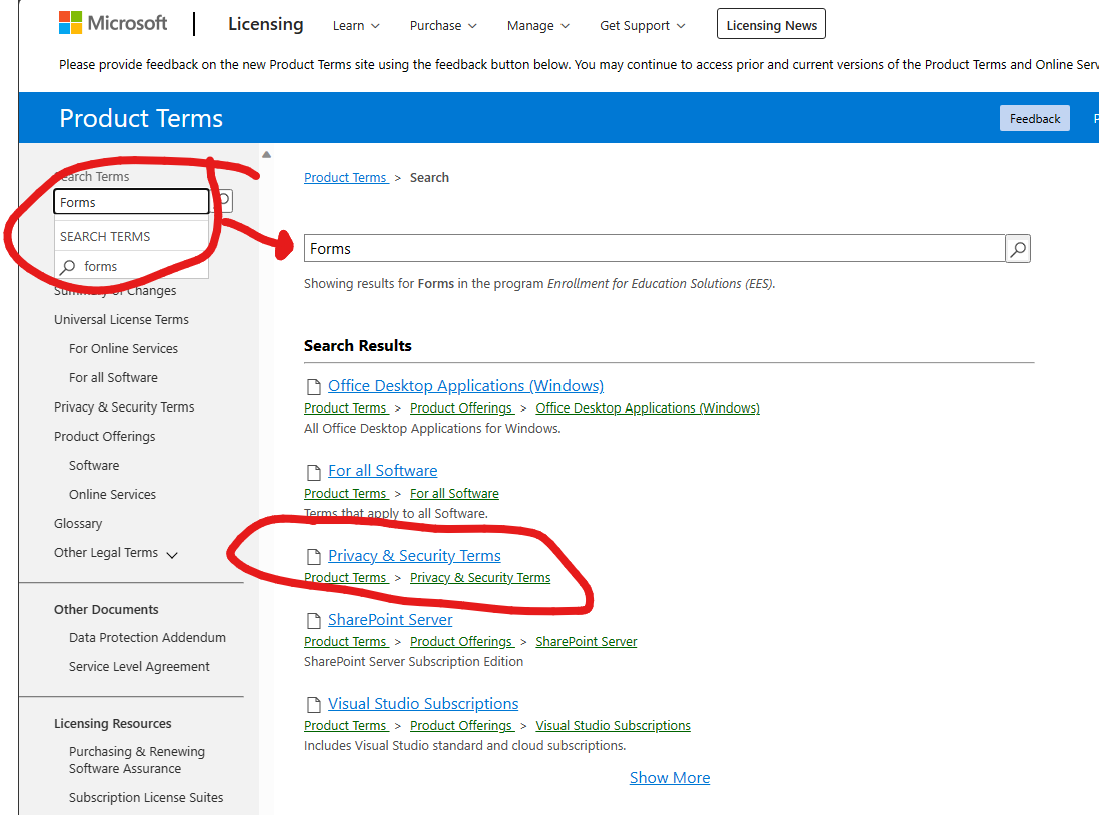
Skriv så produktet du lurer på

Microsoft Forms product terms

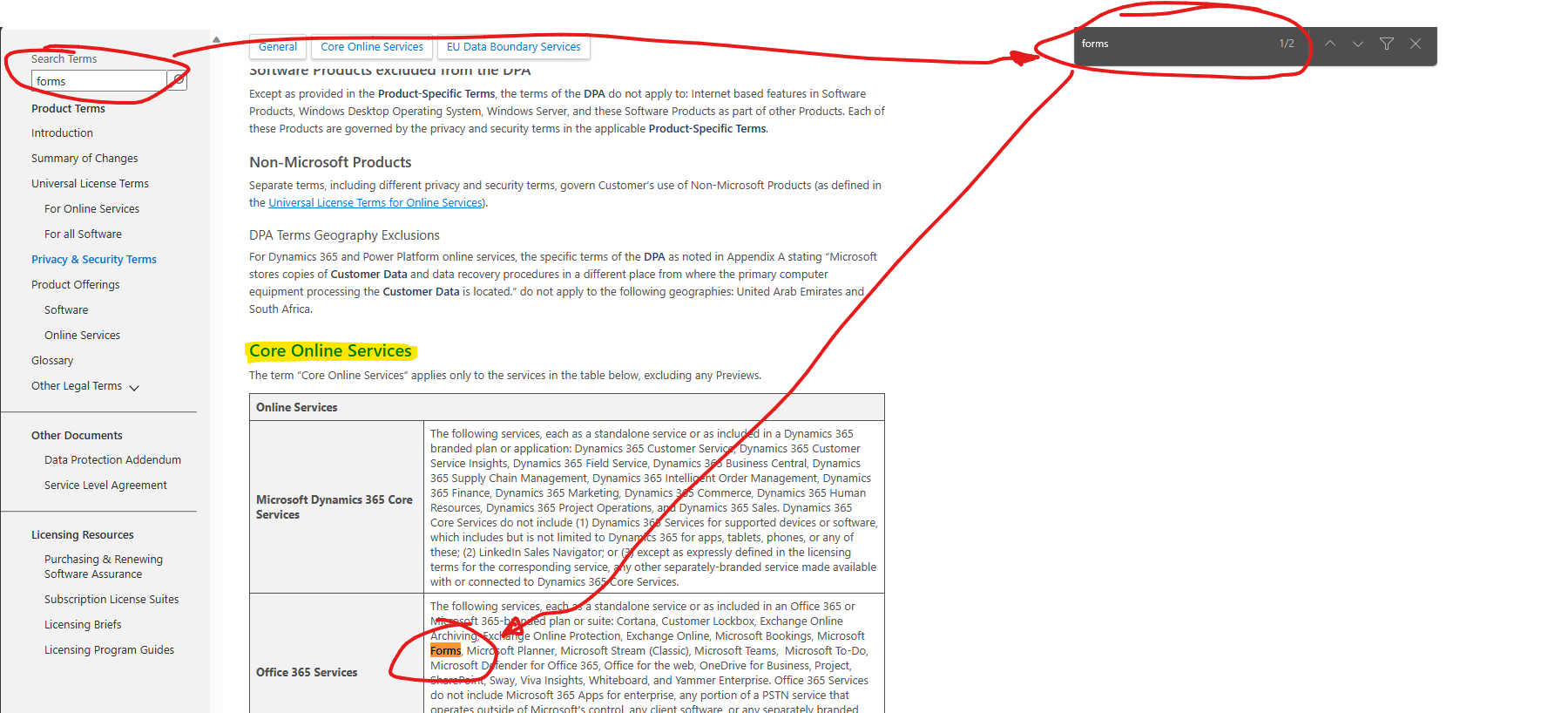
Bruk CTRL+F for å finne ut hvor på siden produktet er nevnt. Da det ofte er gjemt bort. Her kan du se at Microsoft Forms er en del av Core Online Services

product terms microsoft forms core online services

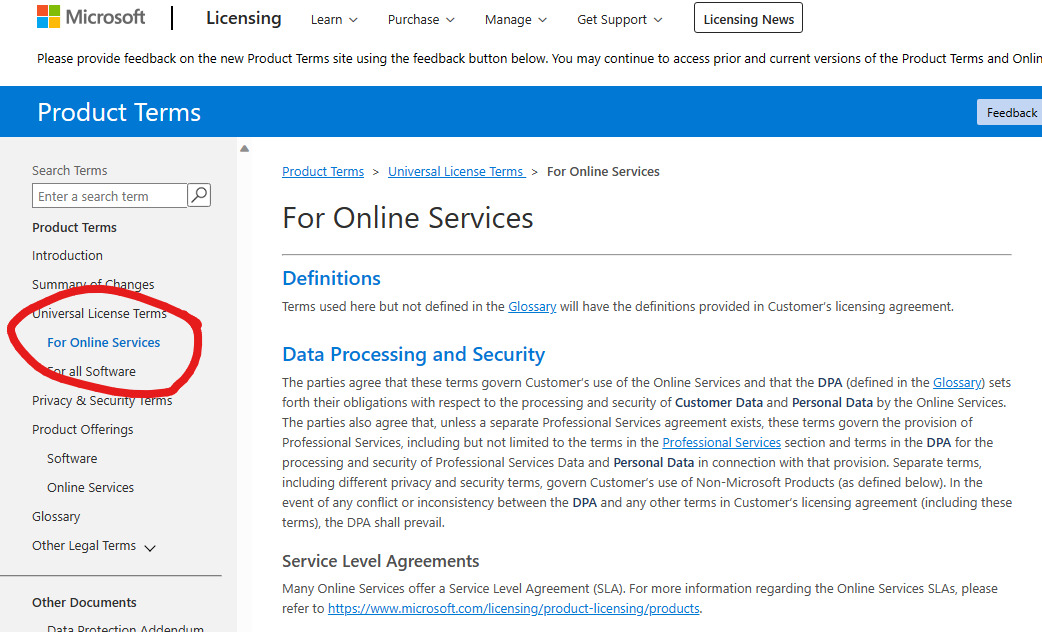
Det er også mulig å bla igjennom alt av våre regler for Online Services (Skytjenestene) ved å bla igjennom her. Microsoft 365 finner du her:

Product Terms Online Servies

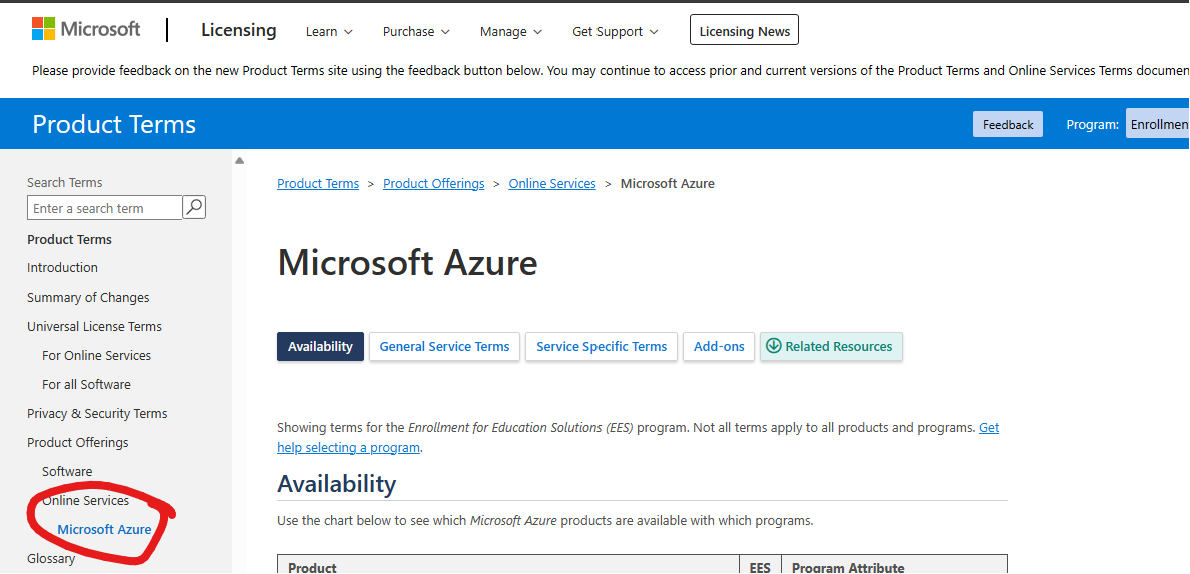
Azure finer du her:

Product Terms Azure

I Microsoft Online Services DPA så finner du informasjon om Microsoft sine forpliktelser generelt (ikke produkt spesifikt) med hensyn til behandling og sikkerhet av kundedata, faglig tjenestedata og personopplysninger i forbindelse med produktene og tjenestene.

Microsoft DPA - Data protection addendum

Koblingen sender deg til et word dokument som du kan laste ned på det språket du ønsker.


Alt i grått nedenfor er nå utdatert.


Microsoft-Office-365-Logo

Den nye siden heter kun Product Terms og lar deg velge enkelt hvilket produkt du skal ha “databehandleravtalen” til.
Merk at vi gir fortsatt ikke noen mulighet for en signert avtale, alle kunder har like vilkår.
Finn din “Product Offering” her: https://www.microsoft.com/licensing/terms/productoffering

Her er linken til “databehandleravtalen” for utdanningskundene som har en EES med Office 365/Microsoft 365: https://www.microsoft.com/licensing/terms/product/PrivacyandSecurityTerms/EES

På denne siden finner du link til gamle og nye versjoner:
Commercial Licensing Terms (microsoft.com)


*OPPDATERT ny måte å hente avtalen på.

Signering er borte.

Dersom du ønsker å få en utskrift av databehandleravtalen til Office 365 så har det blitt enda enklere.

Logg på her og velg språk:

  1. Online Services Terms (OST)norsk OST
  2. EU model clauses finner du her: http://ec.europa.eu/justice/data-protection/international-transfers/transfer/index_en.htm

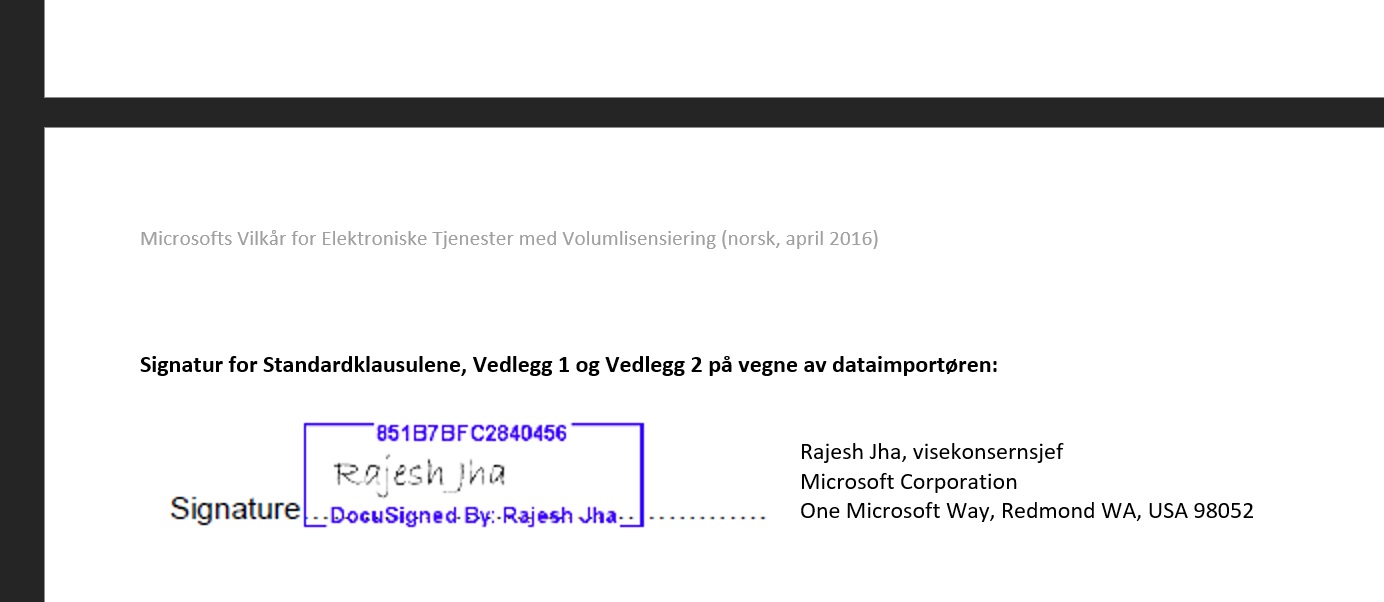
Denne wordfilen som blir lastet ned er ferdig signert av Microsoft og du trenger ikke å gjøre noe mer med Microsoft.

ferdig signert

Gamle direktelinken til signeringen (du må logge inn)- Denne virker ikke lengere. Tar deg bare tilbake til OST
https://portal.office.com/Commerce/Supplements.aspx

Videresende E-Post i Office 365

Microsoft-Office-365-Logo

Hvis du har Office 365 for Utdanning så er sjansen stor for at du har to epostkontoer,
f.eks: lærer@kommune.no og lærer@skole.kommune.no

Her er en enkel måte å videresende eposten som Bruker og som Administrator (automatisk for en gruppe brukere).

FOR LÆREREN
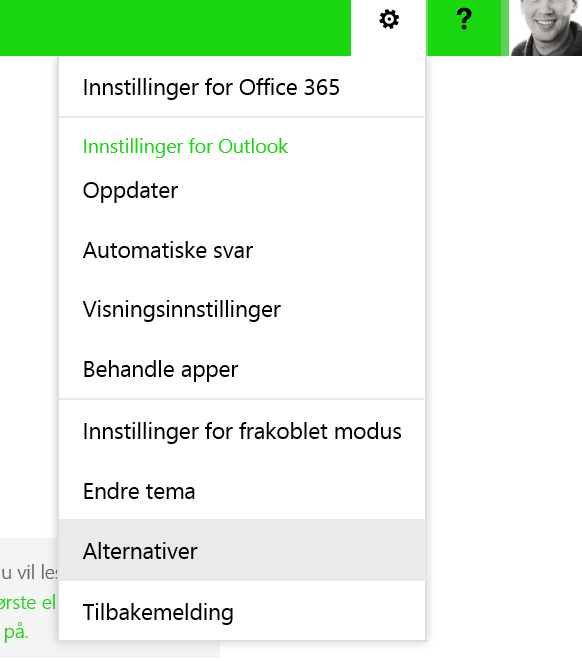
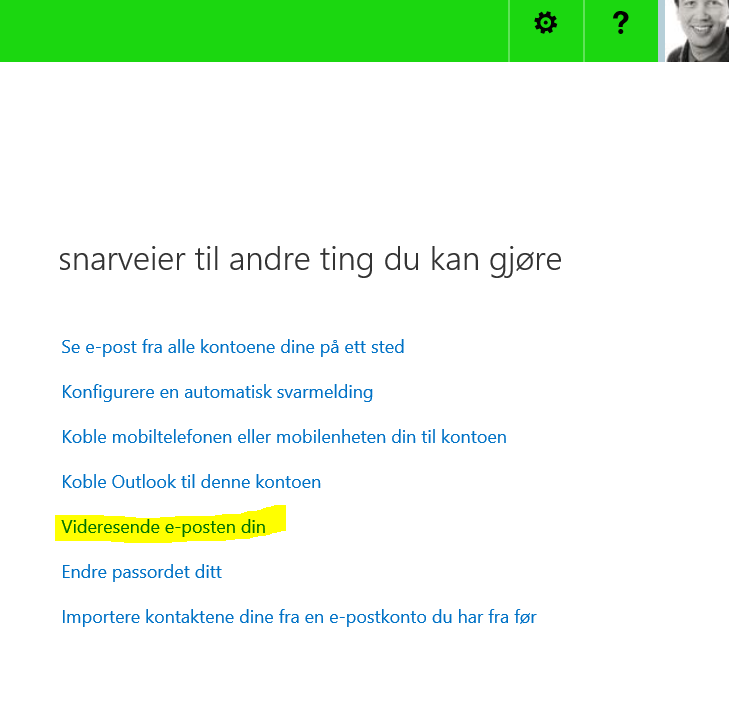
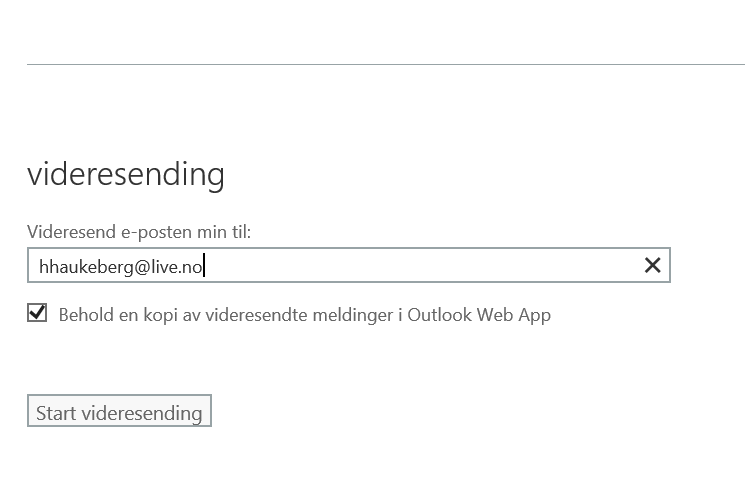
Naviger til http://outlook.office365.com

alternativer i outlook web app  videresende i office 365videresendingsepost


FOR ADMINISTRATOR:

Bruk Exchange PowerShell, det er mye raskere dersom du skal gjøre dette automatisk for en gruppe lærere.
Eksempel på kodesnutt:
Set-Mailbox lærer –ForwardingSmtpAddress lærer@kommune.no –DeliverToMailboxAndForward $true
I koden over så er det læreren sin mailbox i Office 365 som blir videresendt til kommuneeposten. DeliverToMailboxAndForward bestemmer om vi skal la det være igjen et kopi av eposten i skolekontoen. Jeg har valgt Ja til dette.

Trenger du å fjerne forwarding for kontoer er det bare å gjøre slik:
Set-Mailbox Support –ForwardingSmtpAddress $null

Det er også mulig å begrense forwarding til kun spesifikke domener.

Upgrading and joining a domain with Acer Switch 10

1537.Win8Logo_5F00_01_5F00_008485DD
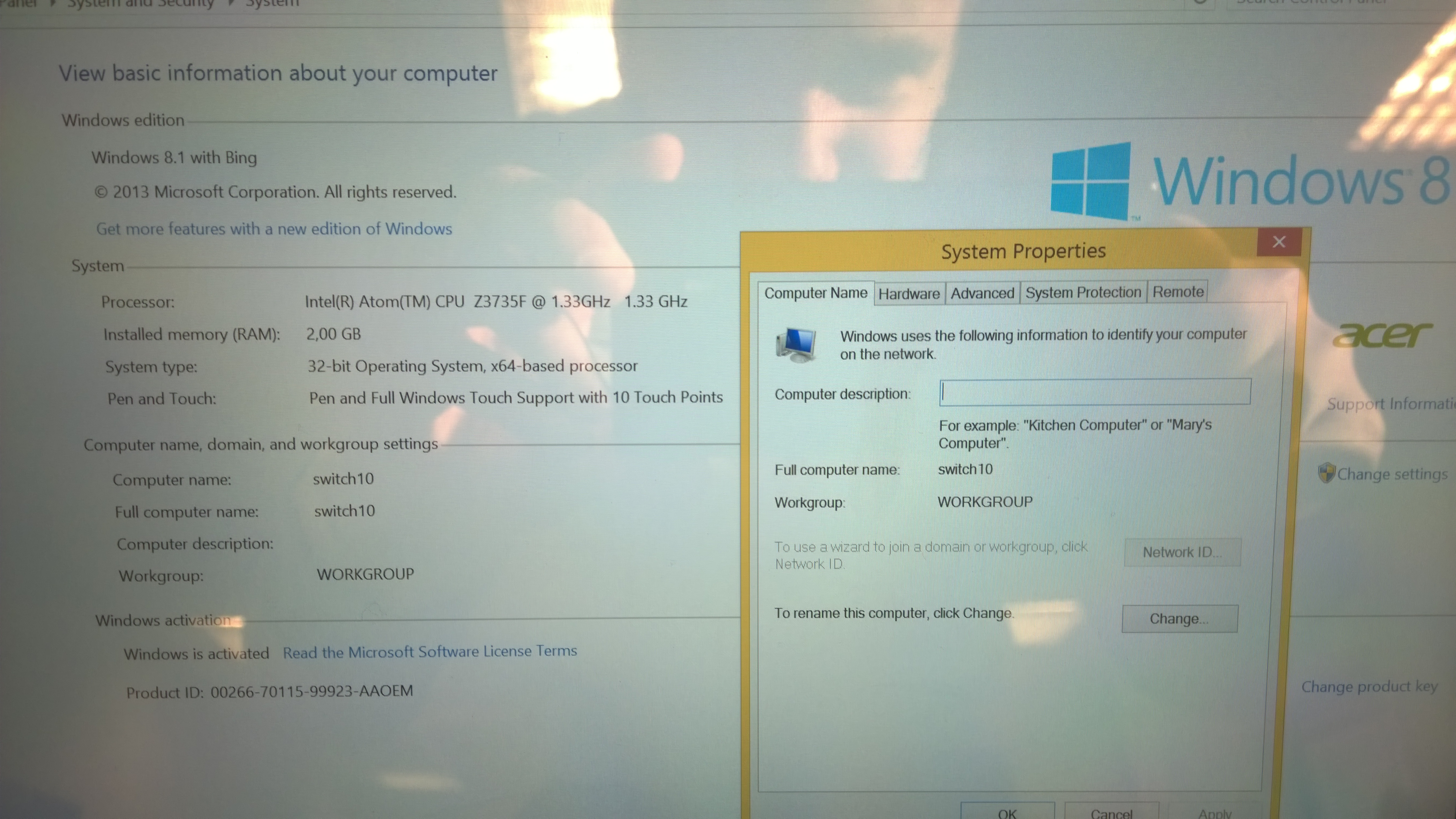
If you want to Access Corporate materials With your Acer Switch running Windows 8 With Bing you need to Upgrade the Operating System.

windows 8.1 with bing
Windows 8.1 With Bing

Before you start:

1. You need a 32 bit image of Windows Pro. (I used Windows 8.1. Multiple editions from MSDN)
2. A valid Windows MAK Key
3. Fully charged Device

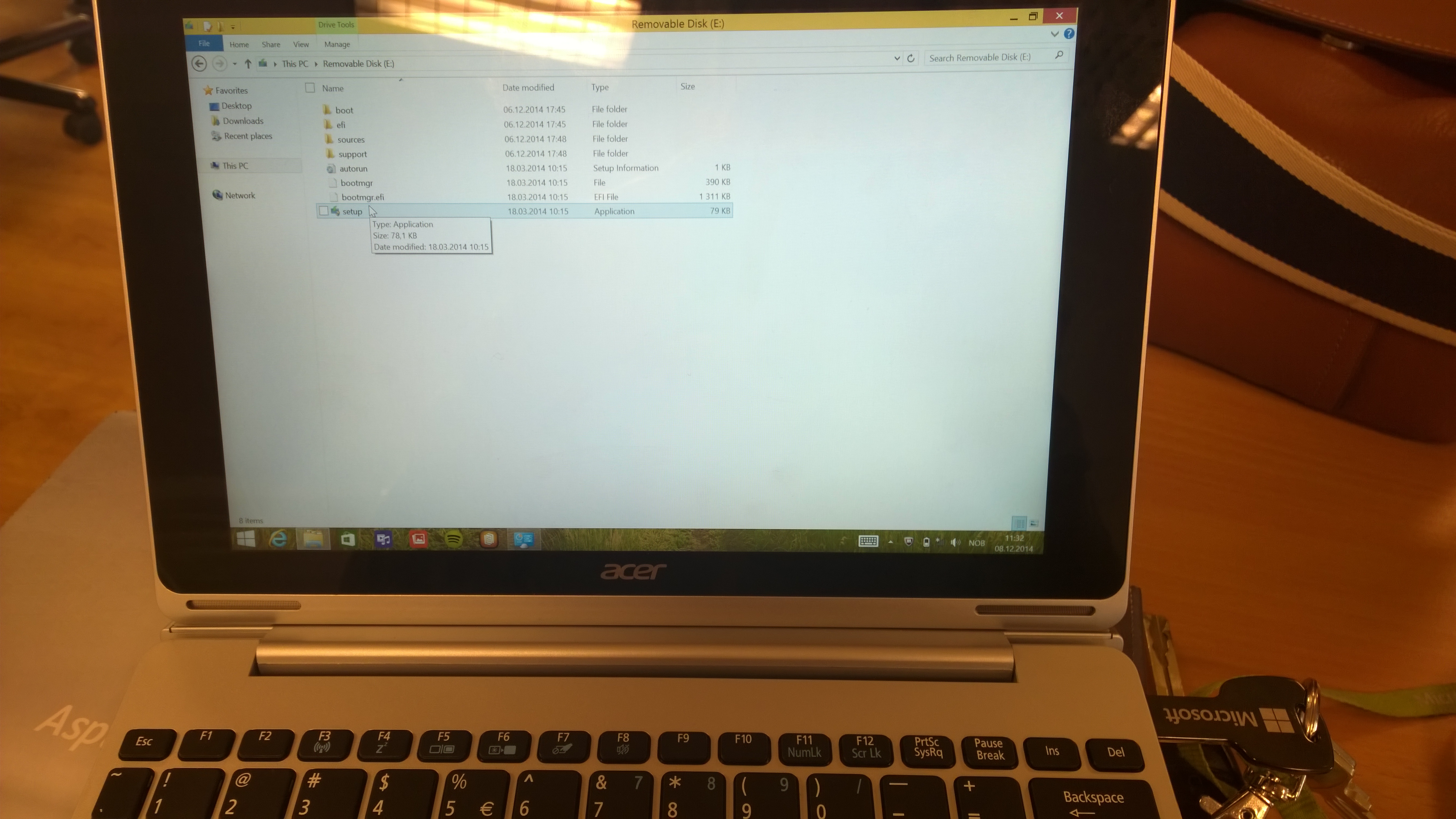
Boot Windows, Insert the USB Key into any port, in file Explorer run Setup.exe. then Follow the Instructions Below:

run setup exe
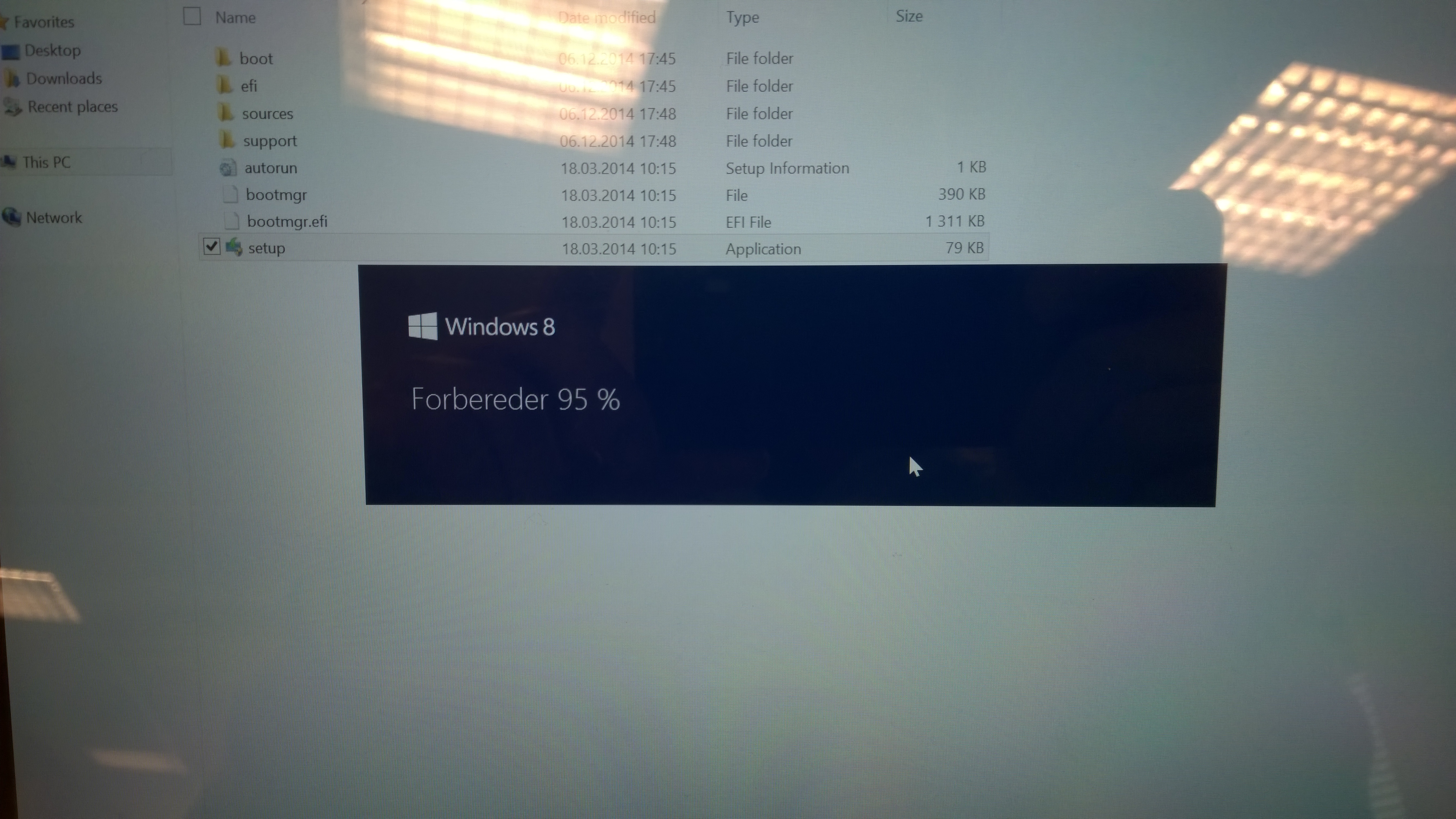
Click Setup

perparing
Windows Will Prepare

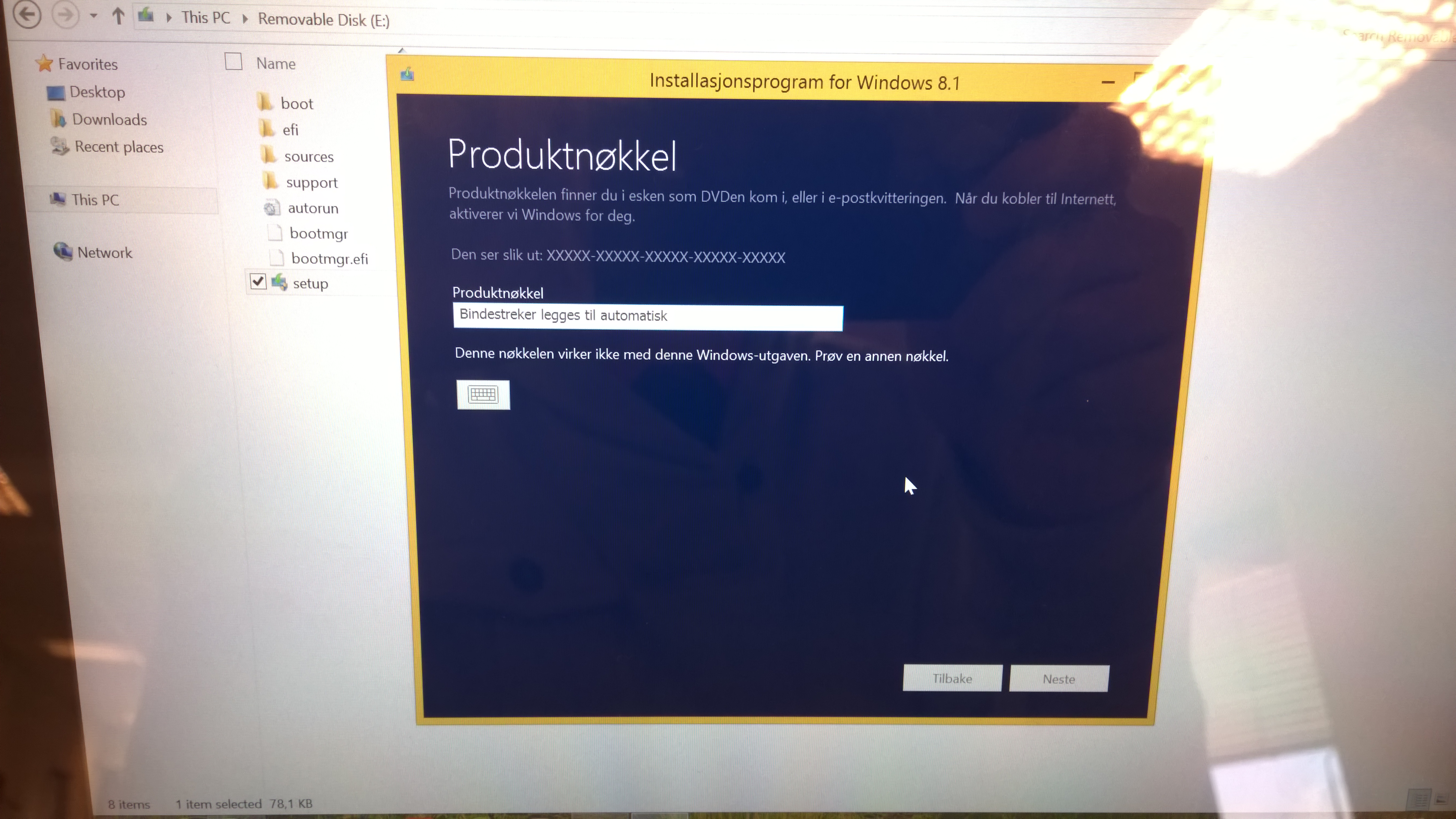
product key
Enter Key

add features
Click “Legg til Funksjoner”

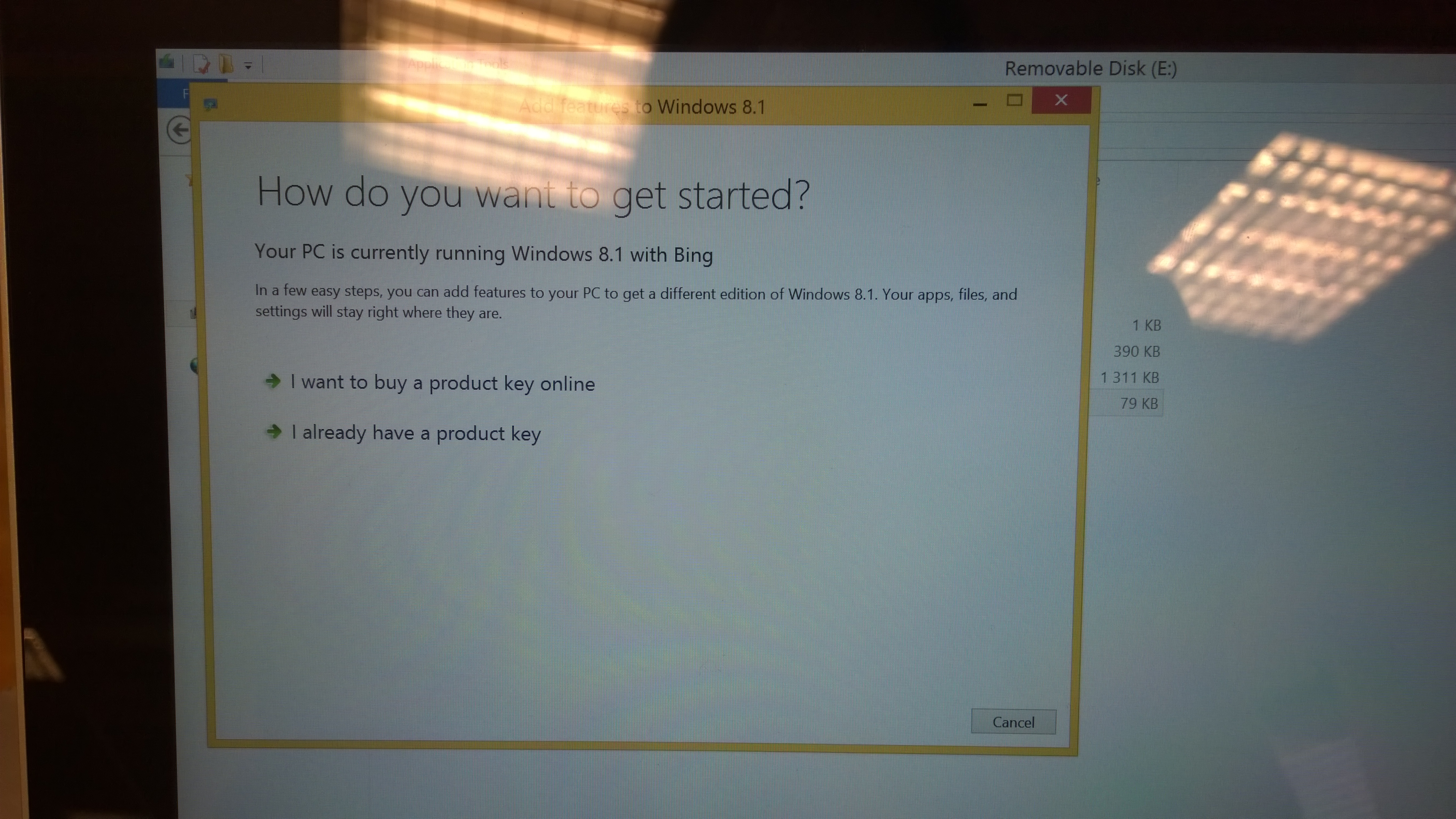
get started
Because of the Version, enter key again

click next
then click next

features
Accept and next

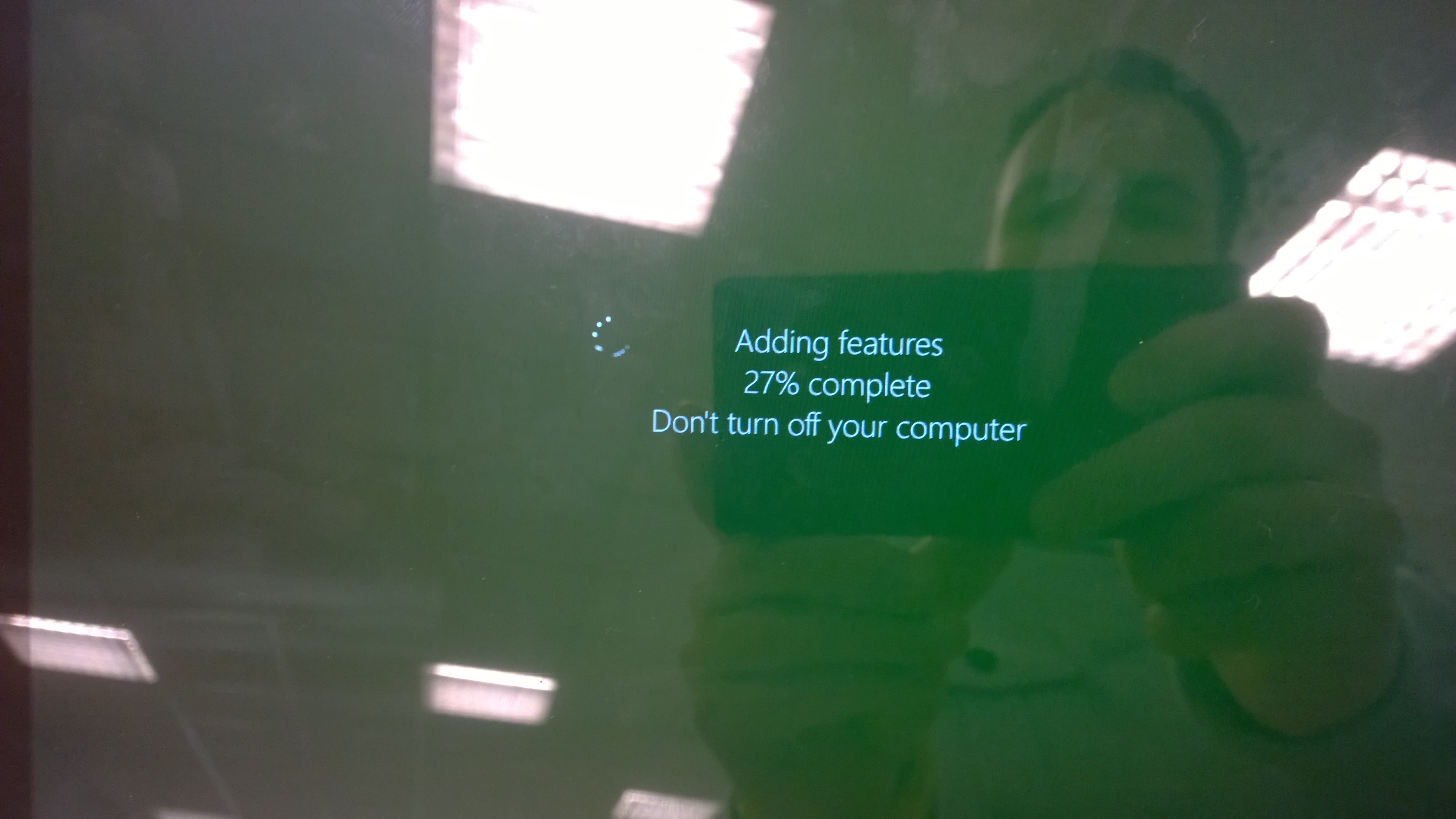
working with features
let Windows work

upgrading windows
Windows will reboot and work more

upgraded windows
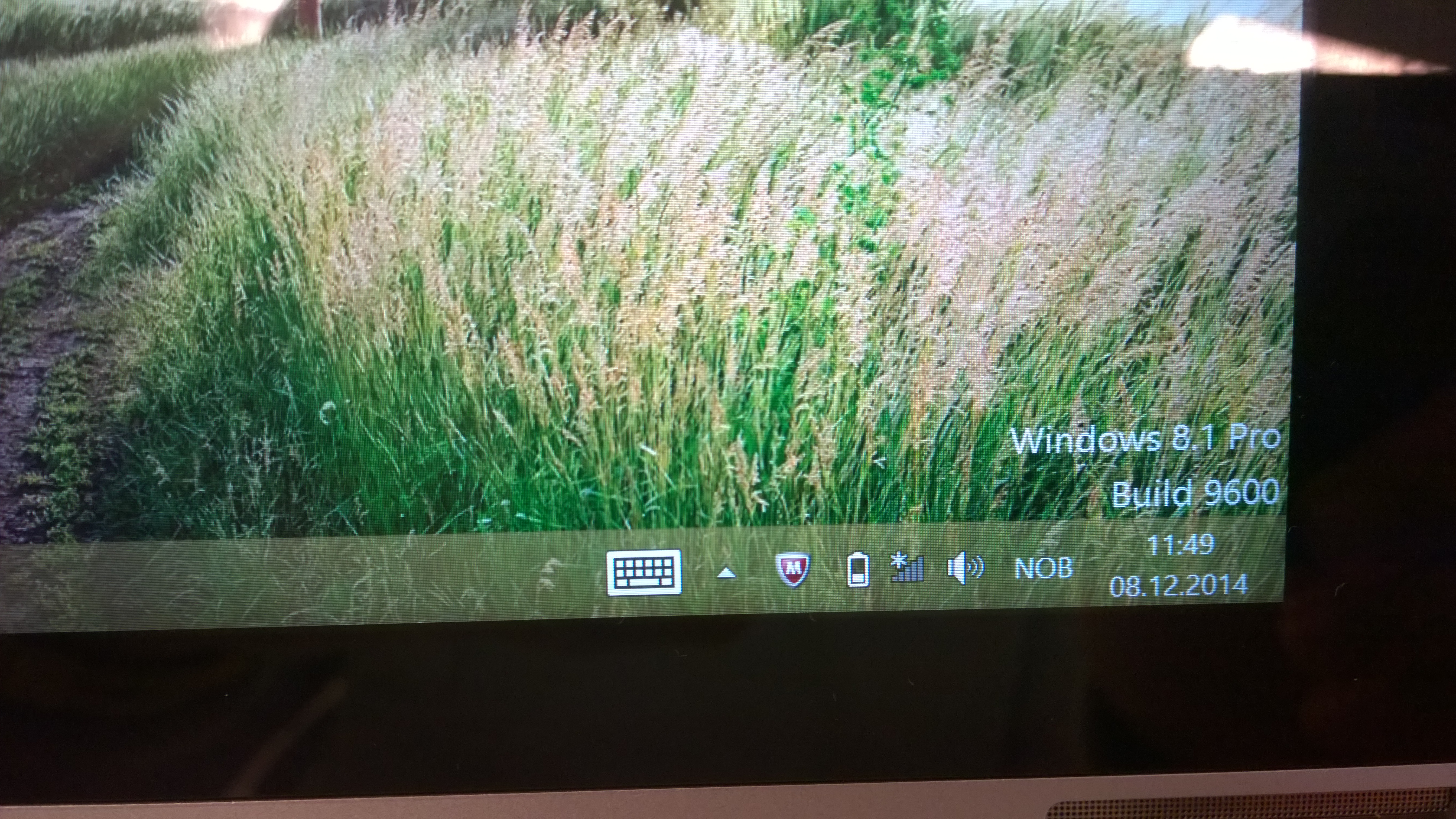
Running Pro, this text will dissappear once you Connect to the web and activate

running windows 8.1 pro
Done upgrading


Boot from USB Acer Switch 10 in Windows

1537.Win8Logo_5F00_01_5F00_008485DD

Before you start,
1. USE A 32bit WINDOWS IMAGE. Atom CPU’s does not read x64
2. Prepare your USB for UEFI – Follow my guide here to properly prepare your USB for boot.
Installing Windows 8 Enterprise on Surface Pro

Why do I need to do all this fuss? -Most new devices are delivered with UEFI instead of BIOS. Alot of security benefits here. Some of you might experience that these devices do not automatically boot from a bootable key that you plug in. Please follow my instructions above.

When you are ready.

1. Do not insert the USB key yet, boot your device first.

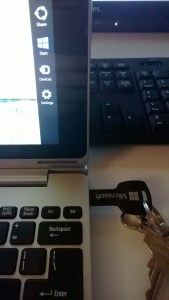
2. Once your device is in Windows insert your USB Key, swipe on the right side to bring out the charms. Select Settings

settings

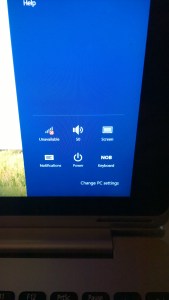
3. Select Change PC settings

change pc settings

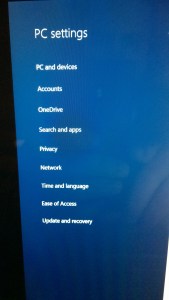
4. In PC Settings, select Update and Recovery

PC and Devices

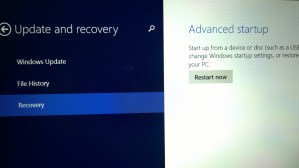
5. Select Recovery and Click Restart now

recovery

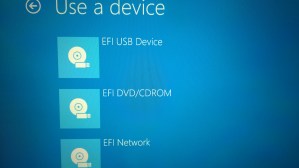
6. The PC will reboot and you get this option, Select Use a device

Choose boot option

7. Then use the EFI USB Device (You can also boot IPV4 Network boot)

Use a EFI device

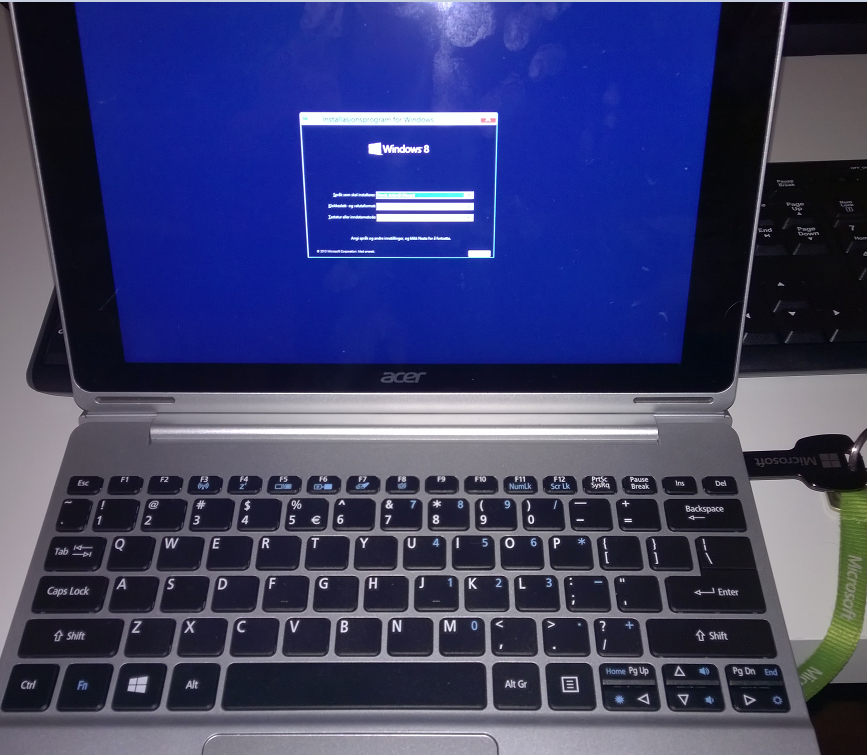
Boot from USB Acer Switch and installing Windows 8.1 Enterprise/Pro

acer switch 10032213_1200_InstallingW2.jpg

Before you start,
1. USE A 32bit WINDOWS IMAGE. Atom CPU’s does not read x64
2. Prepare your USB for UEFI – Follow my guide here to properly prepare your USB for boot.
Installing Windows 8 Enterprise on Surface Pro

Why do I need to do all this fuss? -Most new devices are delivered with UEFI instead of BIOS. Alot of security benefits here. Some of you might experience that these devices do not automatically boot from a bootable key that you plug in. Please follow my instructions above.

When you are ready.

1. Press and hold Power Button + Volume Up

switch 10 side power button

2. (OPTIONAL) As you have powered on the device, release power button and keep holding Volume up until you enter the UEFI.
Here, navigate to Main and Select Enable to F12 Boot Menu

enable F12 boot

3. Go to Boot and change the Boot priority order make sure that USB CDROM and USB HDD are on top

boot priority

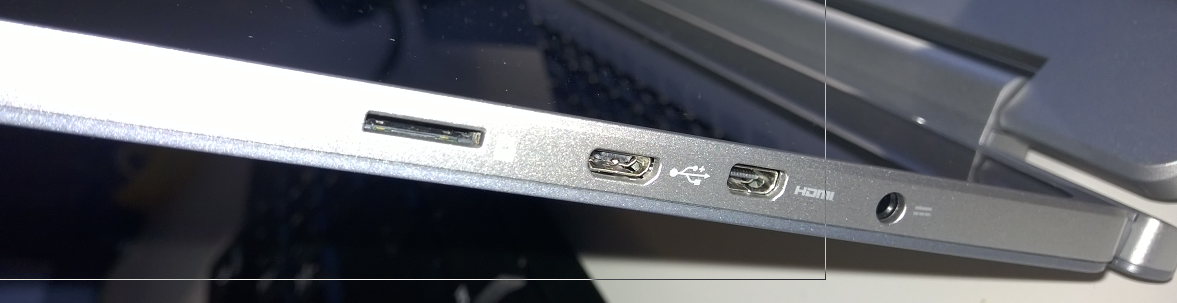
4. Its Now time to Plug in your USB Key. You can plug it in to the Keyboard dock or the Tablet using  Micro-USB to USB adapter
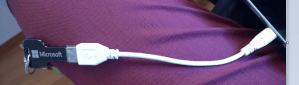
I used the Adapter on the picture below.

switch 10 micro usb to usb

5. Navigate to Exit and select Exit Saving Changes.
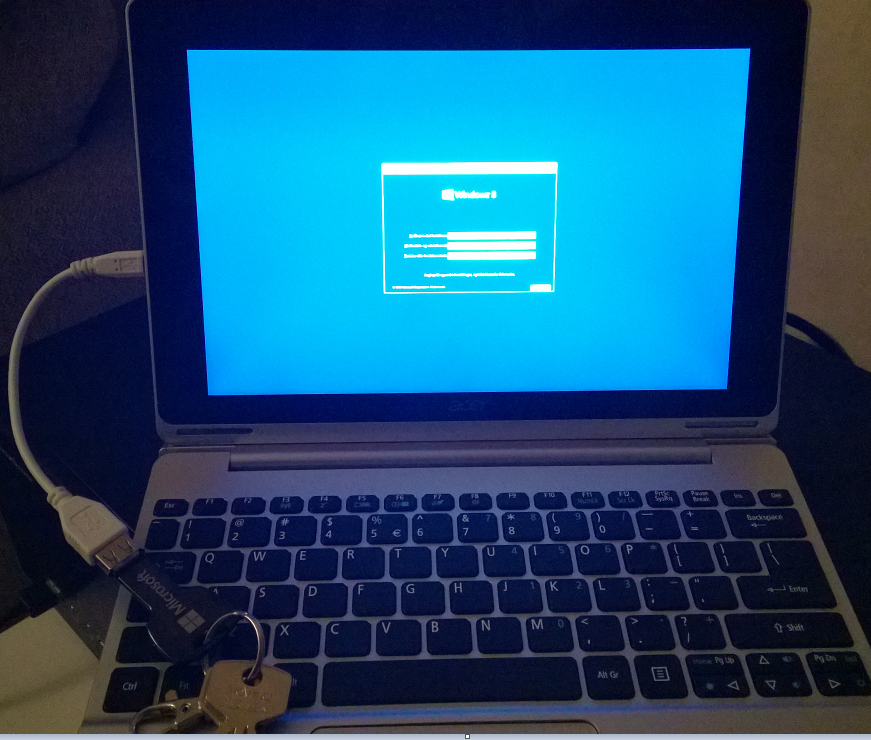
The Device will now boot from either the Adapter (Left) or Keyboard dock (Right)

boot usb micro usb boot usb dock


Manage your customers in Office 365 Partner Admin center

Microsoft-Office-365-Logo
As a Partner you can manage all of the customers that you have sold Office 365 Licenses to and added yourself as “POR” Partner on Record to.
You access your customers thorough your normal Office 365 Portal. e.g. http://portal.office.com or any other custom domain you may use

partner button

To set a user up for partner management, you first need to do this:
1. Click Admin and Office 365
2. Click Users and Active Users

users

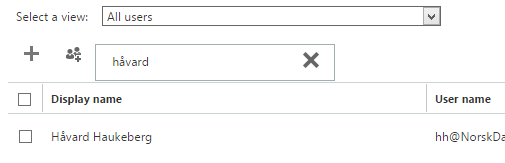
3. Find the user you want to give access

user håvard

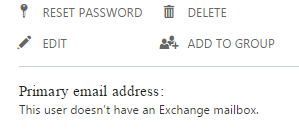
4. Click Edit

edit user


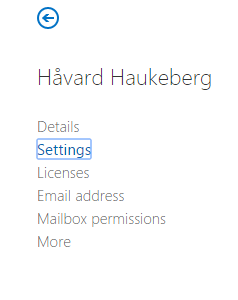
5. Click Settings

setting


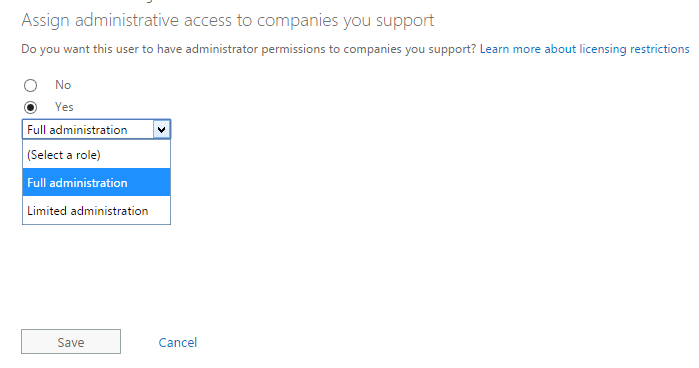
6. Select the Role you want to give and click Save

partner administration


Now log out and back in. The partner button should be visible now.

partner button


Quick OneDrive for Business Provision

OneDrive does not sync

Første gang en bruker logger seg på OneDrive for Business kontoen sin via Office 365 eller FEIDE så vil det ta litt tid før du faktisk kan bruke OneDrive. Dette kan ta alt fra 30 sekunder til 5 minutter.

Det er mulig for deg å få dette til litt fortere for å ikke bruke unødvendig tid på å vente.
Se denne video: http://www.youtube.com/watch?v=T-v7z2E8dT0

For å beskytte seg selv så har Microsoft designet Office 365 slik at de automatisk gjør ikke plass til brukeren før den kommer i aktivt bruk. Dette gir mening for Microsoft spesielt i skolen hvor tjenesten er gratis og skole ofte overprovisjonerer brukere. Det er også slik at ikke alle brukere blir aktive brukere.
Det finnes også et Powershell script som du kan kjøre. Dette scriptet provisjonerer opp brukerne dine automatisk før de har logget på. Scriptet kan ta 100 brukere av gangen, så det kan ta litt tid.

Office ProPlus Activation and Offline computers

Reduced Functionality Mode / Aktivering

What if you image a PC With Office 365 ProPlus or prevent it from going online for an extended period of time. Note: I have not yet tested. Any feedback is welcome.


Quick interpetation of answer from Microsoft: The red activation ribbon will be visible and Office will prompt you to get online to activate if Office has been activated once before or never activated. If Your License is revoked then Office will enter into reduced functionality mode.
The answer from Microsoft below is different depending on the agent. They seem to have trouble predicting  when Office shows Reduced Functinality versus Activation Error.

Scenario 1: IT sets up student PC With OfficeProPlus from 365 and 10PC are saved as “Spare machines” they are IDLE for 180 days. At first boot, internet is not present.  (Activation Error)
Scenario 2: Teacher/Student does not use his/her PC for 67 days. PC is then booted up without internet. (Activation Error)

In these scenarios two Things can happen:
Answer 1 Reduced Functionality Mode
Answer 2: Activation Ribbon, but full functionality  

This is what Technet says:

Important:
Because of its online activation features, Office 365 ProPlus won’t work on computers that are completely cut off from the Internet. For those computers, we recommend installing Office Professional Plus 2013 and using a traditional activation method such as Key Management Service (KMS) or Active Directory Domain Services. http://technet.microsoft.com/en-us/library/gg982959(v=office.15).aspx

This is what Office 365 Support Says:

The Office Pro Plus package that you download from the portal is in relation to Exchange Online which needs internet connection in order to be able to use it. that This product id active for 30 days and it the machine on which you install it needs internet connection so that it can remain active. If you will not connect the machine to the internet, the product will get inactive, and you will still be able to use it but some options may disappear. (EDIT: Reduced Functionality Mode)

 
As part of the installation process, Office 365 ProPlus communicates with the Office Licensing Service and the Activation and Validation Service to obtain and activate a product key. Each day, or each time the user logs on to their computer, the computer connects to the Activation and Validation Service to verify the license status and extend the product key. As long as the computer can connect to the Internet at least once every 30 days, Office remains fully functional. If the computer goes offline for more than 30 days, Office enters HYPERLINK “
http://technet.microsoft.com/en-us/library/gg982959%28v=office.15%29.aspx”reduced functionality mode until the next time a connection can be made. To get Office fully functional again, usually a user can simply connect to the Internet and let the Activation and Validation Service reactivate the installation.

On the other hand, the Office Pro Plus package will get inactive after 30 days, and after a couple of more days it will go into the Reduced Functionality mode.

In reduced-functionality mode, programs function similarly to viewers. When a program runs in reduced-functionality mode, many commands are unavailable (dimmed). Therefore, you cannot access those functionalities. Some limitations of reduced-functionality mode include the following:

•You cannot create new documents.
•You can view existing documents, but you cannot edit them.
•You can print documents, but you cannot save them.

 No existing Office files are damaged. Additionally, you can easily stop Office from running in reduced-functionality mode. To do this, follow the instructions on the screens that appear.

Best Regards,

Andreea Dragne | Office 365 Support Engineer

Blog at WordPress.com.

Up ↑