Search

Håvard Siegel Haukeberg

Paste life: Ctrl+C -> Ctrl+V

Tag

Azure AD

AzureAD knows which SaaS services you REALLY use

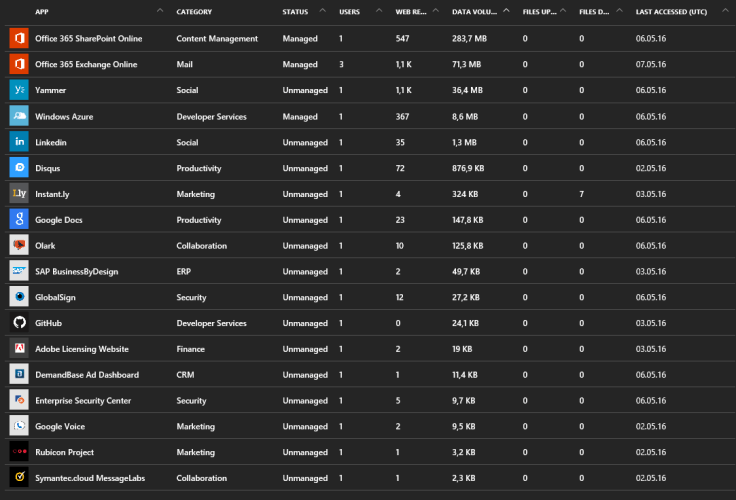
In Azure AD you have this service called Cloud App Discover. It consist of an agent you install on a local machine and a web service which polls the data and visualizes it.

Take a look at this:
azure ad knows
Azure Cloud App Discovery Report

This service is a great way to discover what your employees/users/students/family really uses and how much they use it. e.g. You have bought Google apps, but your users use OneDrive or Box.

You can read more here: https://azure.microsoft.com/nb-no/documentation/articles/active-directory-cloudappdiscovery-whatis/

I did not know I even used all these services. And best of all you can manage them with Azure AD which means you can use your Office 365 credentials to logon to these services.
apps
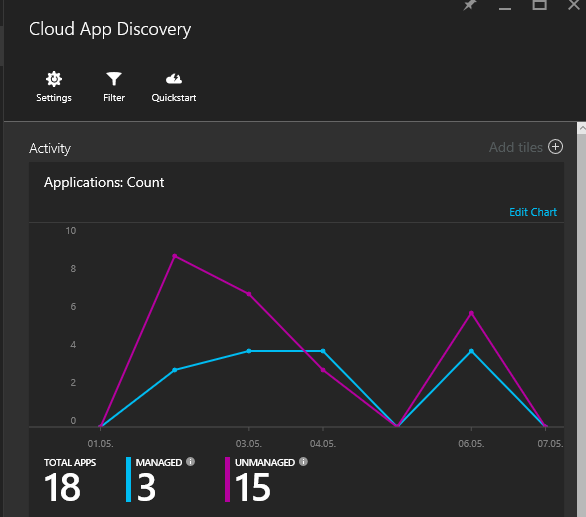
Here are the aggregated results for all agents and all users. Click on the numbers to access the data.


Here is how you set up cloud discovery on a local machine:
settings
Click Settings
manage agent
Click Manage Agent
download agent
Click “Download”
local files
You get a ZIP package with a CERT file. Click the MSI file.

Remember that if you want to distribute this application you need to include the CERT file as well.

Help, Azure AD says my credentials Leaked!

So, waking up to leaked credentials can be frustrating. Probably since you do not know how exactly they got leaked. Fortunatly Azure AD have some sugestions on what to do.

Read more about leaked credentials here:

https://blogs.microsoft.com/cybertrust/2015/06/18/the-risk-of-leaked-credentials-and-how-microsofts-cloud-helps-protect-your-organization/

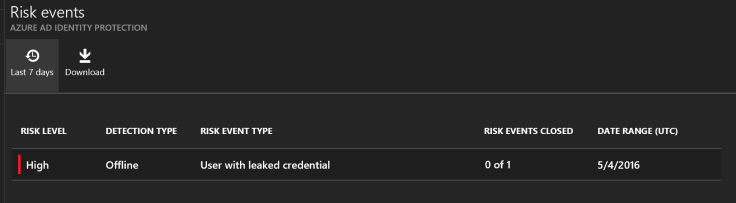
This is what it looks like in Azure Identity Protection and how you mitigate the impact:

control panel
A very high risk, click the risk to see what it is.


what happened
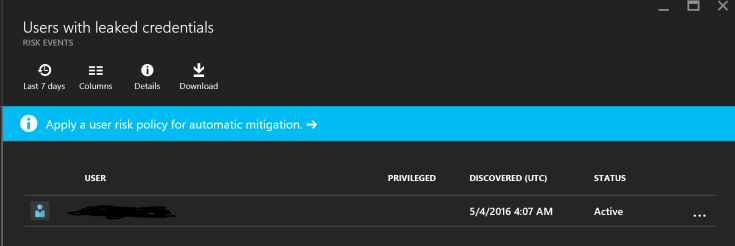
Here you see what it was all about, click on the event to se which user


who had it leaked
here you see the user. click on the user to get actions on what to do


what to do.
Here is what yo can do


solutions
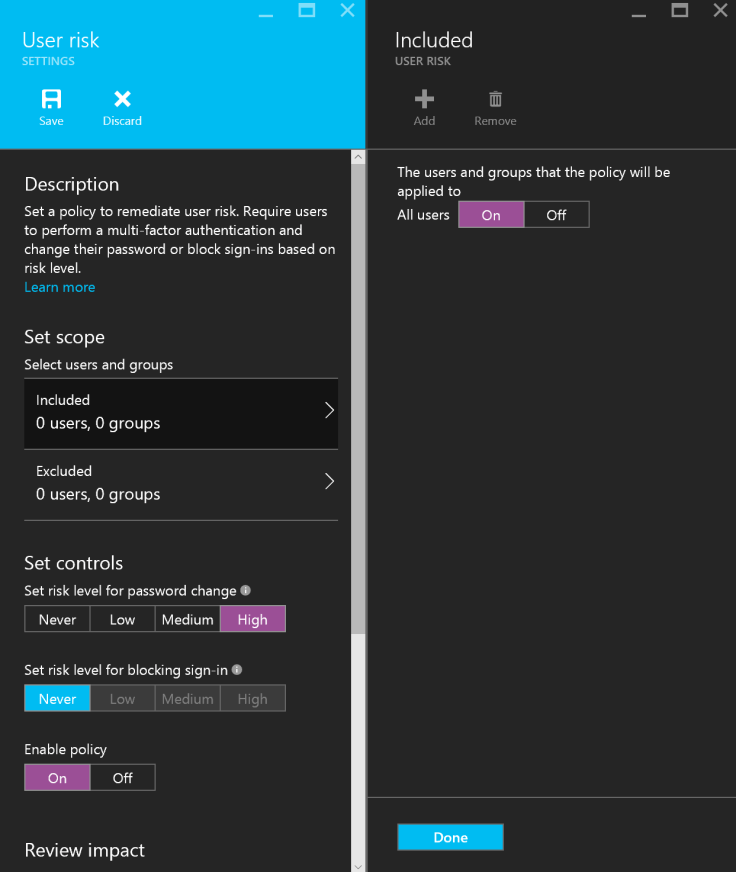
Here is what I did to mitigate the event.


I simply requested the user for a password change. Keep in mind that the malware that did this might have stolen all other passwords as well. It might also be active on the target device, så MFA might be something you should consider.

Also have the user change passwords on all other services he uses!

And, have him wipe his device!

Azure AD join on Intune MDM classic agent channel *UPDATED

You can join Azure AD and use the Intune device agent for MDM and not the MDM channel when you enroll. It is a bit tricky and require manual touch on the device.

The best experience is to include the Intune agent in the Windows Image. If can not do this then here is how:

You need this:
  1. Azure AD Enrollment Administrator
  2. Microsoft Intune Agent on USB
  3. Windows 10 clean install (OOBE)
  4. Configure Azure AD to only MDM enroll
  5. Create a group for Security Group with all students
  6. Target Intune to only do MDM for that Group
Optional: Passport for Work registry disable script

Here are the steps:

In Azure AD:

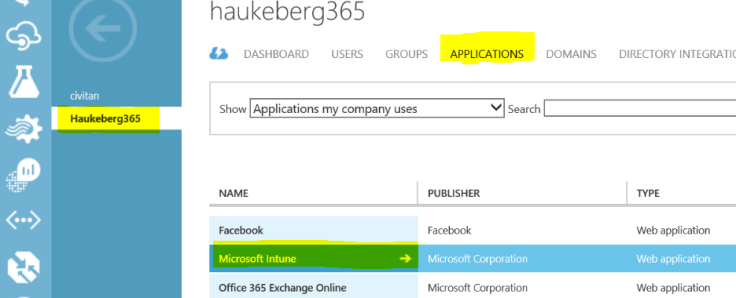
  1. https://manage.windowsazure.com
  2. Go to Active Directory
  3. Select your Domain
  4. Select Applications
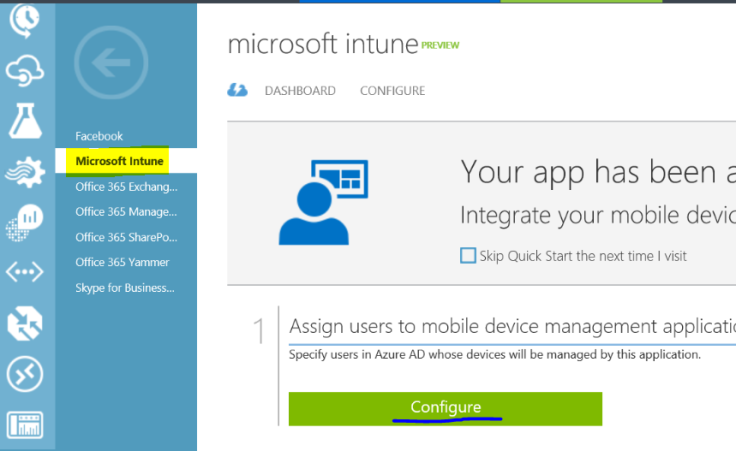
  5. Select Microsoft Intune
  6. Select Configure
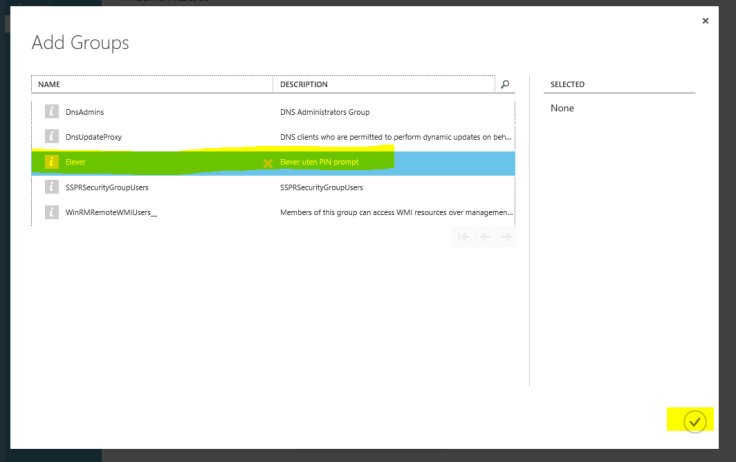
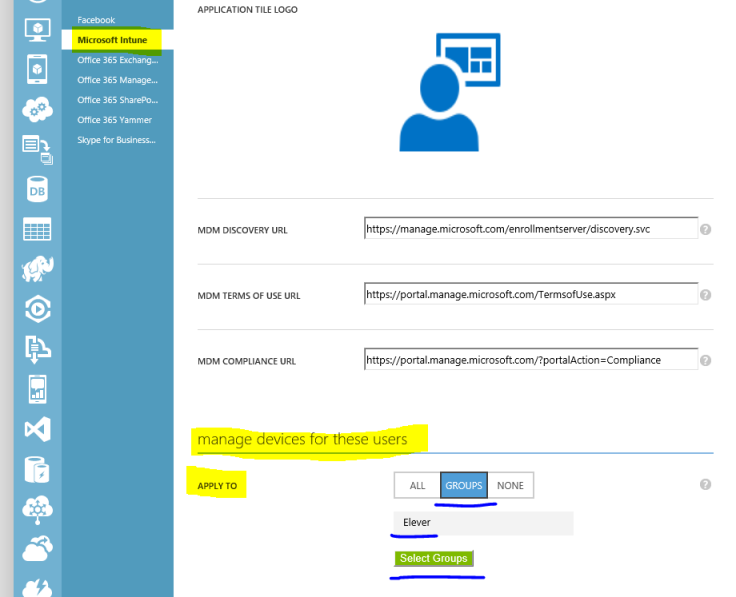
  7. Under manage devices for these users, select Groups then browse and select the all students group. Select it and click on the check mark. Click Save down on the bottom bar.
appsconfigureselect eleverset groups

In Intune:

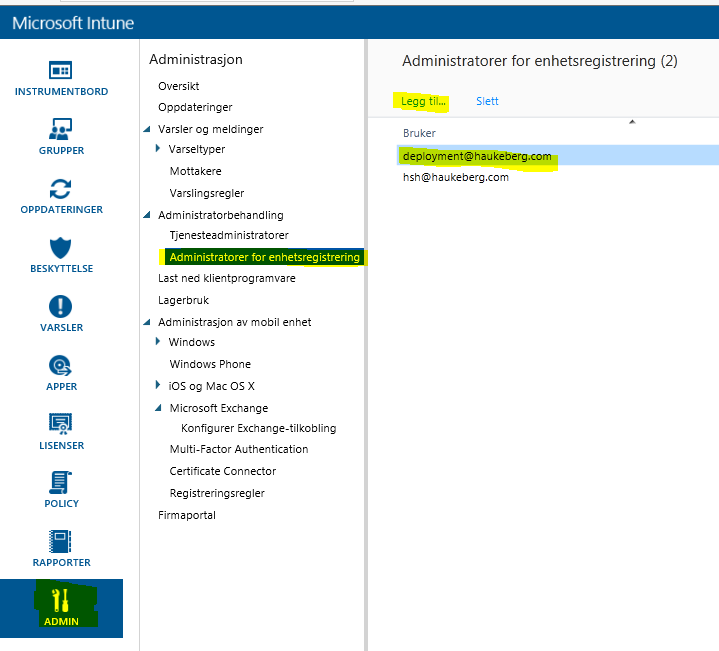
  1. Create an enrollment administrator in the Intune Console
  2. Go to ->Admin->Administrator->Device Enrollment Administrator Enter an Azure AD user as a device enrollment admin e.g. deployment@yourdomain.com
  3. *Create group for the devices that the Device Enrollment Administrator is a part of so that all his devices get targeted for a script.
  4. *Disable Passport for Work by pushing a Script to that group. This script Disables Passport for Work on the local machine so that you do not need to enter a pin.
  5. *Here is how you create the script: Create script
  6. *Here is how you package the script: Script Deployment
  7. *Here is how you deploy the script: Deploy custom script
  8. *One client is visible in Microsoft Intune you need to either distribute the software on all clients or on a client that you manually move into a specific group.
  9. That software will be pushed down in time. you may force the install on the device by pressing install on the client or refreshing the policy in Intune.
  10. Get the Intune agent from Admin->Download Client Software and save it to a USB stick.
*Only nessecary if you want to disable the “Create PIN promt” on login.


deployment admin
Enrollment Admin Creation

On the Device:

  1. Boot the clean device.
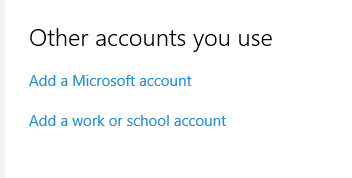
  2. Under the OOBE experience Select “My company owns this Device”
  3. Log on with that enrollment administrator and complete the setup.
  4. As the admin you will be challenged with a PIN prompt and you need to verify so bring your phone.
  5. Plug in USB and run the EXE file. Remember you need both the EXE and that small certificate file to be in the same folder for the enrollment to be toward your account.
  6. Let the machine sit if you can. The longer it sits, the more stuff will be downloaded so your next user do not have to wait.
  7. Log of your enrollment admin and give the PC to the students and let them log in with their user that is in the Student security group.
  8. The next user that logs on will be a standard user.
  9. He/She will be prompted for a pin but it can be bypassed by doin this:

Azure Active Directory and Roaming Profiles

In Windows 10 you can join a machine to Azure AD instead of a local domain.

But

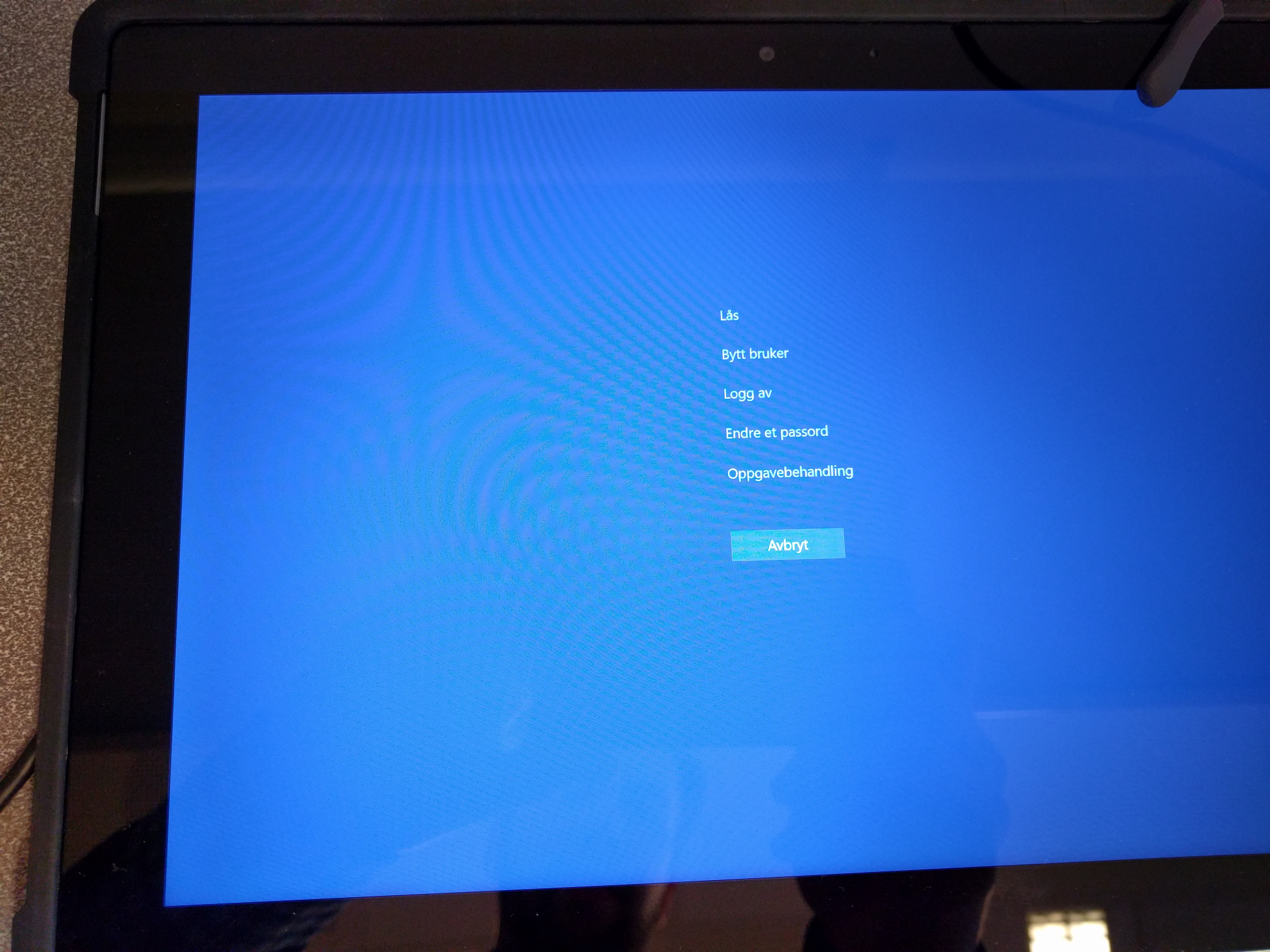
When you join Azure AD your account is given administrator privileges automatically. If you switch users by Ctrl+Alt+Del and Switch user, that user is set as a Standard user.

IMG_20160115_093848

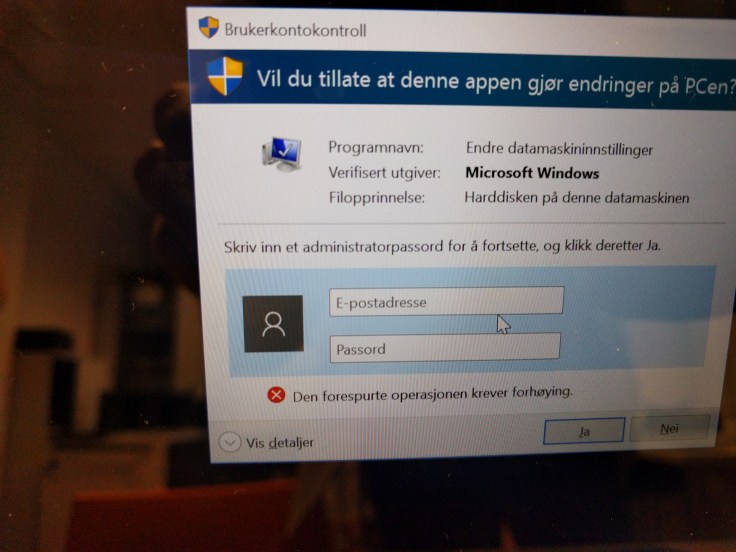
If you do not know who will use the computer, only the first user will be administrator, the rest will be standard users and can not install programs.

IMG_20160115_092644

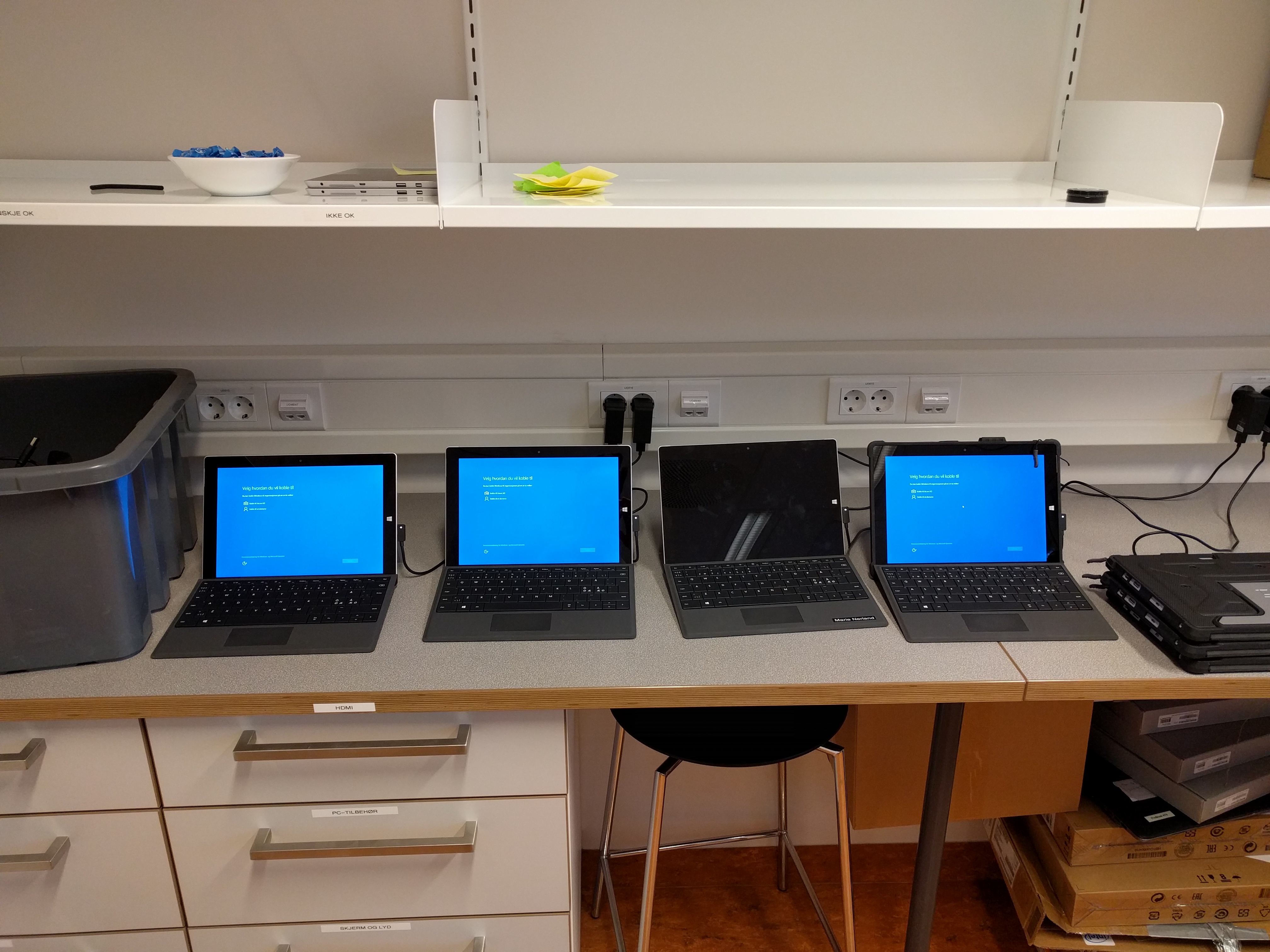
This action is default and can not be changed. Simply giving machines out to students will result in the first users becoming administrators. If you boot all machines before deployment and log in with your user, that user will be blocked after about 20 devices.

IMG_20160115_091519


How to fix this? Take a look at this post: https://haukeberg.wordpress.com/2016/01/18/shared-devices-roaming-profiles-with-microsoft-intune/


Blog at WordPress.com.

Up ↑