Search

Håvard Siegel Haukeberg

Paste life: Ctrl+C -> Ctrl+V

Category

Enterprise Mobility Suite

Stuff you should know about Microsoft Enterprise Mobility Suite

Review Azure MFA or SSPR Activity / Consumption

If you want to know how users are consuming Azure MFA or Self Service Password Reset this is where you find that info:

Self Service Password Reset log:

  1. Go to http://manage.windowsazure.com
  2. Click on Directory
  3. Click on your Azure AD directory
  4. For SSPR click here:sspr-activity

For Azure MFA activity log:

  1. Go to http://manage.windowsazure.com
  2. Click on Directory
  3. Click on your Azure AD directory
  4. Click Configure
  5. Scroll Down to Multi-Factor Authentication and click: Manage Service settings
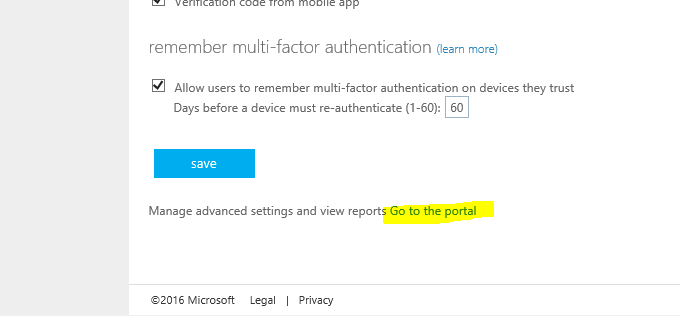
  6. Click “Go to the Portal” at the very bottom
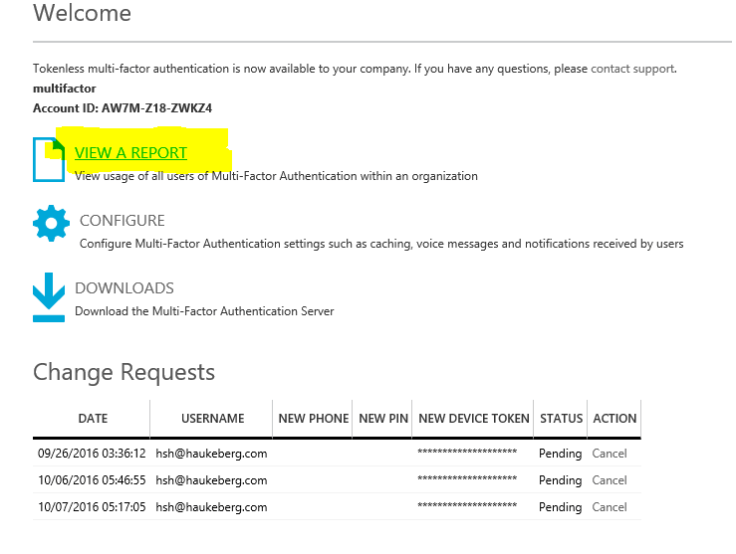
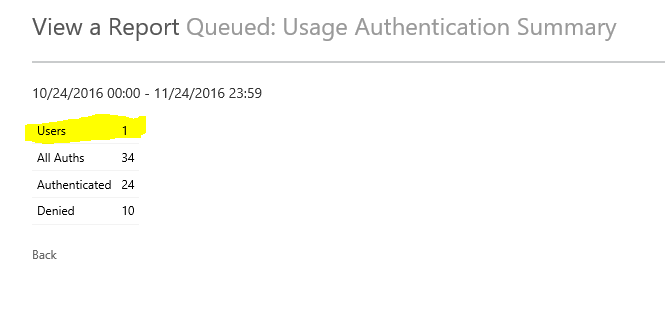
  7. Click View Report
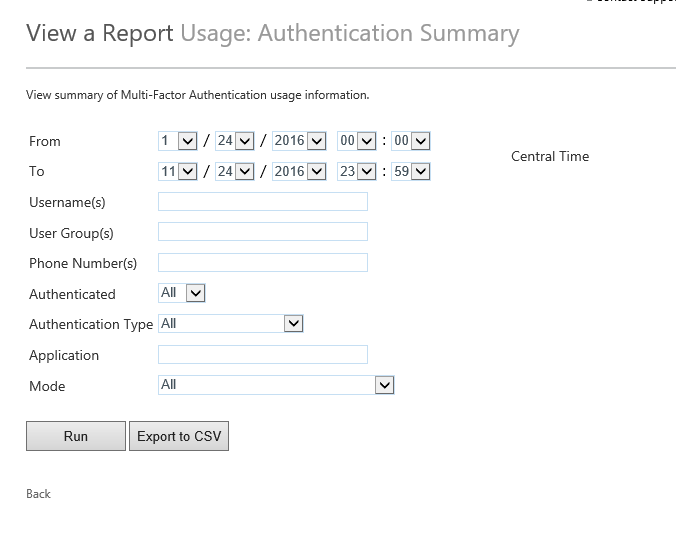
  8. Click Summary
  9. Select 1 month back
  10. Click Run
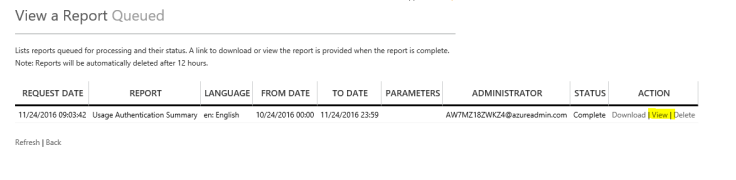
  11. Go to Queued Reports
  12. Click on View Report

You can also see reports sorted on users and how much they log in.

go-to-portalview-azure-mfa-reportauth-summaryqueued-raportsview-reporttotal-users


Enable Bitlocker Check in Intune MDM

When joining a Windows 10 device to Azure AD which supports “InstantGo” or “Connected standby” e.g. Surface. Microsoft Automatically enables bitlocker.

For all other devices you need to manually enable bitlocker on your drive.

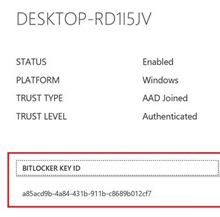
As an IT admin you can create a Compliance Policy that checks if Bitlocker has been enabled. Here is how:

  1. Log in to http://manage.microsoft.com
  2. Click Policies and Compliance Policy
  3. Click Add
  4. Name: Bitlocker Check
  5. Description: Checks if bitlocker is enabled
  6. Under device health enable Windows Device Health Attestation.
  7. Deploy the policy to your target users or groups
  8. Check for compliance.

windows-device-health-attestation-bitlocker

Azure AD & Intune Enrollment Sways

This post will now be a list of Sway’s for enrollment into Azure AD and Intune.

  • Windows 10 Pro Azure AD join
  • Windows 10 enterprise Education Azure AD Join
  • Azure MFA enrollment
  • Ipad into intune

Windows 10 Professional

Windows 10 Enterprise / Education

Azure MFA Enrollment

Ipad

Microsoft Intune enrollment on Android for end users

All Android is not the same

First let me start of by saying that almost all android phones are different in respect to enrollment. These screenshots are taken on a Sony Device. The most complicated part with Android is that the End User have to fix the compliance settings yourself.

How good are your users?

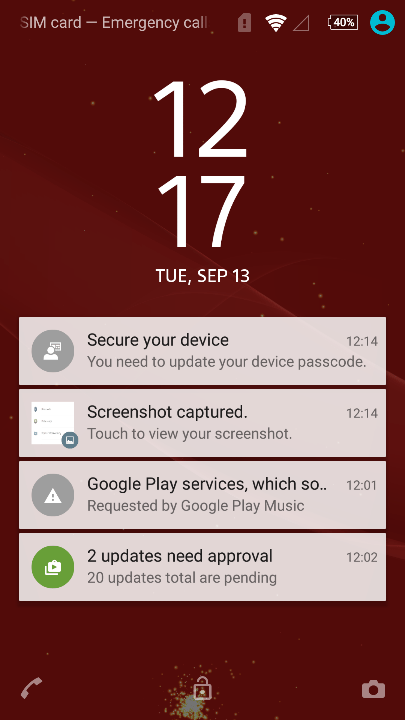
e.g. as seen here the end user need to set the pin-code him/herself to be compliant. Make sure that your users can do this themselves before you start.

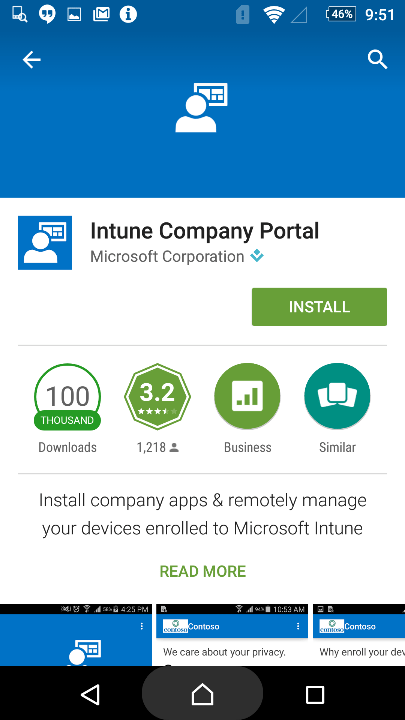
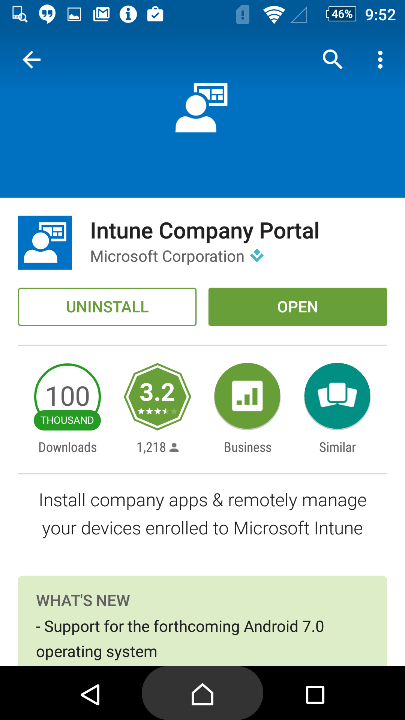
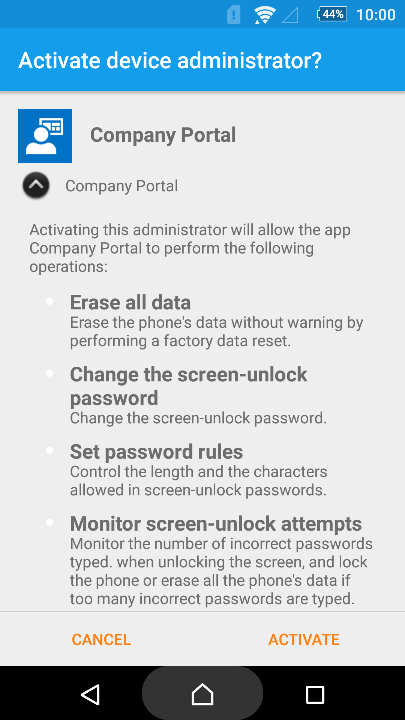
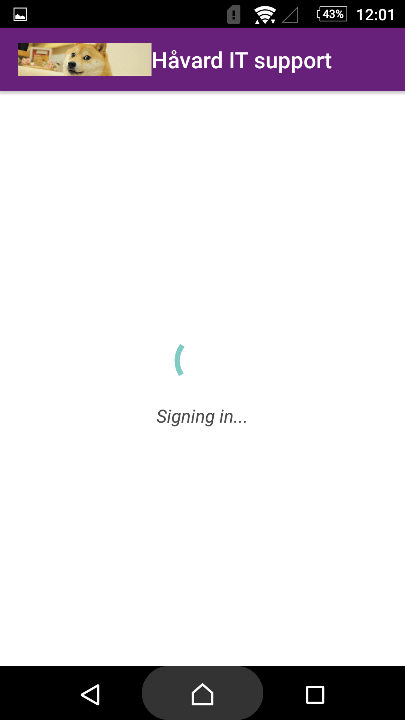
Picture by picture guide

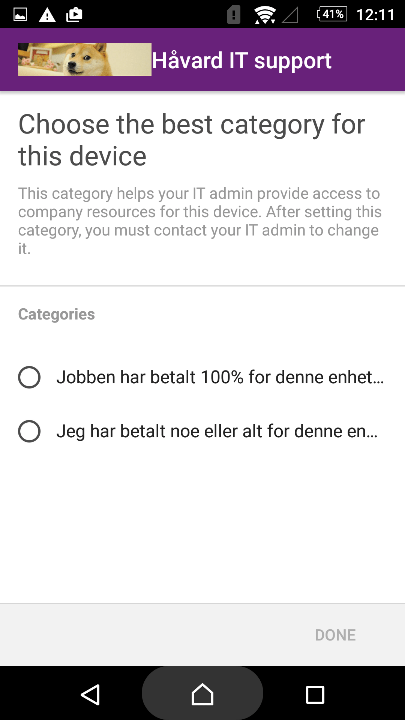
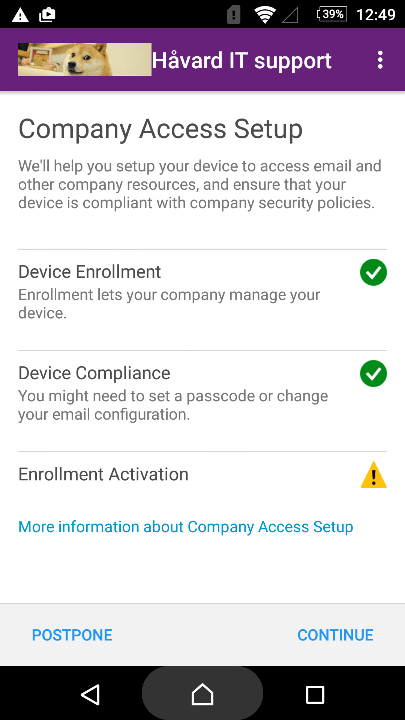
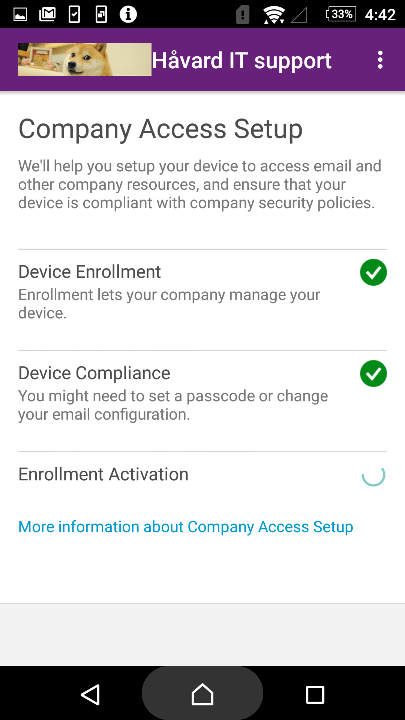
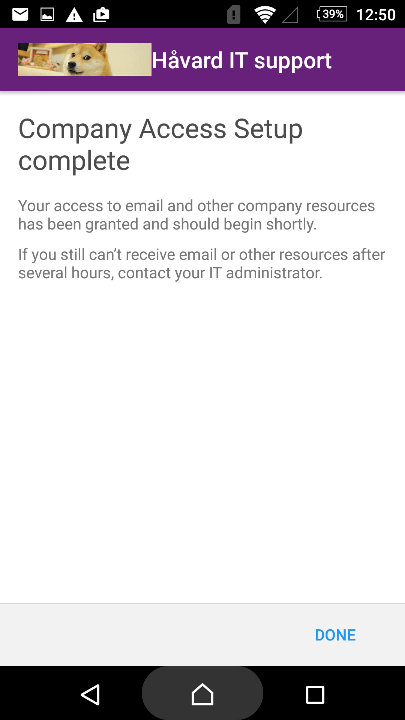
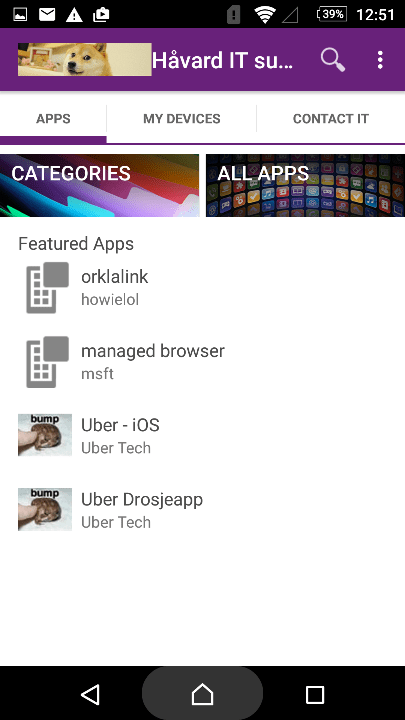
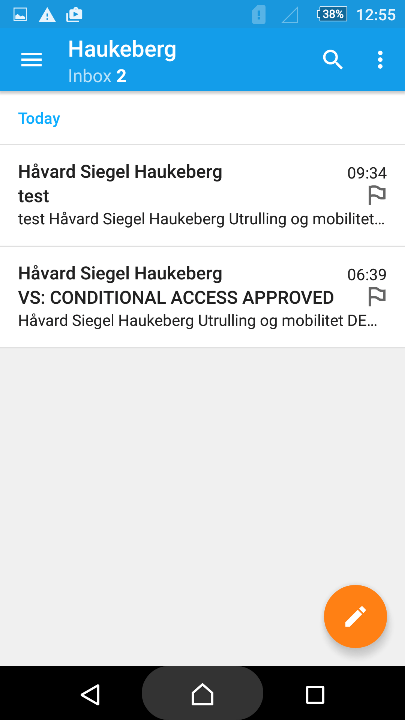
Here is how you as a end user will experience Intune in your organization

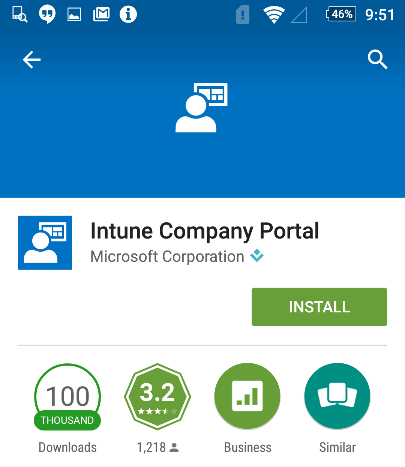
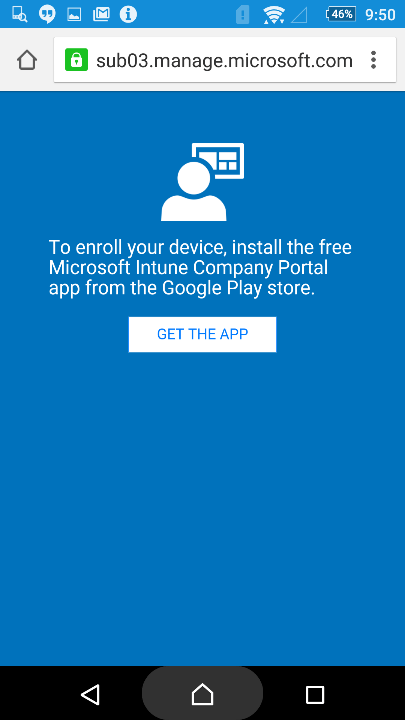
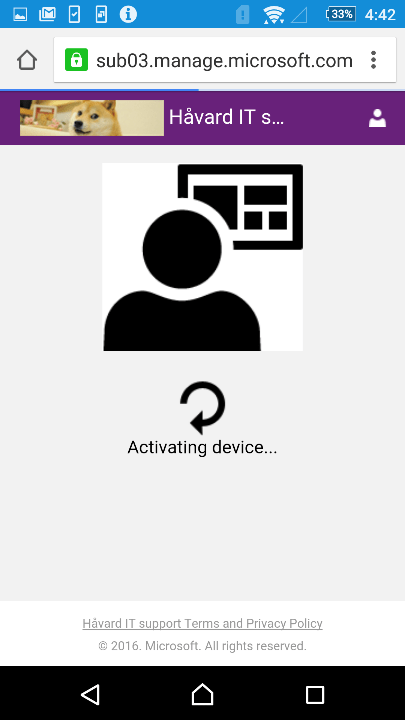
screenshot_2016-09-13-09-49-50screenshot_2016-09-13-09-50-11screenshot_2016-09-13-09-50-36screenshot_2016-09-13-09-51-01screenshot_2016-09-13-09-51-10screenshot_2016-09-13-09-52-07screenshot_2016-09-13-09-52-17screenshot_2016-09-13-09-53-39screenshot_2016-09-13-09-57-40screenshot_2016-09-13-09-57-53screenshot_2016-09-13-09-58-05screenshot_2016-09-13-10-00-10screenshot_2016-09-13-12-01-31screenshot_2016-09-13-12-01-41screenshot_2016-09-13-12-01-54screenshot_2016-09-13-12-11-33screenshot_2016-09-13-12-11-56screenshot_2016-09-13-12-12-53screenshot_2016-09-13-12-13-10screenshot_2016-09-13-12-17-05screenshot_2016-09-13-12-46-52screenshot_2016-09-13-12-47-46screenshot_2016-09-13-12-48-05screenshot_2016-09-13-12-49-47

screenshot_2016-09-14-16-42-33

screenshot_2016-09-14-16-42-57

screenshot_2016-09-14-16-42-10screenshot_2016-09-13-12-50-42screenshot_2016-09-13-12-51-37screenshot_2016-09-13-12-55-52


If you are an IT admin, check out this guide on how it looks like for you in the Intune Portal

Microsoft Intune Enrollment of Android for IT Admin

Step 1: Enrollment

Once a end user has enrolled a Android device it will shortly show up in the Intune portal.

Step 2: Verify status in Intune

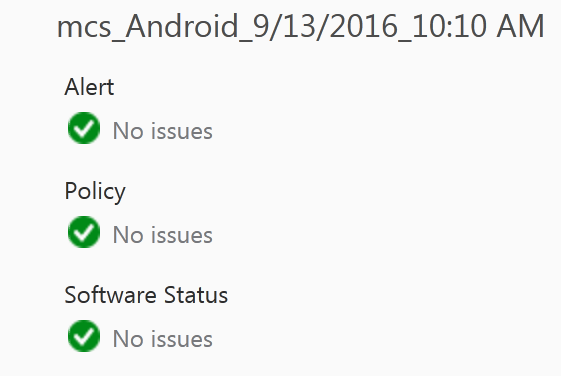
This is what a healthy Device should look like in the Intune Portal http://manage.microsoft.com :


android-health-in-intune-mdm
This device is healthy and should have access to email and does not need attention.


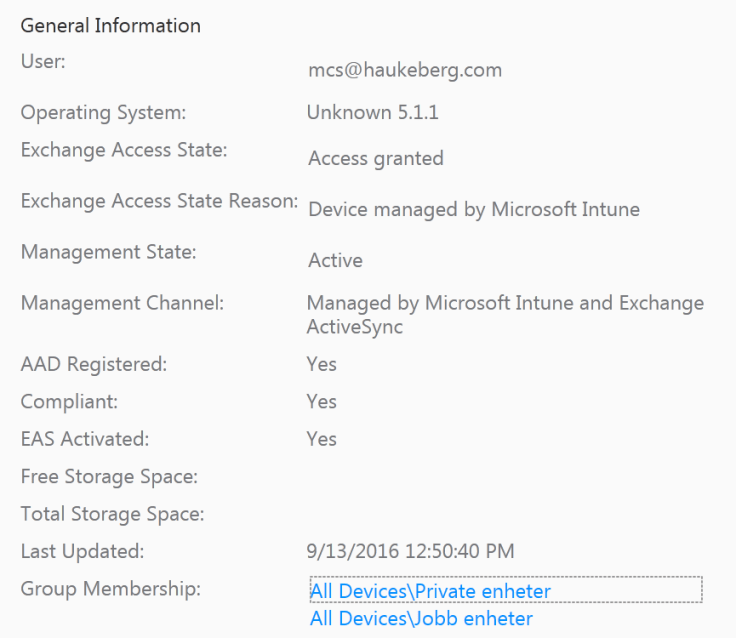
If you need device info, the Intune MDM agent will pull information from the device and display some of it here in the general info tab just right to the health status


general-health-information-from-intune-mdm
Just some of the info pulled from Intune


There are many different Android phones out there. They all provide info to Intune MDM differently. Here Sony is not able to convey the OS name correctly to Intune.

operating-system-mdm-intune
Not all android phones report OS correctly


In the device list you can see and sort the list of devices on most of the general information.


intune-device-list
Sort and find your device


When the end user enrolled this Sony Android Device he was prompted to group his device himself into a group. This group is displayed here. I have named this group myeself in the Intune portal. You could name it anything other than personal if you want to.


intune-device-group-mapping
Device Group Mapping


Management channel should be set to intune or intune and EAS when your device is enrolled. We should also se the Compliant status. If it is not compliant, check your compliance policies in intune policy tab or make sure that you have made the device compliant e.g. enabled PIN or encryption/screen lock +++

intune-mdm-management-channel-and-compliance

If your device is not compliant it will be blocked from exchange when you run Conditional Access.


End-user signup for Azure Self Service Password Reset

If you want to enable a user for Self Service Password Reset the user need to navigate to one of these endpoints and register his/her phone as a second factor.

Endpoints:

  1. This endpoint verifies your phone and enrolls the user in SSPR: http://aka.ms/ssprsetup
    It does not change your password!
  2. This endpoint resets your password and enrolls the user if his or her phone number is already stored on the user. http://aka.ms/sspr (which points here: http://passwordreset.microsoftonline.com)


Here is a screen dump of what the user will have to do:

log-in-to-office-365
Standard Login
routed-to-account-setup-in-azure-ad
You get routed to or enrollment service
verify-phone-number-in-azure-ad
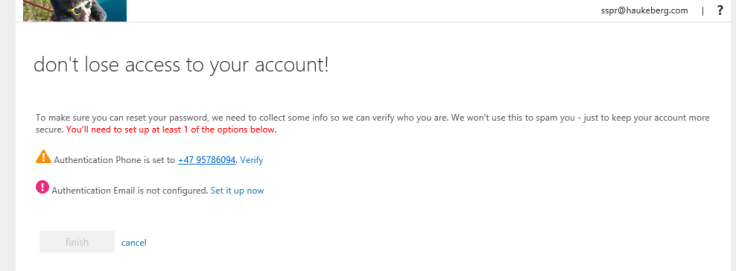
asks to verify your phone (if it is already there) if not you have to enter your phone number
if-phone-is-not-registered
If your phone is not registered in azure AD you see this


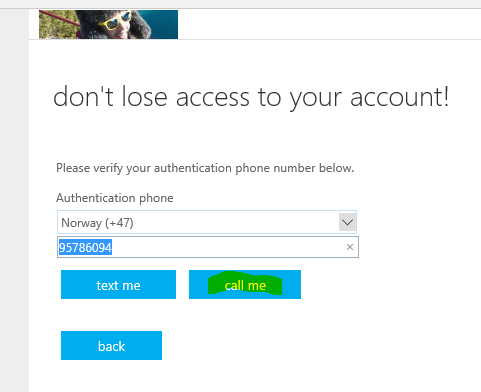
call-to-verify-azure-ad
Call goes fastest

microsoft-calling-phone

one-factor-is-completed
In Azure AD you select how many factors your users need to setup. I have selected 1
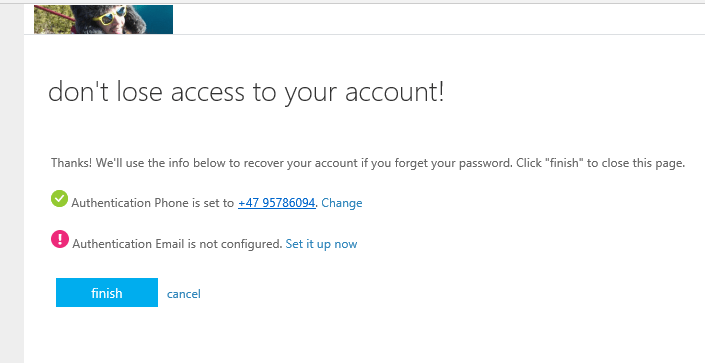
myapps-in-azure-after-registration
This is where you end up

Intune upgrading or removing the Exchange Connector

So, what would happen if you upgrade from On-premise Exchange Connector or simply remove the Exchange Connector in Intune?

Here in this blog I remove the Exchange Online connector and test what happens on a iPad that is enrolled with Intune.

The user account has Conditional Access on Exchange Online enabled.

img_0005
Conditional Access enabled


Enrolled the device with Intune and checked the Intune Management Portal that the device was registered and active

ipad-activated-and-enabledeas-activated-ipad-in-intune

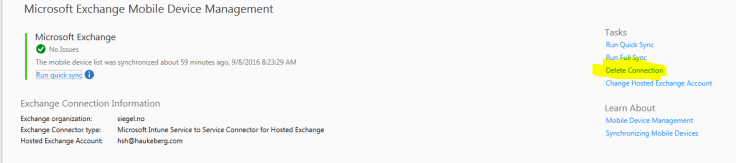
I now delete the Exchange Connection to see what happens on the iPad for the end-user.

microsoft-intune-exchange-online-connector

delete-exchange-connectionno-connection-defined

Connection Deleted.

-> With the connection deleted you can still send and recieve mails from any device without any Conditional Access. As long as you enter the login credentials into any mail app it works.

Removed the device from the company portal app and severed the Intune connection. There is no conditional access so you can still send and recieve mails.

Then add the exchange connector again from http://manage.microsoft.com and now my device should be blocked since Conditional access prevents non-enrolled devices from reading mail.

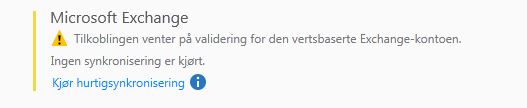
exchange-connector-sync-status

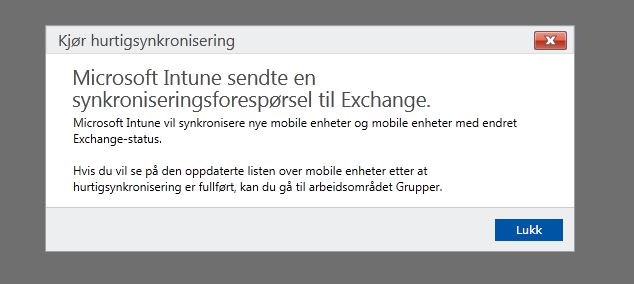
Nothing will happen untill the service has synced with exchange so click the “Run Fast Sync”button

exchange-fast-sync-prompt

A prompt will appear, just close it.

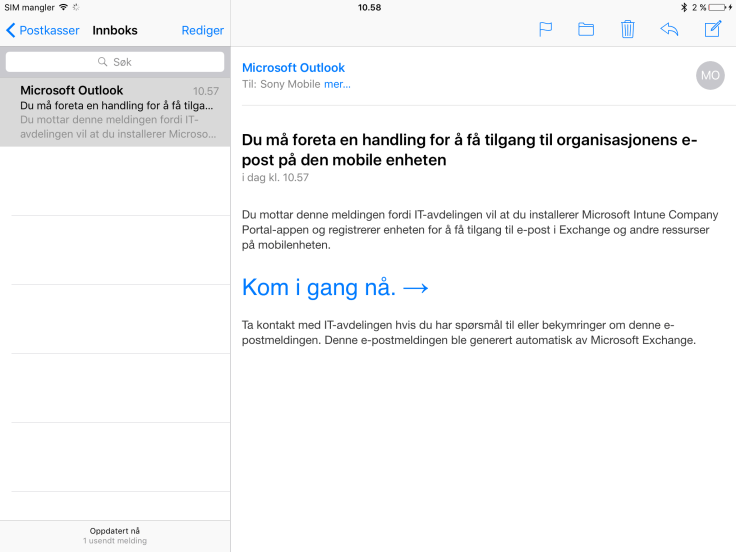
Exchange Conditional Access will now apply to all acounts again. If you have a device which is approved in Intune, no action required. If it is not enrolled in Intune you will have to enroll it.

After some hours when Exchange discovered that this device is not enrolled anymore it will also block mail. This takes about two hours.

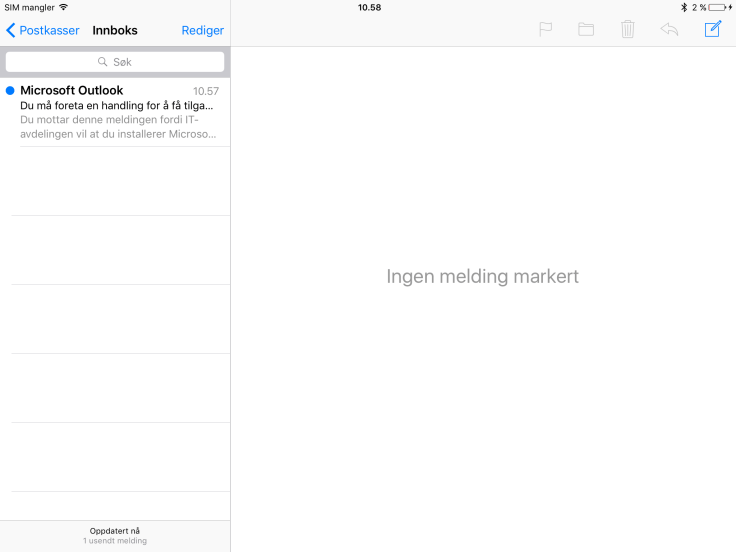
Exchange Conditional Access on existing mailbox
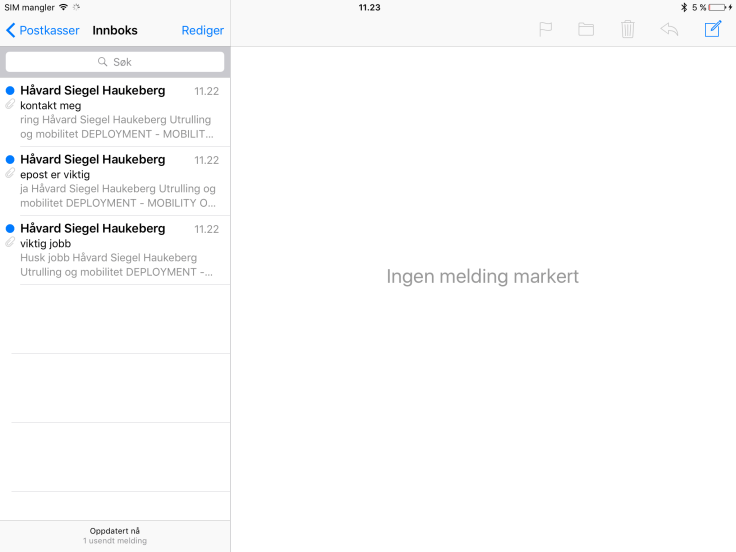
Notice the top email asking for renrollment.

Background: The Exchange Connector sends power shell cmdlets to the exchange server. In the Azure AD Microsoft saves the ActiveSync ID with the ID of the Object or Device. This enables our service to block or allow certain devices from reading email. The comprehensive overview of what the connector does can be found here: https://docs.microsoft.com/en-us/intune/deploy-use/intune-on-premises-exchange-connector

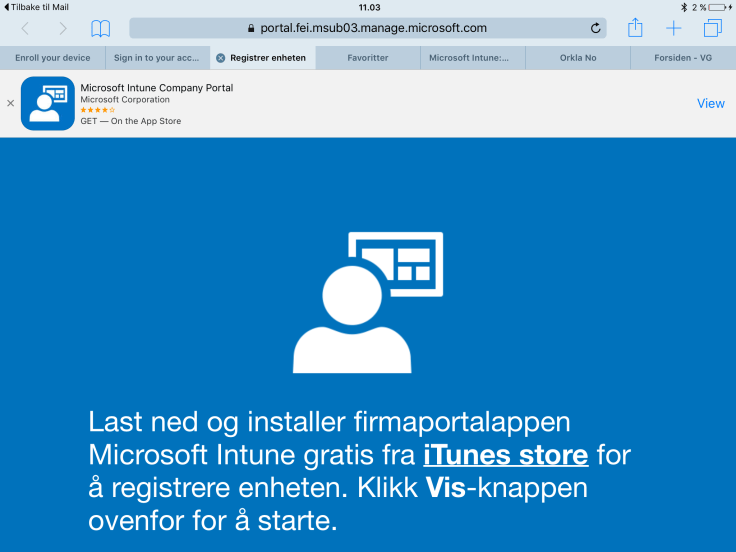
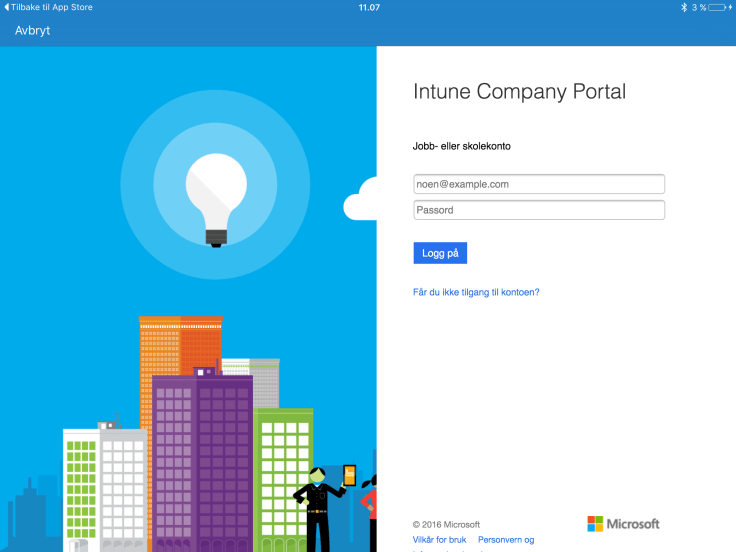
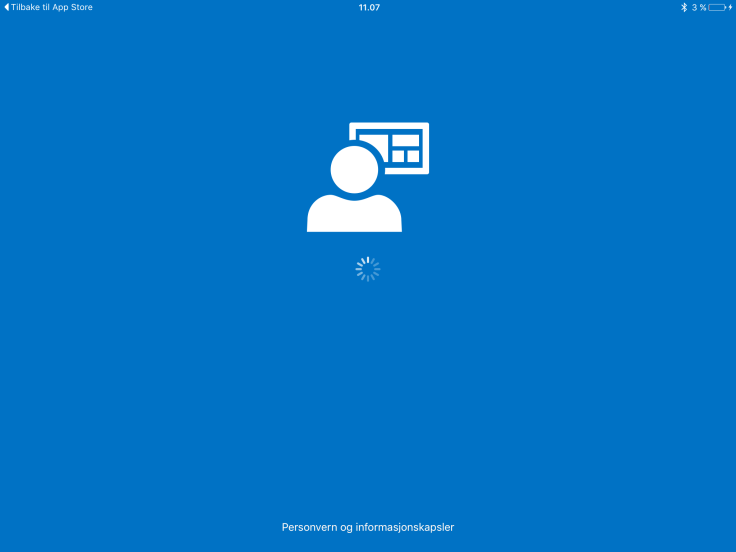
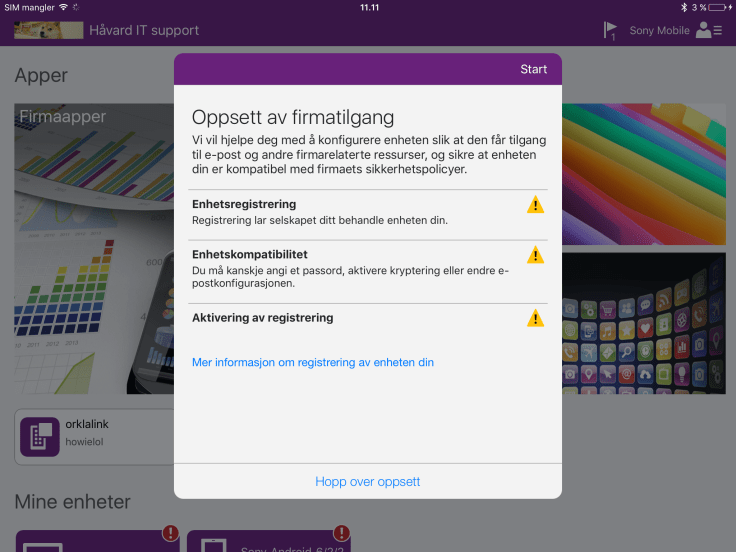
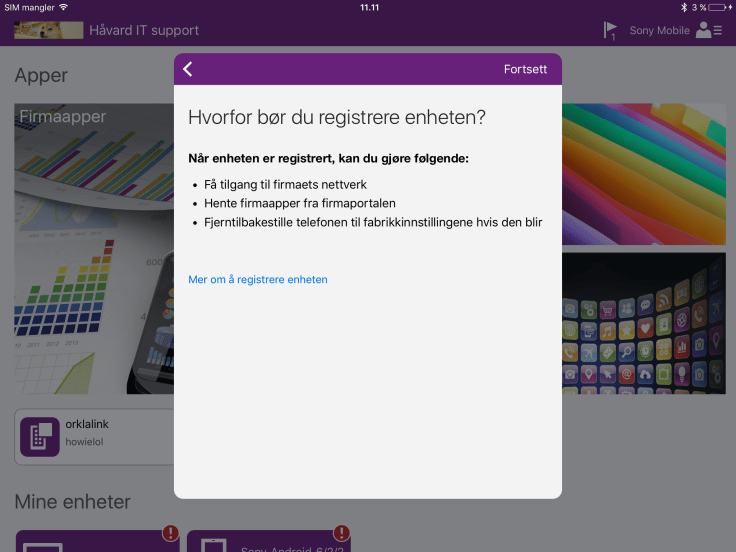
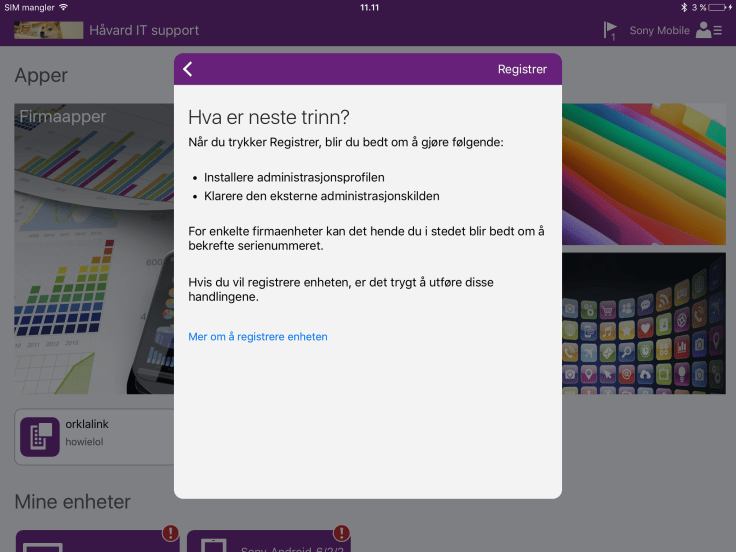
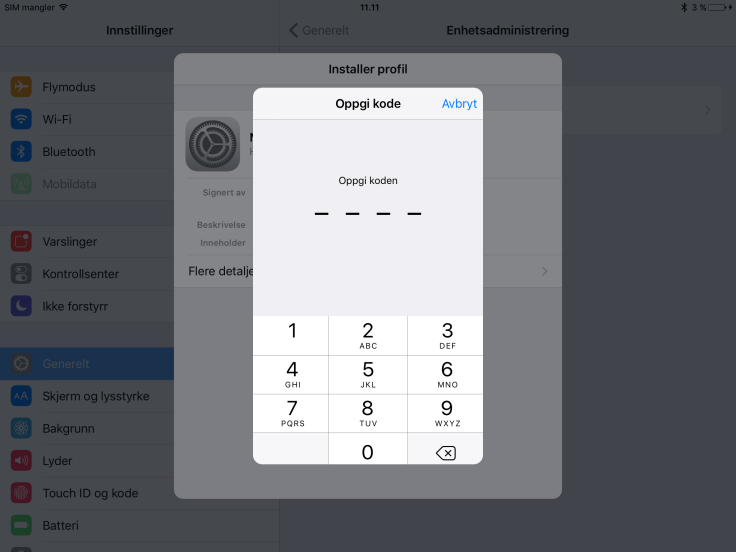
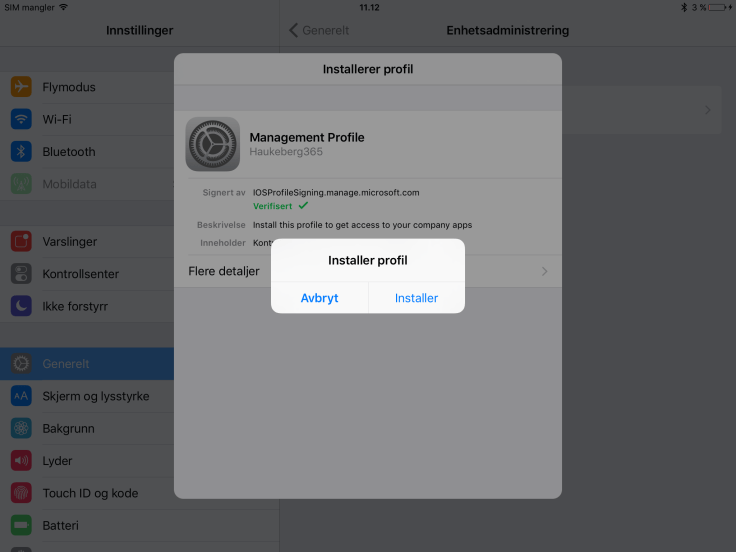
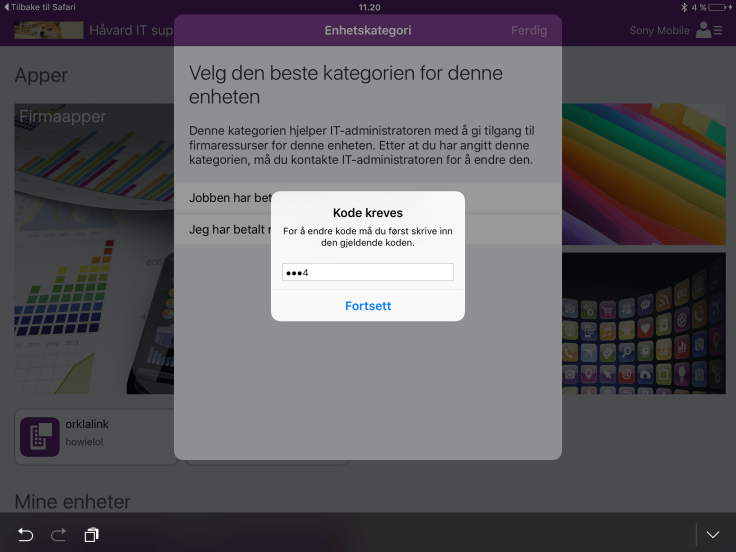
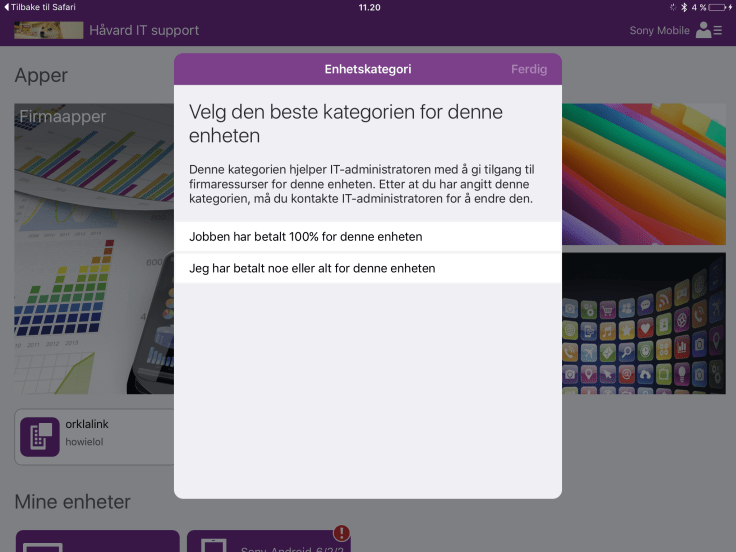
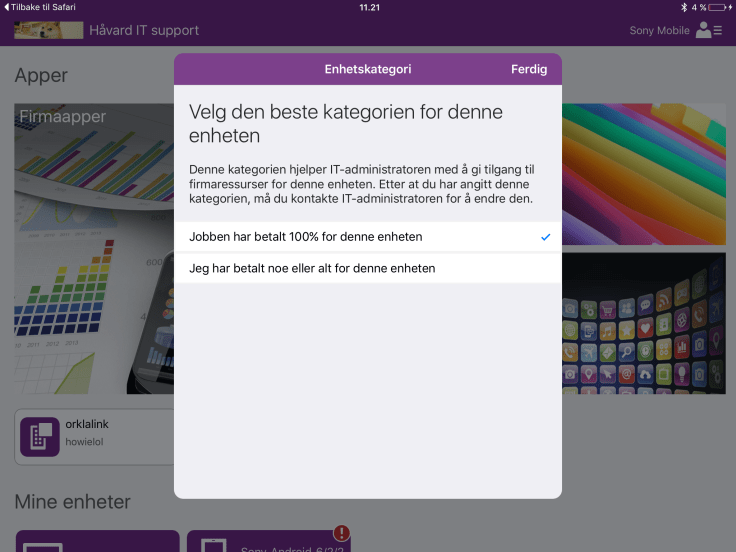
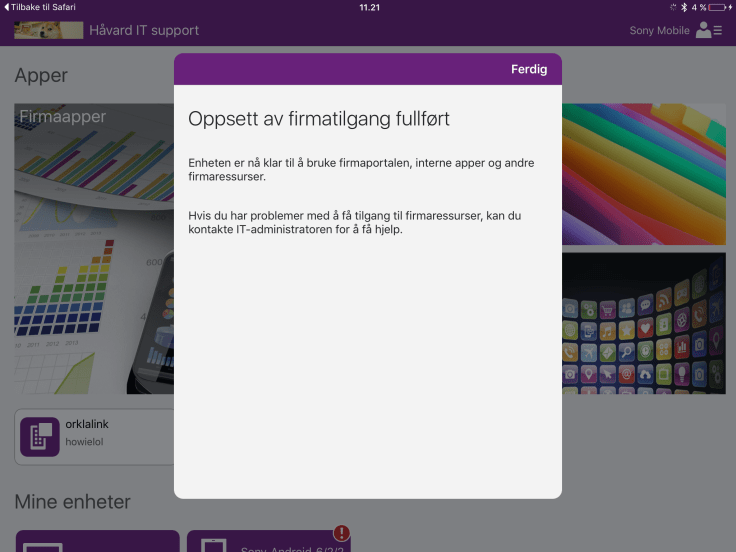
Microsoft Intune Company Portal Enrollment on iPad for end-users
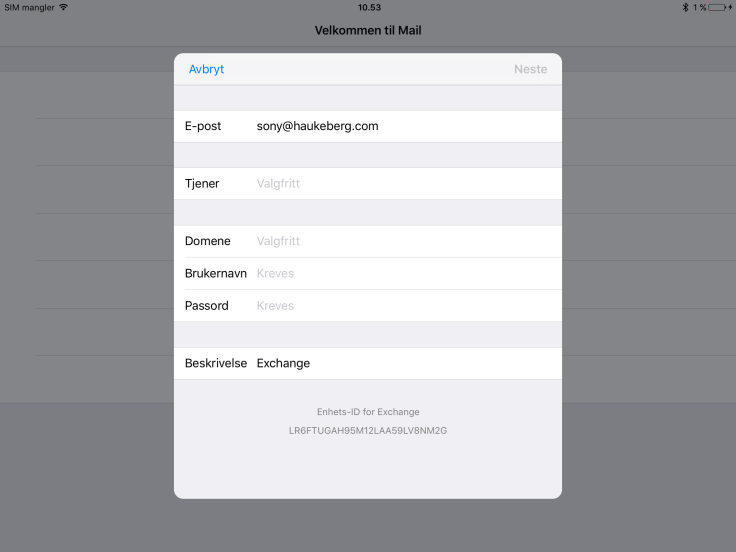
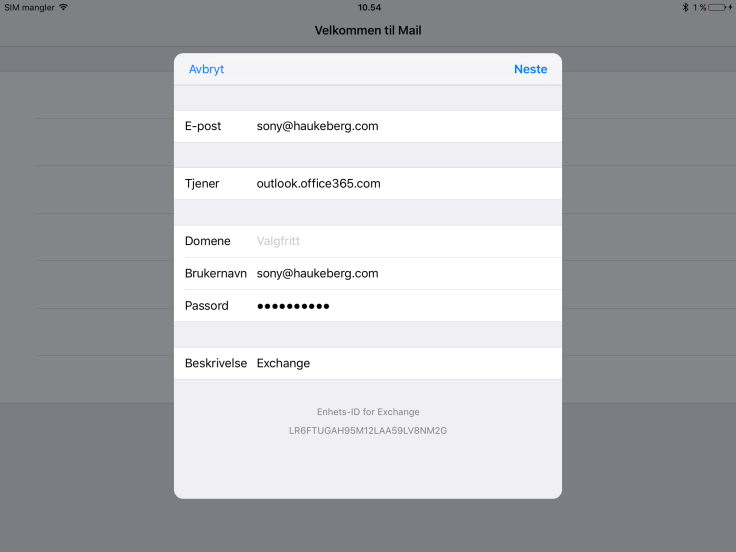
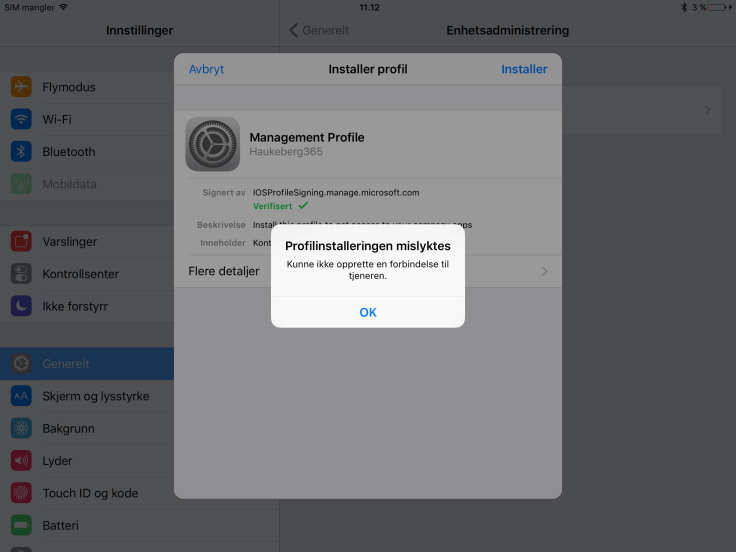
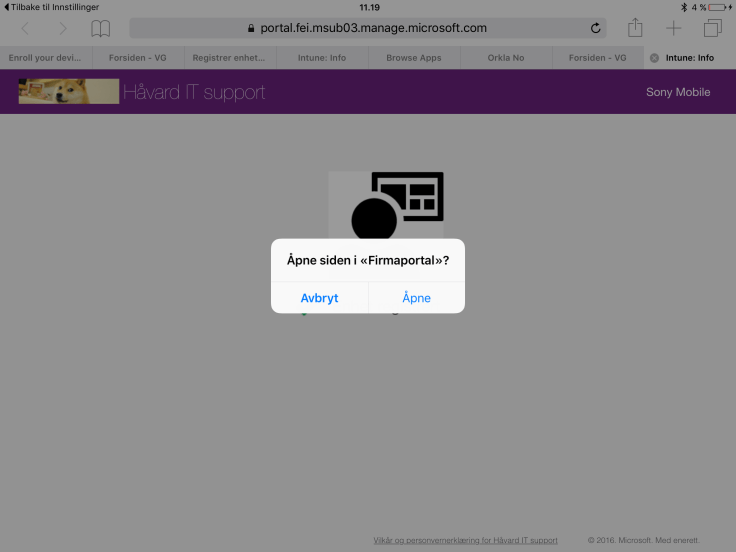
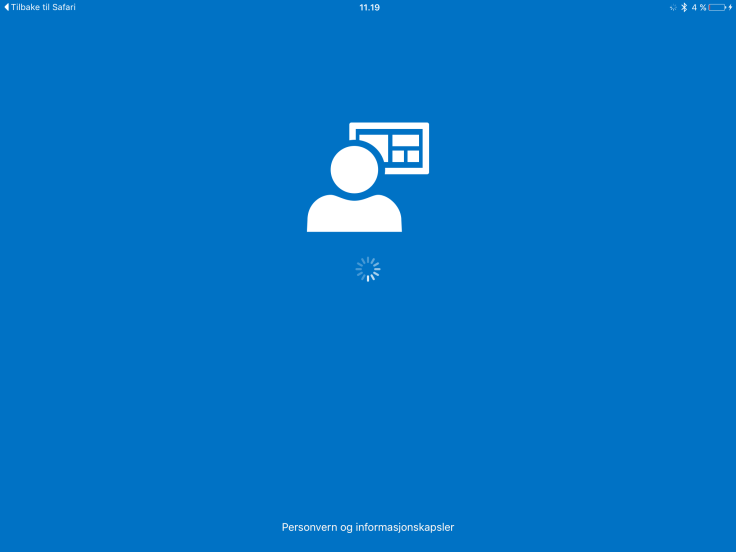
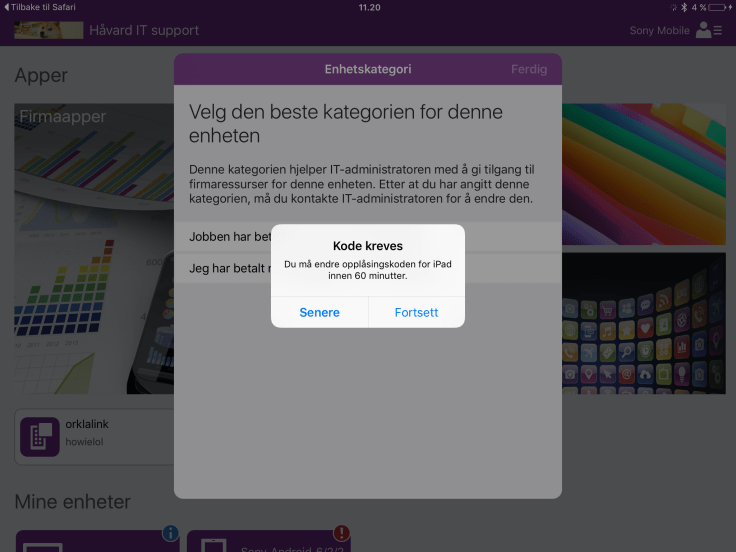
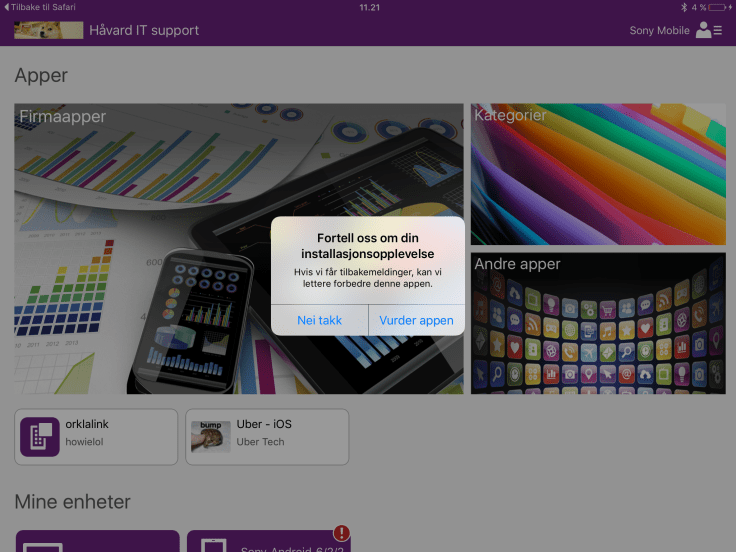
Here is a complete set of screen dumps which the end user will have to see/do in order to enroll a iOS device into Intune.

img_0001img_0002

img_0004
Conditional Access prevents exchange online sync before enrollment

img_0005img_0007img_0008img_0009img_0010img_0011img_0012img_0013img_0014img_0015img_0016img_0017img_0018img_0019img_0020img_0021img_0022img_0023img_0024img_0025img_0026img_0027img_0028img_0029img_0030img_0031img_0032img_0033img_0034


So, I enabled Self Service Password reset. Who signed up?

If you have enabled Self Service Password reset, all users should be prompted to enroll on login. You could also proactively redirect users to https://passwordreset.microsoftonline.com/ or http://aka.ms/ssprsetup
Look at this blogpost for that user experience: Self Service Password Reset User Registration (Same as for MFA registration).

Here is how you get the report for users who signed up for Self Service Password Reset

azure-active-directory-listing-in-azure-management-portal

azure-active-directory-report-catalog-in-azure-management-portal
Azure AD Report Catalog
azure-active-directory-report-catalog-for-activity-logs-on-self-service-password-reset
Activity Logs in Azure AD
report-of-users-registered-in-azure-ad-for-self-service-password-reset
Latest activity for SSPR
download-azure-ad-sspr-reports
Download reports in CSV
excel-self-service-password-reset-activity
The Report in CSV opened in Excel


Blog at WordPress.com.

Up ↑