
How to make a Windows 10 Bootable USB stick that support UEFI boot. |
Requirements:
|
| Make a bootable USB flash drive using DISKPARTRun CMD.EXE as an administrator (Win-X then A), then run DISKPART with the following commands (not case-sensitive): |
| Command | What it does |
| LIST DISK | Shows all mounted disks. Find your USB flash |
| SELECT DISK n | Selects the disk that future commands will use. Replace ‘n’ with the disk # for your USB flash drive.NOTE: Be careful that you don’t select your hard disk! The next command will wipe the selected drive clean. |
| CLEAN | Erases all previous partition & volume information on the flash drive. |
| CREATE PARTITION PRIMARY | Partitions the flash drive as one partition for the whole drive. |
| SELECT PARTITION 1 | Selects the new partition so future commands will operate on it. |
| ACTIVE | Marks the new partition as active so the BIOS/UEFI can boot to it. |
| FORMAT FS=FAT32 QUICK | Formats the partition as FAT32.(NOT NTFS!) EXTREMELY IMPORTANT! |
| ASSIGN | Assigns a drive letter to the flash drive. |
| EXIT | Exits DISKPART |
At this point your USB drive is formatted. DO NOT format the drive with Windows Explorer or format.com; you will not be able to boot from it.
| Simply Copy files to the USB Drive and Prep the Windows 10 Image on the USB drive.
1. Copy Files
or
2. Prep the USB using CMD
|
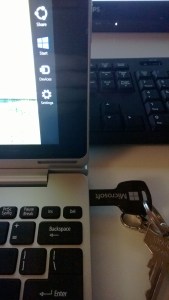
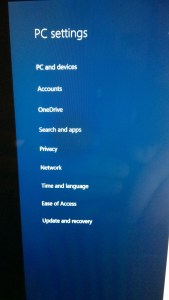
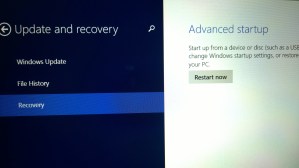
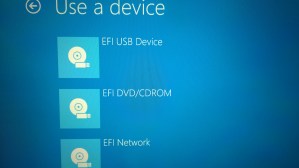
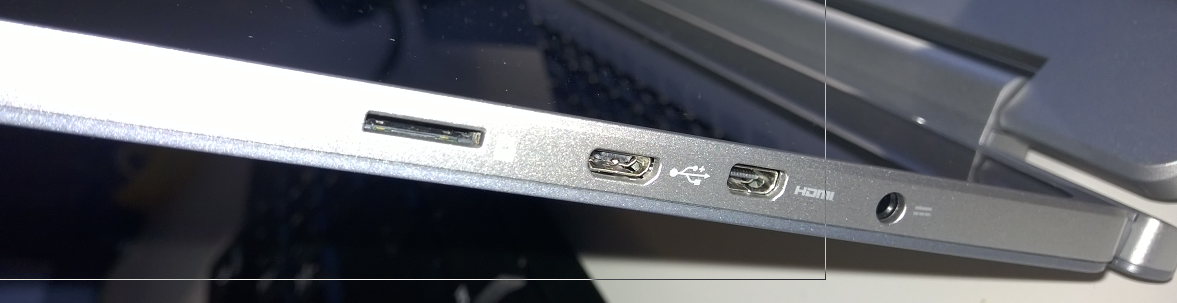
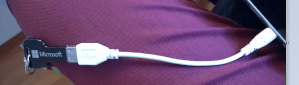
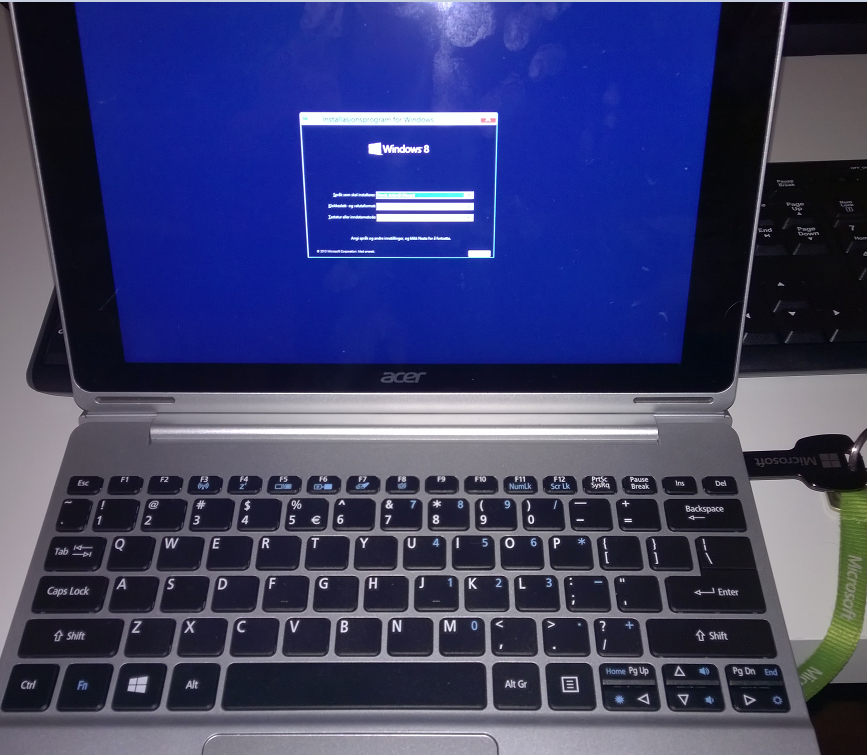
Booting from the USB drive:Method 1:
Method 2
|
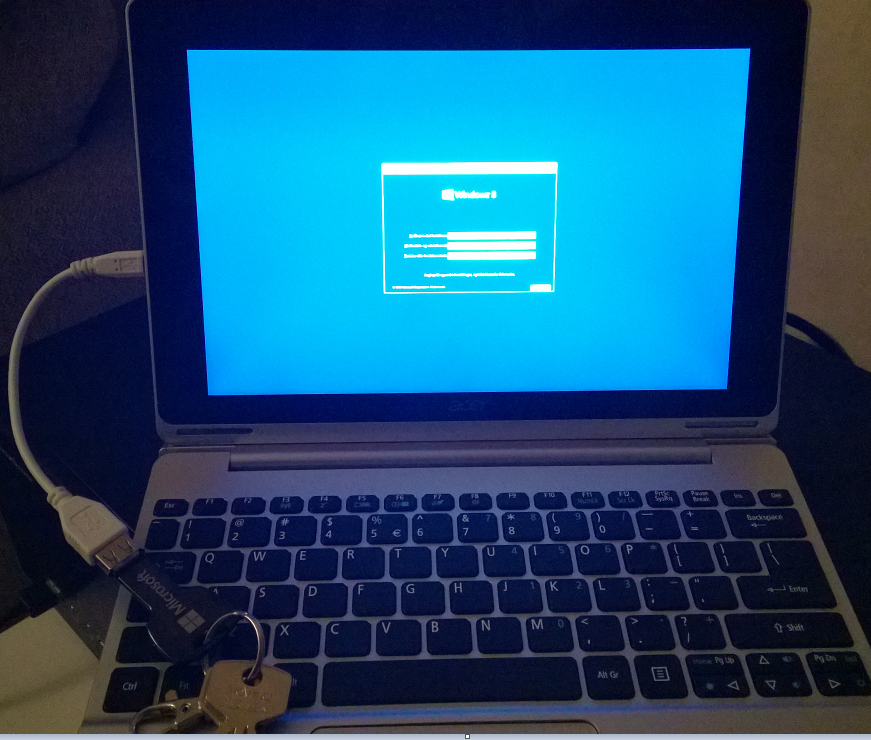
| Install Windows 10Go through normal Windows 10 |
Finishing up
|




 Håvard Siegel Haukeberg
You must be logged in to post a comment.