Search

Håvard Siegel Haukeberg

Paste life: Ctrl+C -> Ctrl+V

Tag

boot from usb

Windows 10 bootable USB Stick with UEFI support

Windows-10-Logo


How to make a Windows 10 Bootable USB stick that support UEFI boot.

Requirements:

  • 4 Gb USB stick/flash drive
  • Windows 10 Pro/Enterprise/Education Installation files (either their own image, MSDN or from the Volume Licensing website)
  • A PC or tablet!
Make a bootable USB flash drive using DISKPARTRun CMD.EXE as an administrator (Win-X then A), then run DISKPART with the following commands (not case-sensitive):
Command What it does
LIST DISK                 Shows all mounted disks.  Find your USB flash
SELECT DISK n          Selects the disk that future commands will use.  Replace ‘n’ with the disk # for your USB flash drive.NOTE:  Be careful that you don’t select your hard disk!  The next command will wipe the selected drive clean.
CLEAN Erases all previous partition & volume information on the flash drive.
CREATE PARTITION PRIMARY    Partitions the flash drive as one partition for the whole drive.
SELECT PARTITION 1          Selects the new partition so future commands will operate on it.
ACTIVE                    Marks the new partition as active so the BIOS/UEFI can boot to it.
FORMAT FS=FAT32  QUICK        Formats the partition as FAT32.(NOT NTFS!)  EXTREMELY IMPORTANT!
ASSIGN                   Assigns a drive letter to the flash drive.
EXIT                        Exits DISKPART

At this point your USB drive is formatted.  DO NOT format the drive with Windows Explorer or format.com; you will not be able to boot from it.

Simply Copy files to the USB Drive and Prep the Windows 10 Image on the USB drive.

1. Copy Files

  • Use File Explorer

or

  • Copy files using (use XCOPY or ROBOCOPY) both of which are available in Windows 7/8/10.robocopy <source directory> <usb flash drive root directory> /mir
  • Example:  robocopy d:\Win10Files e:\ /mir
    (Change the destination to the folder that you have extracted Windows image on disk)

2. Prep the USB using CMD

  • Run CMD
  • Go to the directory where your winfiles are
  • cd boot (e.g. c:\win10pro\boot\)
    bootsect /nt60 X: (X is the drive latter of your USB drive )


Booting from the USB drive:Method 1: 

  1. Enter UEFI/BIOS Screen
  2. Set to boot from USB
  3. Disable Secure Boot

Method 2

  1. Press Windows Key + R
  2. Enter : shutdown.exe /r /o /f /t 00
  3. After the system restarts – Click boot from another device
  4. Select USB device
Install Windows 10Go through normal Windows 10
Finishing up

  • Go back into the BIOS / UEFI and re-enable secure boot
  • Run Windows Update to get latest updates
  • Congratulations! – You are running Windows 10

Boot from USB Acer Switch 10 in Windows

1537.Win8Logo_5F00_01_5F00_008485DD

Before you start,
1. USE A 32bit WINDOWS IMAGE. Atom CPU’s does not read x64
2. Prepare your USB for UEFI – Follow my guide here to properly prepare your USB for boot.
Installing Windows 8 Enterprise on Surface Pro

Why do I need to do all this fuss? -Most new devices are delivered with UEFI instead of BIOS. Alot of security benefits here. Some of you might experience that these devices do not automatically boot from a bootable key that you plug in. Please follow my instructions above.

When you are ready.

1. Do not insert the USB key yet, boot your device first.

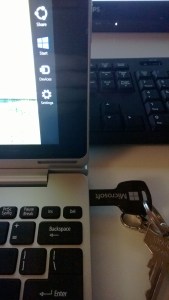
2. Once your device is in Windows insert your USB Key, swipe on the right side to bring out the charms. Select Settings

settings

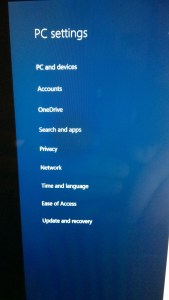
3. Select Change PC settings

change pc settings

4. In PC Settings, select Update and Recovery

PC and Devices

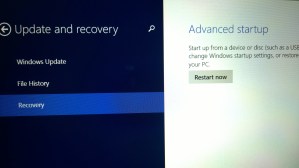
5. Select Recovery and Click Restart now

recovery

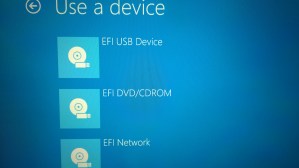
6. The PC will reboot and you get this option, Select Use a device

Choose boot option

7. Then use the EFI USB Device (You can also boot IPV4 Network boot)

Use a EFI device

Installing Windows 8 Consumer Preview on Tablet, Slate and PC – Clean Install (ISO)

The new Windows 8 is out.

Two ways of installing it on your PC.

Method 1 – ISO (used here):

Download the *.ISO file and use the Windows Store USB deployment tool.

Links here:
USB tool:
Microsoft Windows Store ISO to bootable USB tool
ISO FILE:
Windows 8 Beta ISO Direct Download

Method 2 – Migration install

Download the file:
Windows 8 Beta Migration Installer

WRITE DOWN THE WINDOWS KEY, you will need it during install.
you find it on the ISO download link above

I have three computers – I set them to boot from USB

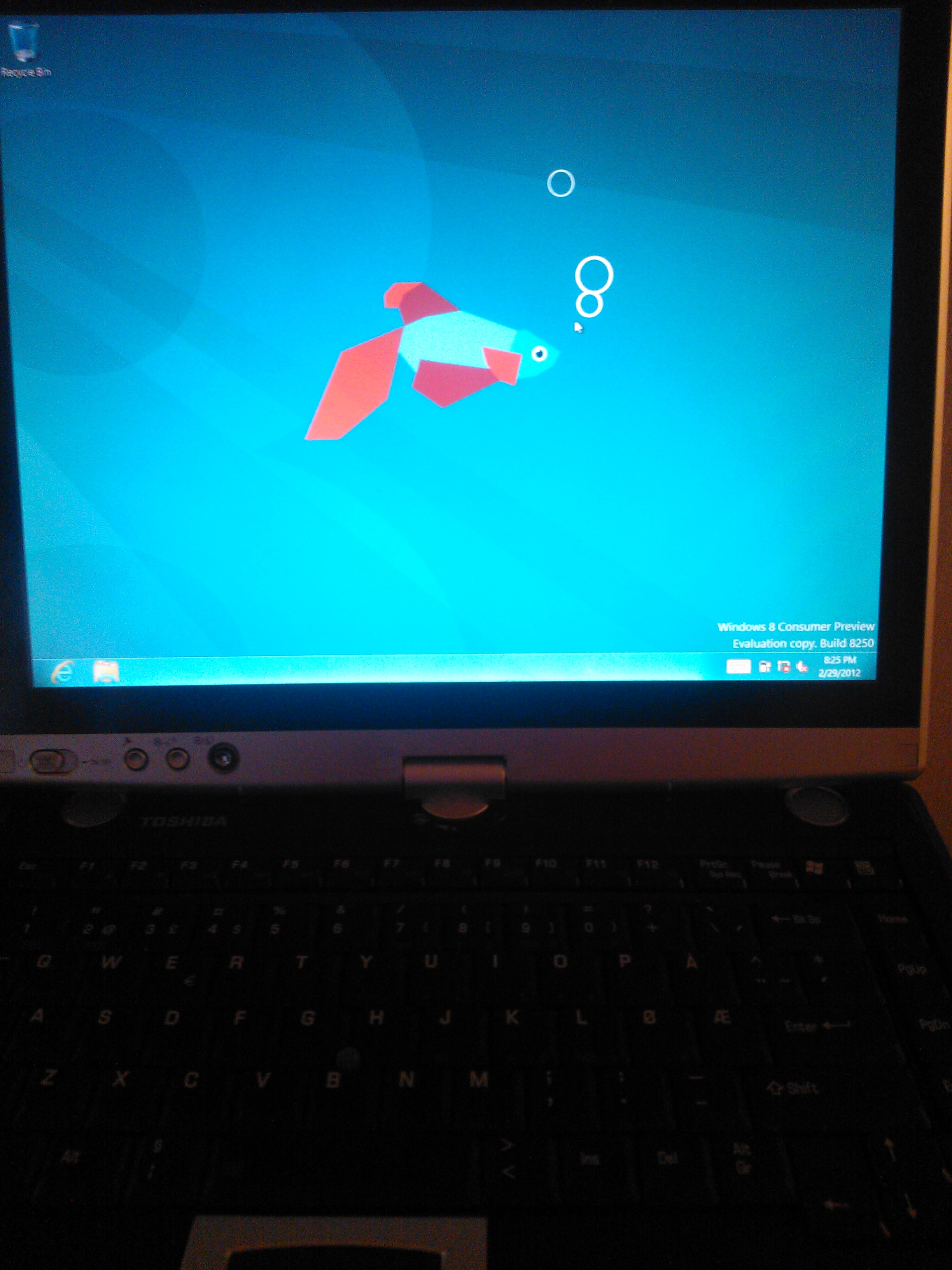
Tablet PC – Toshiba Tecra M4 (6 year old)

Toshiba Tecra M4
Desktop Computer – Intel PC (4 year old)

My traditional PC at home
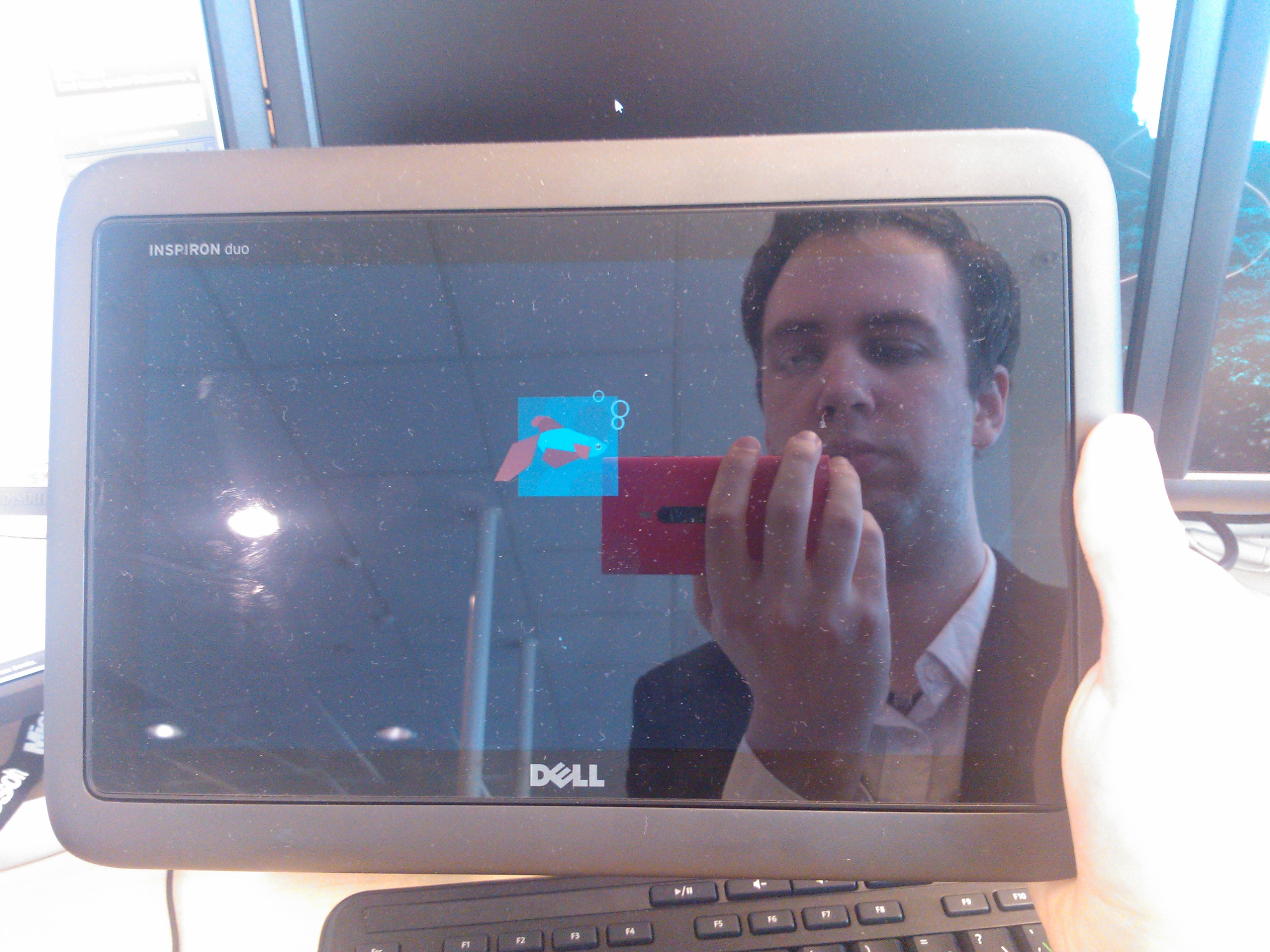
Slate PC -Dell Duo (1 year old)

Betafish on Dell Inspiron Duo

Here is the generic install process which is similar on all three of my machines

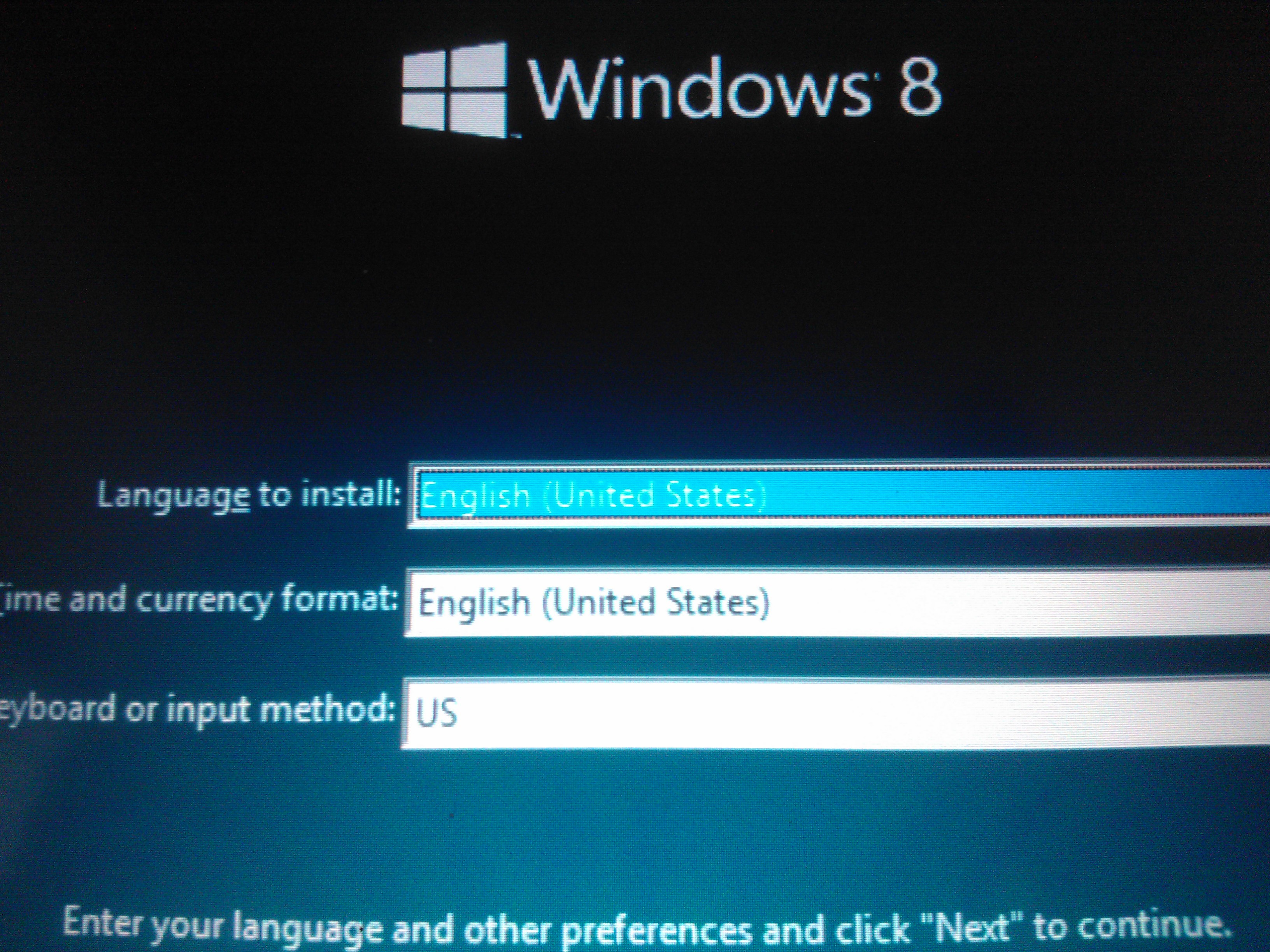
Select correct region and language. Same as in Windows 7
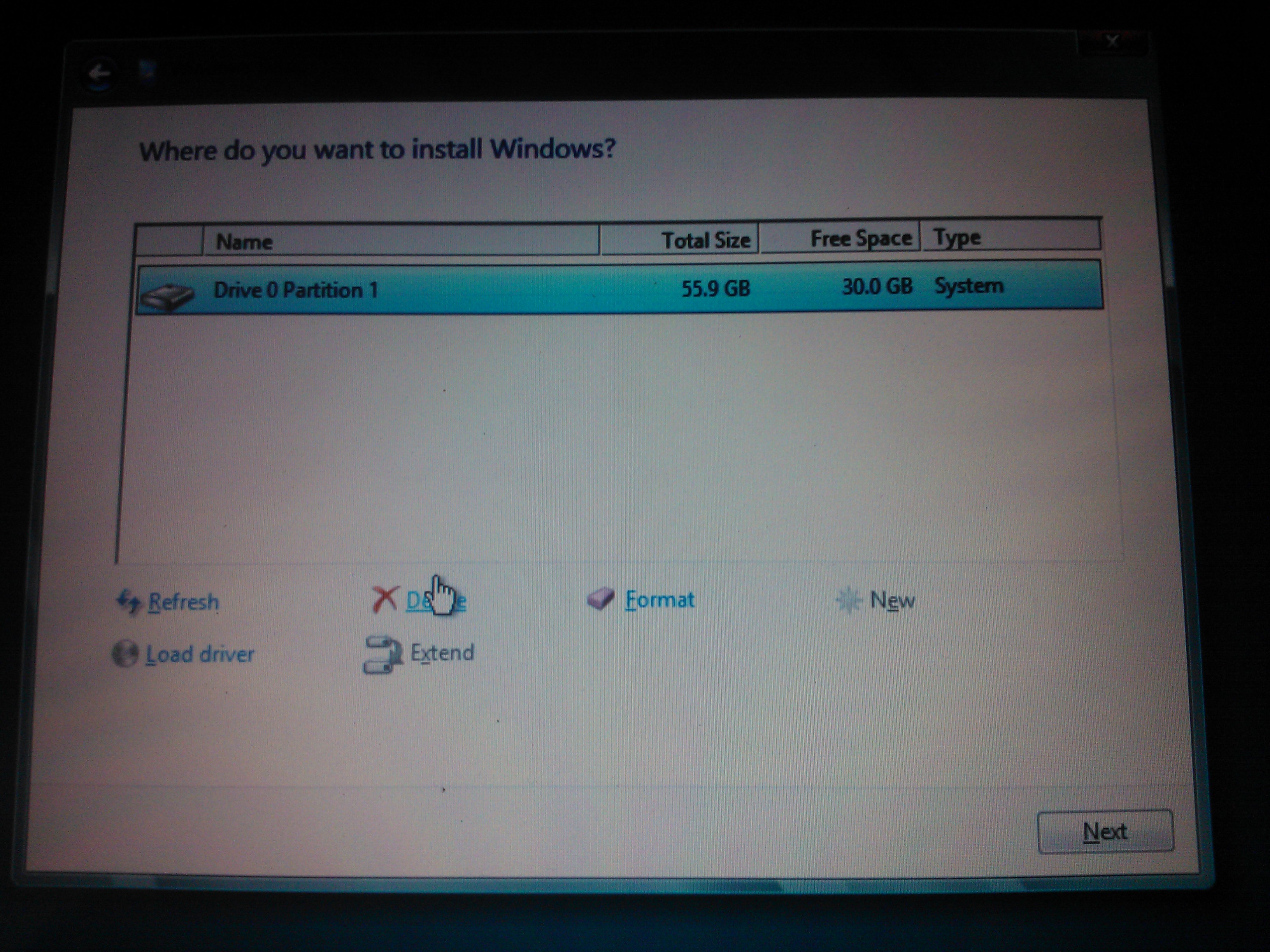
Same as in Windows 7, select partition
Installing windows is faster than ever
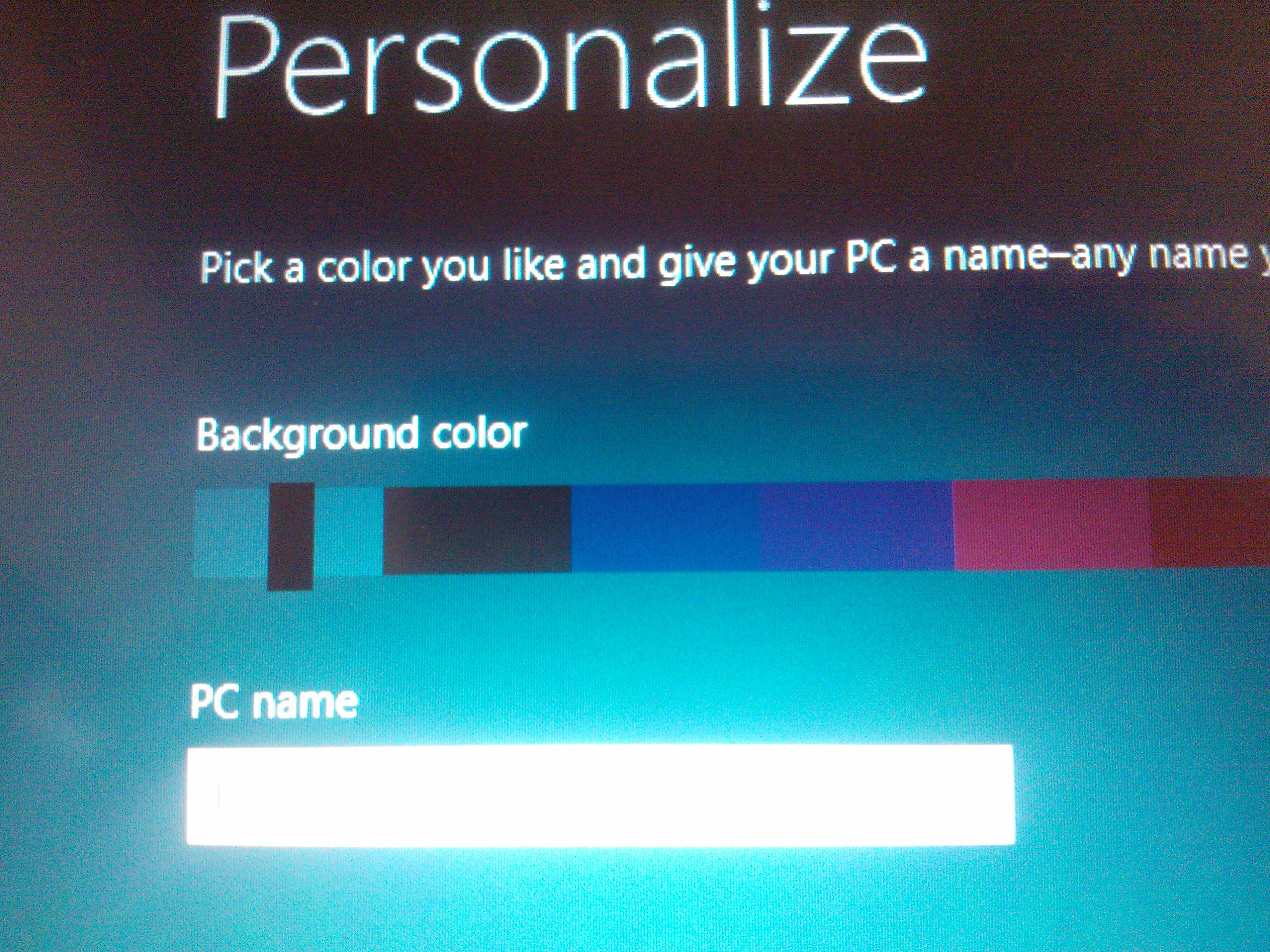
Select the PC name here and which color. I reccomed black if you install on a slate or tablet, it makes the screen seem bigger.
This is where you enter your user name. Just put something in, because you can later log in with your Windows Live ID and use that as user name.
start screen with tiles

The old desktop version is still here

Blog at WordPress.com.

Up ↑