Search

Håvard Siegel Haukeberg

Paste life: Ctrl+C -> Ctrl+V

Category

Coding without code

The personal IT blog – I am a Microsoft Employee

Installing #Windows8 Enterprise on #Surface PRO

Note that Windows 7 USB/DVD (Microsoft store) Download Tool doesn’t seem to properly prepare the USB flash drive for UEFI booting.
Requirements

4 Gb USB stick/flash drive

Windows 8 Enterprise Installation files (either their own image or from the Volume Licensing website)

Windows 8 PRO running on a Surface Pro device

Make a bootable USB flash drive using DISKPART

Run CMD.EXE as an administrator (Win-X then A), then run DISKPART with the following commands (not case-sensitive):

Command What it does
LIST DISK                 Shows all mounted disks.  Find your USB flash
SELECT DISK n          Selects the disk that future commands will use.  Replace ‘n’ with the disk # for your USB flash drive.

NOTE:  Be careful that you don’t select your hard disk!  The next command will wipe the selected drive clean.

CLEAN Erases all previous partition & volume information on the flash drive.
CREATE PARTITION PRIMARY    Partitions the flash drive as one partition for the whole drive.
SELECT PARTITION 1          Selects the new partition so future commands will operate on it.
ACTIVE                    Marks the new partition as active so the BIOS/UEFI can boot to it.
FORMAT FS=FAT32  QUICK        Formats the partition as FAT32.

(NOT NTFS!)  EXTREMELY IMPORTANT!

ASSIGN                   Assigns a drive letter to the flash drive.
EXIT                        Exits DISKPART

At this point your USB drive is formatted.  DO NOT format the drive with Windows Explorer or format.com; you will not be able to boot from it.

Copy files to the USB Drive and Prep Disk

Copy the Windows 8 Enterprise Image files to the USB drive (use XCOPY or ROBOCOPY) both of which are available in Windows 7/8.

robocopy <source directory> <usb flash drive root directory> /mir

Example:  robocopy d:\Win8Files e:\ /mir
(Change the destination to the folder that you have extracted Windows image on disk)

cd boot
bootsect /nt60 X: (X is the drive latter of your USB drive )

OPTIONAL, if you do not have USB Ethernet cable – Add the Wireless Network Card driver

Download Marvell AVASTAR 350N driver from Windows Update Cataloghttp://catalog.update.microsoft.com/v7/site/home.aspx

Double Click .cab file and copy contents to a directory on the USB stick

Copy c:\windows\system32\driverstore\surfaceaccessorydevice.inf_amd64_74faf8b2bdd32b88 directory to the flash drive

Boot off USB driveGet into UEFI setup screen

Shutdown Microsoft Surface PRO

Hold volume up and press power, keeping volume up held down

Click Secure Boot, then click disable

Boot into Windows 8 on Surface

Insert USB stick into Microsoft Surface PRO

Press Windows Key + R

Enter : shutdown.exe /r /o /f /t 00

After the system restarts – Click boot from another device

Select USB device

Install Windows 8

Go through normal Windows 8 Enterprise setup

OPTIONAL – Add the Wireless Network Card to the System

Open device manager

Right Click Marvell Wireless Device – select update driver software

Choose “Browse my computer for Software”

Browse or enter path for the directory on the USB where you put the network driver

Right click the Unknown Device – select update driver software

Choose “Browse my computer for Software”

Browse or enter path for the directory on the USB where you put the surfaceaccessorydevice driver

Finishing up

Join your wireless network and run Windows Update

Right click the last question mark device – select update driver software

Click automatically install driver, it will find it online

Go back into the BIOS / UEFI and re-enable secure boot

Congratulations! – You are running Windows Enterprise on your Surface PRO


Add #LiveID(Microsoft Account) to any existing email

Yes, you read right!
You may use any existing email and simply add Microsoft credentials to that account.
The Microsoft Account gives you access a bunch of features such as:
http://skydrive.com
http://outlook.com
http://xbox.com
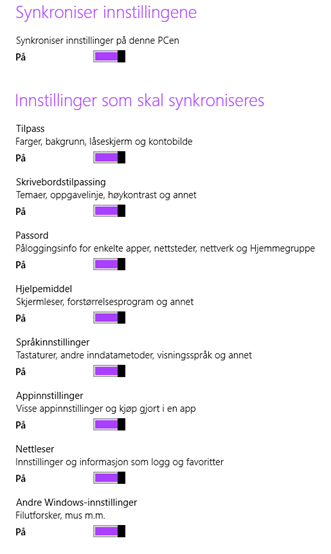
Windows 8 Sync of settings
Windows 8 Store

+++

Step 1

Navigate here: http://skydrive.com

Step 2

Click link there

Takes you Here

Step 3

Where it says

“Navn på Microsoft-Konto”
Enter any email like

private@applecloud.com
private@gmail.com
private@yourdomain.com
student@office365domain.com
jobemail@yourcompany.com

Step 4

Confirm your email

Now you can enjoy all the features mentioned above including these features in Windows 8 found under
Settings->Change PC settings->Synchronize settings

Ny skolepc? #Slates #hybrid-pc #tablets #Pads #Win8

Making #Office365 grandfather friendly, the password never expires

#Office365

Turning of the automatic 90 day password change for Office 365. Making the service easy to use for the forgetful family members.

Note: Windows 8 comes with a Power Shell instance. Don’t use it here. Use the one provided from below.

First; Install logon assistant for Office 365 Power Shell

First install the respective 32/64 bit login assistant

http://www.microsoft.com/en-us/download/confirmation.aspx?id=39267

Then install the respective 32/64 bit Power Shell version

Microsoft Online Services-modul for Windows PowerShell (32-biters versjon)

Microsoft Online Services-modul for Windows PowerShell (64-biters versjon))

Second; Run Power Shell Window

Click Windows Key, and find by scrolling or typing; Azure. Click on Windows Azure Active Directory Module for Windows Power Shell

Now, lets turn off password expiration for all users.

  • First, Connect to Office 365; Connect-MsolService
  • When in the Power Shell window, type; get-module MSOnline
  • Then type; Get-MSOLUser | Set-MsolUser -PasswordNeverExpires $true

Full links here:

NOR:
http://onlinehelp.microsoft.com/nb-no/office365-enterprises/hh534387.aspx

ENG:
http://onlinehelp.microsoft.com/en-us/office365-enterprises/hh534387.aspx

Files to install: (NOR)
http://onlinehelp.microsoft.com/nb-no/office365-enterprises/2b09b6a8-ad7e-446f-b7f0-273856beed70#BKMK_install

Hope this helps

#newoffice

Windows To Go VS Windows 8

Windows To Go

Windows 8

Who is it for

Consultants; who receive one PC from each client to work on projects


Students; who only have access to a computer lab. Each student may receive 1 WTG instance and return it to the institution when no longer enrolled


Information Workers; who need access to LOB and domain off work.

Just about everyone

How do you get it

Windows To Go is a Windows 8 Pro Software Assurance benefit on Volume License agreement (Not Reail and OEM)


You need Windows 8 Enterprise image for the software bits, which is not available for other than VL customers


Retail (In a store), OEM (On a new computer) or VL (A Volume software agreement)


You need a Windows 8 Pro computer to create Windows To Go sticks. The software to create WTG is included in Windows 8 Pro, however the Image to populate WTG stick must be acquired from either CD, Technet, VLSC or MSDN etc..

How do you use it

Almost PC/Mac or Linux machine that can boot from USB

Almost any PC or Mac with Parallels/Bootcamp

What if there is no internet connection

Does not require internet

Does not require internet

What about security

Bitlocker Drive Encryption, Bitlocker Boot Protection

TPM, Bitlocker Encryption, Refreshing or Resetting windows, Windows Recovery Environment

What does not work

Store Disabled by default*

Internal disks are offline

Refresh/Reset Windows

Removal of USB (reinsert before 60 sec if removed or else possibility for data loss)

Minimum hardware requirements

How is it integrated with the operating system

Windows To Go is Based on Windows 8, so all the settings which are synced through your Microsoft Account will be downloaded once you enter your Microsoft ID.

The WTG instance will have to be set up just like a normal computer if a clean enterprise image is used.

How is it integrated with Office & Skydrive

You install Skydrive, Office and other Software just as usual. The software from the Host machine who created the USB stick does not follow. Windows To Go is Based on the Windows 8 Enterprise image (which IT can modify).

Operating System

Windows 8 Pro

Any


Click here to learn more about Windows To Go
http://blogs.msdn.com/b/hyperyash/archive/2012/08/15/enabling-windows-store-on-windows-to-go-machines.aspx

*Click here to learn more about Windows Store on Windows To Go
http://technet.microsoft.com/library/hh831833.aspx

Setting up Office 2013 for Windows Intune

It’s really easy to use Windows Intune for Office 2013 deployment.

Step 1: Just get the Windows 2013 Bits and extract them to a folder.

Step 2: Locate the config.xml in the folder proplusr.ww

Step 3: Open the file in Notepad and make it look something like this:

Full guide here: http://technet.microsoft.com/en-us/library/dd630736.aspx

<Configuration Product=”ProPlusr”>


<Display Level=”none” CompletionNotice=”no” SuppressModal=”yes”

AcceptEula=”yes” />


    <!– <Logging Type=”standard” Path=”%temp%” Template=”Microsoft Office

Professional Plus Setup(*).txt” /> –>


<USERNAME Value=”Windows Intune Deployed user” />


<COMPANYNAME Value=”Haukeberg” />


    <!– <INSTALLLOCATION Value=”%programfiles%\Microsoft Office” /> –>


    <!– <LIS CACHEACTION=”CacheOnly” /> –>


    <!– <LIS SOURCELIST=”\\server1\share\Office;\\server2\share\Office” />

–>


    <!– <DistributionPoint Location=”\\server\share\Office” /> –>


    <!– <OptionState Id=”OptionID” State=”absent” Children=”force” /> –>


<Setting Id=”SETUP_REBOOT” Value=”Never” />


<Setting Id=”REBOOT” Value=”ReallySuppress”/>

<PIDKEY Value=”INSERT YOUR MAK KEY HER, ONLY NUMBERS, NO DASH” />

<Setting Id=”AUTO_ACTIVATE” Value=”1″ />


    <!– <Command Path=”%windir%\system32\msiexec.exe” Args=”/i \\server

\share\my.msi” QuietArg=”/q” ChainPosition=”after” Execute=”install” /> –>


</Configuration>


Now, just upload it to Windows Intune and remember to check the box (include all files in the current folder)

Manage Windows RT with Windows Intune

This was even easier.

Once you have enabled Windows Intune for Mobile Device Management its easy.

Step 1:

Connect your Windows RT Device to Windows Intune by clicking Start -> Type Company Apps -> Click Settings – > Enter your User Name and Password

Step 2:

Download the Company Portal App from Market Place. Once installed, start it and click “Enroll this device”


To distribute apps you need a sideloading key.

See this blog for sideloading

http://richfrombechtle.wordpress.com/2012/10/23/windows-8-enterprise-sideloading-keys/

And/or this technet article for reference
http://technet.microsoft.com/en-us/library/hh852635.aspx

Manage Mobile Devices with Windows Intune

Its really easy.

Full guide can be found here:

http://technet.microsoft.com/en-us/library/jj733640.aspx

Step 1:

Navigate to Administration and click Mobile Device Management

Step 2:

On the far right side, click “Set Mobile Device Management Authority

Done!

Now you may start to add Windows Phone 8, Windows RT, iOS and Exchange Units.

Surface commercial order, regardless of units

surface commercial order

This correction appeared!
You may now order any quatity of Surface units as a commercial order!

Blog at WordPress.com.

Up ↑