Search

Håvard Siegel Haukeberg

Paste life: Ctrl+C -> Ctrl+V

Category

Office

Microsoft Office and Office 365

Office 365 tynnklient

office 365 logo

Her en oppsummering og samling av informasjon rundt det å kjøre Office 365 på Tynnklient.

Noen ting å tenke på:
>Lync Krever en god del kraft for å kjøre bra
>Du får ikke self service av Office (tilrettelegging er nødvendig)
>OneDrive for Busniess sync vil kreve lagringsplass lokalt dersom du velger å synkronsiere med Roaming Profiles
>Du MÅ kjøpe E3,E4 eller Office ProPlus lisens

Citrix/Terminal Server:
Bruk Office Deployment Toolkit for Click To Run. Så redigerer du i Config XML filen for åkjøre installasjonen på Terminal Serveren. Under finner du en meget fin guide.

http://www.altitude365.com/office-365-pro-plus-terminal-servercitrix/

MERK, under Roaming Profiles så må du inkludere mappen for lisensfiler og tokens i brukerens profil for å unngå å måtte aktivere hver gang han logger på.


Shared Computer Activiation:

Microsoft har oppdatert sin Product Use Rights (PUR) for å støtte TS/Remote Desktop Session based tjenester med Office 365. Husk at maskinen må koble til internett for å sjekke lisensen en gang i måneden.

Flotte lenker til mer informasjon:
http://blogs.technet.com/b/uspartner_ts2team/archive/2013/08/31/clarification-of-office-365-pro-plus-support-in-vdi-environments.aspx

http://blogs.office.com/2014/05/14/the-garage-series-for-office-365-updates-to-office-365-proplus-for-admins-and-first-look-at-upcoming-shared-computer-support/

http://blogs.office.com/2014/11/19/garage-series-questions-answered-shared-computer-activation-office-365-proplus/

Videresende E-Post i Office 365

Microsoft-Office-365-Logo

Hvis du har Office 365 for Utdanning så er sjansen stor for at du har to epostkontoer,
f.eks: lærer@kommune.no og lærer@skole.kommune.no

Her er en enkel måte å videresende eposten som Bruker og som Administrator (automatisk for en gruppe brukere).

FOR LÆREREN
Naviger til http://outlook.office365.com

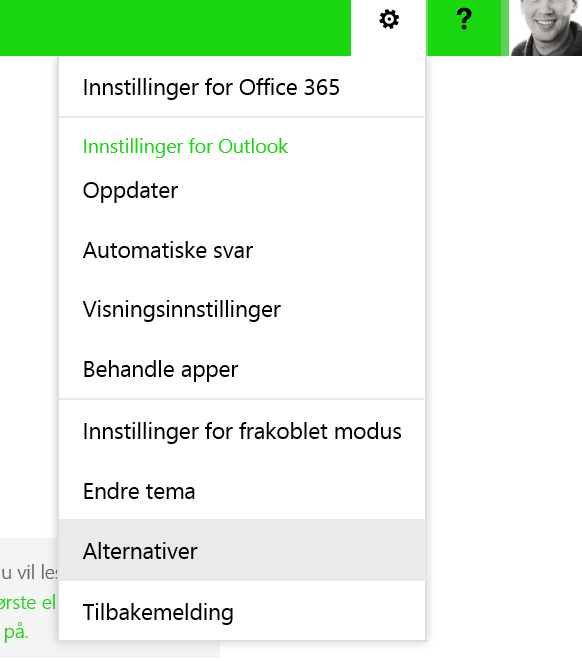
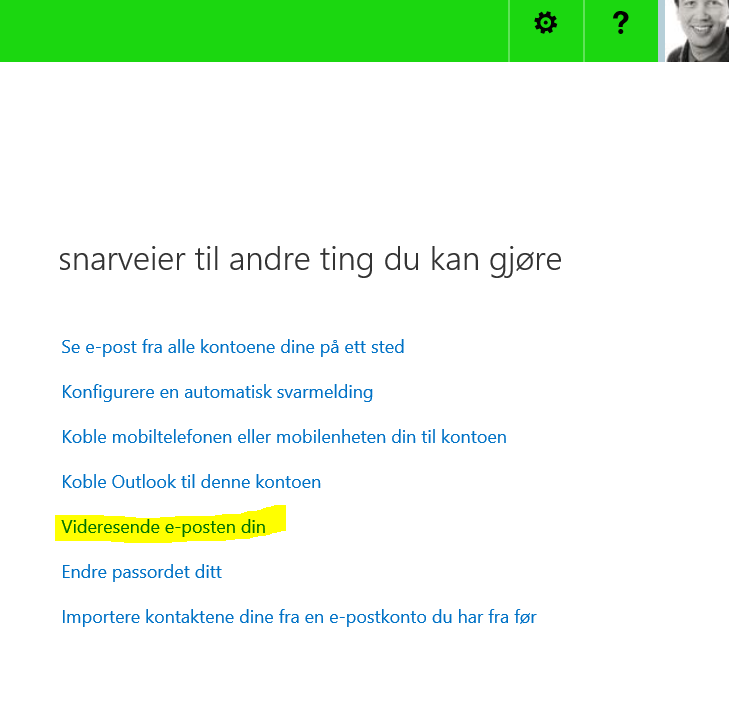
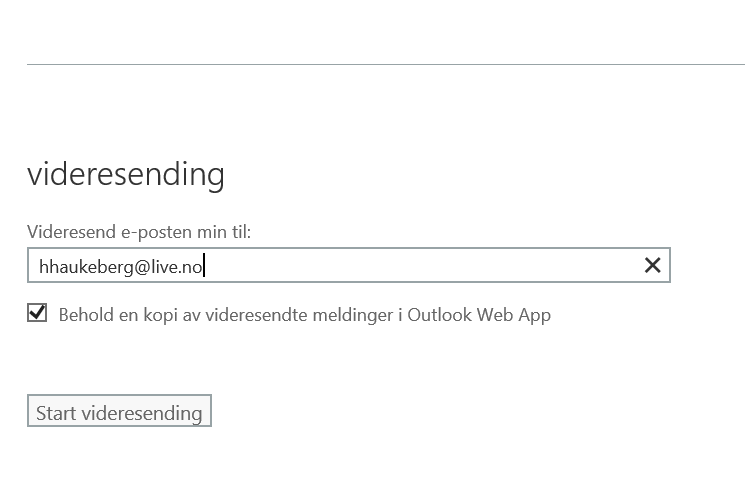
alternativer i outlook web app  videresende i office 365videresendingsepost


FOR ADMINISTRATOR:

Bruk Exchange PowerShell, det er mye raskere dersom du skal gjøre dette automatisk for en gruppe lærere.
Eksempel på kodesnutt:
Set-Mailbox lærer –ForwardingSmtpAddress lærer@kommune.no –DeliverToMailboxAndForward $true
I koden over så er det læreren sin mailbox i Office 365 som blir videresendt til kommuneeposten. DeliverToMailboxAndForward bestemmer om vi skal la det være igjen et kopi av eposten i skolekontoen. Jeg har valgt Ja til dette.

Trenger du å fjerne forwarding for kontoer er det bare å gjøre slik:
Set-Mailbox Support –ForwardingSmtpAddress $null

Det er også mulig å begrense forwarding til kun spesifikke domener.

Manage your customers in Office 365 Partner Admin center

Microsoft-Office-365-Logo
As a Partner you can manage all of the customers that you have sold Office 365 Licenses to and added yourself as “POR” Partner on Record to.
You access your customers thorough your normal Office 365 Portal. e.g. http://portal.office.com or any other custom domain you may use

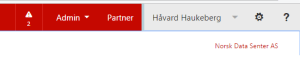
partner button

To set a user up for partner management, you first need to do this:
1. Click Admin and Office 365
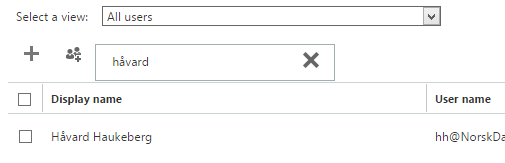
2. Click Users and Active Users

users

3. Find the user you want to give access

user håvard

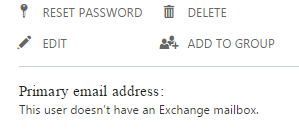
4. Click Edit

edit user


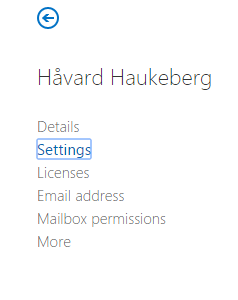
5. Click Settings

setting


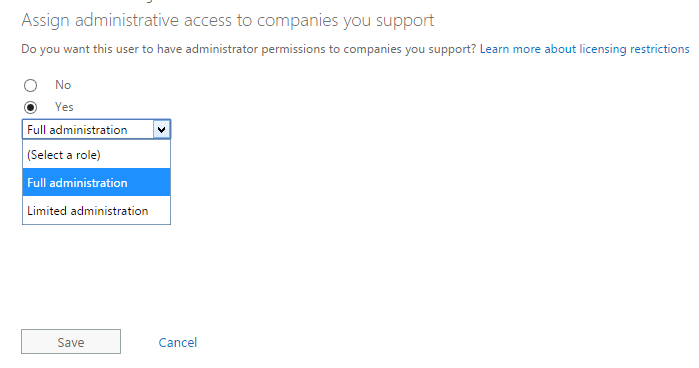
6. Select the Role you want to give and click Save

partner administration


Now log out and back in. The partner button should be visible now.

partner button


Quick OneDrive for Business Provision

OneDrive does not sync

Første gang en bruker logger seg på OneDrive for Business kontoen sin via Office 365 eller FEIDE så vil det ta litt tid før du faktisk kan bruke OneDrive. Dette kan ta alt fra 30 sekunder til 5 minutter.

Det er mulig for deg å få dette til litt fortere for å ikke bruke unødvendig tid på å vente.
Se denne video: http://www.youtube.com/watch?v=T-v7z2E8dT0

For å beskytte seg selv så har Microsoft designet Office 365 slik at de automatisk gjør ikke plass til brukeren før den kommer i aktivt bruk. Dette gir mening for Microsoft spesielt i skolen hvor tjenesten er gratis og skole ofte overprovisjonerer brukere. Det er også slik at ikke alle brukere blir aktive brukere.
Det finnes også et Powershell script som du kan kjøre. Dette scriptet provisjonerer opp brukerne dine automatisk før de har logget på. Scriptet kan ta 100 brukere av gangen, så det kan ta litt tid.

Office ProPlus Activation and Offline computers

Reduced Functionality Mode / Aktivering

What if you image a PC With Office 365 ProPlus or prevent it from going online for an extended period of time. Note: I have not yet tested. Any feedback is welcome.


Quick interpetation of answer from Microsoft: The red activation ribbon will be visible and Office will prompt you to get online to activate if Office has been activated once before or never activated. If Your License is revoked then Office will enter into reduced functionality mode.
The answer from Microsoft below is different depending on the agent. They seem to have trouble predicting  when Office shows Reduced Functinality versus Activation Error.

Scenario 1: IT sets up student PC With OfficeProPlus from 365 and 10PC are saved as “Spare machines” they are IDLE for 180 days. At first boot, internet is not present.  (Activation Error)
Scenario 2: Teacher/Student does not use his/her PC for 67 days. PC is then booted up without internet. (Activation Error)

In these scenarios two Things can happen:
Answer 1 Reduced Functionality Mode
Answer 2: Activation Ribbon, but full functionality  

This is what Technet says:

Important:
Because of its online activation features, Office 365 ProPlus won’t work on computers that are completely cut off from the Internet. For those computers, we recommend installing Office Professional Plus 2013 and using a traditional activation method such as Key Management Service (KMS) or Active Directory Domain Services. http://technet.microsoft.com/en-us/library/gg982959(v=office.15).aspx

This is what Office 365 Support Says:

The Office Pro Plus package that you download from the portal is in relation to Exchange Online which needs internet connection in order to be able to use it. that This product id active for 30 days and it the machine on which you install it needs internet connection so that it can remain active. If you will not connect the machine to the internet, the product will get inactive, and you will still be able to use it but some options may disappear. (EDIT: Reduced Functionality Mode)

 
As part of the installation process, Office 365 ProPlus communicates with the Office Licensing Service and the Activation and Validation Service to obtain and activate a product key. Each day, or each time the user logs on to their computer, the computer connects to the Activation and Validation Service to verify the license status and extend the product key. As long as the computer can connect to the Internet at least once every 30 days, Office remains fully functional. If the computer goes offline for more than 30 days, Office enters HYPERLINK “
http://technet.microsoft.com/en-us/library/gg982959%28v=office.15%29.aspx”reduced functionality mode until the next time a connection can be made. To get Office fully functional again, usually a user can simply connect to the Internet and let the Activation and Validation Service reactivate the installation.

On the other hand, the Office Pro Plus package will get inactive after 30 days, and after a couple of more days it will go into the Reduced Functionality mode.

In reduced-functionality mode, programs function similarly to viewers. When a program runs in reduced-functionality mode, many commands are unavailable (dimmed). Therefore, you cannot access those functionalities. Some limitations of reduced-functionality mode include the following:

•You cannot create new documents.
•You can view existing documents, but you cannot edit them.
•You can print documents, but you cannot save them.

 No existing Office files are damaged. Additionally, you can easily stop Office from running in reduced-functionality mode. To do this, follow the instructions on the screens that appear.

Best Regards,

Andreea Dragne | Office 365 Support Engineer

Getting Office ProPlus from Office 365

office 365 logo

If you have Office With Your Office 365 Subscription this is how to get it!

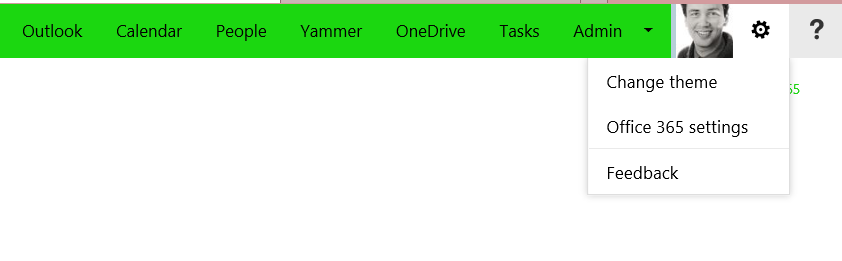
cog

Click Office 365 Settings

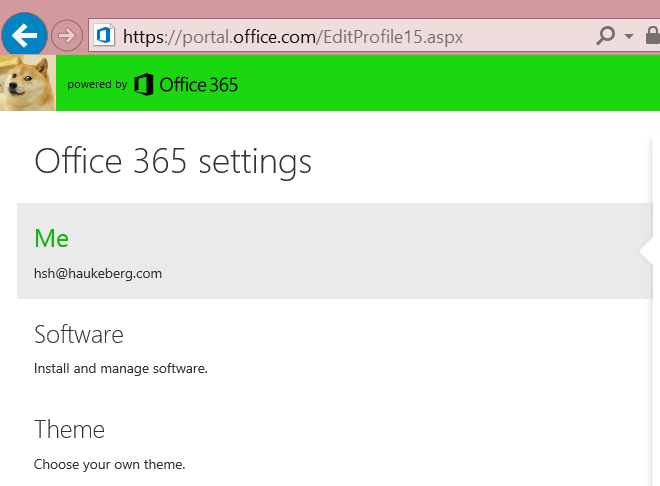
profile

Click Software

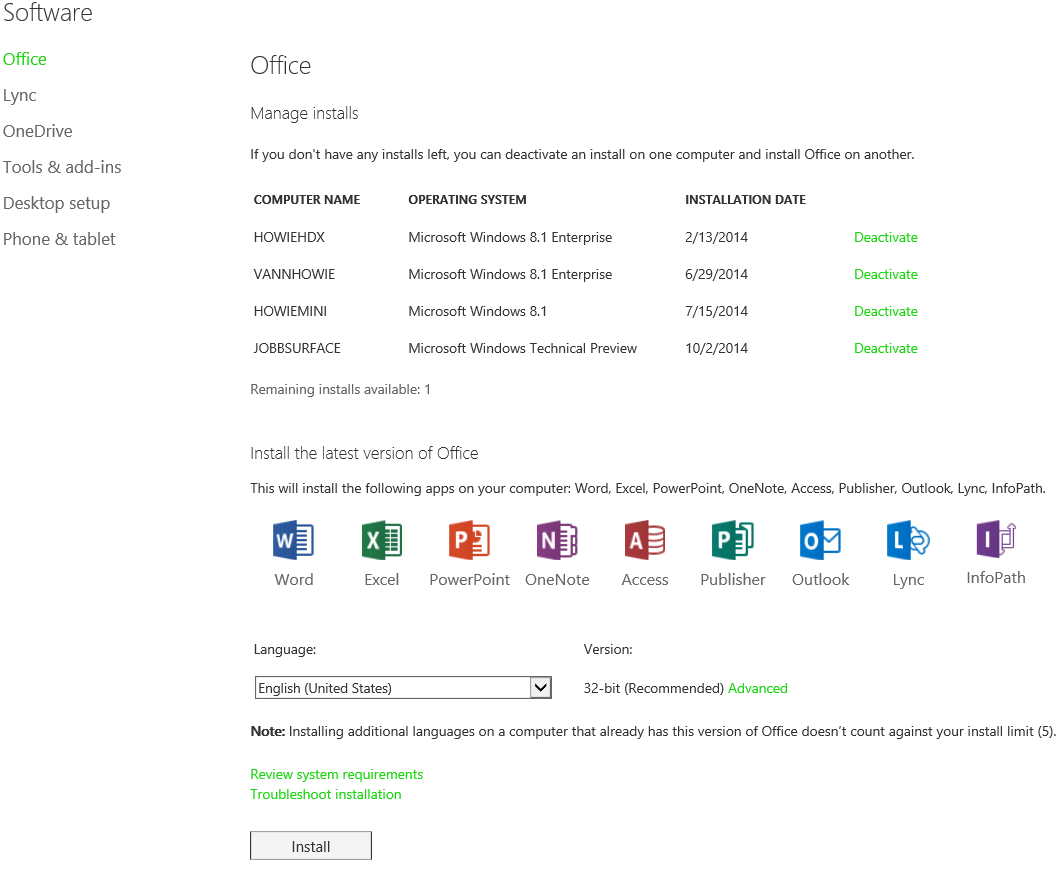
get office

Choose Your Language and install

TIP: You may use this link; https://portal.office.com/OLS/MySoftware.aspx

In Your DNS CNAME or simply put it on a webpage or in a LMS or in a Social media.
That link will take the user directly to his software (he/she would have to log in first With their Office 365 ID)

Sharing files on OneDrive for Business with an Alias

office 365 logo

In Office 365 Exchange Online you may create an alias on a user in order to “translate the username better” e.g.

for the user hshfs34@haukeberg.com might not make sense and mabye the name somehow does not Sync correctly which could make it hard to find the user.
Add an Alias: havard.Siegel@Haukeberg.com

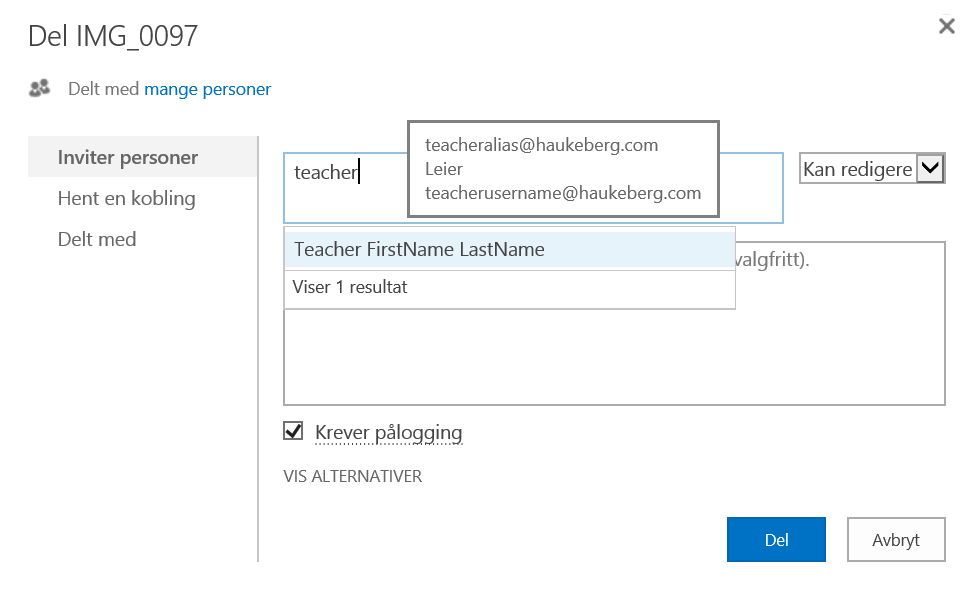
When you share files you may look up the alias in the search dialog Box like this:

Alias and username

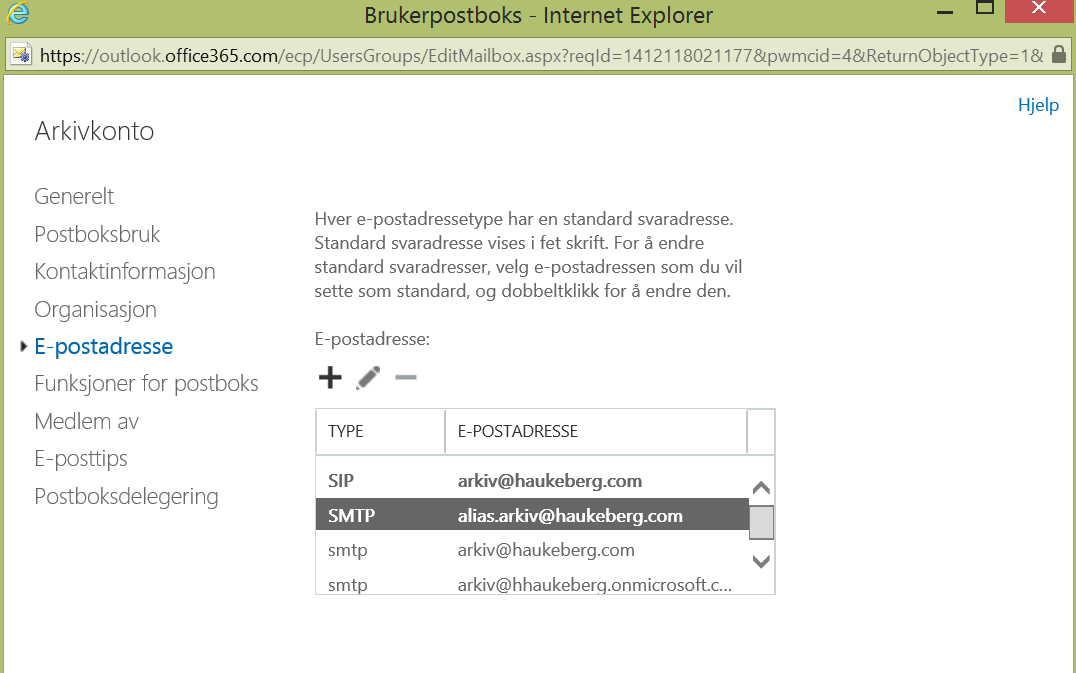
You add an alias in the Exchange Online Control Panel.
Select the user and click Edit Exchange Properties
Select E-mail Properties
Click Pluss
Enter the prefered alias like; name.lastname@yourdomain.com
Make sure SMTP is selected
Check the Make this the default reply address
Click Save and wait for the changes to propagate on the account

SMTP  mailbox alias

Office 365 and OneNote

Microsoft-Office-OneNote-Logo

Here is a colletion of Office 365 and OneNote videos.

They are in Norwegian and feature these scenarios:

  • Moving files from OneDrive to OneDrive for Business
  • Evaluation form in Office 365 Excel Survey
  • Share Documents on the desktop in OneDrive for Business
  • Move OneNote notebooks from OneDrive to OneDrive for Business
  • Share OneNote notebook in 20seconds
  • Connectiong Office 2013 to Office 365
  • Connecting Outlook to Office 365
  • Sync OneDrive for business offline
  • Sync OneDrive for Business without Office 2013
  • Share OneNote straight from OneDrive
  • Share a notebook in OneDrive
  • Copy content from a shared OneNote notebook
  • Create Office 365 Education

If in doubt, SkyDrive=OneDrive and SkyDrive Pro = OneDrive for Business
Microsoft changed the name a while ago.

Sharing Documents on Office 365 with a Mail Enabled Security Group

office 365 logo

In Office 365 you can include all the students in a single class into a Mail Enabled Security Group and simply send one invitation.

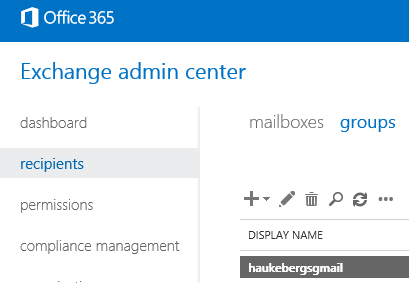
Navigate to Exchange Admin Center (if you create it from the user portal, the SG will not be mail enabled)

sg list

Click the + sign an Select Security group

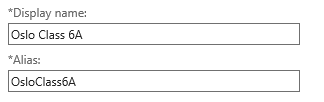
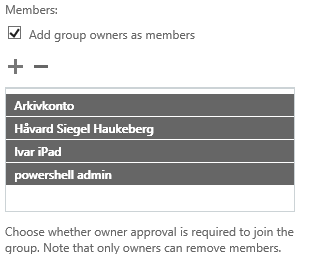
Fill in the form and Select members

alias

members

IMPORTANT

Make sure to check delivery management and enable so that users outside the organization can send mails to this group. If you do not do this then the sharing mail will not be sendt.

send to all


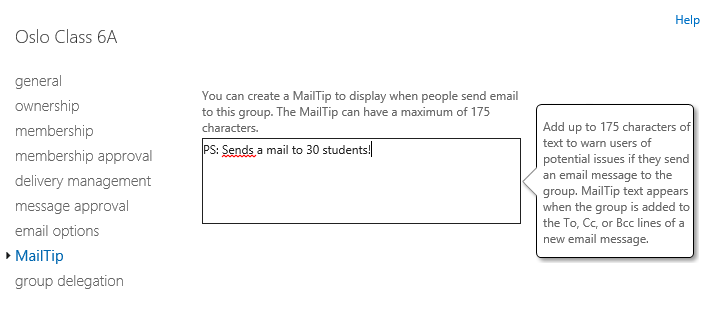
After you created the group, allow for some time for the mailbox to be provisioned. while waiting, insert a mail tip by selecting the SG and click pencil.

mail tip


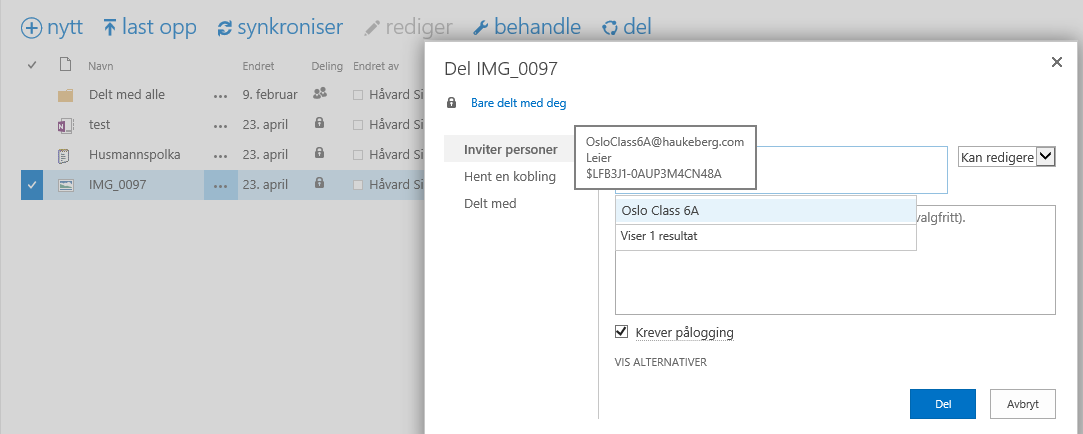
Then Navigate to OneDrive and Select Your file to share

onedrive share

Log in on a user to verify that the mail has been sent successfully

mail recieved


Note on a limitation.

This file does NOT show up under “Shared With Me” tab in OneDrive. This is a platform limitation at the moment. They can browse Your profile and see it or use the email to Access it.

Workarounds

Create a link in a gallery on sharepoint for files to Your classes


Blog at WordPress.com.

Up ↑