Search

Håvard Siegel Haukeberg

Paste life: Ctrl+C -> Ctrl+V

Tag

Intune

Create a GPO Registry Key Script Package for Microsoft Intune

Here is how you create a script that adds a registry setting to the computers managed by Microsoft Intune.

Navigate to:

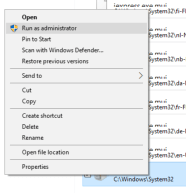
C:\Windows\System32\iexpress.exe

Right click it and select “Run as Administrator”

iexplore

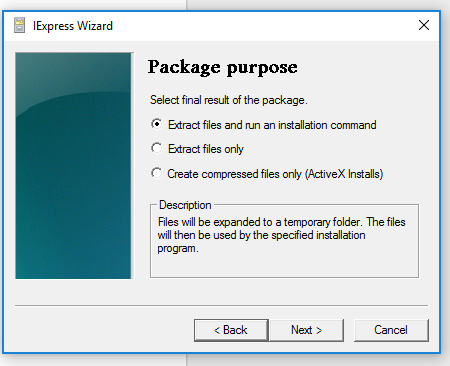
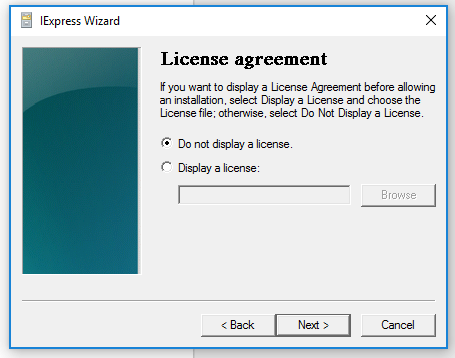
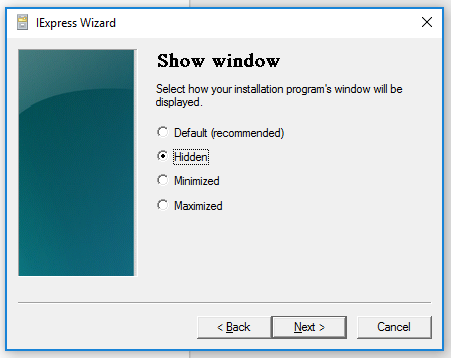
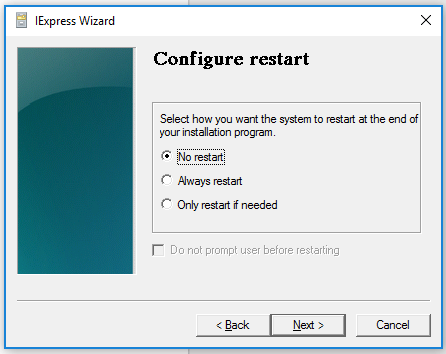
12345678

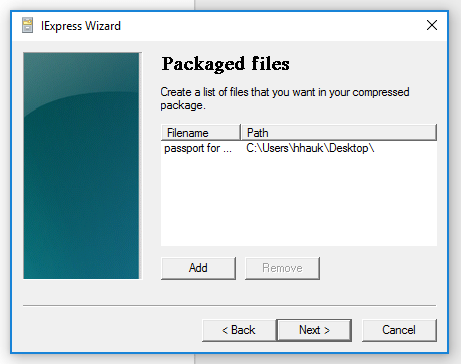
9
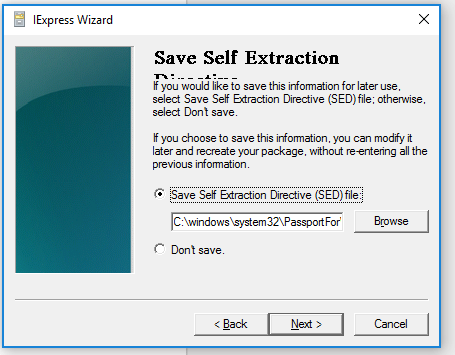
Click Browse and select where you want the file to be saved

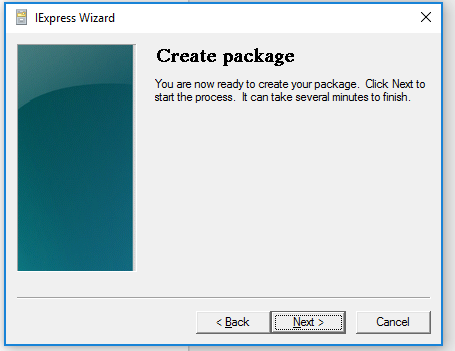
101112

success
You now have a EXE file that you can upload and deploy in Intune

Disable PIN code when joining Azure AD *UPDATED 2018

*THE AZURE AD PORTAL EXPERIENCE HAS BEEN UPDATED, TO FIND THIS SETTING IN THE NEW PORTAL LOOK HERE: Enable or Disable Windows hello in new AAD portal

If you are a larger organization or a school, simply asking your users to enter a pin and start authenticating with a phone might be challenging. Even more so when they have never done that before.

Here is how you disable PIN challenge and phone verification when joining Azure AD

UPDATE: In Azure.

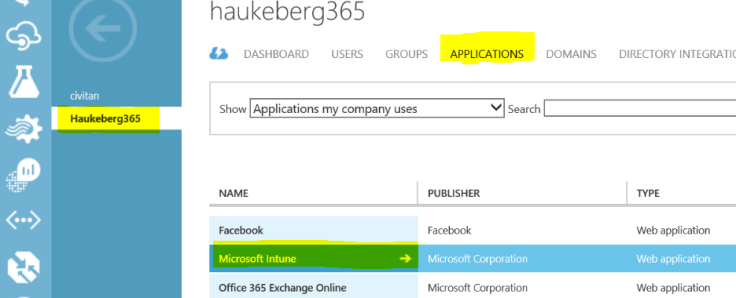
  1. https://manage.windowsazure.com
  2. Go to Active Directory
  3. Select your Domain
  4. Select Applications
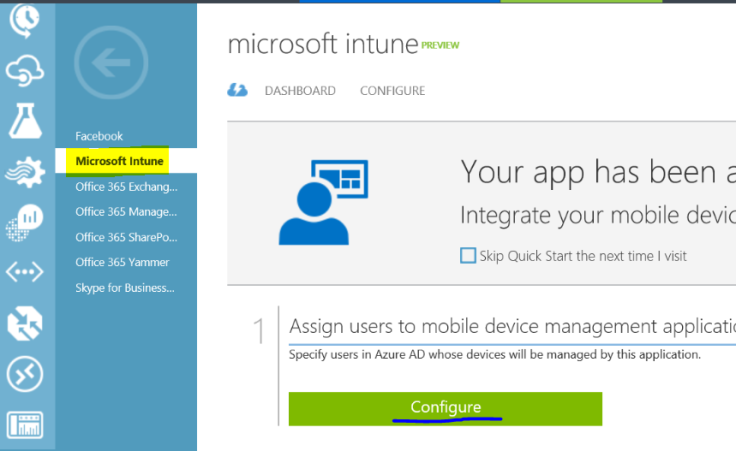
  5. Select Microsoft Intune
  6. Select Configure
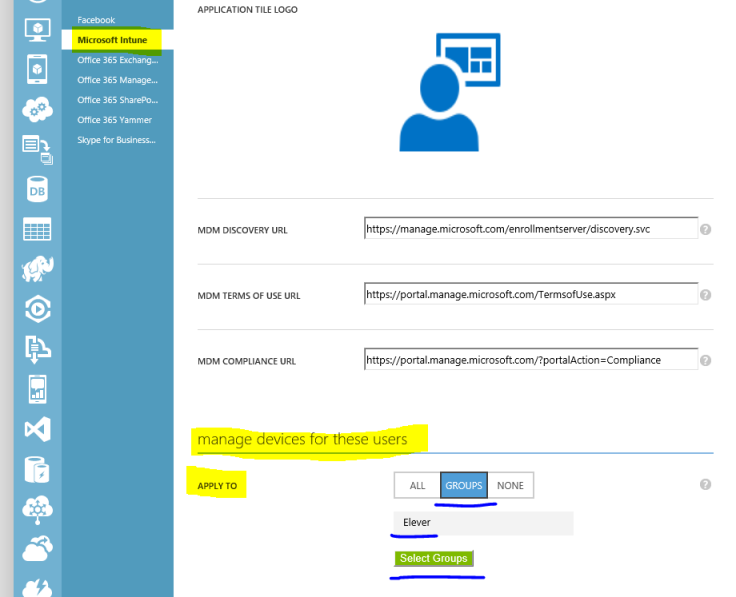
  7. Under manage devices for these users, select All and click Save.
apps
Apps in Azure AD
configure
Configure the Intune app
manage all
Turn on MDM

In Intune.

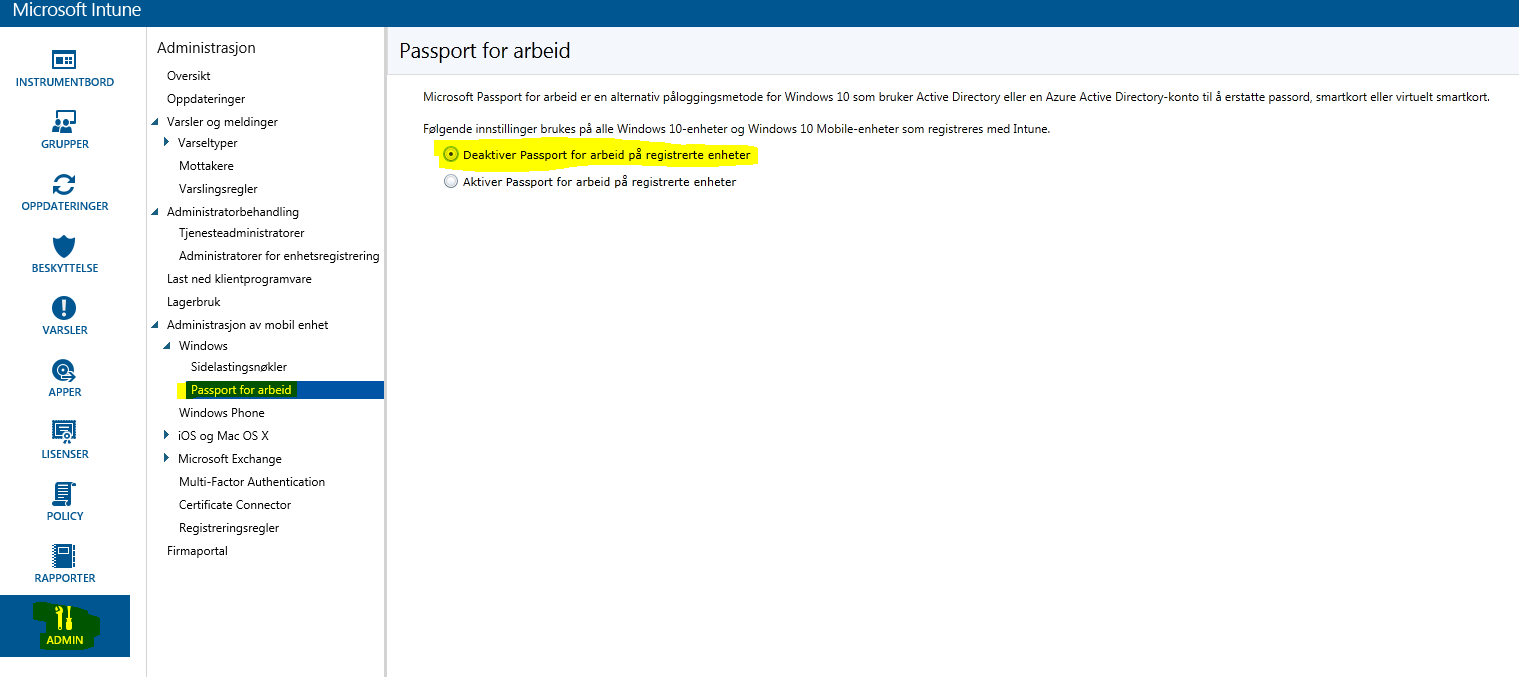
  1. https://manage.microsoft.com
  2. Go to: Admin > Mobile Device Management > Windows > Passport for Work.
  3. Select: Deactivate Passport for Work on registered devices

Thats it.

deactivate passport

Azure AD join on Intune MDM classic agent channel *UPDATED

You can join Azure AD and use the Intune device agent for MDM and not the MDM channel when you enroll. It is a bit tricky and require manual touch on the device.

The best experience is to include the Intune agent in the Windows Image. If can not do this then here is how:

You need this:
  1. Azure AD Enrollment Administrator
  2. Microsoft Intune Agent on USB
  3. Windows 10 clean install (OOBE)
  4. Configure Azure AD to only MDM enroll
  5. Create a group for Security Group with all students
  6. Target Intune to only do MDM for that Group
Optional: Passport for Work registry disable script

Here are the steps:

In Azure AD:

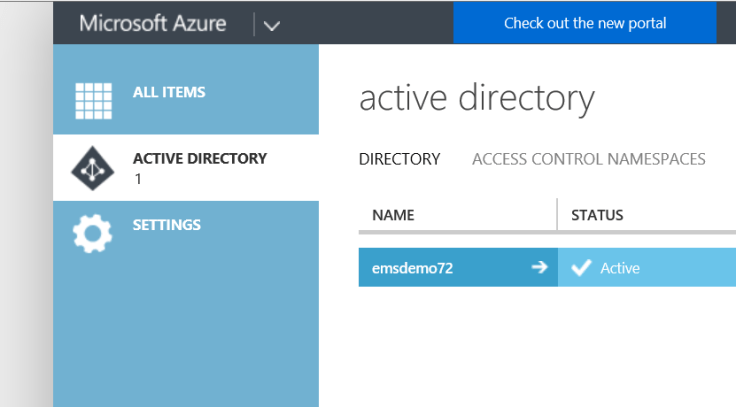
  1. https://manage.windowsazure.com
  2. Go to Active Directory
  3. Select your Domain
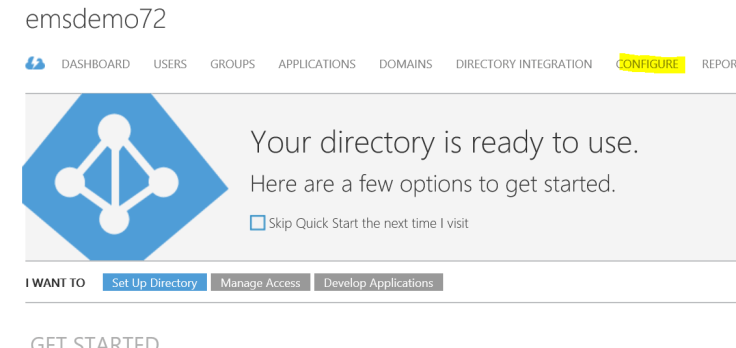
  4. Select Applications
  5. Select Microsoft Intune
  6. Select Configure
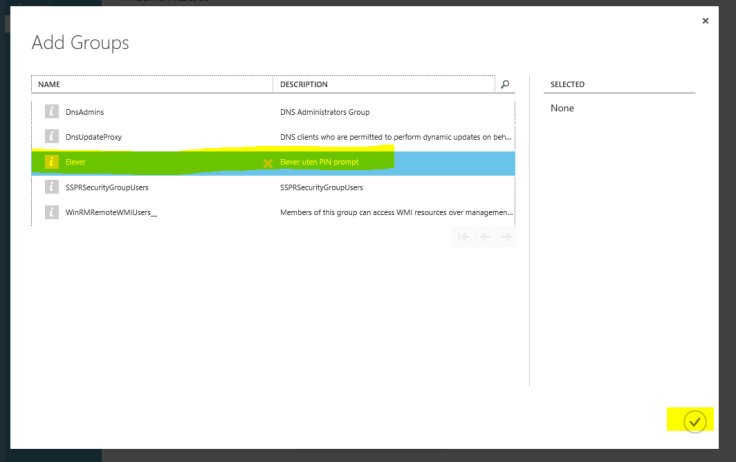
  7. Under manage devices for these users, select Groups then browse and select the all students group. Select it and click on the check mark. Click Save down on the bottom bar.
appsconfigureselect eleverset groups

In Intune:

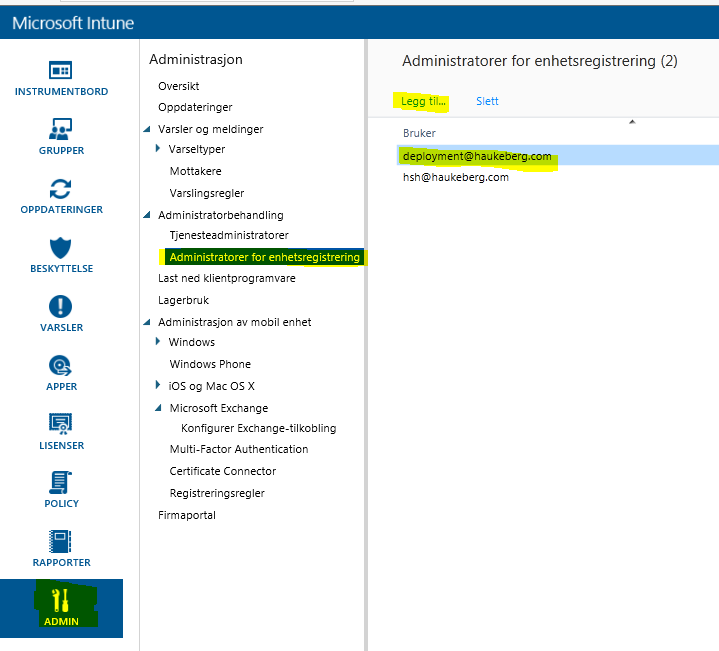
  1. Create an enrollment administrator in the Intune Console
  2. Go to ->Admin->Administrator->Device Enrollment Administrator Enter an Azure AD user as a device enrollment admin e.g. deployment@yourdomain.com
  3. *Create group for the devices that the Device Enrollment Administrator is a part of so that all his devices get targeted for a script.
  4. *Disable Passport for Work by pushing a Script to that group. This script Disables Passport for Work on the local machine so that you do not need to enter a pin.
  5. *Here is how you create the script: Create script
  6. *Here is how you package the script: Script Deployment
  7. *Here is how you deploy the script: Deploy custom script
  8. *One client is visible in Microsoft Intune you need to either distribute the software on all clients or on a client that you manually move into a specific group.
  9. That software will be pushed down in time. you may force the install on the device by pressing install on the client or refreshing the policy in Intune.
  10. Get the Intune agent from Admin->Download Client Software and save it to a USB stick.
*Only nessecary if you want to disable the “Create PIN promt” on login.


deployment admin
Enrollment Admin Creation

On the Device:

  1. Boot the clean device.
  2. Under the OOBE experience Select “My company owns this Device”
  3. Log on with that enrollment administrator and complete the setup.
  4. As the admin you will be challenged with a PIN prompt and you need to verify so bring your phone.
  5. Plug in USB and run the EXE file. Remember you need both the EXE and that small certificate file to be in the same folder for the enrollment to be toward your account.
  6. Let the machine sit if you can. The longer it sits, the more stuff will be downloaded so your next user do not have to wait.
  7. Log of your enrollment admin and give the PC to the students and let them log in with their user that is in the Student security group.
  8. The next user that logs on will be a standard user.
  9. He/She will be prompted for a pin but it can be bypassed by doin this:

Configuring Conditional Access to Exchange Online (365) with Intune

You can configure Microsoft Intune to block devices that do not comply with a “standard” access to Office 365 Exchange Online email.

Here is how:

  1. http://manage.microsoft.com in a silverlight browser.
  2. Create a Compliance Policy
  3. Policy->Compliance Policy->Create New
compliance policy
I will demand a password of minimum 6 digits and 1 minutes before screenlock.
Setting the Conditional Access and blocking Exchange Active Sync
  1. Policy->Conditional Acces->Exchange Online Policy
  2. Click following:
    • Activate Policy for Conditional Access
    • Select Specific Platforms
    • Check iOS (my rules will now only apply here, rest can read email.
    • Check: Require Compliance for Mobile Device
    • Select “Block access to e-mail for devices not supported by Intune”
    • Select “All users”
    • Select “No exception users”

The iOS users will now have to enroll in order to read email and when they do they need to set a 6 digit password.

Caution with using Active Sync only:

  1. If the user has allready configured email, he might not be blocked.
  2. If the user has been associated with that device earlier, he might not be blocked.

Enrollment procedure:

  1. Enter Your email in the native mail client by going to settings
  2. You recive an email with instructions on how to get access to your mail.
Follow that instruction.


Shared devices (Roaming Profiles) with Microsoft Intune

When you have more users than devices or users share devices and you only have Azure Active Directory the ability to switch users work a bit differently.

The first user that you enroll with will be an Administrator, all subsequent users will be a Standard users.

Microsoft Intune will block  any user to enroll a multitude of devices. The limit is set in Azure Active Direcory at 20 Devices. You can change this.

To do this keep in mind that you need to be an Administrator:

Navigate to: http://manage.windowsazure.com

ad

configure
Click Configure
Screenshot (1)
Select the number of devices you want the users to enroll


That is it. This user can now enroll an 1000 devices. on this domain

Azure Active Directory and Roaming Profiles

In Windows 10 you can join a machine to Azure AD instead of a local domain.

But

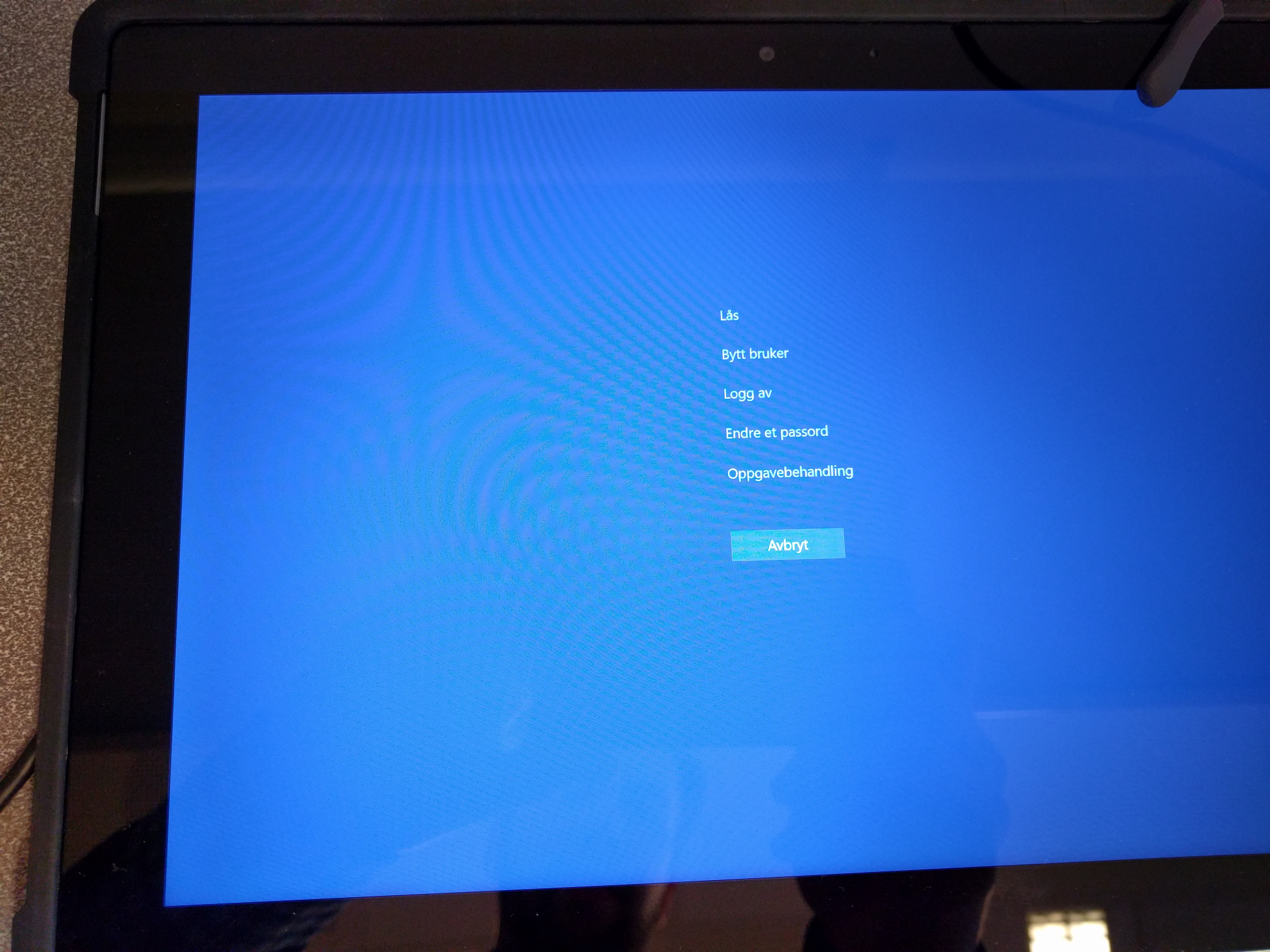
When you join Azure AD your account is given administrator privileges automatically. If you switch users by Ctrl+Alt+Del and Switch user, that user is set as a Standard user.

IMG_20160115_093848

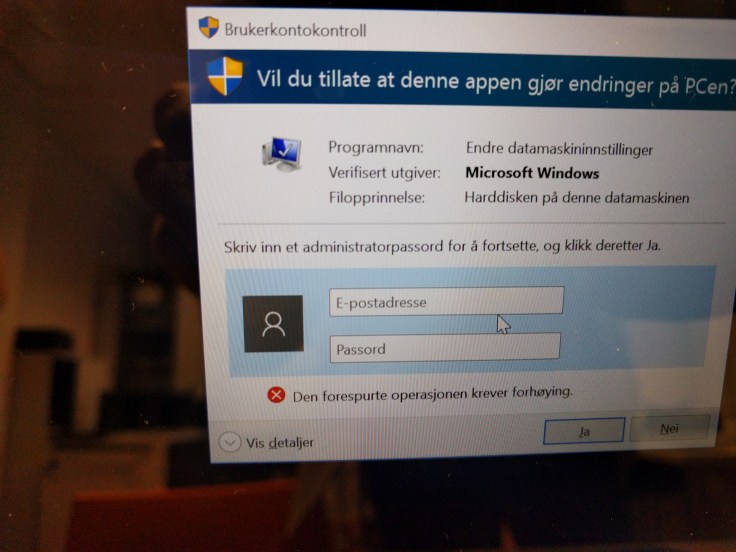
If you do not know who will use the computer, only the first user will be administrator, the rest will be standard users and can not install programs.

IMG_20160115_092644

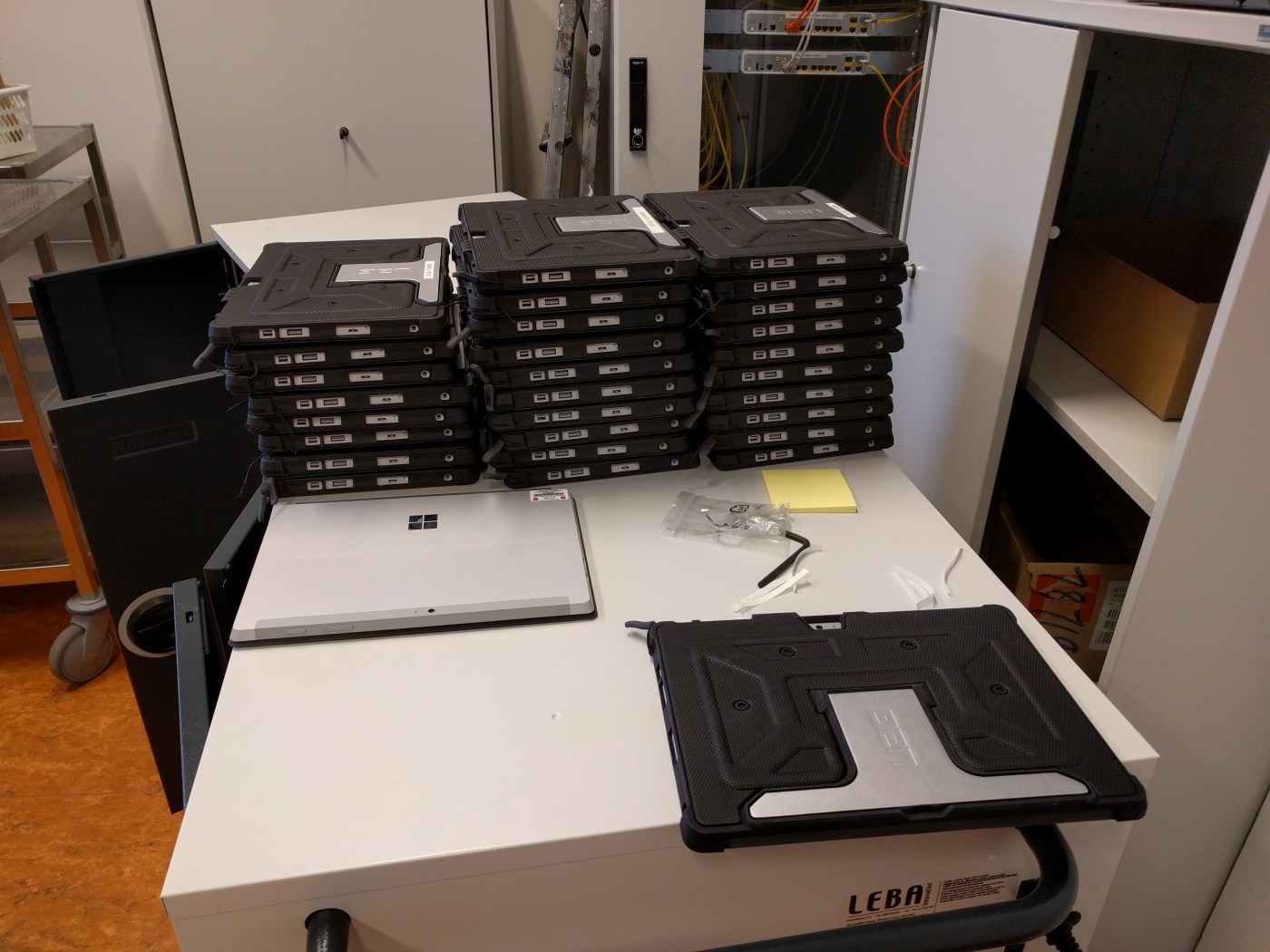
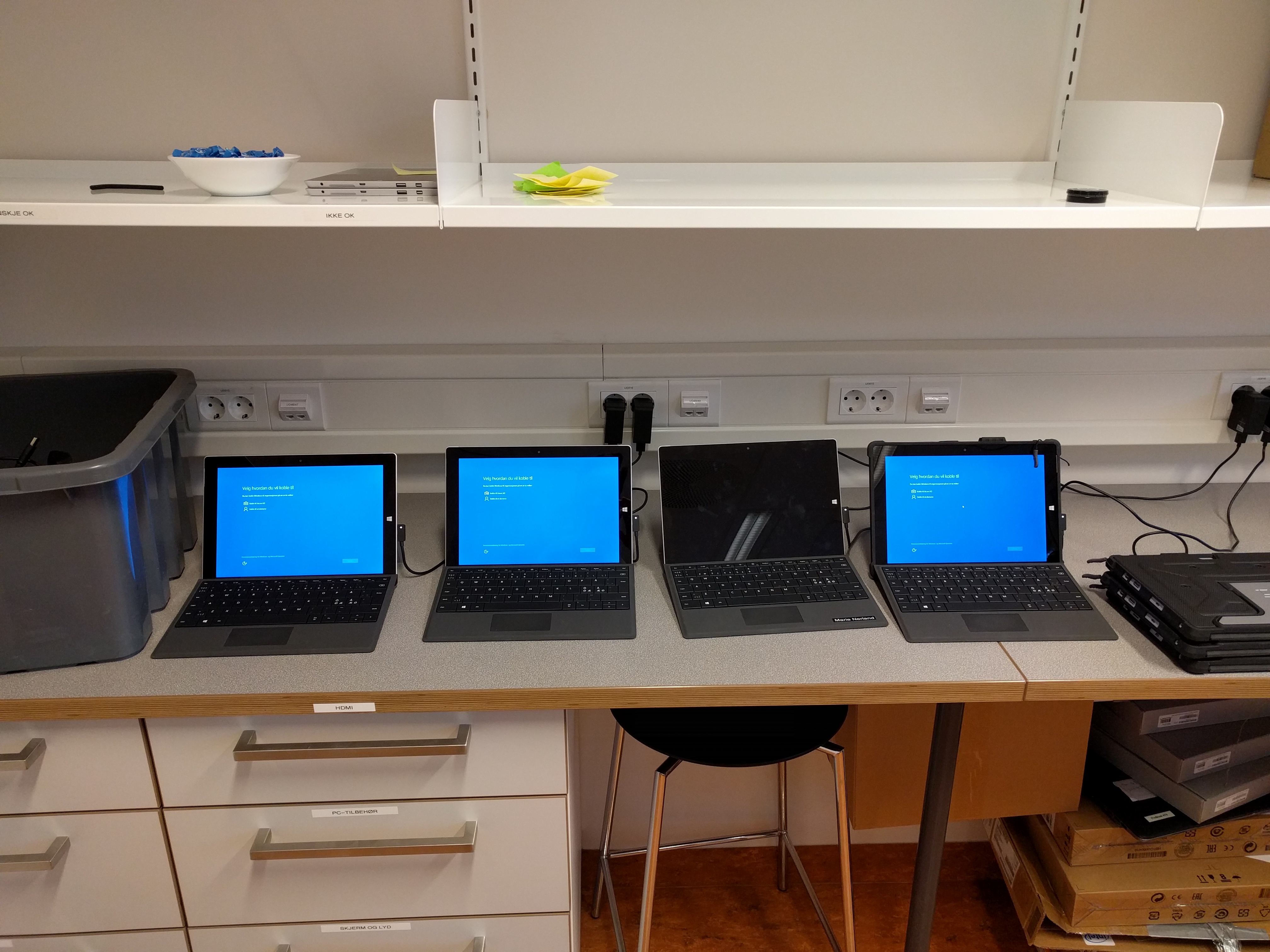
This action is default and can not be changed. Simply giving machines out to students will result in the first users becoming administrators. If you boot all machines before deployment and log in with your user, that user will be blocked after about 20 devices.

IMG_20160115_091519


How to fix this? Take a look at this post: https://haukeberg.wordpress.com/2016/01/18/shared-devices-roaming-profiles-with-microsoft-intune/


Microsoft Intune on-prem/hybrid DNS settings

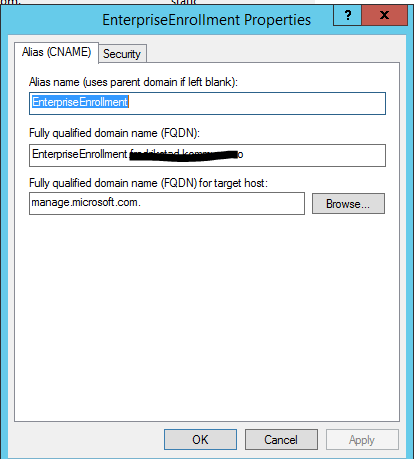
If you want to enroll your devices with Microsoft Intune and you have your own DNS then this is the setting you want to put into it:

dns

Remember: If you have Split Brain DNS or a second DNS in the DMZ, put the same CNAME alias there aswel.

FDQN is always “enterpriseenrollment.yourdomain.com”

Make sure if you have some advance proxy setup or routing that they are on the same subnet.


Hvor er lisensene mine, VLSC tillatelser

Dersom du har bestilt lisenser på en volumlisensavtale med Microsoft så må lisensene ofte aktiveres inne på VLSC.

  • for å logge deg på VLSC går du hit: https://www.microsoft.com/Licensing/servicecenter/default.aspx
  • her må du logge deg på med din Microsoft konto. Dette har ikke noe med Office 365 eller Microsoft Intune å gjøre. Du må velge den private “live-ID’en” som du har opprettet for å logge deg på her.
  • Når du har logget deg inn så kan du starte aktiveringen ved å trykke på “Aktivering av elektronisk tjeneste”
  • Dersom du ikke finner lisensene er dette oftest fordi du ikke er administrator på den riktige avtalen.
Be om tillatelser i VLSC

Sjekk at du har rettigheter til å administrere avtalen. Gå til Administrasjon->Mine tillatelser og se om avtalen som lisensene er bestilt på dukker opp i listen her. Du finner avtalenummeret på kvitteringen som du har fått av din distributør.
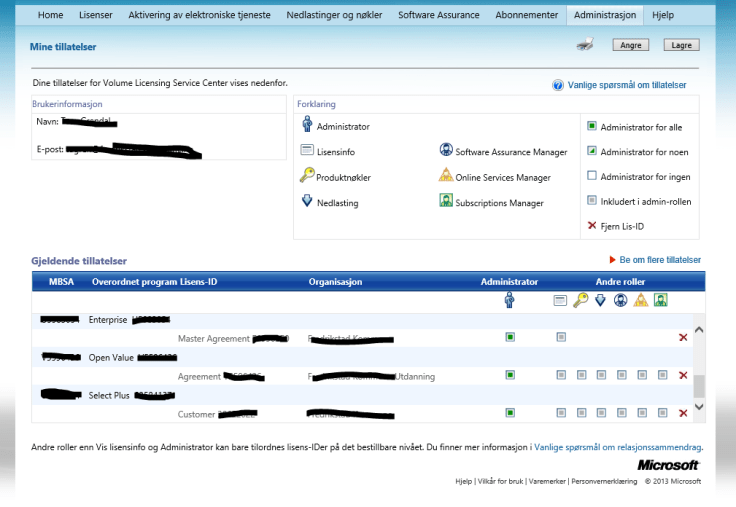
lisensoversikt

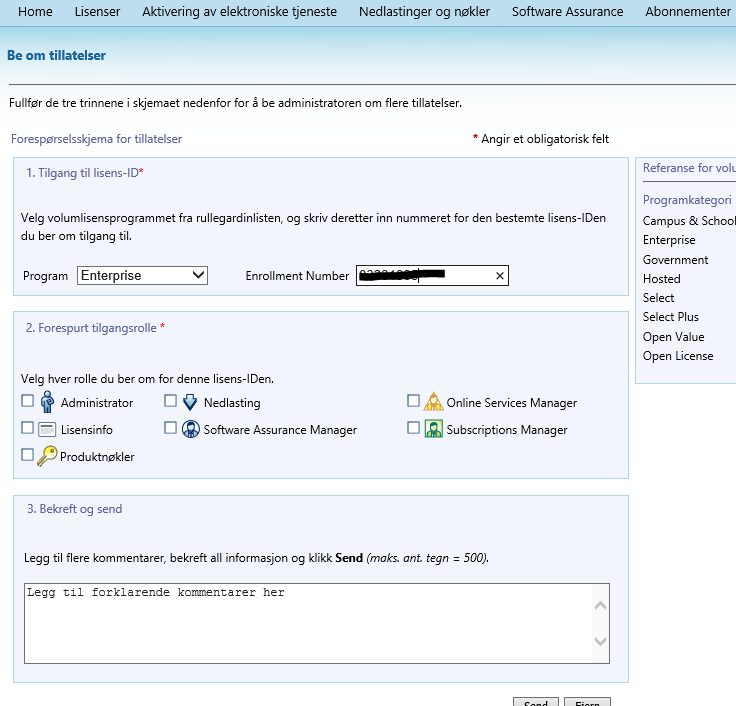
Dersom du ikke ser avtalen her så må du be om tilgang. Trykk da på Administrasjon->Be om tillatelser. Velg lisensprogrammet som det er bestilt på (står på kvitteringen) og skriv in lisensnummeret. Husk nå å hak deg av som Administrator så får du tilgang til alle de andre funksjonene også.
roller
For å bli godkjent så må nå den riktige admistratoren logge inn med sin Microsoft konto og godkjenne deg. Hvis du ikke vet hvem dette er så spør du din distributør om hvem som er Online Contact and Notices.
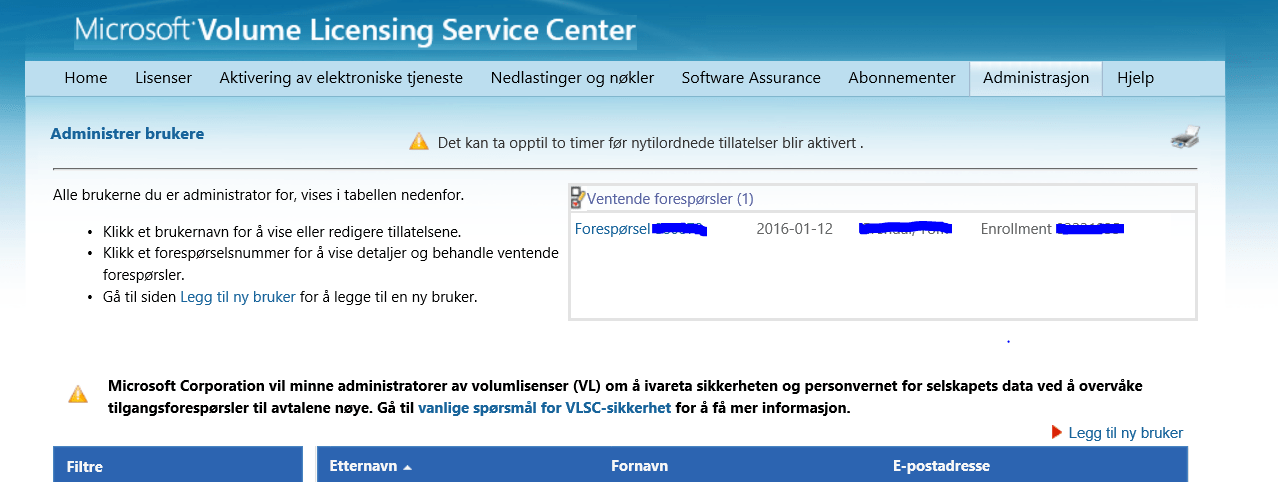
Denne personen må så gå til Administrasjon->Administrere Brukere
forespørsel
Når dette er gjort så venter du 2 timer og prøver igjen å logge deg på med din egen konto for å håndtere aktiveringen av de elektroniske tjenestene.

Koble fra / Fjerne Microsoft Intune fra Office 365

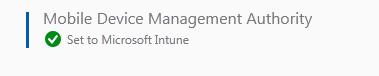
mdm authority

Dersom du har koblet Intune til Office 365 så må du bruke Intune til å styre dine MDM og devices. Min Intune Konto har nå gått ut og når jeg koblet til en mobiltelefon til Office 365 eposten sin så fikk jeg feilmelding på mobilen under sync. Dette skjedde fordi sync policy’en lå i intune og siden intune var deaktivert så ville ikke han sende ut sikkerhetspolicy’en.

Svaret her var å fjerne policyen i Intune, vente på at Intune skulle synce med Office 365 (kan ta noen minutter) og så synce kontoen på nytt.

Nå i fremtiden må jeg koble vekk Intune fra Office 365 og det gjøres slik:

Dersom du ikke vil bruke Microsoft Intune så kan du koble vekk Intune slik:

  1. Kontakt Microsoft support og skriv:
    “Please reset or remove Intune as my MDM authority”
  2. logg inn på http://manage.microsoft.com
  3. Gå til Admin
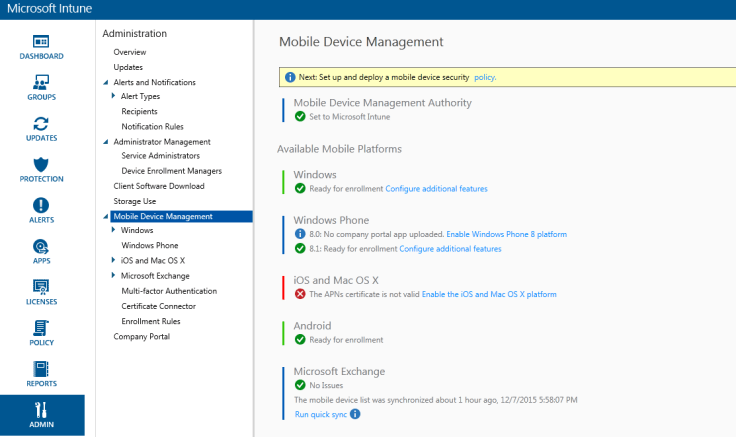
admin
4. Velg Mobile Device Management
mdm
5. Når Support har resatt MDM Authority så kan du sette den på nytt.
intune

Hentet fra Peter Daalmans [MVP] http://configmgrblog.com/2015/05/14/hey-my-mdm-authority-is-set-to-office-365-in-microsoft-intune/

Blog at WordPress.com.

Up ↑