Search

Håvard Siegel Haukeberg

Paste life: Ctrl+C -> Ctrl+V

Tretopphytta (Tre top Hut)

WP_20151031_14_03_37_Pro

So you ever had the dream of building your own hut up in the trees? A place where you could spend the night and watch the stars or observe the wildlife in peace and tranquility?

Last Desember 23. Hanne gave me a birthday present which was one night in a Tre top hut up in Brummendal, link here: Furuhytta

They have several huts for rental and the Furuhytta is the most affordable and smallest one. Perfect for 2-4 persons. It has all the convenience of a normal cabin even though its elevated and you need to climb the stairs to get up.

Preparing to go there:
Don’t over-pack. There is not a lot of luggage room. And you do not need much. In the winter it is very warm inside so you dont have to bring a lot of warm stuff. Remember to pack the camera and flashlight. Of clothes, in the winter/fall time just bring some super-underwear for inside and then some normal light trekking gear. We went during fall.

Getting there:
The road direction is marked well until you get to a toll station. After that pay close attention to the directions. We had a hard time to find the right place to take off the main road. It was very hard to spot because it is no more than a open lot after about 15 minutes of driving into “nowhere”. Don’t hesitate to call the owners. They can guide you.

Staying there:
Your car parks very close. you do not need any trekking gear or special shoes to go there. During sommer you can use normal shoes. During winter there might be some snow on the path. No need to prepare yourself for a long trek. You can also bring suitcases or bags with you as the walk is short. Remember to bring a flash light especially for winter as it gets dark when all lights are off.

The cabin is insulated and warm, you do not need a lot of clothes. Remember that you have to do the dishwashing by hand so try to bring stuff that do not generate a lot of cleaning.

The birds are very tame and if you have food in your palm they might jump on your arm to eat the seeds. There are plenty of sees at the cabin. The squirrels that live there are audible as they run around and make scratching sounds. They won’t eat of your hand. There are some larger birds there as well. We saw also a woodpecker and some larger birds. They ate corn. However don’t put too much food that is not seeds, as you dont know if they will eat it.

There is full cellphone coverage so you can bring Spotify and such.


Link: http://tretopphytter.no/


VPN tunell for RT-N66U “Dark Knight”

The need to protect your identity becomes more and more apparent as theft and crime takes to the web.

I have decided to set my entire home network behind a VPN not just individual units but all of the units connected.

Only way to do this is to have a Router with a VPN client installed. The ASUS RT-N66U “Dark Knight” Router has this.

EDIT: You have to update to the latest firmware from ASUS to get the VPN Client.

Before you go:

Pros:
1. Identity Protection (People cant see where you are from)
2. Content enablement (Browse US content on Netflix)

Cons:
1.Ads and websites can’t detect your correct country and thus you will be taken each time to the wrong site (e.g. english version of Google, not Norwegian)
2. You can not access local content unless you manually switch VPN (e.g. watch NRK nett-TV)
3. Pages that try to locate you or maps services will put you abroad
4. Accounts and Services will believe that you are in somewhere else.
5. Speed speed speed, all will be slower.

Here is how you set up your ASUS RT-N66U router.

  1. Buy a VPN service (https://www.privateinternetaccess.com)
  2. Go to 192.168.1.1 in your browser
  3. Enter credentials
  4. Click VPN
  5. vpn
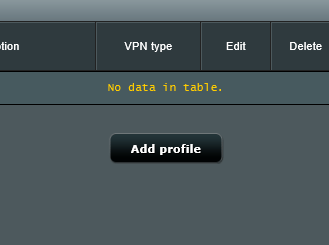
  6. Click Add profile
  7. add profile
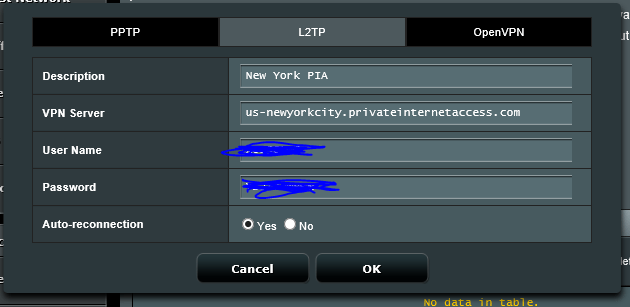
  8. Enter the server name and your L2TP username + Password
  9. l2p
  10. Click OK

Thats it. you are hidden.

Speedtest:

NO VPN: 800mb/s

no vpn 1no vpn

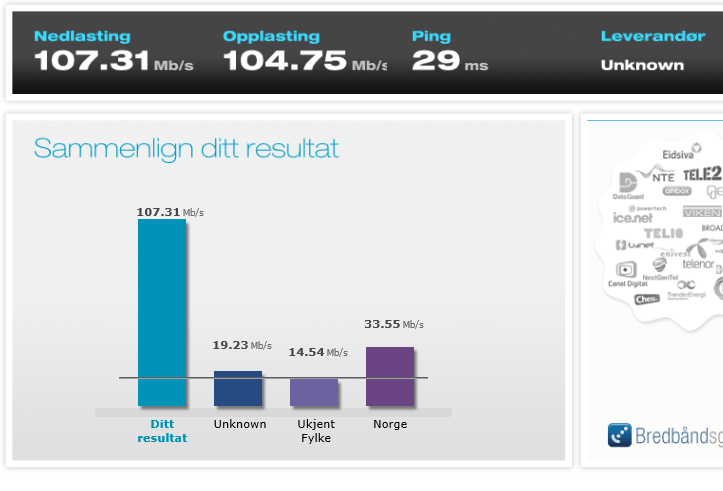
SWE VPN: 100mb/s

swe serverswe server 1

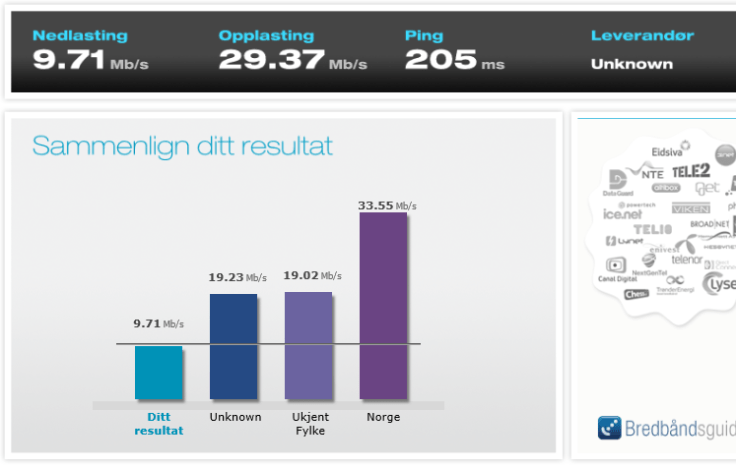
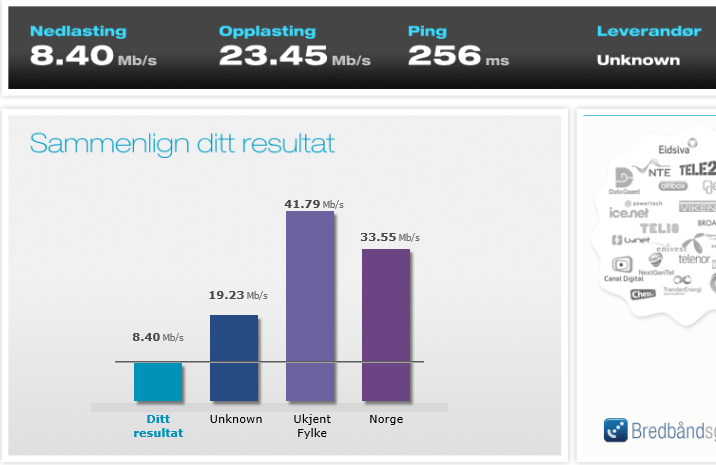
US VPN : 10-20mb/s

us server 1us server

CANADA VPN: 8 – 15 mb/s

ca serverca server 1


References:

https://torrentfreak.com/anonymous-vpn-service-provider-review-2015-150228/

Video: https://www.youtube.com/watch?v=xIJ9Hg24maQ

https://www.privateinternetaccess.com/


Why you should have the taskbar on top

If you are getting or own a Surface Pro 3 or Surface 3 its much better to have the taskbar on top.

Here are the two reasons I do it:

  1. Better Ergonomics – You lift your gaze instead of looking down you look up.
  2. (Most important) Easier to touch the taskbar when the keyboard is clipped on

WP_20150911_20_35_20_Pro

Office 365 Online Services Activation Email

So you bought Office 365 Online Service? Grats! a new and modern way of using Office is just some clicks away 🙂

This Applies to:

Open Value Subscription
Open Value
EES
EAS

Once you partner has ordered the License you will get this email from Microsoft to start the Activation. This is something you have to do yourself or forward this email to your partner. Your partner can only help if he as an Admin Account on your Tenant.

Remember that this email is sendt to a named individual within your organization. Microsoft and Partners call this individual as the Notices and Online Contact. This person has been defined when you first accepted your license agreement. If this person has quit or you can not get access to his inbox you have to contact the partner which in turn have to contact the Distributor to get this changed. The Distributor has to log what we call a CLT Ticket to change this. This change may take a day or two.

THE SAMPLE EMAIL

—————————————-

From: Microsoft Licensing [mailto:MicrosoftLicensing@e-mail.microsoft.com]

Subject: Aktivering av Microsoft elektroniske tjenester

Velkommen til Microsoft-volumlisensiering   ​

Du mottar denne meldingen fordi du er oppført som administrator for volumlisensavtalen, som organisasjonen nylig signerte med Microsoft.

Klikk her for å komme i gang med dine elektroniske tjenester.  —– Click on “Her” to start the activation

Hvis du ønsker å behandle alle volumlisenskjøpene, inkludert elektroniske tjenester og programvarekjøp, går du inn på servicesenteret for Microsoft-volumlisensiering. På servicesenteret for Microsoft-volumlisensiering kan brukerne i organisasjonen sikkert vise dine kjøpsavtaler og annen informasjon, vise volumlisensbestillinger, laste ned programvare og mye mer. Hvis du ikke har brukt servicesenteret for Microsoft-volumlisensiering før, må du registrere deg for å få tilgang til avtalene. ​

Kontakt din Microsoft-partner hvis du trenger hjelp.  ​

Takk for at du er kunde hos Microsoft.

Tilbakemelding PersonvernerklæringVilkår for bruk | Varemerker © 2015 Microsoft

The trick is to click the three letter button that says: HER

Below is a screenshot of the email you need to look for.

welcome email

Activate Windows 10 Enterprise

Windows-10-Logo
Testing the Windows 10 Enterprise image from MSDN or VLSC?

If Your machine is not domain-joined or you do not have a KMS server, you can activate Your enterprise installation With a MAK-key. This is usually if you have a MSDN or VLSC account.

Activation it easy:<

Press:
Win key
Type:
CMD
Right Click on Command Promt and Select “Run As Administrator”
Then type:
slmgr.vbs /ipk <windows key>

Your machine is now activated and configured as a KMS (Key Management Service) host
kms aktivering

Getting Cortana and Windows 10 outside supported language

cortana logo

Install correct Language:
For all MSDN & VLSC users out there, if you want to make use of Cortana remember to install US-English version or another supported language of Windows 10. If you do not do that, there is no way to enable Cortana at the moment.

Don’t change default language
Install in with default keyboard, language. Just leave everything to default.

Don’t log in with a Microsoft Account Yet
It seems that if you log in with your MSA/Azure AD account even on a supported language Cortana will be disabled because your Azure AD or MSA might have regional settings.
Choose “Join a domain”

join domain windows 10 enterprise

Run Cortana
She will prompt you to log in with your Microsoft Account, that’s okay now

Activate Windows
Do it.

Connect your Microsoft Account
Then connect your MSA and log in/out

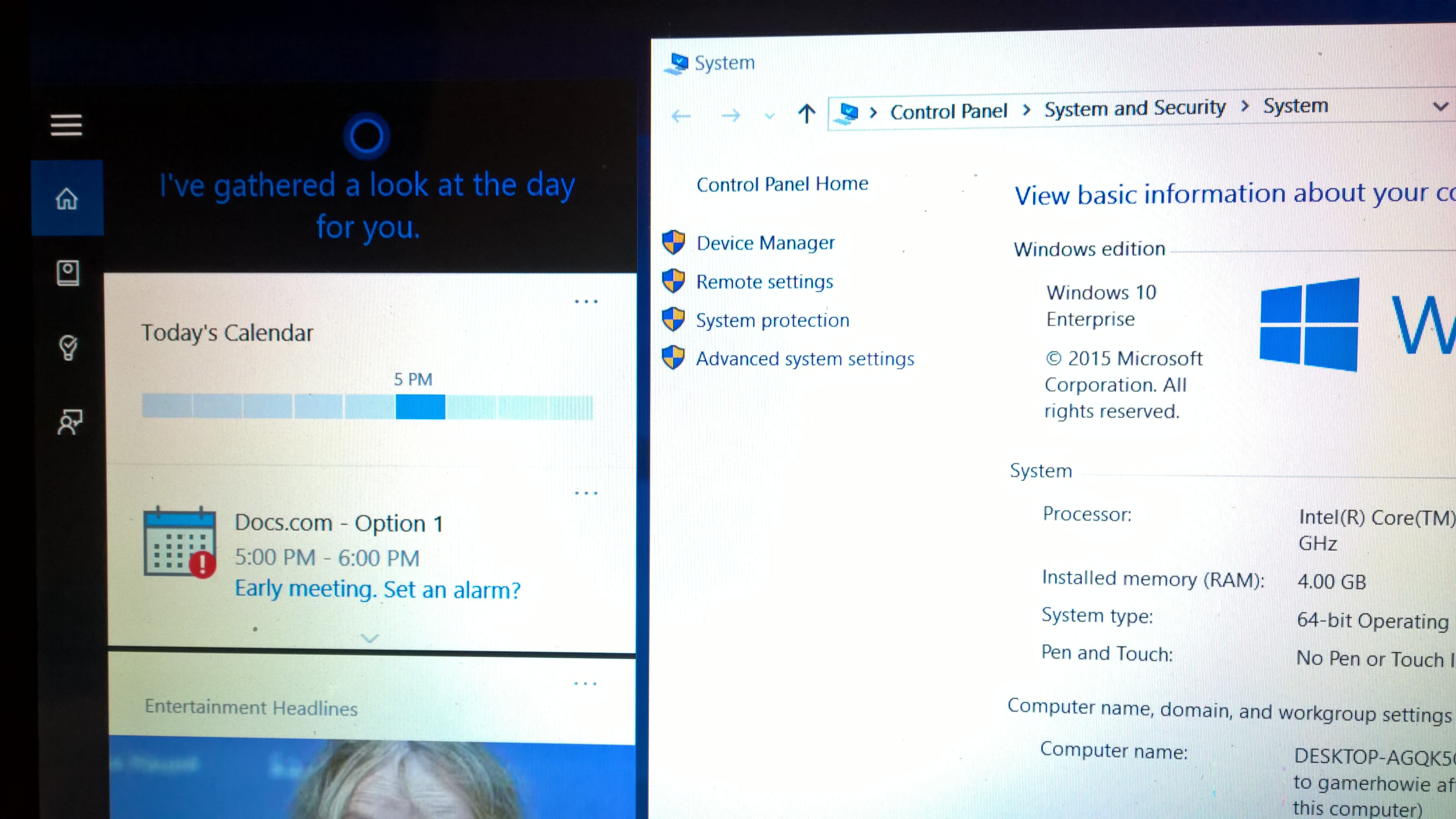
You can now use Cortana

cortana on windows 10 enterprise


Windows 10 bootable USB Stick with UEFI support

Windows-10-Logo


How to make a Windows 10 Bootable USB stick that support UEFI boot.

Requirements:

  • 4 Gb USB stick/flash drive
  • Windows 10 Pro/Enterprise/Education Installation files (either their own image, MSDN or from the Volume Licensing website)
  • A PC or tablet!
Make a bootable USB flash drive using DISKPARTRun CMD.EXE as an administrator (Win-X then A), then run DISKPART with the following commands (not case-sensitive):
Command What it does
LIST DISK                 Shows all mounted disks.  Find your USB flash
SELECT DISK n          Selects the disk that future commands will use.  Replace ‘n’ with the disk # for your USB flash drive.NOTE:  Be careful that you don’t select your hard disk!  The next command will wipe the selected drive clean.
CLEAN Erases all previous partition & volume information on the flash drive.
CREATE PARTITION PRIMARY    Partitions the flash drive as one partition for the whole drive.
SELECT PARTITION 1          Selects the new partition so future commands will operate on it.
ACTIVE                    Marks the new partition as active so the BIOS/UEFI can boot to it.
FORMAT FS=FAT32  QUICK        Formats the partition as FAT32.(NOT NTFS!)  EXTREMELY IMPORTANT!
ASSIGN                   Assigns a drive letter to the flash drive.
EXIT                        Exits DISKPART

At this point your USB drive is formatted.  DO NOT format the drive with Windows Explorer or format.com; you will not be able to boot from it.

Simply Copy files to the USB Drive and Prep the Windows 10 Image on the USB drive.

1. Copy Files

  • Use File Explorer

or

  • Copy files using (use XCOPY or ROBOCOPY) both of which are available in Windows 7/8/10.robocopy <source directory> <usb flash drive root directory> /mir
  • Example:  robocopy d:\Win10Files e:\ /mir
    (Change the destination to the folder that you have extracted Windows image on disk)

2. Prep the USB using CMD

  • Run CMD
  • Go to the directory where your winfiles are
  • cd boot (e.g. c:\win10pro\boot\)
    bootsect /nt60 X: (X is the drive latter of your USB drive )


Booting from the USB drive:Method 1: 

  1. Enter UEFI/BIOS Screen
  2. Set to boot from USB
  3. Disable Secure Boot

Method 2

  1. Press Windows Key + R
  2. Enter : shutdown.exe /r /o /f /t 00
  3. After the system restarts – Click boot from another device
  4. Select USB device
Install Windows 10Go through normal Windows 10
Finishing up

  • Go back into the BIOS / UEFI and re-enable secure boot
  • Run Windows Update to get latest updates
  • Congratulations! – You are running Windows 10

HDD VS mSATA SSD on PCIe

Image_07S
As a casual gamer and system builder I want the best performance at an affordable cost. Here I have spendt about 1500 NOK for 512GB with insane performance.

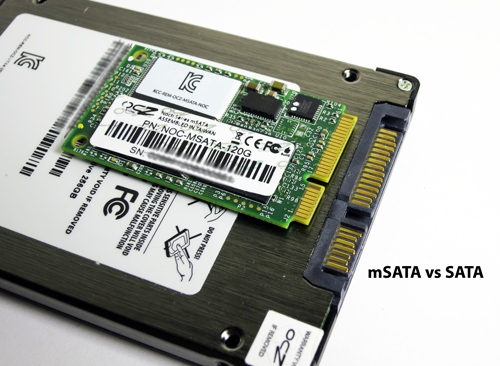
SSD’s are now more cost efficient than ever and price is still dropping however its time to stop using your SATA port on the MB (with IDE/AHCI) and go straight to the PCIe Port which has greater transfer speeds than the IDE/AHCI ports. You may also use a PCIe adapter to SATA ports and have the benefits of some increased transfer speed on SSD without buying new mSATA drive. You may also use older Traditional disk drives. However the greatest benefits is from using SSD disks on SATA, mSATA or m.2.

I have recently bought a cheap PCIe to mSATA adapter on DX.COM mSATA PCIe Adapter and i bought a 265GB mSATA SSD card, this one on Ebay: Wave 256GB Generic mSATA SSD

Here are the benchmark differences using AD SSD tool AS SSD tool Downloadl

LOOK AT THE TEST SCORES

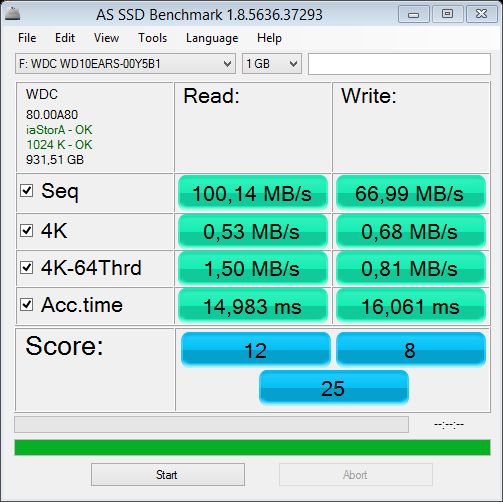
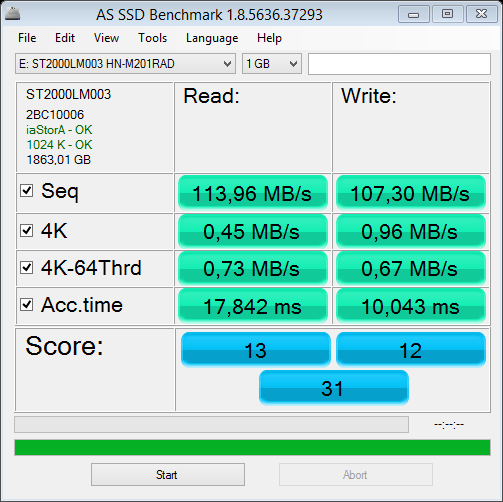
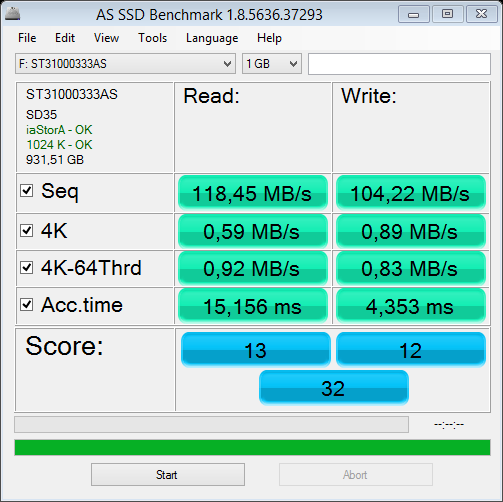
STANDARD SATA Disks Standard AHCI on Motherboard Windows 8.1

wd 5400 1TB 64mb cache
1TB SATA 5400RPM 3,5″ 64MB Cache
2 gb HDD SATA
2GB 5400RPM SATA 2,5″
1TB 7200 RPM Segate
1TB 7500RPM SATA

STANDARD SSD on SATA port.

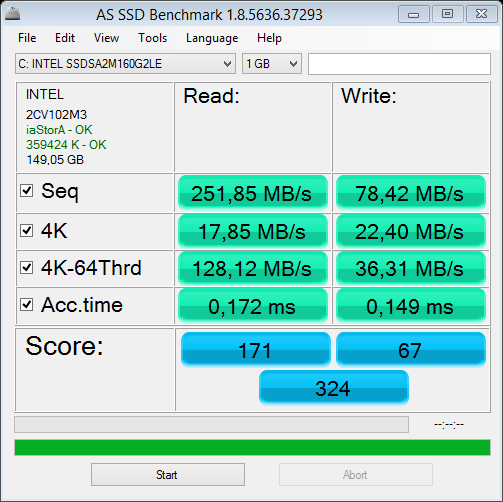
intel 160gb SATA
160GB SSD SATA

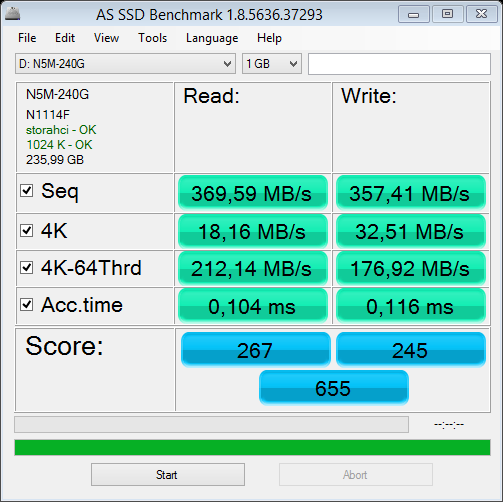
!!NEW HIGH PERFORMANCE PCIe adapter with Wave 256gb mSATA SSD

wave 256gb SSD win8.1
256GB mSATA PCIe SSD

Notice the increased performance! It is about a triple increase in performance on some aspects. The real practical result here is if you are a gamer. You should see lower load times and less lagg when you have to phase or load content. Also the disks do not suspend spinning so you dont have that 3 second lag where disks spin on again.
I have done no tuning and the components are all low cost components. This should be an indicator that a higher performance is obtainable as long as you can afford it.

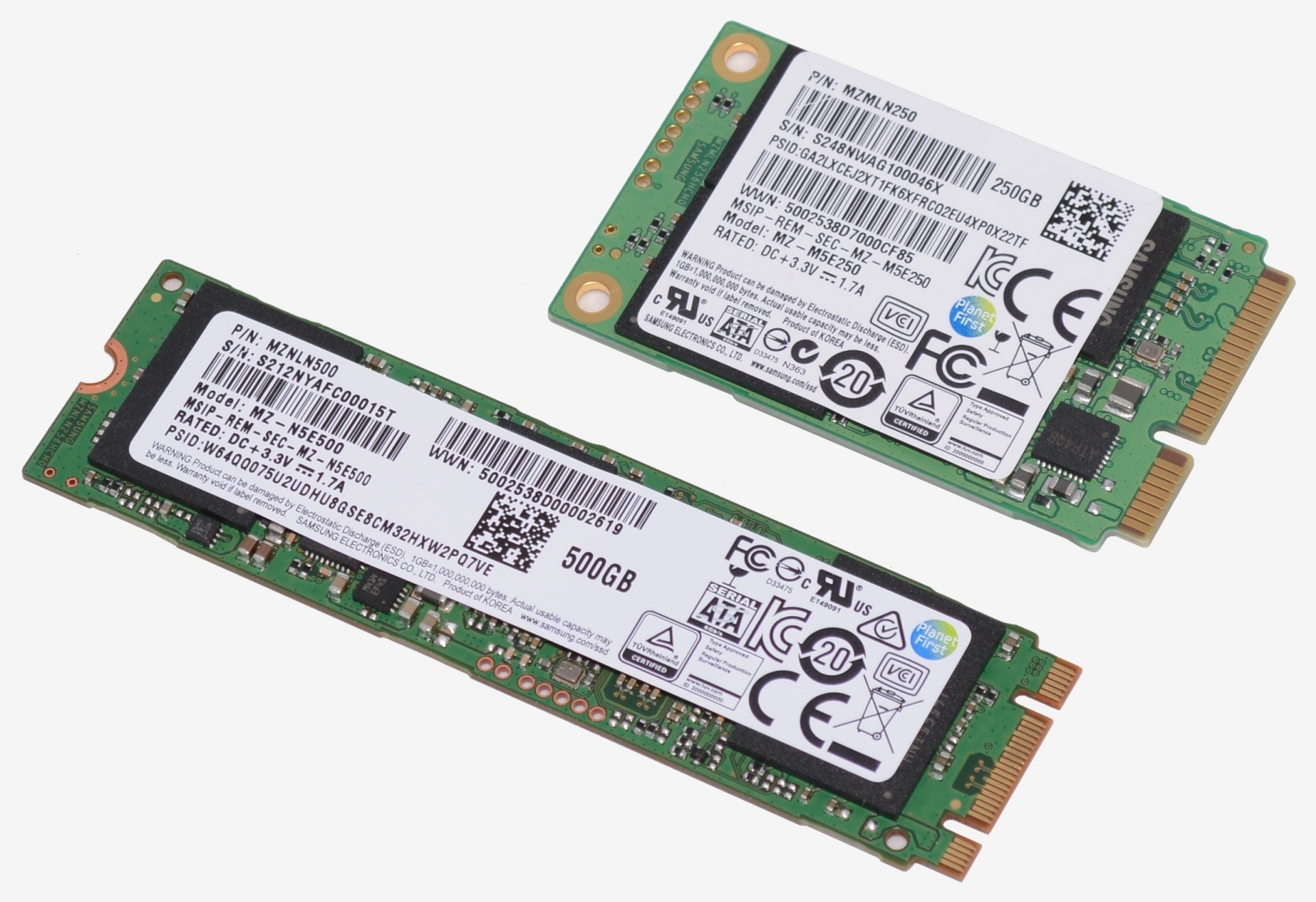
IMG_0719 msata_sata500px (1)


Reccomendation:

1. Use SSD disks on PCIe to run all system tasks and games.
2. Buy a low cost large 2gb 5400RPM drive at an affordable price to store all other files and archives.
3.Use USB3.0 or SATA on the PCIe adapter for the low cost drive
4. Do not install system software or games on the low cost storage drive to prevent the system having to “page” the drive and wake it up. That can give you a 2-5 second lag in games.

Blog at WordPress.com.

Up ↑