Search

Håvard Siegel Haukeberg

Paste life: Ctrl+C -> Ctrl+V

Category

Windows

And all that stuff

Intune Education first look

intune-portal-first-logon-svensk

Remember to get Intune Education to work properly you need to enable School Data Sync (SDS). You do that here: http://sds.microsoft.com

Lumagate has also created a how to get SDS up and running with Microsoft Classroom here: http://lp.lumagate.com/microsoft-classroom

Device enrollment admins per school

Great news you can now specify enrollment admins for different shools. No more global admins. Your IKT kontaktlærer  (IT staff) can manage his/her school. It is not live yet but comming in April.
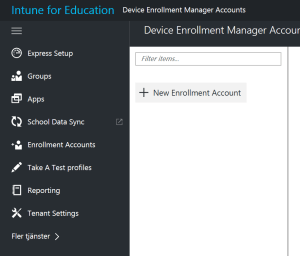
device-enrollment-admins

Here is the new Wizard to set up your school:

Sway: https://sway.com/ZjI1IgWq6lwRErJh

This slideshow requires JavaScript.


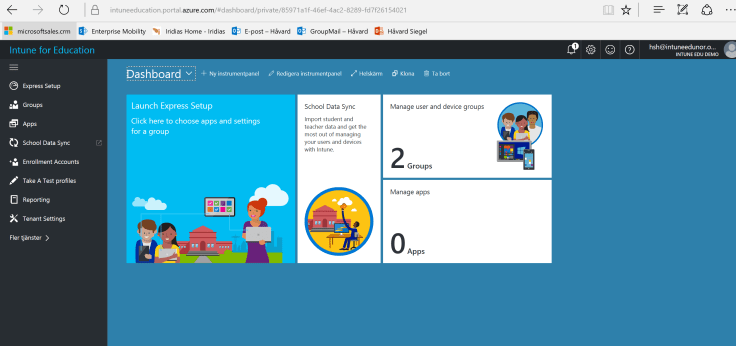
Intune for Education portal

Yay, the new Intune Education Portal is live. you find it here:

It has:

  • Role-based security (create admins for a region or school)
  • HTML5 support
  • SDS integration
  • Granular deployment for schools
  • ++++ much more
https://intuneeducation.portal.azure.com

portal-not-accessible

If you do not have access, just wait. You get a notification in the old silverlight portal when you can migrate.

Dont want to wait; simply create a new trial to check this out: https://www.microsoft.com/en-us/cloud-platform/enterprise-mobility-security-trial


More info here: https://blogs.technet.microsoft.com/enterprisemobility/2017/01/24/perspectives-on-the-new-intune-console/


Minecraft Education Edition Activation Emails

If you have ordered Minecraft Education Edition on EES you will get an activation email which places your licenses in Windows Store for Business

The sender is: Microsoft Online Services Team msonlineservicesteam@email.microsoftonline.com

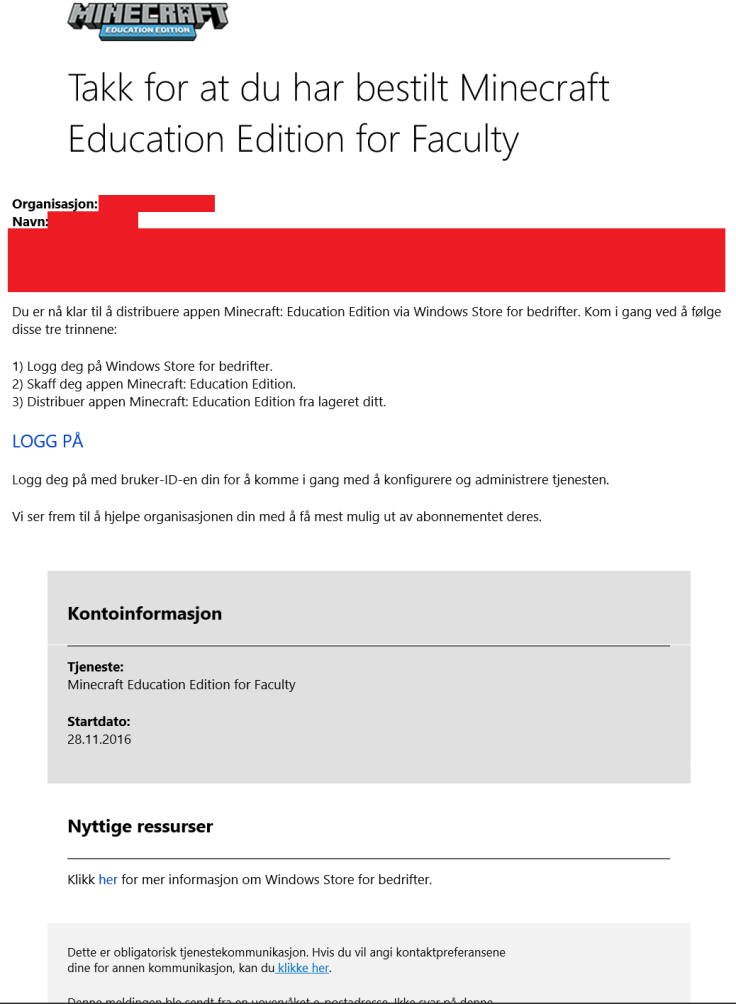
One mail is for Faculty

activation-mail-minecraft-faculty

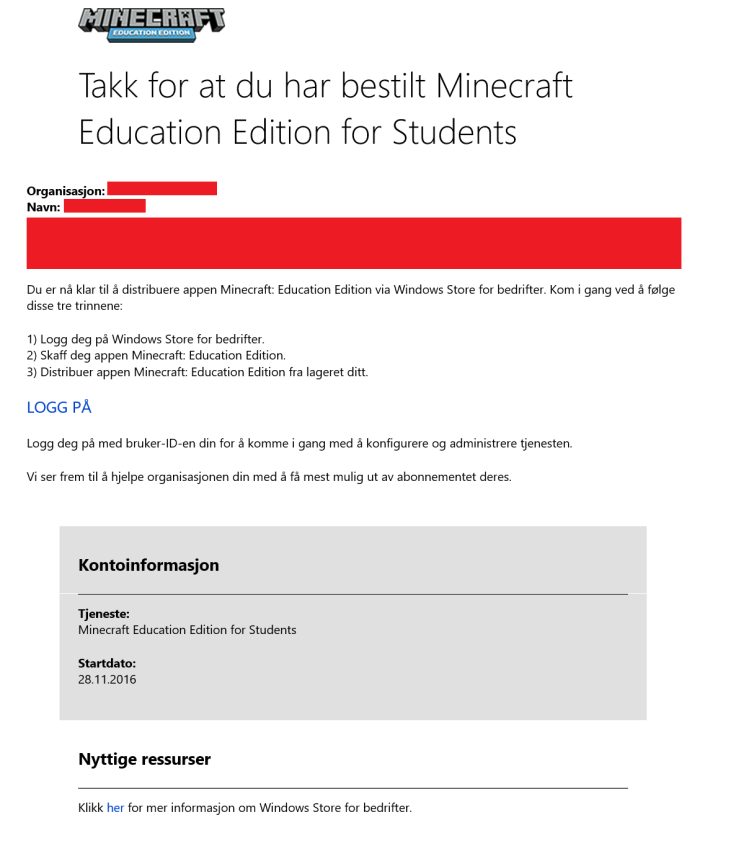
One is for Students

activation-mail-minecraft-students

Remember to open your browser in “incognito” or “in-private” mode Ctrl+Shift+P (Edge or IE) then shut down all other browser windows before you click the link. this way you prevent your licenses from ending up in the wrong place.

How to get Minecraft Education Edition Trial

If you want to get Minecraft Education Edition Trial this is what you need to do:

Note, this solution is for the free 25 licenses trial and does not use windows store for business for deployment

First make sure you have this:

  1. Office 365 Education Account
  2. User with Office 365 Education Faculty License Assigned

Download Minecraft EE here: http://education.minecraft.net/get-started/download/

Save the Zip file and right click on the “InstallMInecraftEducationEdition” and select “Run as Administrator”

files

This will happen:

powershell

Start Minecraft:

minecraft-installed

Login to minecraft and accept eula

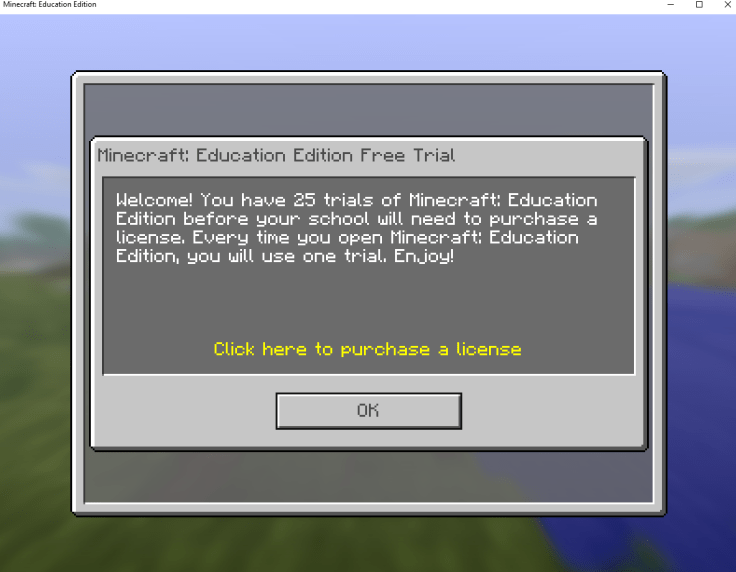
Now you have 25 test licenses to showcase Minecraft Education Edition:

minecraft-trial

Go ahead and set up your world to play.

First time playing? Download a tutorial world here:

https://education.minecraft.net/worlds/tutorial-world/

tutorial-world

Deploy OneNote learning tools with Intune

Great news, Learning tools come as an MSI package!

This is how you use Intune to deploy OneNote learning toolslearning-tools-bar

  1. Download the tool from http://onenote.com/learningtools
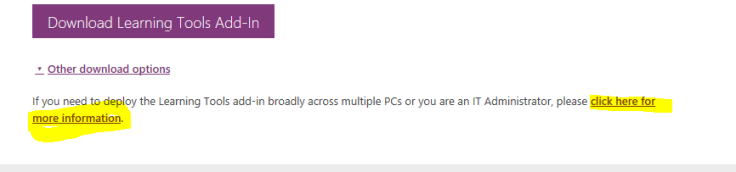
  2. other-downloadmore-info
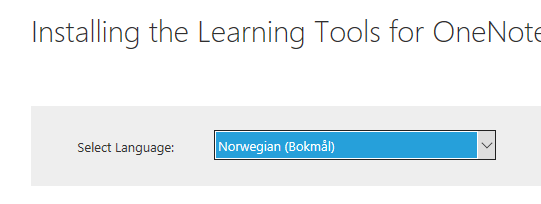
    choose-language
    you can change language to Norsk

    save-msi
    save it
  3. go to http://manage.microsoft.comappsadd-appadd-app-settings


If you are updating machines use the following argument:

  • REINSTALL=ALL REINSTALLMODE=vomus REBOOT=ReallySuppress UILevel=2

If you are installing fresh use the following argument:

  • LearningTools.msi /quiet /norestart


Deploy your App to Windows Store for Business

In the new Windows Store for business you can deploy any number of apps to your own private windows store for business.

Prerequsites:

  1. Developer account here: http://developer.microsoft.com
  2. Linked developer account to windows store for business organization here: https://businessstore.microsoft.com

The deployment will be handled by our Windows Store agent and is mostly self service.

Here is how you deploy to Windows Store for Business:


1-dashboard-link
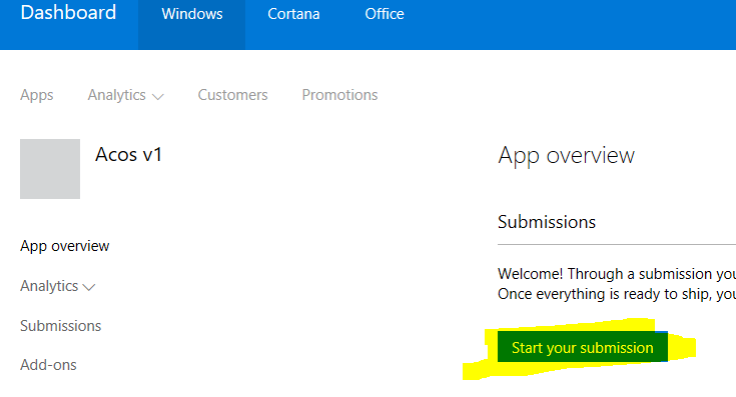
Click Dashboard


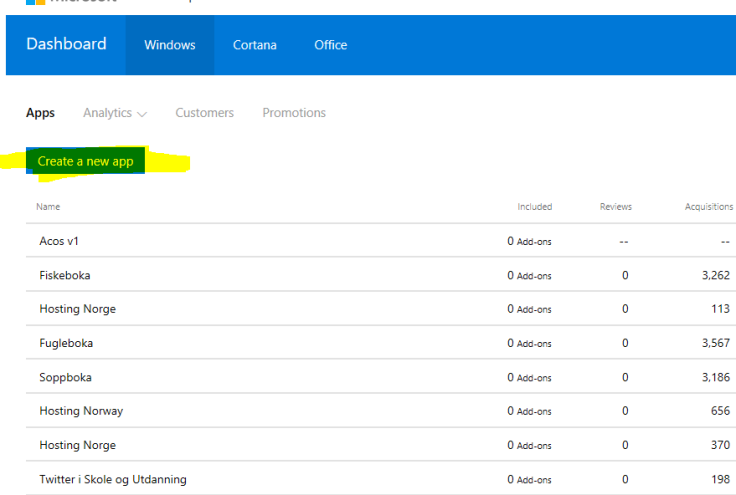
create-new-app
Create a new submission
start-submission-to-windows-store-for-business
Start the submission of your app
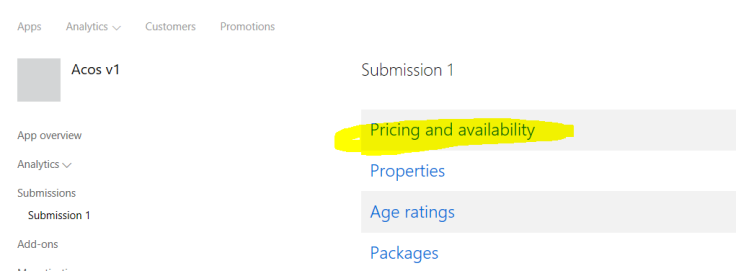
windows-store-submission
Place it in the Windows Store for Business


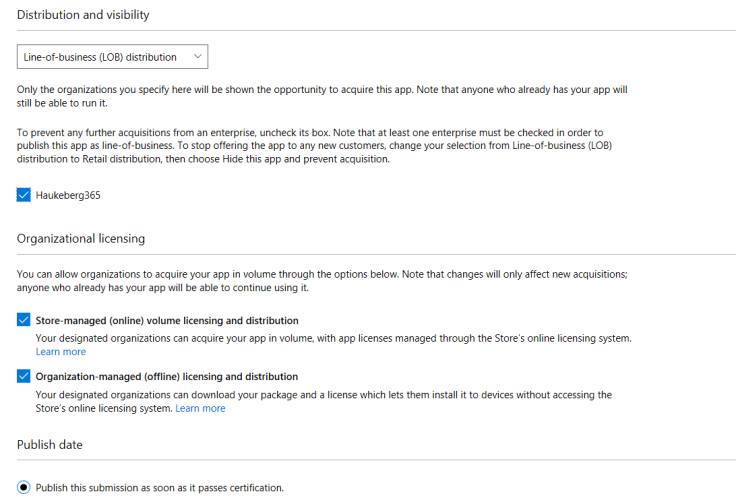
publis-to-windows-store-for-business
Select organization and deploy


From this guide:

https://technet.microsoft.com/itpro/windows/manage/working-with-line-of-business-apps

Removing user access to Azure RMS documents

Scenario:

You share a Azure RMS protected document with one user lg@haukeberg.com. If you now remove that user and add Samsung@haukeberg.com

-> What happens?

NOTHING.

Each share on the file creates a new instance in Azure RMS, hence if you want to remove user lg@haukeberg.com access you need to revoke access to the document completly.

Note: once you revoke access to a document, all the users will loose access.

Hence if the user lg@haukeberg.com quits and you revoke access to a document which also Samsung@haukberg.com has access to then both loose access.

version protection
Observe the individual shared versions of the file


Workaround would be to always share a document with as few as possible each time.

Microsoft Edge Karaoke mode with YouTube and Cortana

So I wanted to listen to some music while testing out stuff and went to youtube.

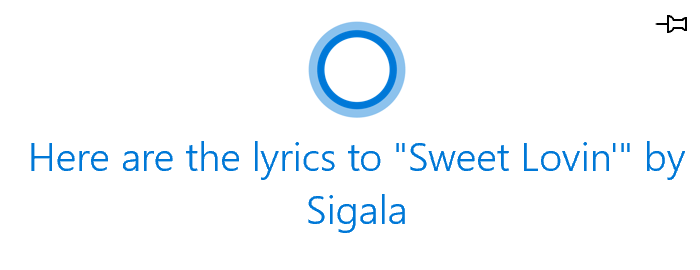
I have Cortana enabled on my machine and I use Edge. Belive it or not when I pressed play, Cortana asked:

lyrics prompt cortana

This transformed my browser to the complete solo-karaoke mode!

Enable Cortana and check it out:

https://www.youtube.com/watch?v=qj5zT4t7S6c

karaoke mode with edge

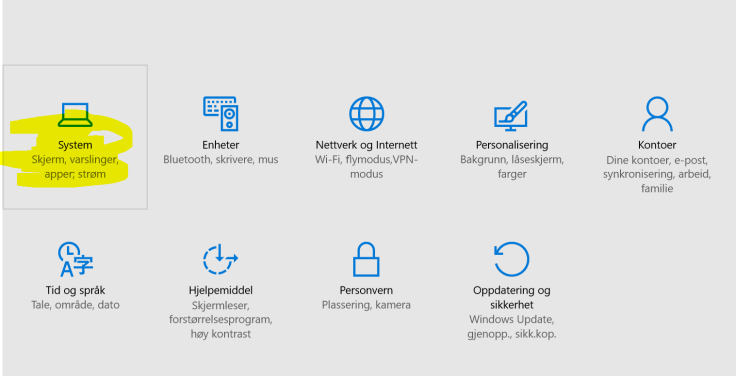
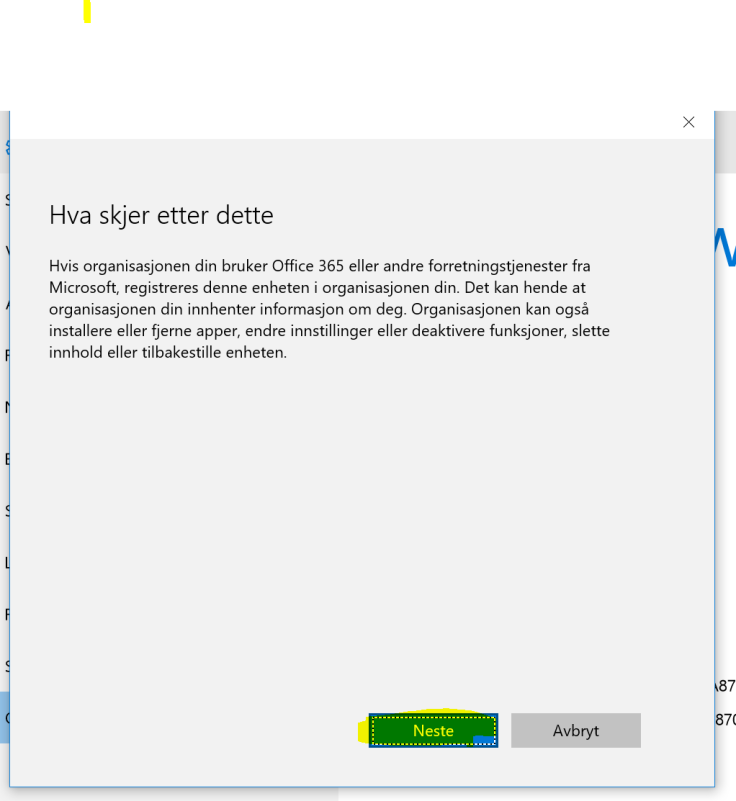
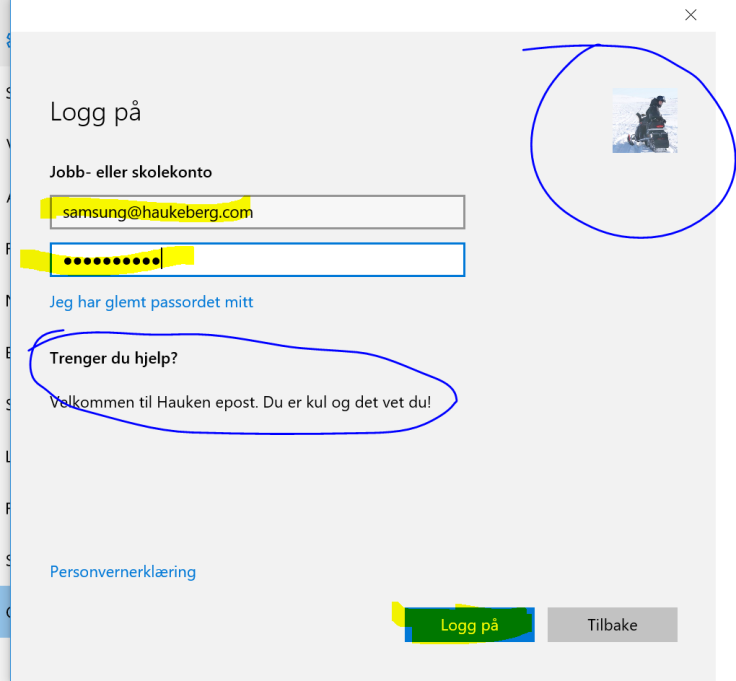
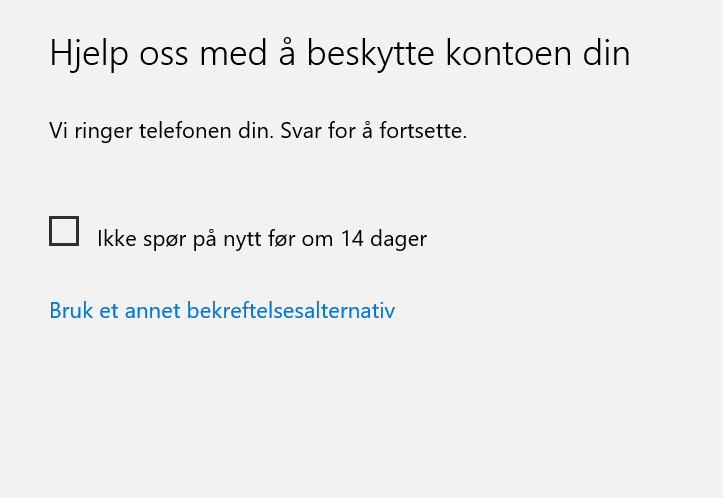
MDM enrollment with Azure AD Join

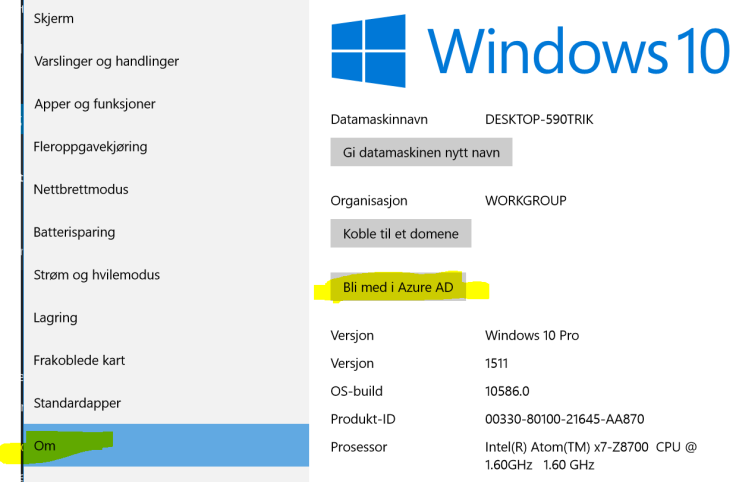
This is how you both join Azure AD and enroll for MDM. Your admin need to have configured Automatic MDM enrollment into intune over at http://manage.windowsazure.com for this to work.
1 - system2 - aad join

3 - notification
Disclamer from Windows
4 - login
Note how my icon and text have been pulled Down from Office 365
5 - mfa loading
Azure MFA gateway
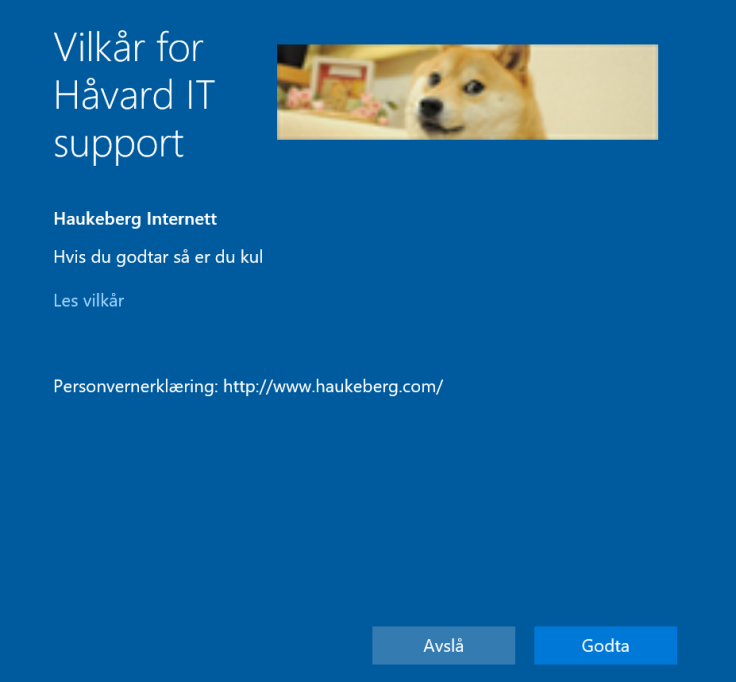
6 - custom policy approvment screen
Customizable Policy template for Your org

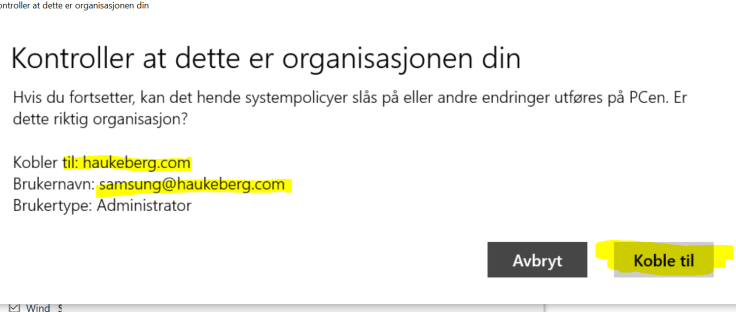
7 - org check

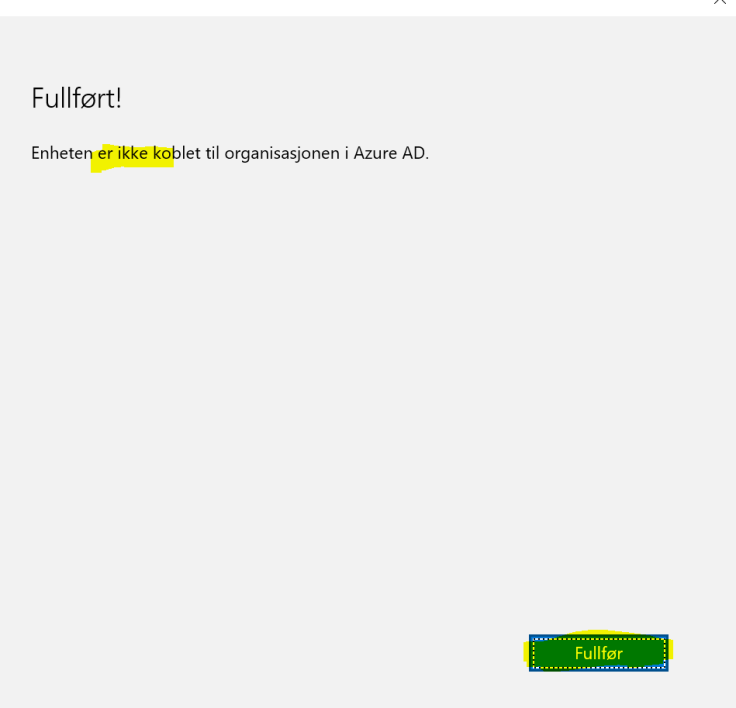
8 - spell check
Despite the translation error, all is okay now.


Blog at WordPress.com.

Up ↑