Search

Håvard Siegel Haukeberg

Paste life: Ctrl+C -> Ctrl+V

Category

Coding without code

The personal IT blog – I am a Microsoft Employee

Office 365 Førsteutgivelse til alle eller noen få?

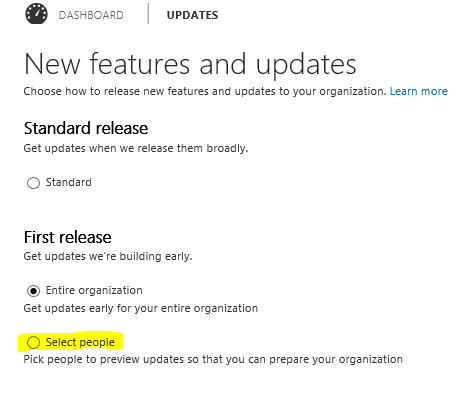
I Office 365 så kan du velge selv om din tenant skal få ny funksjonalitet i øyeblikket den blir tilgjengelig. Denne innstillingen er under Tjenesteinnstillinger->Oppdateringer

admin update

Du kan velge at alle på din tenant får dette eller kun noen

select people

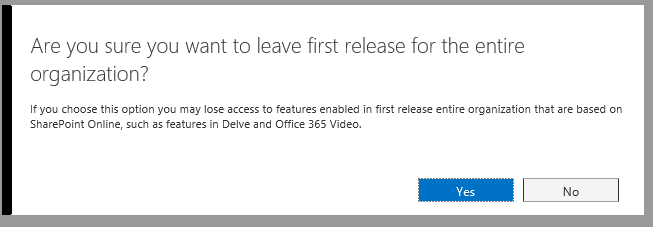
Dersom du allerede er medlem av “First Release” for tenanten så får du et varsel dersom du ønsker nå å kun ha det på for enkelte brukere, trykk Ja her.

move from entire.

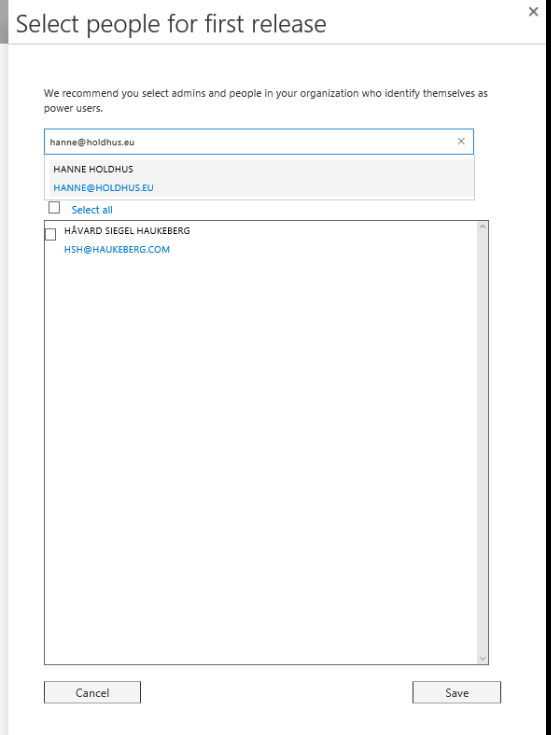
Nå kan du velge personer fra Azure Active Directory som skal få teste den nyeste funksjonaliteten straks den er klar.

select a few


Microsoft Intune on-prem/hybrid DNS settings

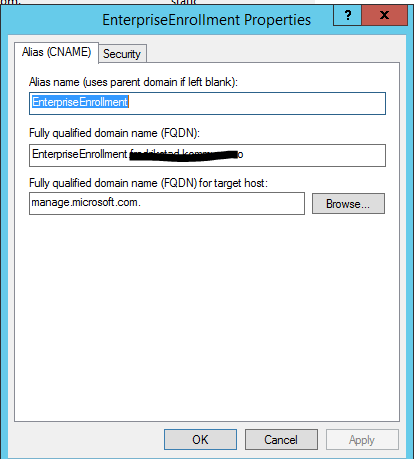
If you want to enroll your devices with Microsoft Intune and you have your own DNS then this is the setting you want to put into it:

dns

Remember: If you have Split Brain DNS or a second DNS in the DMZ, put the same CNAME alias there aswel.

FDQN is always “enterpriseenrollment.yourdomain.com”

Make sure if you have some advance proxy setup or routing that they are on the same subnet.


Hvor er lisensene mine, VLSC tillatelser

Dersom du har bestilt lisenser på en volumlisensavtale med Microsoft så må lisensene ofte aktiveres inne på VLSC.

  • for å logge deg på VLSC går du hit: https://www.microsoft.com/Licensing/servicecenter/default.aspx
  • her må du logge deg på med din Microsoft konto. Dette har ikke noe med Office 365 eller Microsoft Intune å gjøre. Du må velge den private “live-ID’en” som du har opprettet for å logge deg på her.
  • Når du har logget deg inn så kan du starte aktiveringen ved å trykke på “Aktivering av elektronisk tjeneste”
  • Dersom du ikke finner lisensene er dette oftest fordi du ikke er administrator på den riktige avtalen.
Be om tillatelser i VLSC

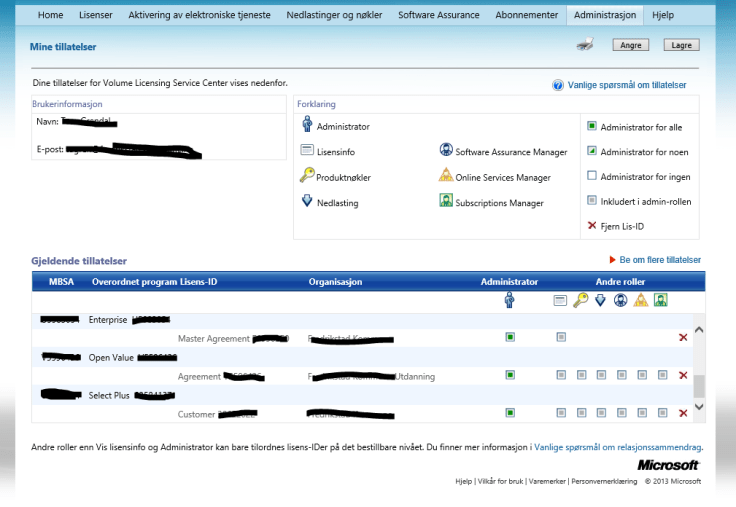
Sjekk at du har rettigheter til å administrere avtalen. Gå til Administrasjon->Mine tillatelser og se om avtalen som lisensene er bestilt på dukker opp i listen her. Du finner avtalenummeret på kvitteringen som du har fått av din distributør.

lisensoversikt

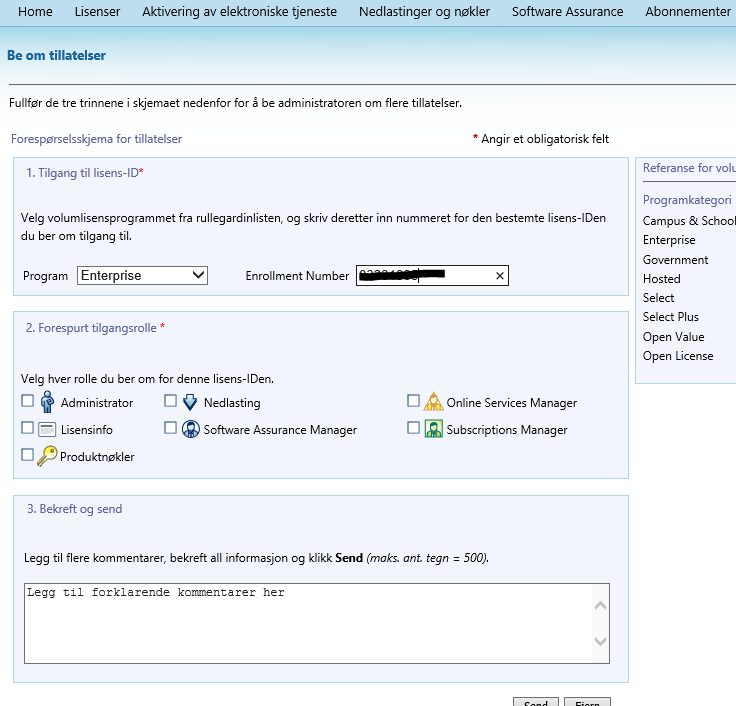
Dersom du ikke ser avtalen her så må du be om tilgang. Trykk da på Administrasjon->Be om tillatelser. Velg lisensprogrammet som det er bestilt på (står på kvitteringen) og skriv in lisensnummeret. Husk nå å hak deg av som Administrator så får du tilgang til alle de andre funksjonene også.
roller
For å bli godkjent så må nå den riktige admistratoren logge inn med sin Microsoft konto og godkjenne deg. Hvis du ikke vet hvem dette er så spør du din distributør om hvem som er Online Contact and Notices.
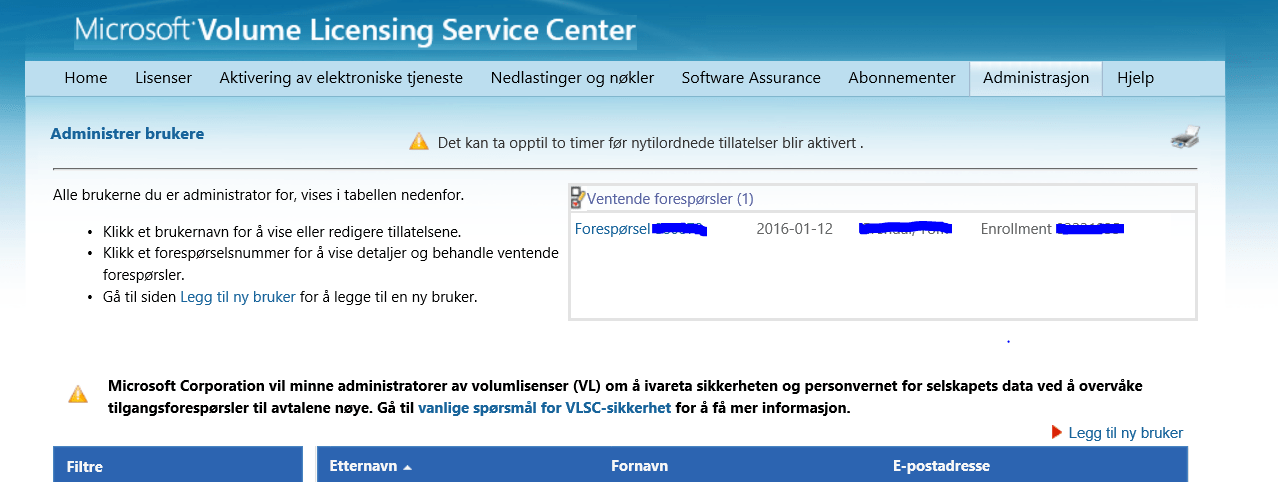
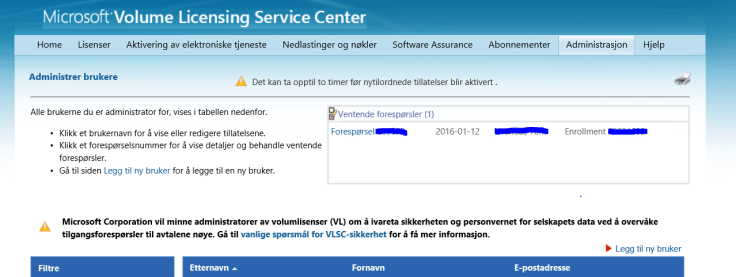
Denne personen må så gå til Administrasjon->Administrere Brukere
forespørsel
Når dette er gjort så venter du 2 timer og prøver igjen å logge deg på med din egen konto for å håndtere aktiveringen av de elektroniske tjenestene.

Yammer Keyword Monitor

On Yammer as a Network Admin you may monitor certain keywords that you choose. (You need yammer enterprise)

It could be that you as an IT guy want to monitor if users type HELP or PROBLEM or a sentence such as PROBLEM WITH PC

Log in to yammer at Yammer.com

Click the Yammer Cog

yammer cog

Choose Network Admin

network admin

Click Monitor Keywords

monitor keywords

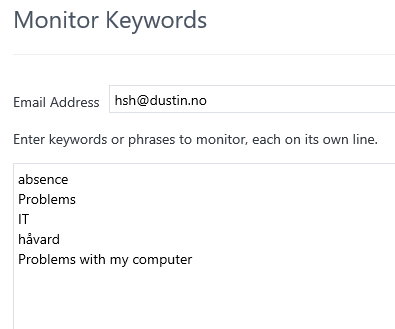
Write the keywords you want to monitor:

keywords

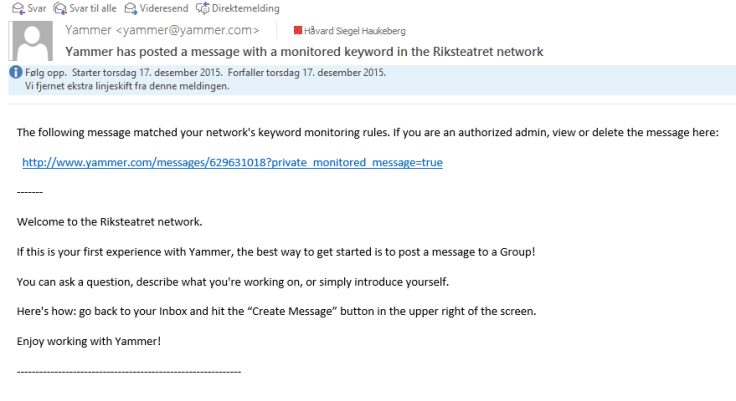
Then when there is a match you will get this email:

email message


Quick eAgreements guide for Microsoft Open Value Subscription

Microsoft-Office-365-Logo

If it is the first time you buy licenses on a Volume agreement from Microsoft you have to Sign that agreement. Luckily you can do that digitally. That service is called eAgreements.

NOTE: Despite that you are buying the licensens from your partner and he might have “support” for you this is still something that you have to do and should do yourself. Because the agreement is direct between you and Microsoft. The partner can do it but he would have to impersonate you.

Step 1. You get an email (if you dont, contact the partner. But 99% of the time you have gotten the email and it is either in spam or you have deleted/lost it)

Subject: Handling påkrevd: Microsoft-lisensavtalen er klar for elektronisk signering{~00000000:1~}

Looks like this:email

Step 2: Click the link and log in with a Microsoft Account (Live ID)
Please note here: Do not use your personal live ID, create one for your organization and save it somewhere everyone can access it.

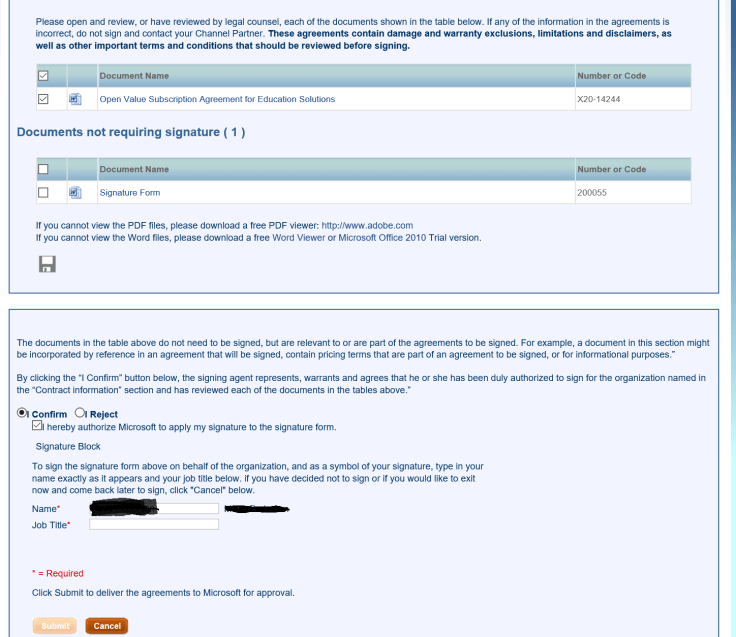
Step 3: Scroll down and Check: “I Confirm” and check the box “I hereby confim…”
Insert your name EXACTLY as it says to the right of the box
Insert your Job title
Click Submit
kontrakt

Thats it, you have signed.

done

Next step is to log in to VLSC and activate your licenses.

Surface Pro 4 Backward Compatibility and Out of The Box

Thinking about the new Surface Pro 4? Cool. It’s a very well built device with a even better pen!

However these are some things you might want to think about before you buy.

  1. The Surface Pro 4 will fit in the old Surface Pro 3 dock, but not 100% More like 90%. It will charge but it sits wrong, a bit tilted to one side due to its thinner design.
    • EDIT: There is a free adapter which you can order from Microsoft to fix this. Get it here
  2. The Surface Pro 3 Keyboard fits the new SP4 but not 100% more like 90% as the new SP4 has a smaller bezel the keyboard overlaps the screen area. The magnet also will not clip on as tight.
    WP_20151208_23_01_18_Pro
    Magnet not 100% on

    WP_20151208_23_01_51_Pro
    Keyboard overlapping
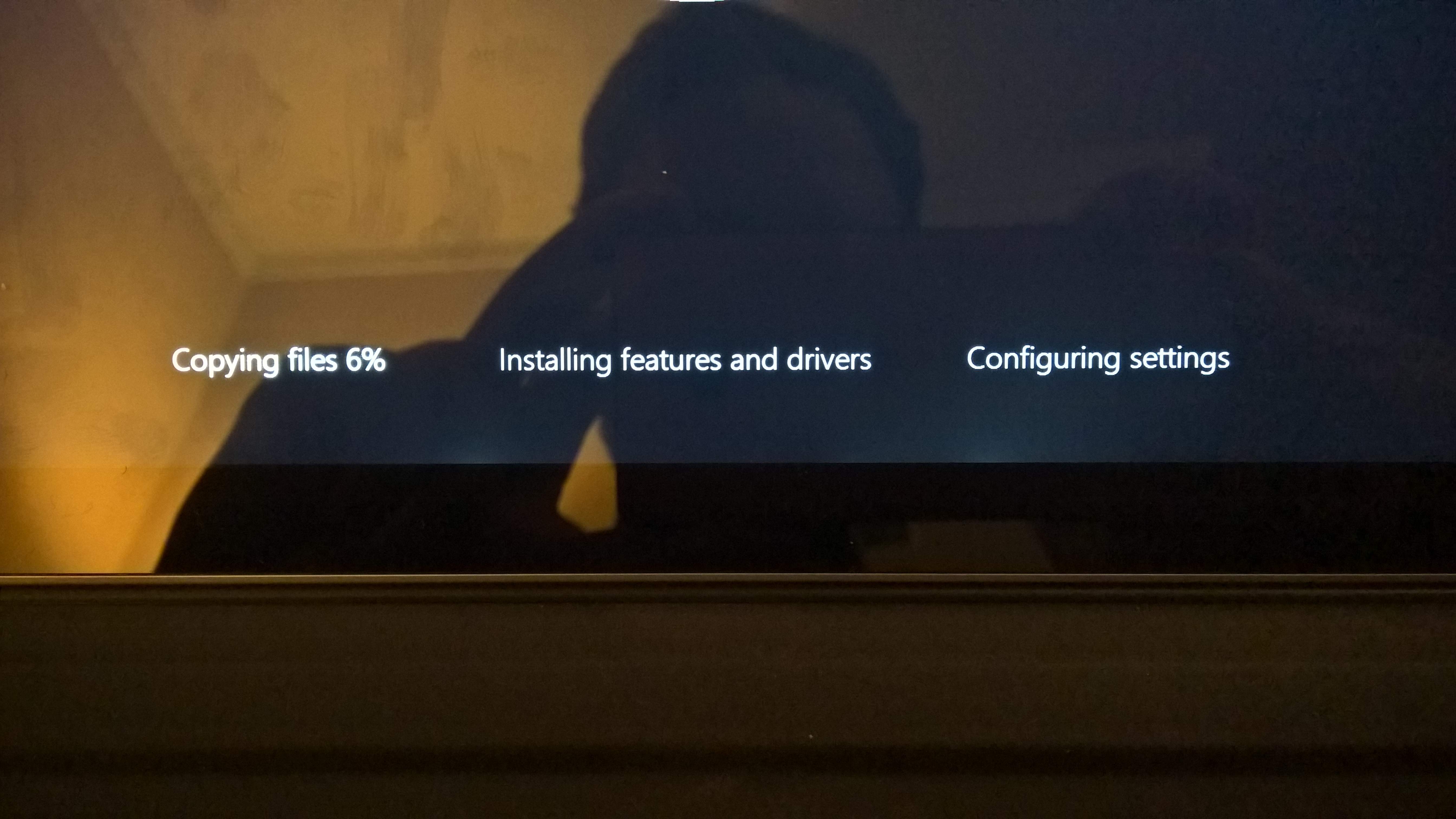
  3. pdates, then updates, and some more updates. When you Buy a SP4 you have to update the device for at least 1-2 hours before its “done”
  4. Windows Hello, is not supported out of the Box and you need to run that 1-2 hours of update and then update again to receive the necessary firmware update for Windows Hello to work.
  5. Screen bleeding, the screen is not perfect black. There are some edge bleeding.

    WP_20151208_23_03_15_Pro
    Some minor bleeding of the light on the bottom
But you know what. Despite all this, the device is awsome and I love Windows Hello!
I just sit down in front of the camera and “whosh” it logs me in, every time!
I would recommend this device to all my family members and my business associates!

Koble fra / Fjerne Microsoft Intune fra Office 365

mdm authority

Dersom du har koblet Intune til Office 365 så må du bruke Intune til å styre dine MDM og devices. Min Intune Konto har nå gått ut og når jeg koblet til en mobiltelefon til Office 365 eposten sin så fikk jeg feilmelding på mobilen under sync. Dette skjedde fordi sync policy’en lå i intune og siden intune var deaktivert så ville ikke han sende ut sikkerhetspolicy’en.

Svaret her var å fjerne policyen i Intune, vente på at Intune skulle synce med Office 365 (kan ta noen minutter) og så synce kontoen på nytt.

Nå i fremtiden må jeg koble vekk Intune fra Office 365 og det gjøres slik:

Dersom du ikke vil bruke Microsoft Intune så kan du koble vekk Intune slik:

  1. Kontakt Microsoft support og skriv:
    “Please reset or remove Intune as my MDM authority”
  2. logg inn på http://manage.microsoft.com
  3. Gå til Admin
admin
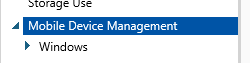
4. Velg Mobile Device Management
mdm
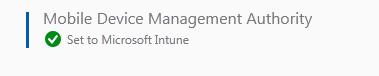
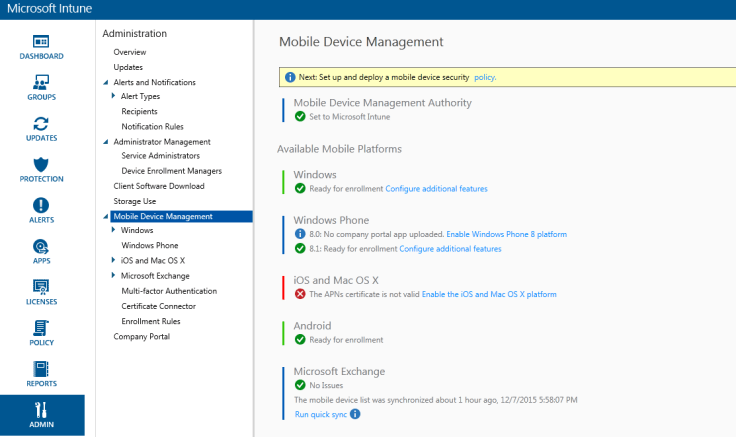
5. Når Support har resatt MDM Authority så kan du sette den på nytt.
intune

Hentet fra Peter Daalmans [MVP] http://configmgrblog.com/2015/05/14/hey-my-mdm-authority-is-set-to-office-365-in-microsoft-intune/

VPN tunell for RT-N66U “Dark Knight”

The need to protect your identity becomes more and more apparent as theft and crime takes to the web.

I have decided to set my entire home network behind a VPN not just individual units but all of the units connected.

Only way to do this is to have a Router with a VPN client installed. The ASUS RT-N66U “Dark Knight” Router has this.

EDIT: You have to update to the latest firmware from ASUS to get the VPN Client.

Before you go:

Pros:
1. Identity Protection (People cant see where you are from)
2. Content enablement (Browse US content on Netflix)

Cons:
1.Ads and websites can’t detect your correct country and thus you will be taken each time to the wrong site (e.g. english version of Google, not Norwegian)
2. You can not access local content unless you manually switch VPN (e.g. watch NRK nett-TV)
3. Pages that try to locate you or maps services will put you abroad
4. Accounts and Services will believe that you are in somewhere else.
5. Speed speed speed, all will be slower.

Here is how you set up your ASUS RT-N66U router.

  1. Buy a VPN service (https://www.privateinternetaccess.com)
  2. Go to 192.168.1.1 in your browser
  3. Enter credentials
  4. Click VPN
  5. vpn
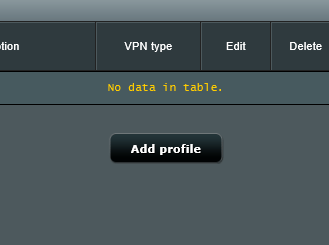
  6. Click Add profile
  7. add profile
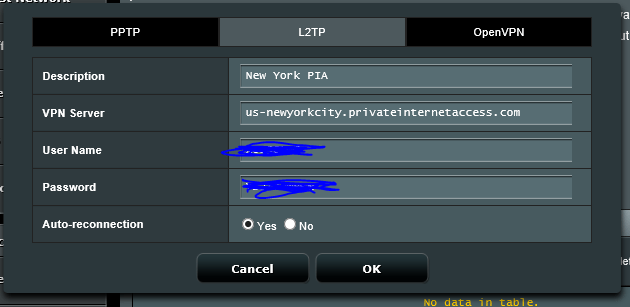
  8. Enter the server name and your L2TP username + Password
  9. l2p
  10. Click OK

Thats it. you are hidden.

Speedtest:

NO VPN: 800mb/s

no vpn 1no vpn

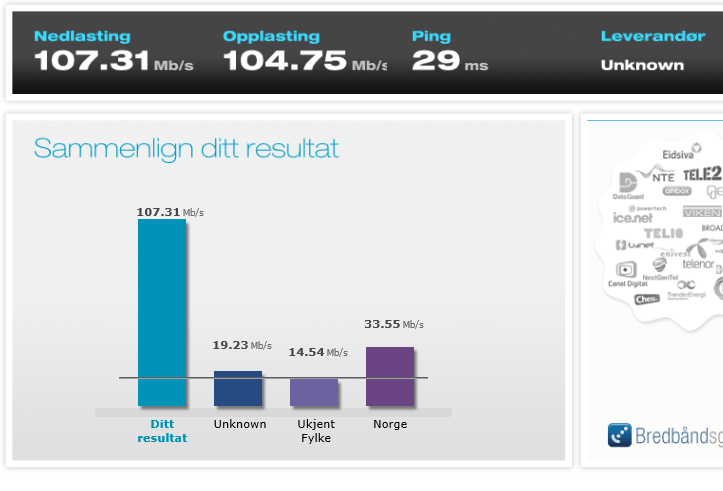
SWE VPN: 100mb/s

swe serverswe server 1

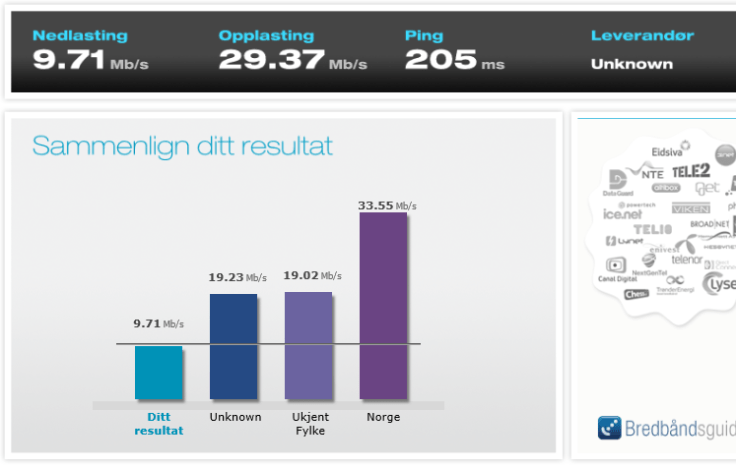
US VPN : 10-20mb/s

us server 1us server

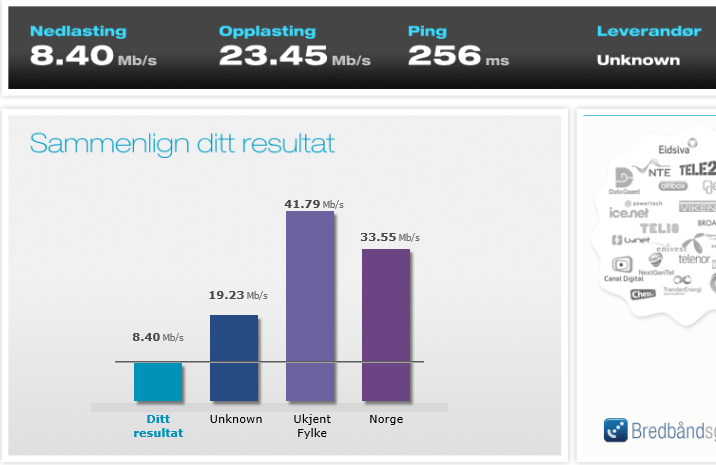
CANADA VPN: 8 – 15 mb/s

ca serverca server 1


References:

https://torrentfreak.com/anonymous-vpn-service-provider-review-2015-150228/

Video: https://www.youtube.com/watch?v=xIJ9Hg24maQ

https://www.privateinternetaccess.com/


Why you should have the taskbar on top

If you are getting or own a Surface Pro 3 or Surface 3 its much better to have the taskbar on top.

Here are the two reasons I do it:

  1. Better Ergonomics – You lift your gaze instead of looking down you look up.
  2. (Most important) Easier to touch the taskbar when the keyboard is clipped on

WP_20150911_20_35_20_Pro

Blog at WordPress.com.

Up ↑