Search

Håvard Siegel Haukeberg

Paste life: Ctrl+C -> Ctrl+V

Category

Office

Microsoft Office and Office 365

Deploy Office 365 MSI with Microsoft Intune

I have wrapped a EXE file (OfficeProPlus click 2 run)  in a MSI wrapper. I have used a Certificate and signed the MSI and now I am going to use Microsoft Intune to push out the installation on PC’s.

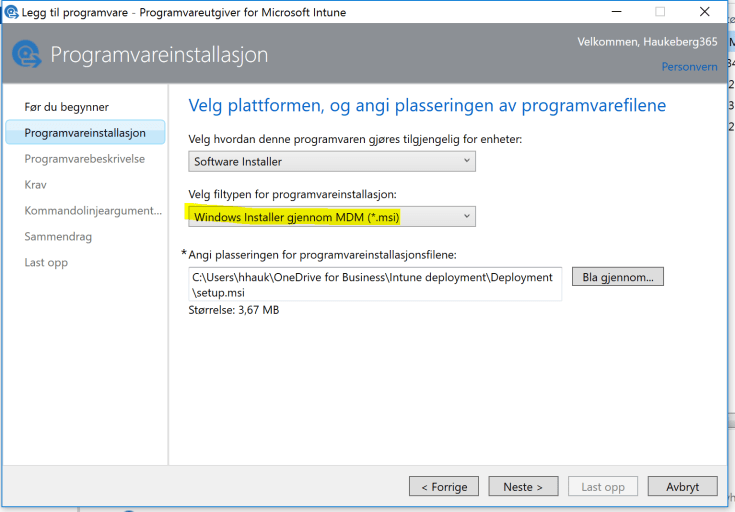
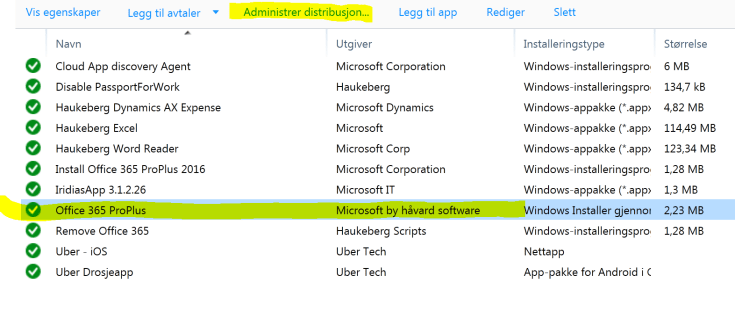
Go to manage.microsoft.com and click Apps->Select Apps->Click Add an App

Launch the software wizard and log on.

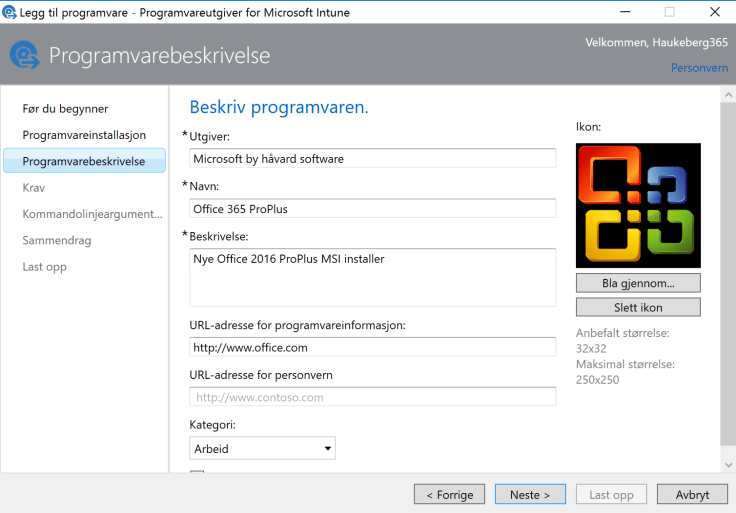
windows MDM installer beskrivelse

os krav

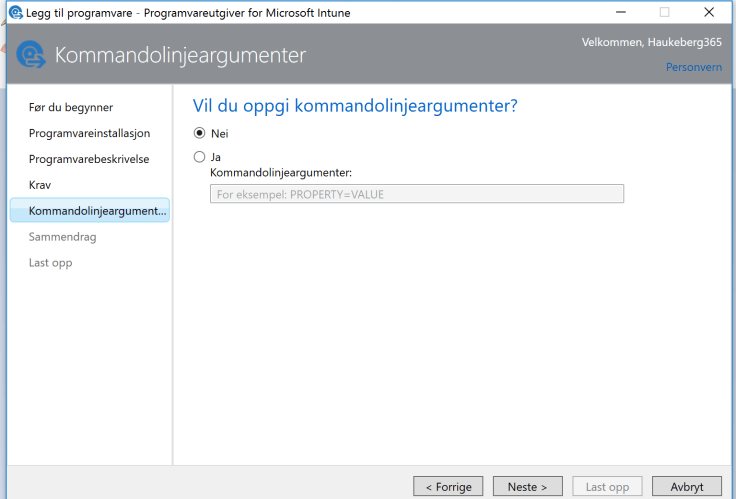
kommandoargumenter

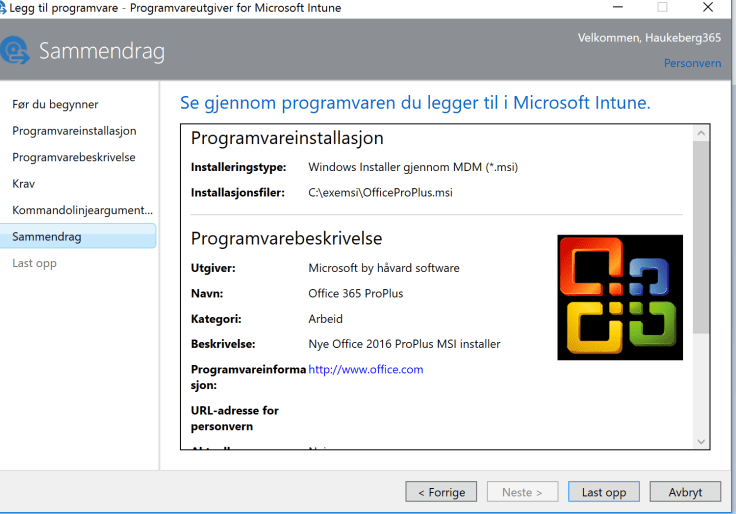
summary
Click Upload and then wait


distribute
Select the software you want to distribute


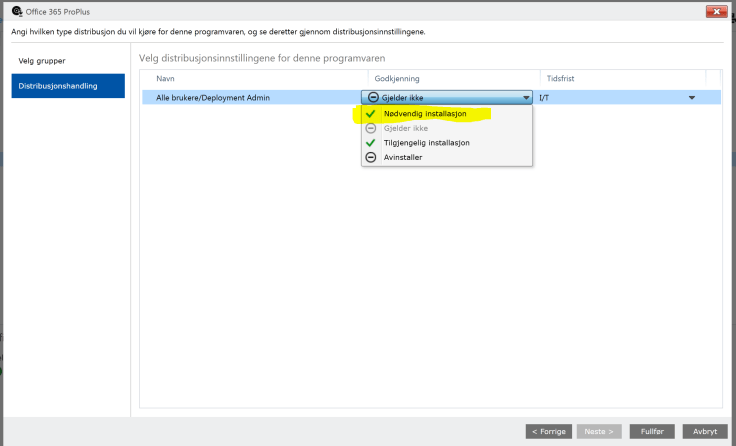
admin
These users in this group will get this software


forced install
It will be forced to the device


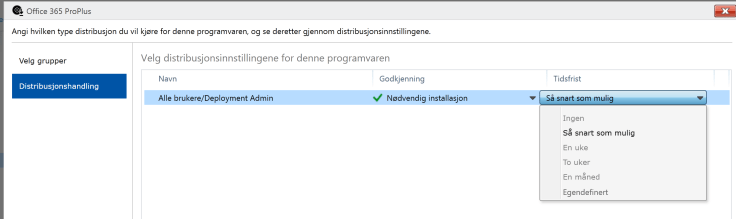
asap
As soon as possible


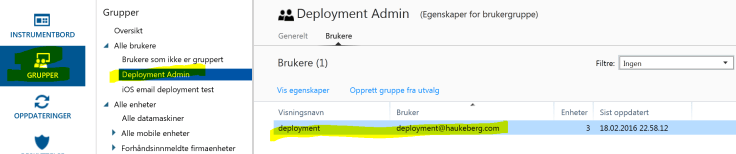
group
These are the users in that group which will get this software

How to sign a MSI file for deployment with Microsoft Intune

If you want to use Microsoft Intune to deploy a MSI file it needs to be signed by a Code Signing Certificate. Most MSI’s from software vendors are signed already, but if you created a custom MSI (e.g. Office 365) by wrapping an EXE then you need to sign that MSI.

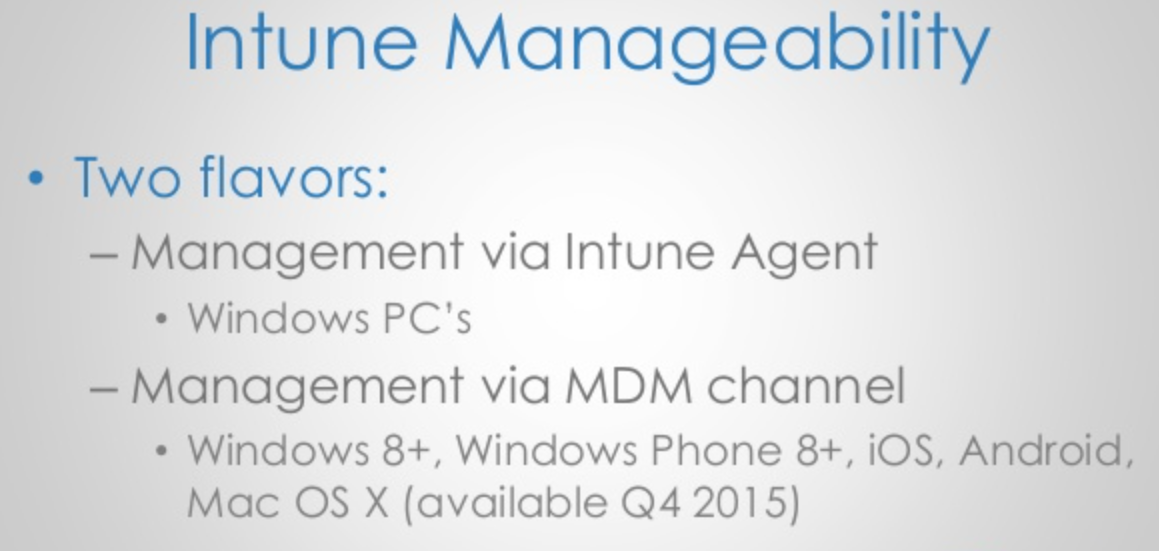
Using a MSI will enable Intune to push that software using the MDM channel. All MDM joined PC’s will be able to recieve this software.

Scenario this covers: I want to use Microsoft Intune to deploy apps and exe files to PC’s e.g. Office 2016/Custom Software

Step 1 – Buy or get a code certificate. If you do not have it, buy it here: https://www.digicert.com/code-signing/

Step 2 – Download and Install Windows 7 SDK to get the signtool.exe get the SDK from here: https://www.microsoft.com/en-us/download/confirmation.aspx?id=8279
->Accept all defaults and do not change anything. It will prompt errors
->Check that you have the signtool.exe in this folder:
C:\Program Files\Microsoft SDKs\Windows\v7.1\Bin

Step 3 – Get your certificate exported in a PXF file. and put it in the same folder as your MSI file.

Step 4 – Run CMD as administrator and input this command:

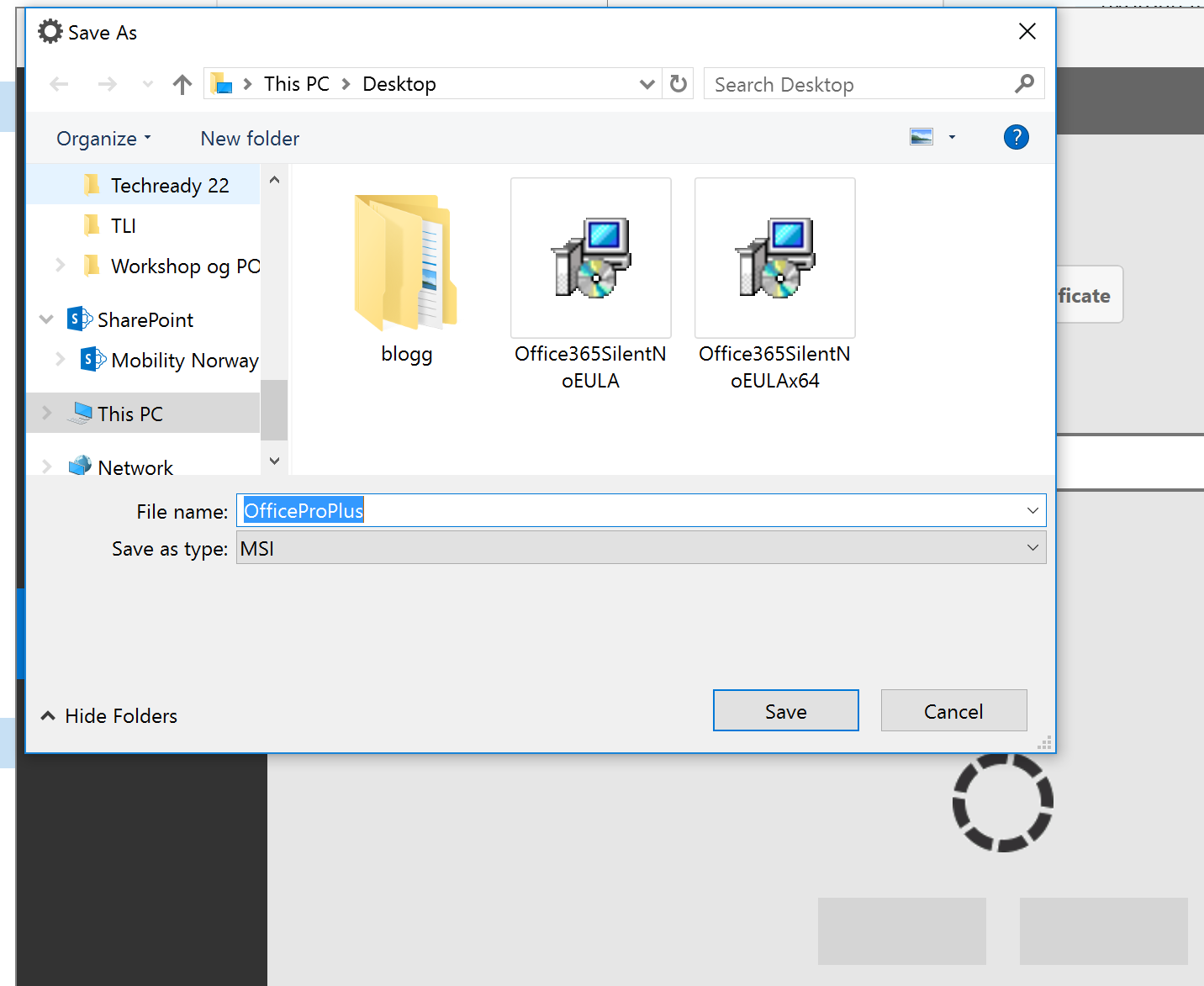
“C:\Program Files\Microsoft SDKs\Windows\v7.1\Bin\signtool.exe” sign /v /f “c:\exemsi\HaukebergCert.pfx” /p “PASSWORD” /t http://timestamp.digicert.com /v “C:\exemsi\OfficeProPlus.msi

sign ok
The password has been removed


Now you are ready to deploy this MSI file through the MDM channel

Follow this guide to deploy the MSI file in Microsoft Intune MDM channel


IT DEV Connections
We are covering MDM channel here

Adapted from these posts:
http://www.identityfinder.com/kb/Enterprise-Documentation/823571
https://www.digicert.com/code-signing/signcode-signtool-command-line.htm

Convert Office 2016/365 click to run into a MSI

*UPDATED with new screenshots of Office 365 generator

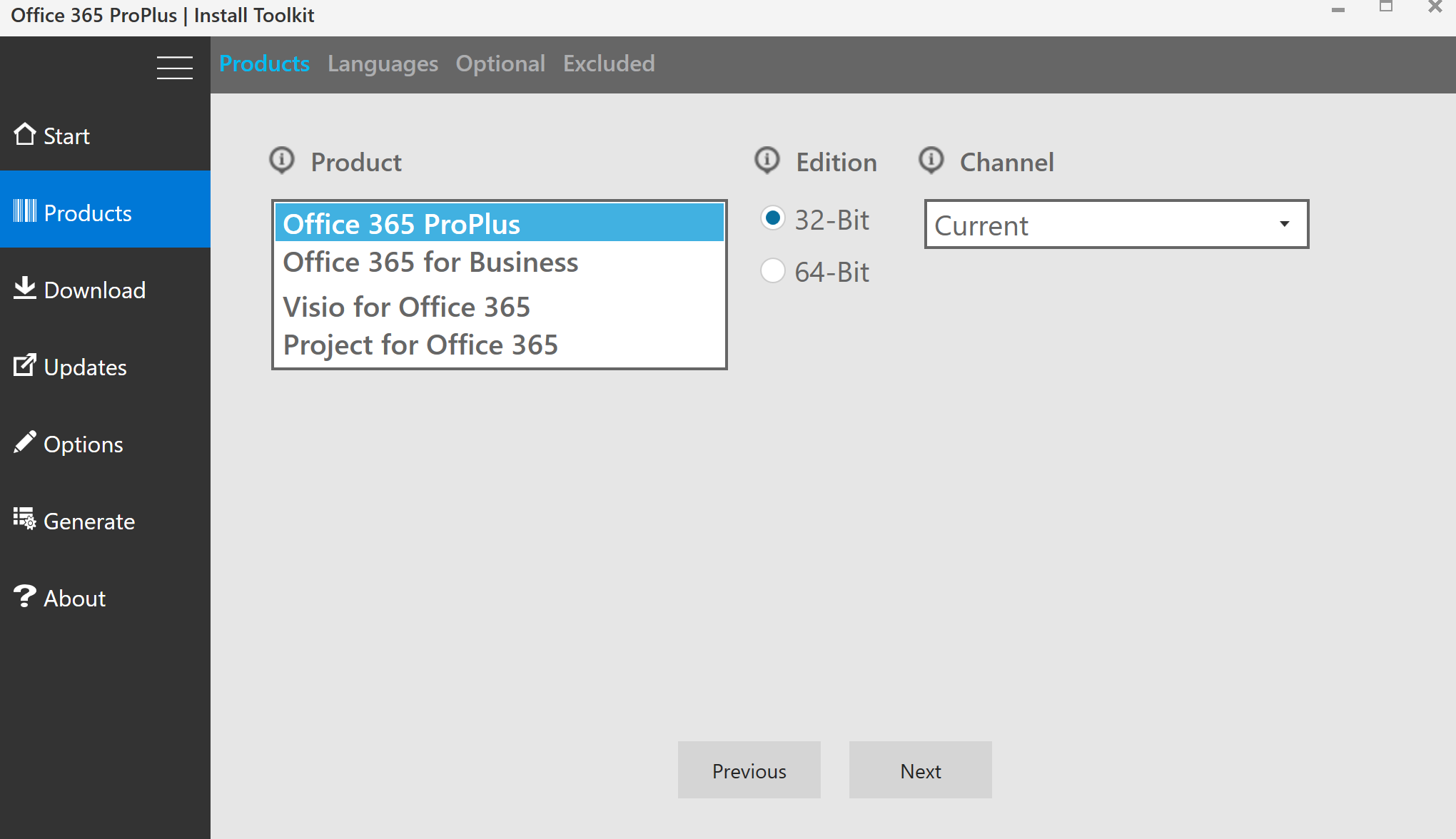
You can use this free tool to create a Office 365/2016 MSI in order to deploy it with Microsoft Intune.

https://officedev.github.io/Office-IT-Pro-Deployment-Scripts/XmlEditor.html

Office 365 install generator
Click Install Generator
launch
Launch it and install it
Start New
Click Start New
2
Select 32 bit if a fresh install, if you have 32 bit installed you can not select 64 bit.
3
Feel free to add a lanugage
5
Just click Next
6
Remove stuff you do not want
7
Ensure you have the right edition or mabye you want to add 64 bit?
8
Of course you want automatic updates. Click next
9
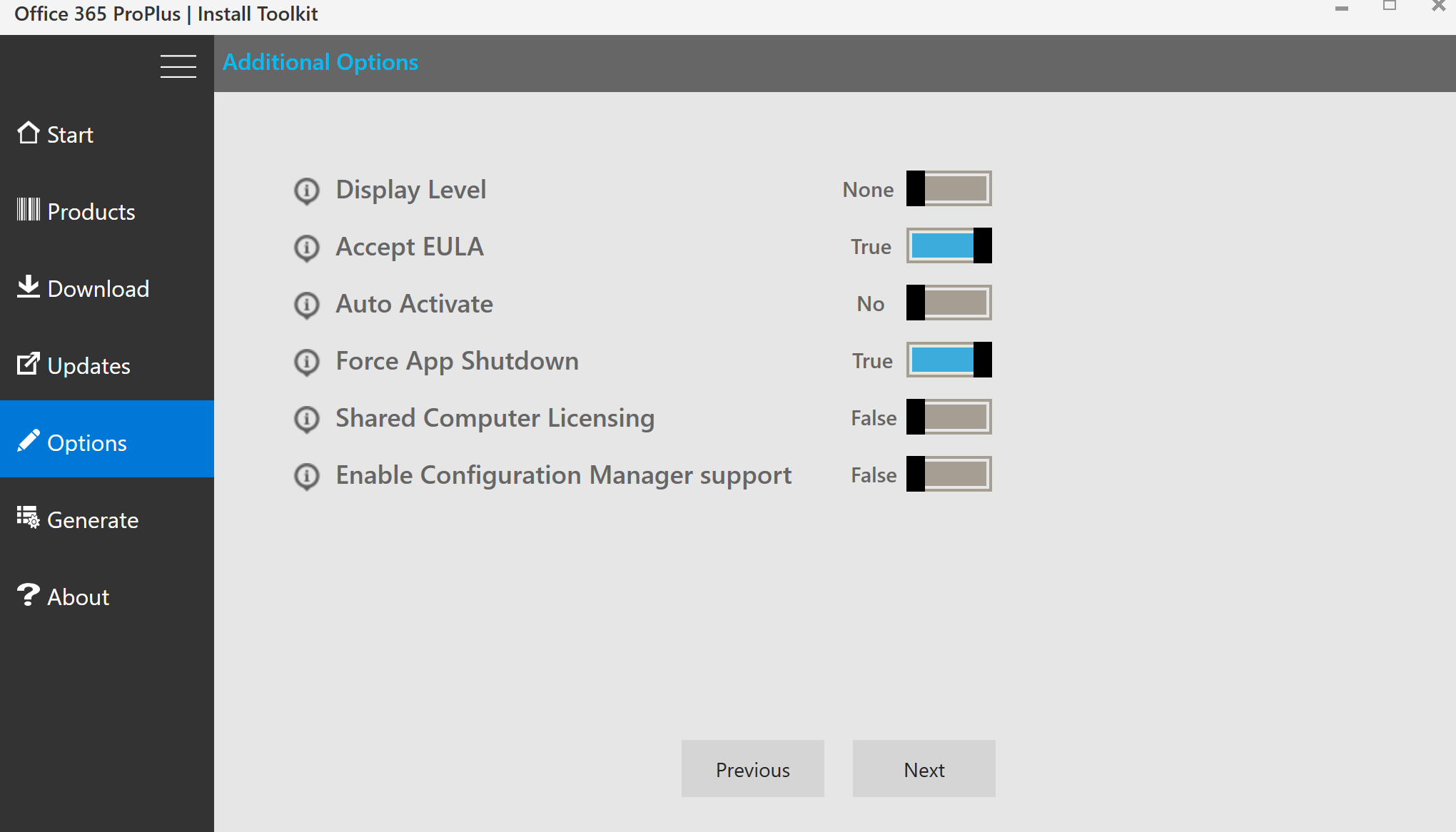
Make it real silent. Don’t do Auto Activate
10
NEW: Self signing certificate. Remember to check and generate. If you do not do this there will be a UAC prompt
11
Could be anything
12
Give it a name and click save


You can manually sign the MSI

Or simply Deploy it to Microsoft Intune using the MDM channel.

Quick eAgreements guide for Microsoft Open Value Subscription

Microsoft-Office-365-Logo

If it is the first time you buy licenses on a Volume agreement from Microsoft you have to Sign that agreement. Luckily you can do that digitally. That service is called eAgreements.

NOTE: Despite that you are buying the licensens from your partner and he might have “support” for you this is still something that you have to do and should do yourself. Because the agreement is direct between you and Microsoft. The partner can do it but he would have to impersonate you.

Step 1. You get an email (if you dont, contact the partner. But 99% of the time you have gotten the email and it is either in spam or you have deleted/lost it)

Subject: Handling påkrevd: Microsoft-lisensavtalen er klar for elektronisk signering{~00000000:1~}

Looks like this:email

Step 2: Click the link and log in with a Microsoft Account (Live ID)
Please note here: Do not use your personal live ID, create one for your organization and save it somewhere everyone can access it.

Step 3: Scroll down and Check: “I Confirm” and check the box “I hereby confim…”
Insert your name EXACTLY as it says to the right of the box
Insert your Job title
Click Submit
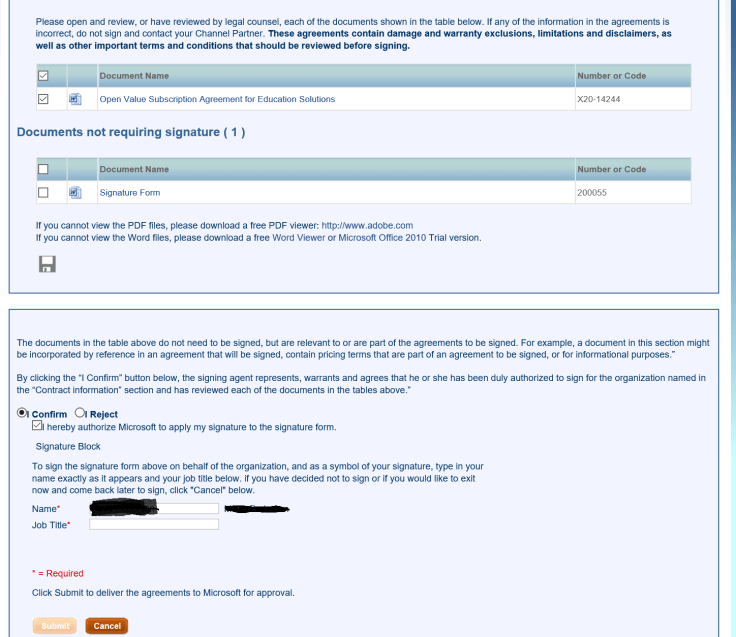
kontrakt

Thats it, you have signed.

done

Next step is to log in to VLSC and activate your licenses.

Office 365 Online Services Activation Email

So you bought Office 365 Online Service? Grats! a new and modern way of using Office is just some clicks away 🙂

This Applies to:

Open Value Subscription
Open Value
EES
EAS

Once you partner has ordered the License you will get this email from Microsoft to start the Activation. This is something you have to do yourself or forward this email to your partner. Your partner can only help if he as an Admin Account on your Tenant.

Remember that this email is sendt to a named individual within your organization. Microsoft and Partners call this individual as the Notices and Online Contact. This person has been defined when you first accepted your license agreement. If this person has quit or you can not get access to his inbox you have to contact the partner which in turn have to contact the Distributor to get this changed. The Distributor has to log what we call a CLT Ticket to change this. This change may take a day or two.

THE SAMPLE EMAIL

—————————————-

From: Microsoft Licensing [mailto:MicrosoftLicensing@e-mail.microsoft.com]

Subject: Aktivering av Microsoft elektroniske tjenester

Velkommen til Microsoft-volumlisensiering   ​

Du mottar denne meldingen fordi du er oppført som administrator for volumlisensavtalen, som organisasjonen nylig signerte med Microsoft.

Klikk her for å komme i gang med dine elektroniske tjenester.  —– Click on “Her” to start the activation

Hvis du ønsker å behandle alle volumlisenskjøpene, inkludert elektroniske tjenester og programvarekjøp, går du inn på servicesenteret for Microsoft-volumlisensiering. På servicesenteret for Microsoft-volumlisensiering kan brukerne i organisasjonen sikkert vise dine kjøpsavtaler og annen informasjon, vise volumlisensbestillinger, laste ned programvare og mye mer. Hvis du ikke har brukt servicesenteret for Microsoft-volumlisensiering før, må du registrere deg for å få tilgang til avtalene. ​

Kontakt din Microsoft-partner hvis du trenger hjelp.  ​

Takk for at du er kunde hos Microsoft.

Tilbakemelding PersonvernerklæringVilkår for bruk | Varemerker © 2015 Microsoft

The trick is to click the three letter button that says: HER

Below is a screenshot of the email you need to look for.

welcome email

Ekstern chat med Skype for Business i Office 365

lync-sfb-logo

Er du en skole som vil samarbeide med en annen skole?

Er du en bedrift som vil kunne chatte med dine leverandører eller kunder?

Er du en IT-ansvarlig som vil kunne spørre din leverandør spørsmål og dele skjerm?


Alt dette og mye mer kan du gjøre i Skype for Business dersom du slår på ekstern kommunikasjon. Her er hvordan:

1. http://Portal.office.com (logg inn som administrator)
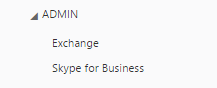
2. Helt nederst under Admin så velger du “Skype for Business”

skype admin center
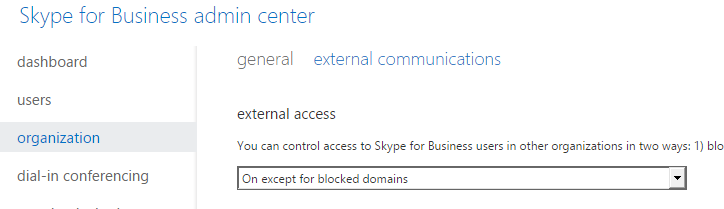
3. Velg “Organisasjon”
4. Velg “Ekstern Kommunikasjon”
5. I rullgardinmenyen velg “På untatt for blokkerte domener”

external communication

Alle andre kan nå legge til deg ved å skrive inn din UPN/SIP i Skype. Du kan godt prøve å legge til meg hsh@dustin.no 

Intressant nok så er de fleste organisasjoner åpne på dette. f.eks Microsoft.

chat i lync

Chat i vei!

How to get Skype for Business now!

lync-sfb-logo
Skype for Business just went GA

here are the announcements:
https://www.thurrott.com/cloud/office-365/2889/skype-for-business-is-now-generally-available
http://products.office.com/en-US/skype-for-business

If you have Office 365 AND you have enabled First Release you should get it once you prompt for update in office.

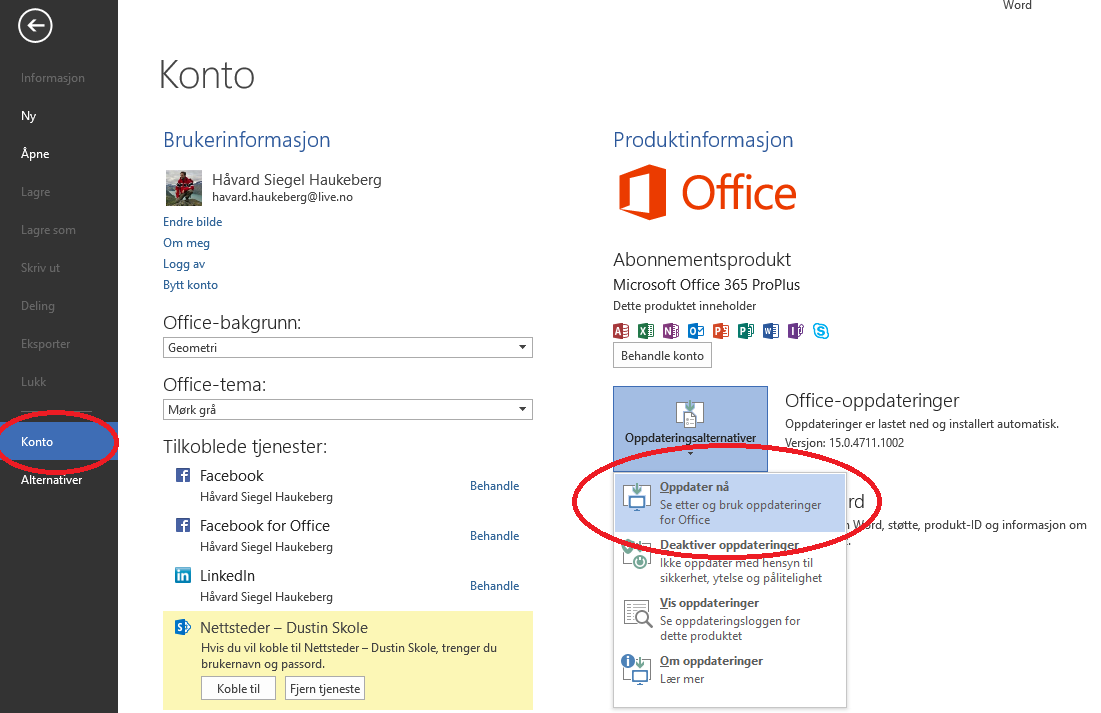
To update Office open e.g. Word and go backstage

backstage

Then click there. Wait for a bit and at next reboot you will have Skype for Business.
for me it took about 10 mins.

update office

Office 365 Gå fra prøveversjon til Produksjon

office 365 logo

De fleste av oss liker å prøve før man kjøper. Microsoft tilbyr 30 dagers prøveperiode før man kjøper Office 365.

for å starte en prøveperiode tenk på disse 3 tingene.

1. Språket, velger du engelsk så blir kontoen din engelsk også etter prøveperioden
2. Adminbruker må ha et reelt navn som du kan identifisere deg med og du må legge inn mobiltelefonnummer i tilfelle du glemmer passordet
3. Kontonavnet “tenant name” dette navnet kan du IKKE skifte senere. velg med omhu.

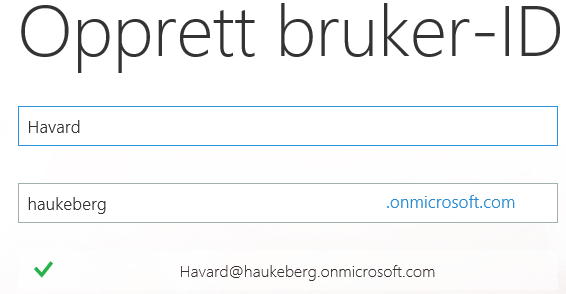
admin name
Administrator navn


tenant name
Tenant Navn (kontonavn)


Nederst på denne siden så ser du kobling til å starte Norske prøveversjonene:

http://products.office.com/nb-no/business/compare-more-office-365-for-business-plans


For å gå til produksjon trenger du kun å gjøre 1 ting. Kjøpe lisenser. Straks du kjøper lisenser så blir kontoen din aktivert og utløpsdatoen for kontoen din opphører!
Merk: Utløpsdatoen for prøvelisensene vil fortsatt løpe ut dersom du ikke ønsker å kjøpe alle de 25 E3 prøvelisensene. Dette er normalt. Lisensene vil forsvinne etter 90 dager.

kjøp
Gå til “Kjøp Tjenester”


kjøp E1
Kjøpslinje for E1


Hvis du velger å kjøpe andre lisenser enn prøvelisensene så må du bytte lisenser til de nye lisensene.

fakturering
Her finner du dine kjøpte lisenser igjen


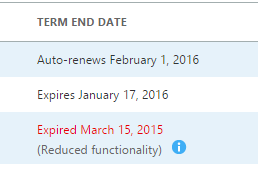
lisenser som går ut
Slik ser det ut når noen lisenser går ut og du må bytte over lisenser


Blog at WordPress.com.

Up ↑