Search

Håvard Siegel Haukeberg

Paste life: Ctrl+C -> Ctrl+V

Category

Enterprise Mobility Suite

Stuff you should know about Microsoft Enterprise Mobility Suite

Azure MFA enrollment experience

If you want to enroll for Azure MFA the users need to go through these steps. When you enforce or enable MFA the user will be prompted for MFA enrollment. This is best done in a browser.

First the user need to access any of our endpoint e.g. http://portal.office.com

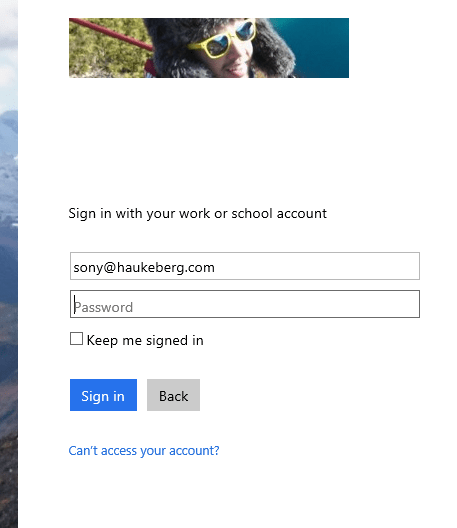
creds
Office 365 custom logo login


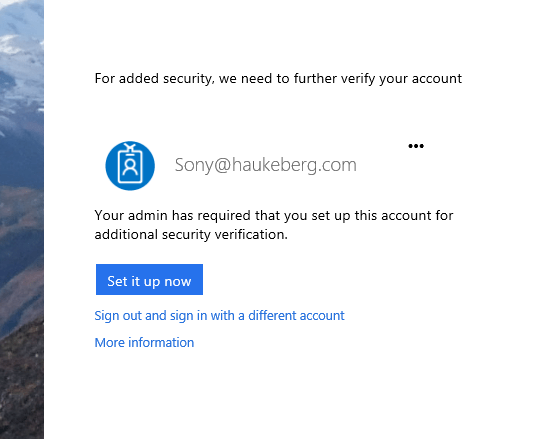
mfa prompt
Office 365 MFA enabled


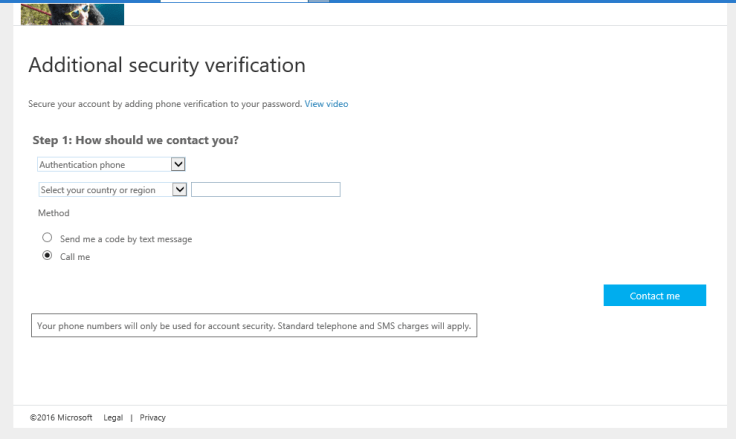
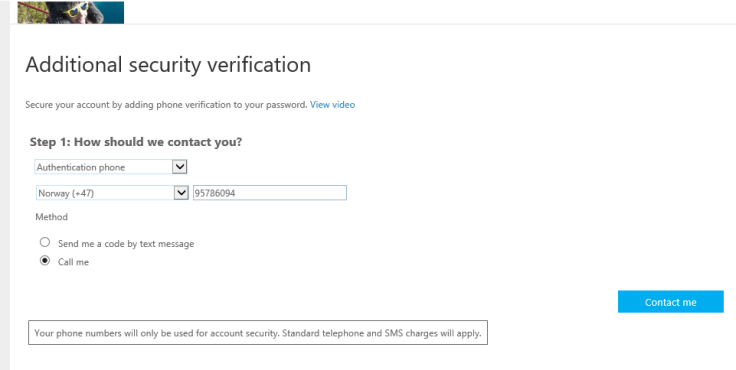
input mfa method
Office 365 MFA input phone number


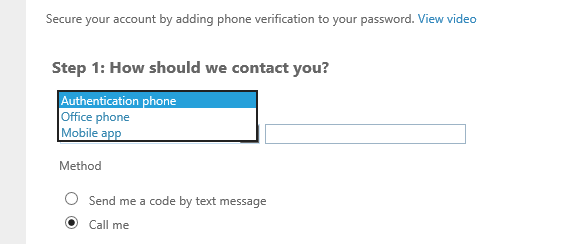
contact options
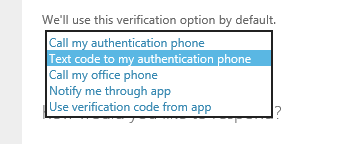
Office 365 mfa methods


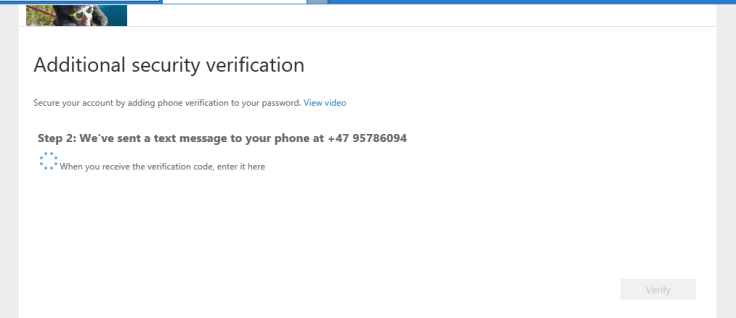
sms
You will get a text message with a code to enter


wp_ss_20160902_0001
code on phone


Office 365 app password during enrollment
Use this app-password on your native iOS or Android device or old Outlook 2010 instead of your normal password.


Additional Office 365 MFA options
Press cancel if you feel done. or just navigate to the indended site. e.g. http://portal.office.com


Extended Office 365 MFA options
all your MFA options


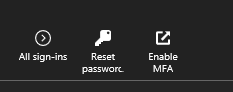
Azure AD access panel for MFA
The user access panel

Here are all of the pictures in a Sway:
https://sway.com/2fNqmpbe5O17F5Ev

Service based Azure Multifactor Authentication

Now you can enable a certain service for Azure MFA.

In this example i enforce MFA for a security group with 3 users when they try to access Yammer only. Everything else is not enforced with MFA.

Prerequisites: Enterprise Mobility + Security (EMS) License assigned to the user.


Go to: http://manage.windowsazure.com

Navigate to your domain and click applications

domain

Use these settings

Note on these settings, I have 3 users in the CA Exchange Online Mobile group. Rest of my users are in the NO CA group and that group is set to Except. I do this to ensure that nothing is enforced globally to all users. The 3 users in the first group have not had Azure MFA Enabled or Enforced but is set to Disabled.

sony disabled
You do not have to enable MFA globaly for this to work


yammer mfa settings
I always add an Except group with the remaining users.


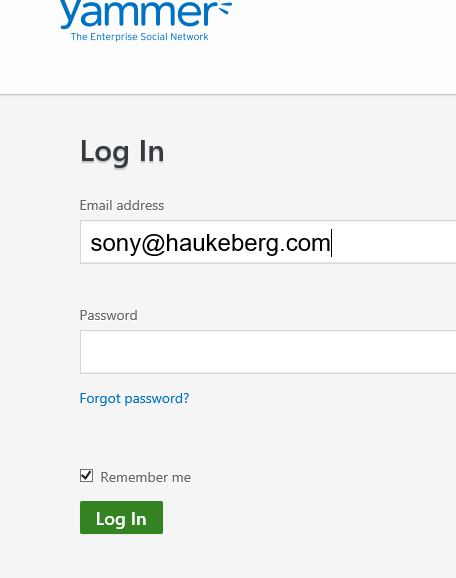
This is what the user will see now.


He will see the normal login but be required to enter a second factor. If he navigates to outlook og Onedrive there will be no such requirement.

yammer endpointcredentials portSetup MFAenter phone


What Azure Rights Management Tells You!

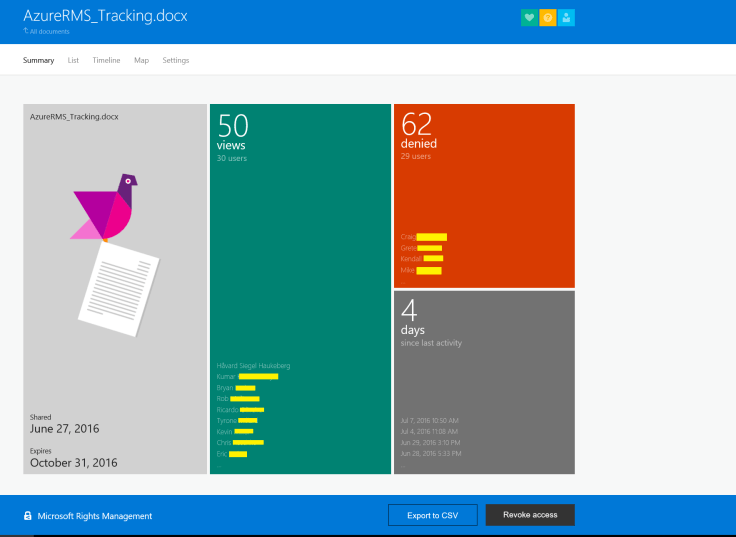
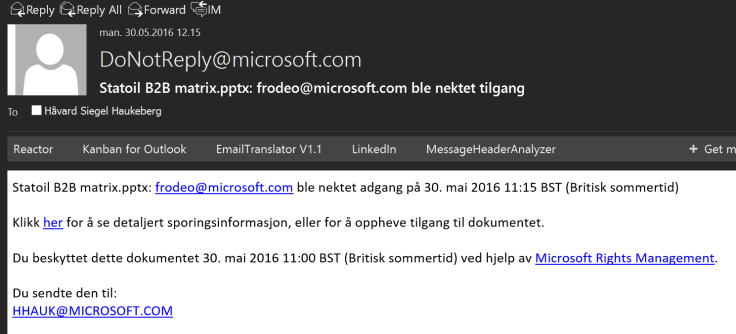
A colleague of mine, Ilya  sendt out a Azure RMS protected document. Here is what it looks like for a user of Azure RMS when sharing documents.

http://portal.azurerms.com

Observe the insight and control you have over the information, and at a moments notice you can withdraw access to the document.

The Yellow lines are the last names which have been removed for privacy.

Summary page
Summary page
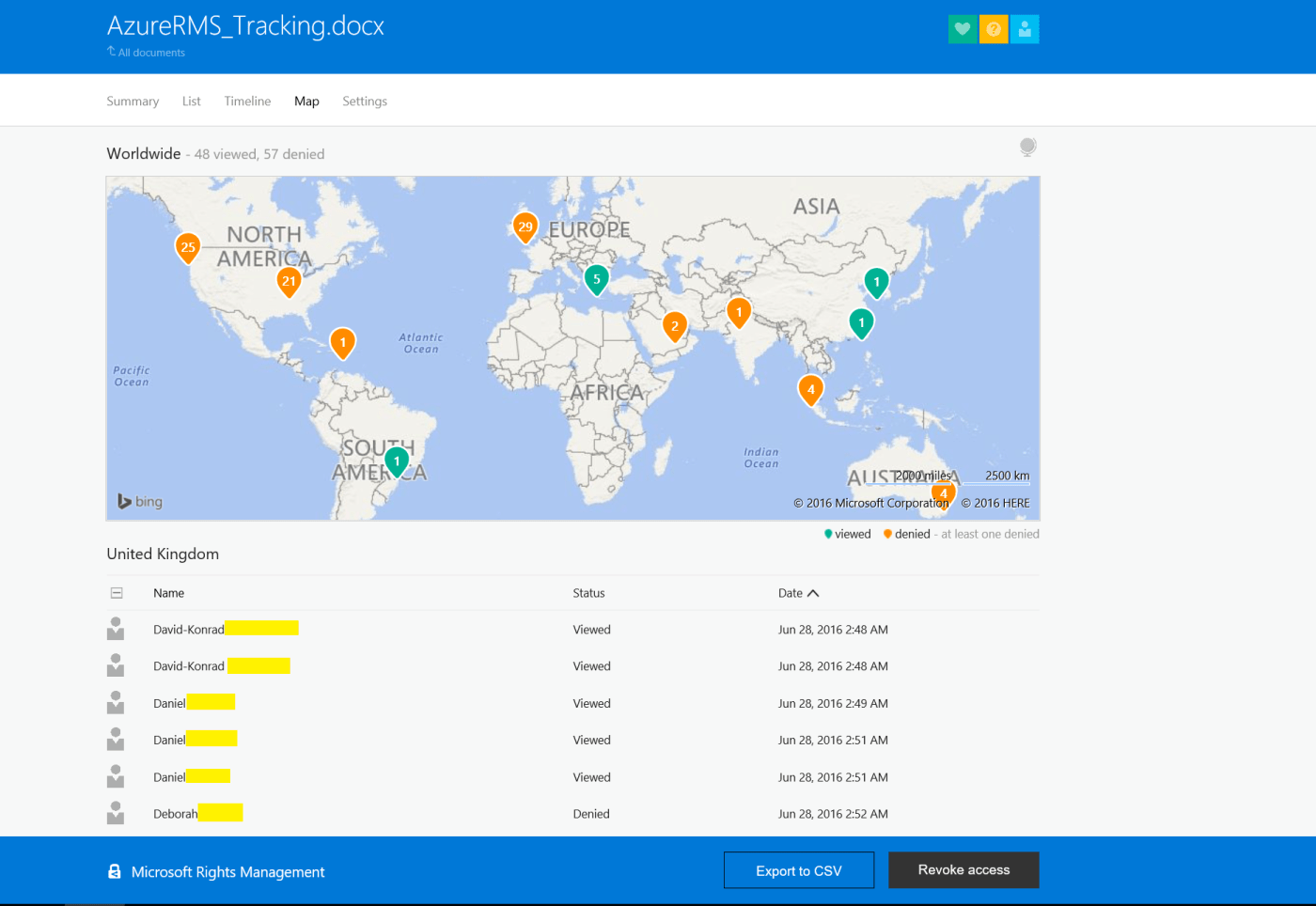
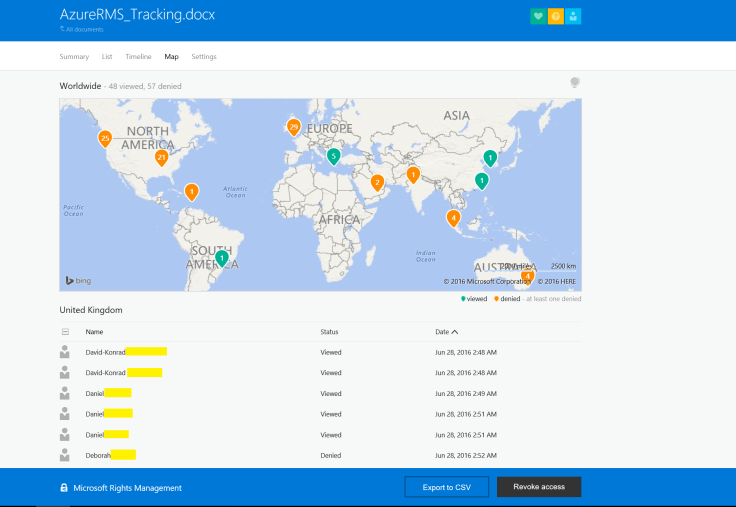
Global Map View
Wherein the world
Zoomed view USA
Zoomed in on USA
List view
Just a list of everyone
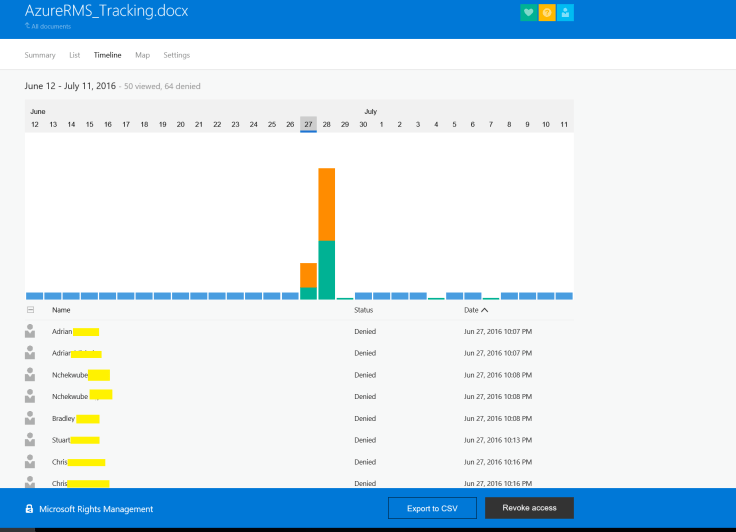
timeline
When did they open it?


Notification settings
Get notified once someone opens the document

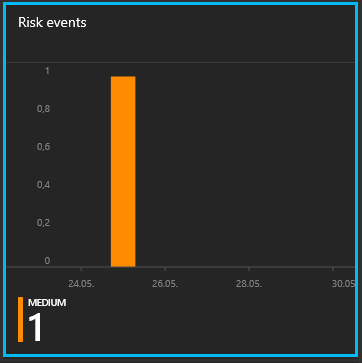
Did I travel, Azure Identity Protection say so

Got a medium warning in Azure IDP, it says my account have been out traveling.

what
Did I moved fast between two geographical location?


specificsrisk eventsuser

What can I do now?

  1. Just reset password (solve)
  2. Prompt for MFA regardless (mitigate)

tools to remidiate

This is how Azure figured it out:

http://manage.windowsazure.com keeps a track on logins for each user. London is not Oslo…

location

Removing user access to Azure RMS documents

Scenario:

You share a Azure RMS protected document with one user lg@haukeberg.com. If you now remove that user and add Samsung@haukeberg.com

-> What happens?

NOTHING.

Each share on the file creates a new instance in Azure RMS, hence if you want to remove user lg@haukeberg.com access you need to revoke access to the document completly.

Note: once you revoke access to a document, all the users will loose access.

Hence if the user lg@haukeberg.com quits and you revoke access to a document which also Samsung@haukberg.com has access to then both loose access.

version protection
Observe the individual shared versions of the file


Workaround would be to always share a document with as few as possible each time.

Azure RMS behavior on SharePoint Online

What will the user see if he puts a Azure RMS protected file on SharePoint online?

Setup:

  • Azure RMS account and document owner: hsh@haukeberg.com
  • SharePoint Online accont: hhauk@microsoft.com
  • Document shared with hhauk@microsoft.com read only
  • Do not worry about language (you can get this software in your language)

Here is what happens:

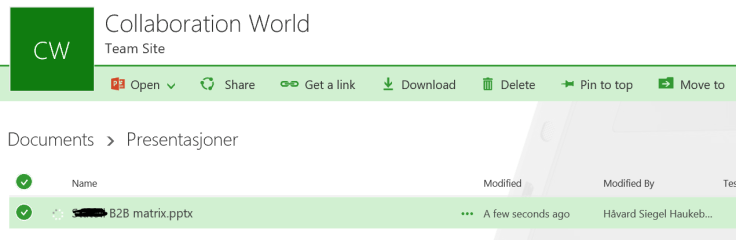
protected file in SPO
In a sharepoint site
RMS blocker
IRM (Azure RMS) disclamer. So NO Office webapps
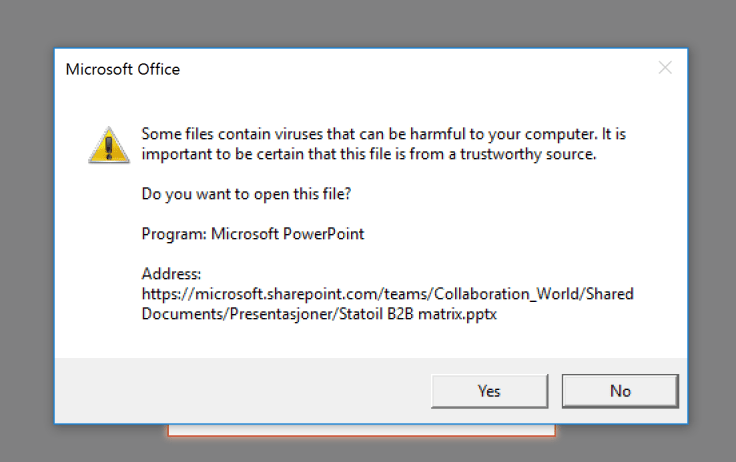
file opening prompt
Normal open prompt
configuring
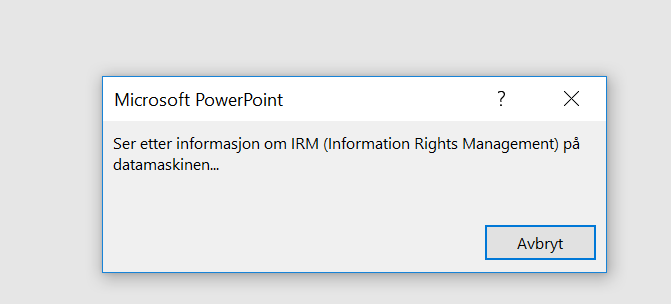
Checking for RMS client (you must have this)
opening prompt for creds
If you are not logged in, you need to do so
proper creds
Modern login
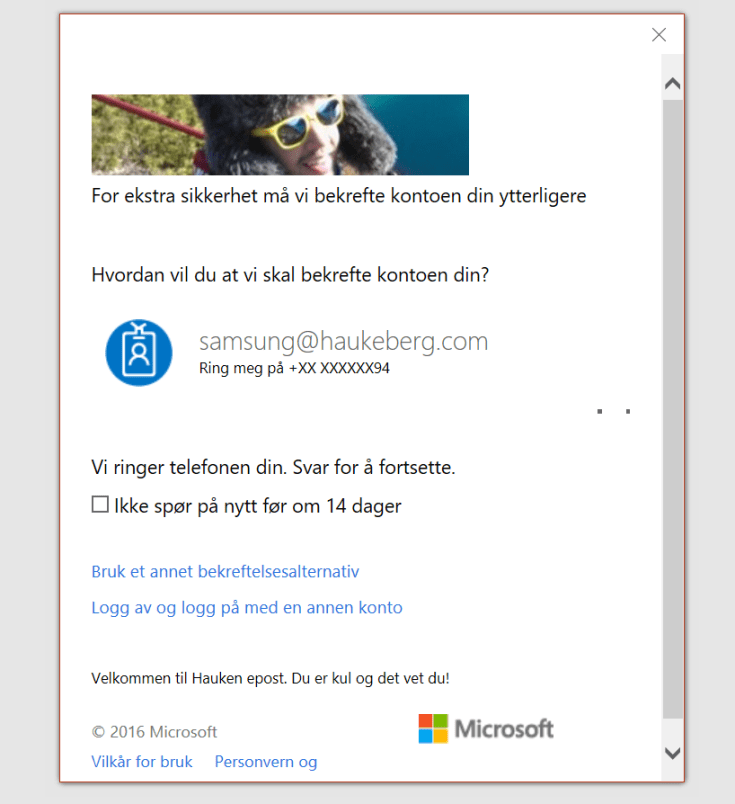
mfa challenge
MFA gateway for access
my premissions
Your current access credentials
denied access
If yo do not have access then the owner will get this mail.


MDM enrollment with Azure AD Join

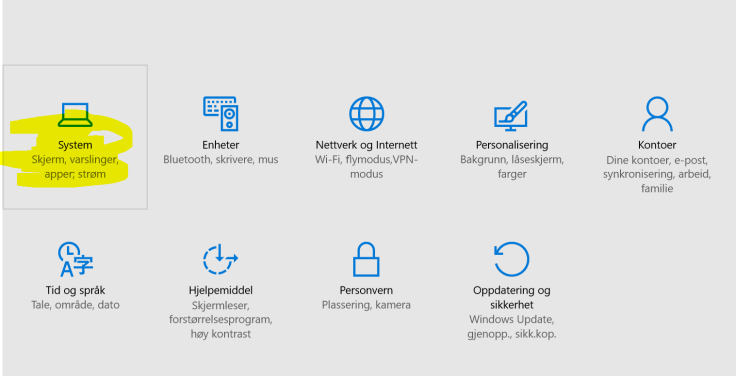
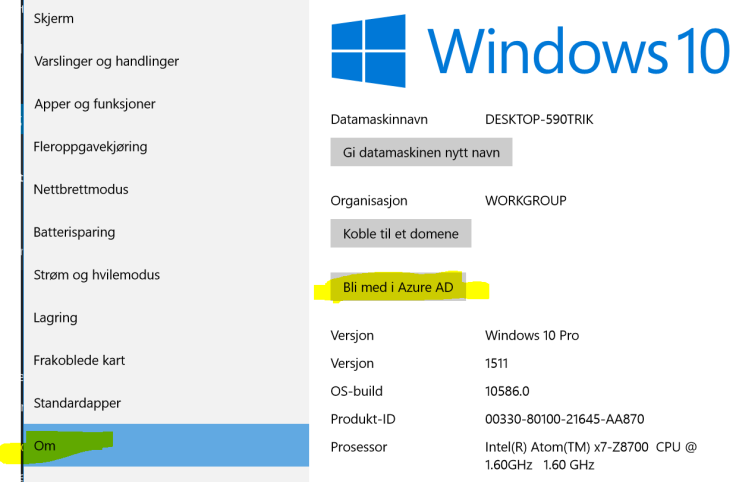
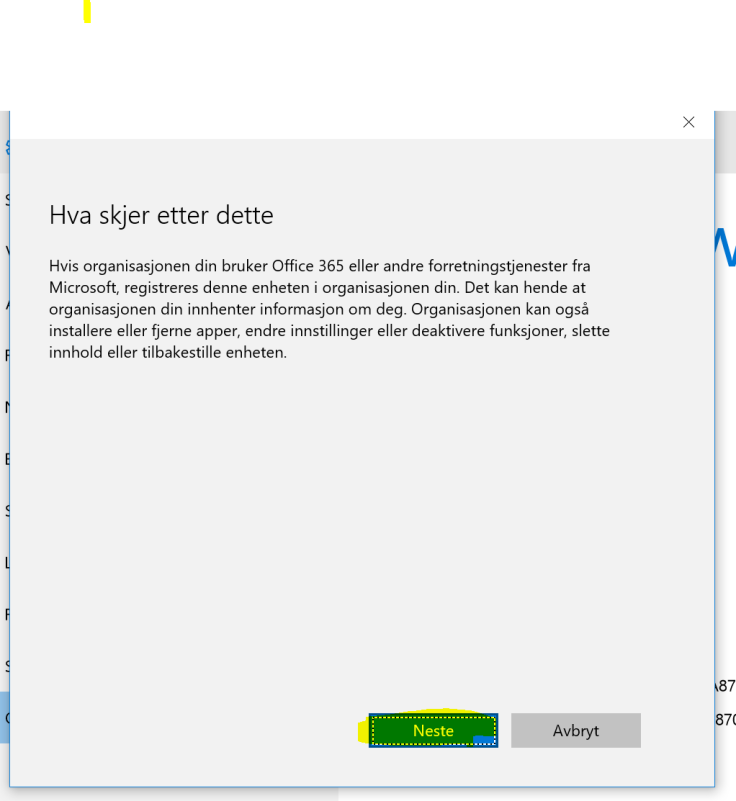
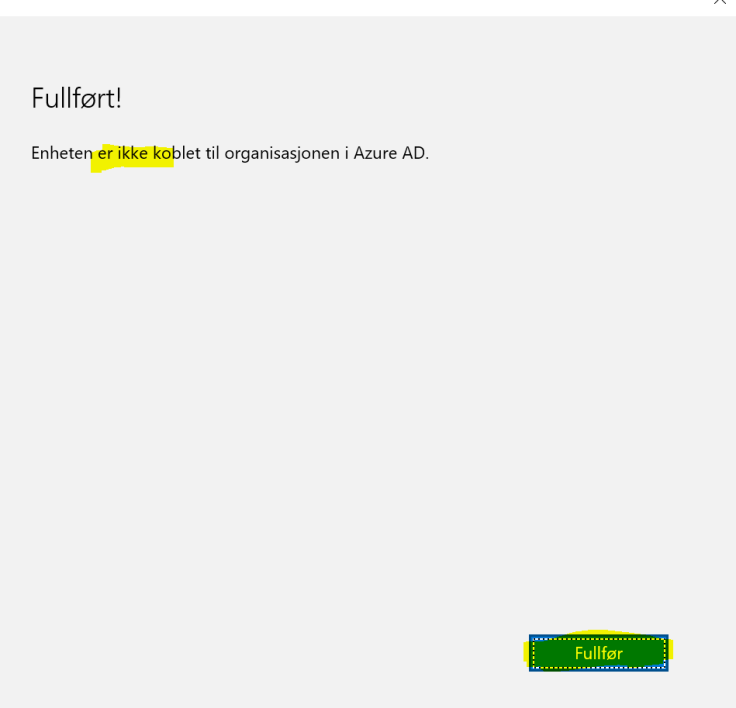
This is how you both join Azure AD and enroll for MDM. Your admin need to have configured Automatic MDM enrollment into intune over at http://manage.windowsazure.com for this to work.
1 - system2 - aad join

3 - notification
Disclamer from Windows
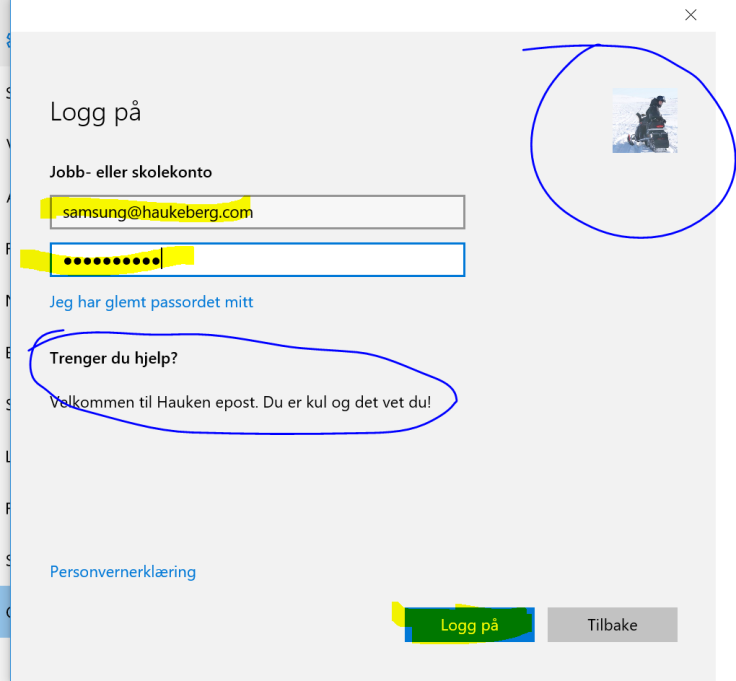
4 - login
Note how my icon and text have been pulled Down from Office 365
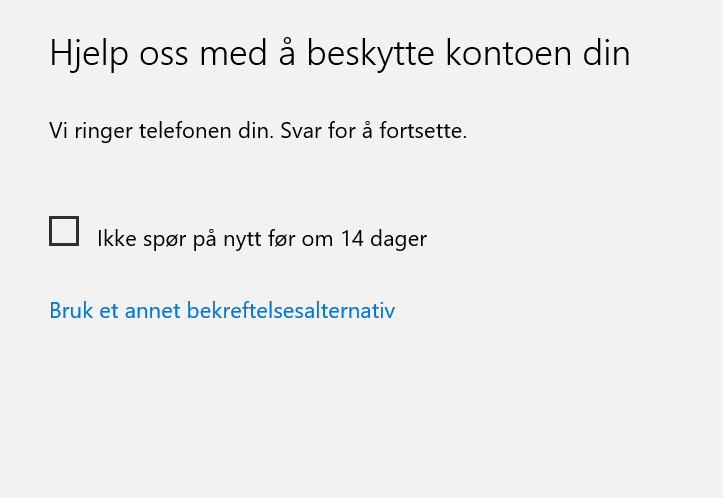
5 - mfa loading
Azure MFA gateway
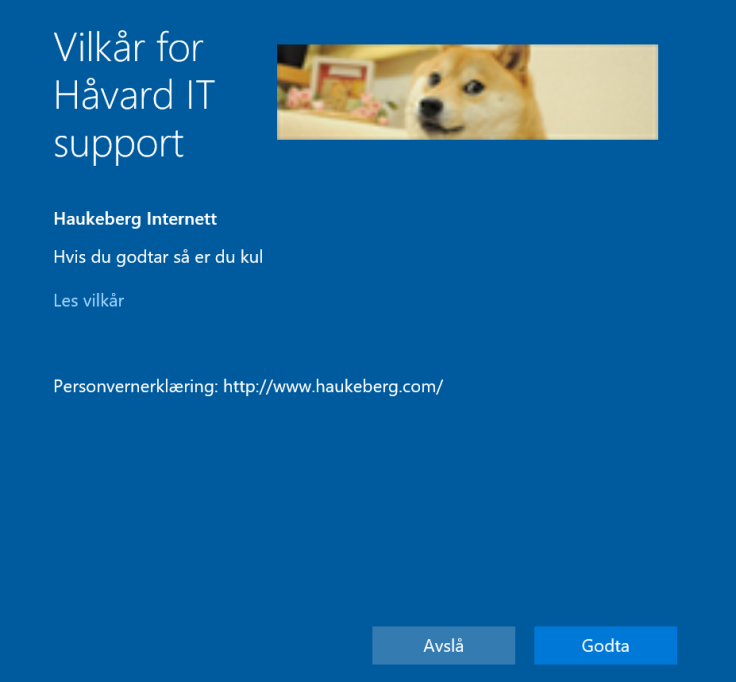
6 - custom policy approvment screen
Customizable Policy template for Your org

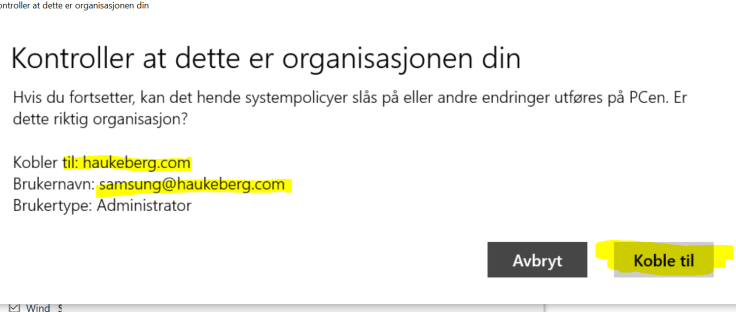
7 - org check

8 - spell check
Despite the translation error, all is okay now.


Conditional Access Behavior on Outlook 2016

If you enable conditional Access in Intune then Your devices will have to be enrolled with Intune in order to read mail. If they are not enrolled or otherwise compliant they will be blocked.

-You can relax these demands as you see fit, but that would kinda defeat its purpose.

This is how Outlook behaves

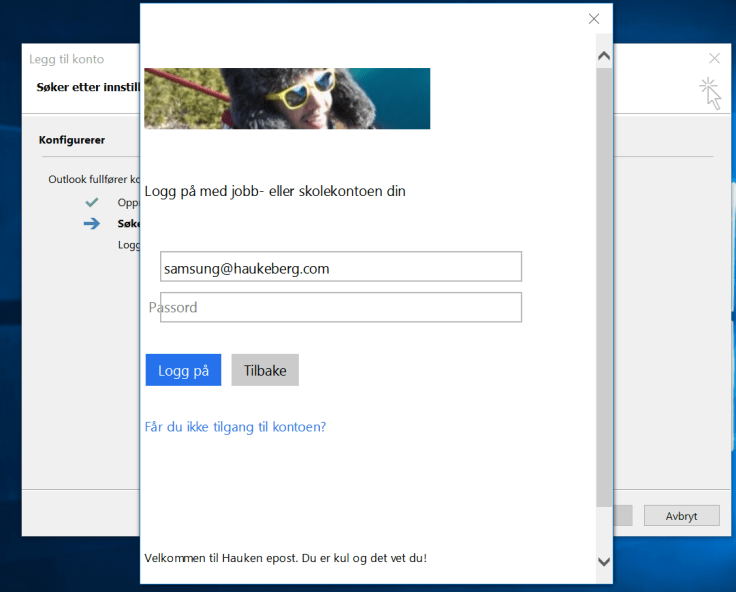
1 - autodiscover
Add Your account as usual
2 - modern auth prompt
Modern Auth Prompt
4 - conditional access required
Conditional Access checkpoint

This user will not be allowed to Complete the mail setup.
Note that you have to enable ADAL on Exchange Online and use Outlook 2013-2016 With ADAL in order for this to work. Click here to se how to set up Exchange Online with ADAL

How to enroll Your Windows 10 Machine in Intune to get back mail?

Click here for the MDM enrollment instructions without Azure AD join.

or here

for MDM enrollment instructions with Azure AD Join

Enable Azure MFA on Outlook 2016 with ADAL for Exchange Online

If you have Outlook 2016 or Outlook 2013 and want to use Azure MFA but you do not want to use Application Passwords there are one thing you need to do.
First;

ADAL for Exchange Online is Off by default turn it on here: How to turn on ADAL for Exchange Online


  1. Allow scripting
    • Set-ExecutionPolicy RemoteSigned
  2. Run Windows Powershell and Connect to Office 365.

    • $UserCredential = Get-Credential
    • $Session = New-PSSession -ConfigurationName Microsoft.Exchange -ConnectionUri https://outlook.office365.com/powershell-liveid/ -Credential
    • $UserCredential -Authentication Basic -AllowRedirection
    • Import-PSSession $Session
  3. Check if ADAL is on

    • Get-OrganizationConfig | fl *Oauth*
  4. If ADAL is off, here is how to enable it

    • Set-OrganizationConfig -OAuth2ClientProfileEnabled:$true
  5. Close Your session

    • Remove-PSSession $Session
 Now, for me I had to wait 48 hours for this to work. I also installed a fresh Version of Office 2016 Click to Run from Office 365

Second;

Enable Azure MFA for your user in http://portal.office.com

Click here to see: This is how Outlook Click to Run behaves with Azure MFA turned on

Thanks to MS Exchange Org for some great tutorials.
http://www.msexchange.org/articles-tutorials/office-365/exchange-online/exchange-online-identity-models-authentication-demystified-part7.html


Blog at WordPress.com.

Up ↑