Windows Intune will steal focus and prompt users to reboot after installing updates that requre reboot.
There are some ways to manage this:
1. You may give the users more time before the reboot (maximum30 mins)
2. You may disble installation of updates that require reboot
3. Enable restart later with a 60 minutes delay.
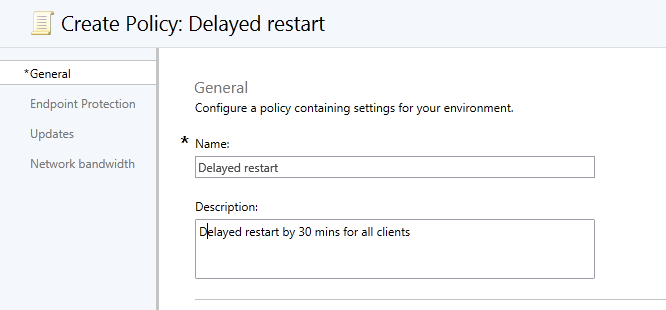
Choose “Windows Intune Agent Settings” and click “Create Policy”
Name the policy e.g. “Restart delay”
Give it a description (delayed restart by 30 mins, all Clients)
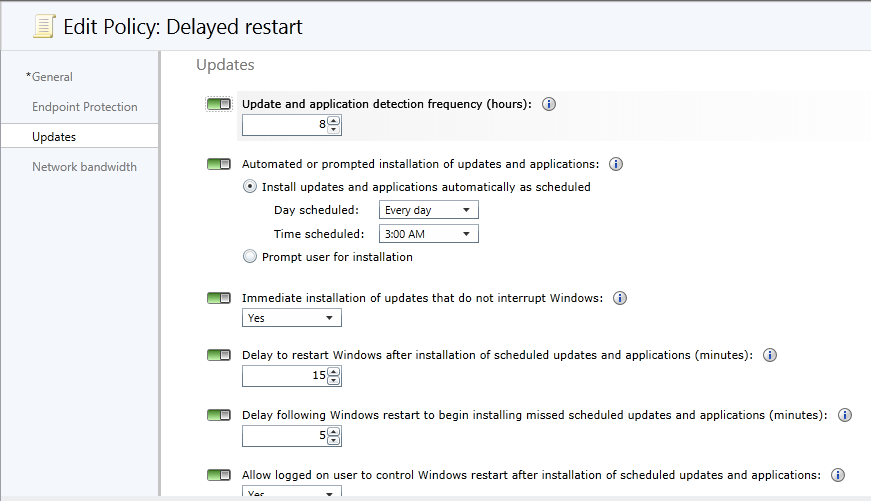
Click updates in the left corner
Here are the update options: Windows Intune Agent Update Options
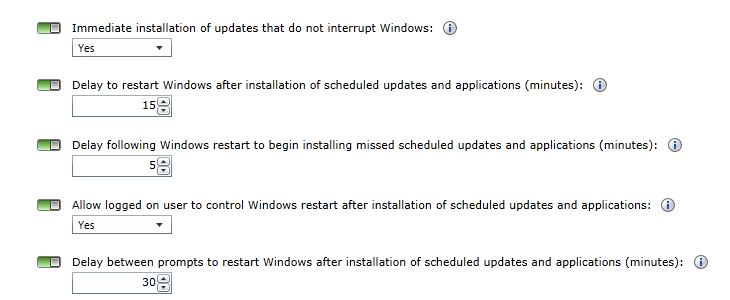
Now notice the: “Allowed logged on users to Control Windows Intune Restart”
Should be set to YES
In the other boxes you may set the time to max in order to steal minimal of focus with the restart prompt Box.
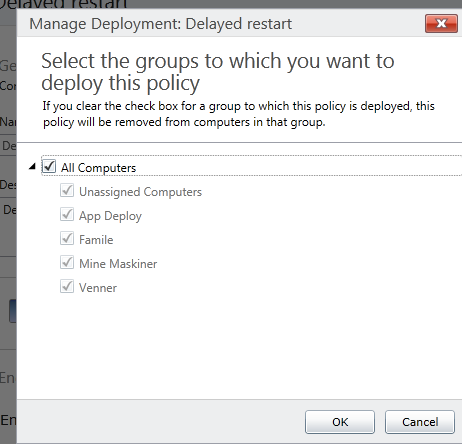
Now, save the policy and deploy it to all computers , or just a group of admins
Click “Save Policy”
and check computers to deploy the policy on:
Windows 8 is about, time to start developing my first Win8 App! Lets just sum it up here:
1. I dont understand code
2. I understand copy/paste
3. I have a tiny understanding of HTML
So, how do you make a Windows 8 App without being a CODE NINJA? Lets start:
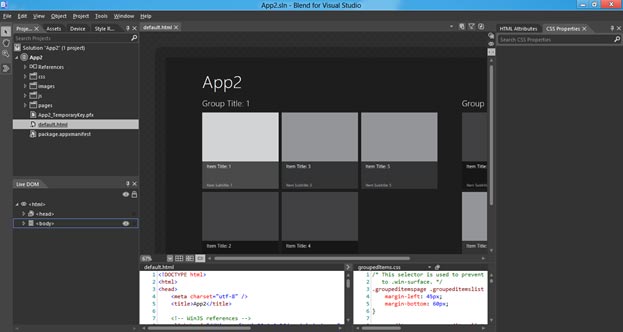
1. You need Expression Blend (this is where I will make all Objects and stuff)
2. You need Visual Studio (This is becasue most examples use code and its easiest to copy paste in VS)
3. You need Win8 SDK With some cool templates
find the SDK here: http://msdn.microsoft.com/en-us/windows/apps/br229516
Backed up by Microsoft, the participants created the world largest test environment for Windows 8 Server. Over 500 virtual private servers (VPS) were created during the last 36 hours.
First:
You will need the Windows Phone Toolkit. Its here: http://silverlight.codeplex.com/ and select one of the Download options:
Silverlight for Windows Phone Toolkit – Aug 2011.msi
Second:
Install the package
Third:
Connect Expression Blend to the Toolkit!
This is how you do it:
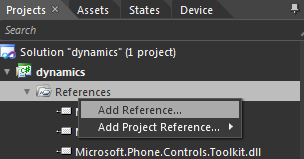
Add a reference to your project by right clicking on references.
then browse here to find the reference you need to add.
path of the windows phone toolkit
Forth:
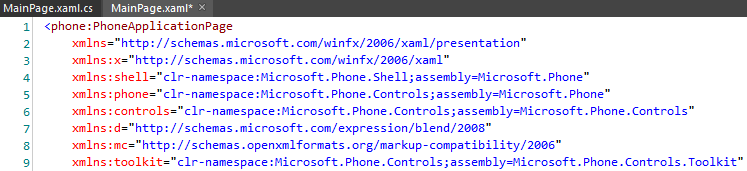
Add a reference in the MainPage.xaml
Select “code view” – dont be afraid, we are just going to copy paste.
Add this line of code to the start: xmlns:toolkit=”clr-namespace:Microsoft.Phone.Controls;assembly=Microsoft.Phone.Controls.Toolkit”
The reference you need to add in MainPage.xaml
Fifth:
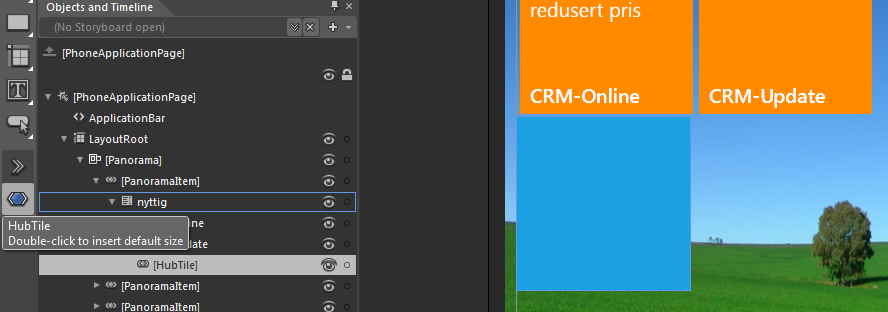
Now just start adding HubTiles.
You find the HubTiles here
this is where you find the HubTile controlJust double click on a HubTile to add it to a list on e.g. a panoramic app
Sixth and finally:
Now, to add content to the HubTile you have to use the “code view” dont be afraid, its just to add text! look at my sample below. You find the code in the MainPage.xaml
A screen snip of all the code in one set of LiveTiles with and without content.
WRITE DOWN THE WINDOWS KEY, you will need it during install. you find it on the ISO download link above
I have three computers – I set them to boot from USB
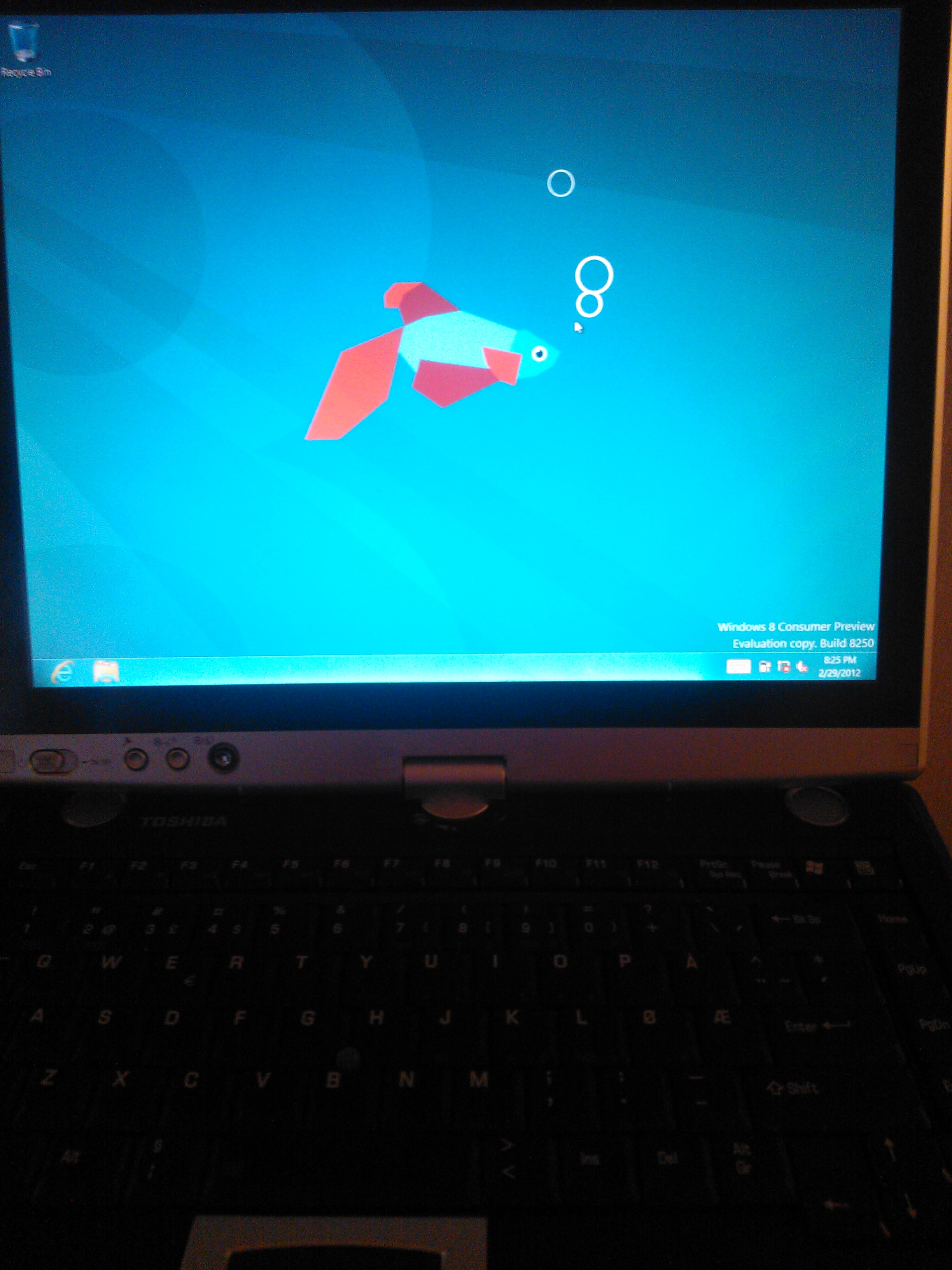
Tablet PC – Toshiba Tecra M4 (6 year old)
Toshiba Tecra M4
Desktop Computer – Intel PC (4 year old)
My traditional PC at home
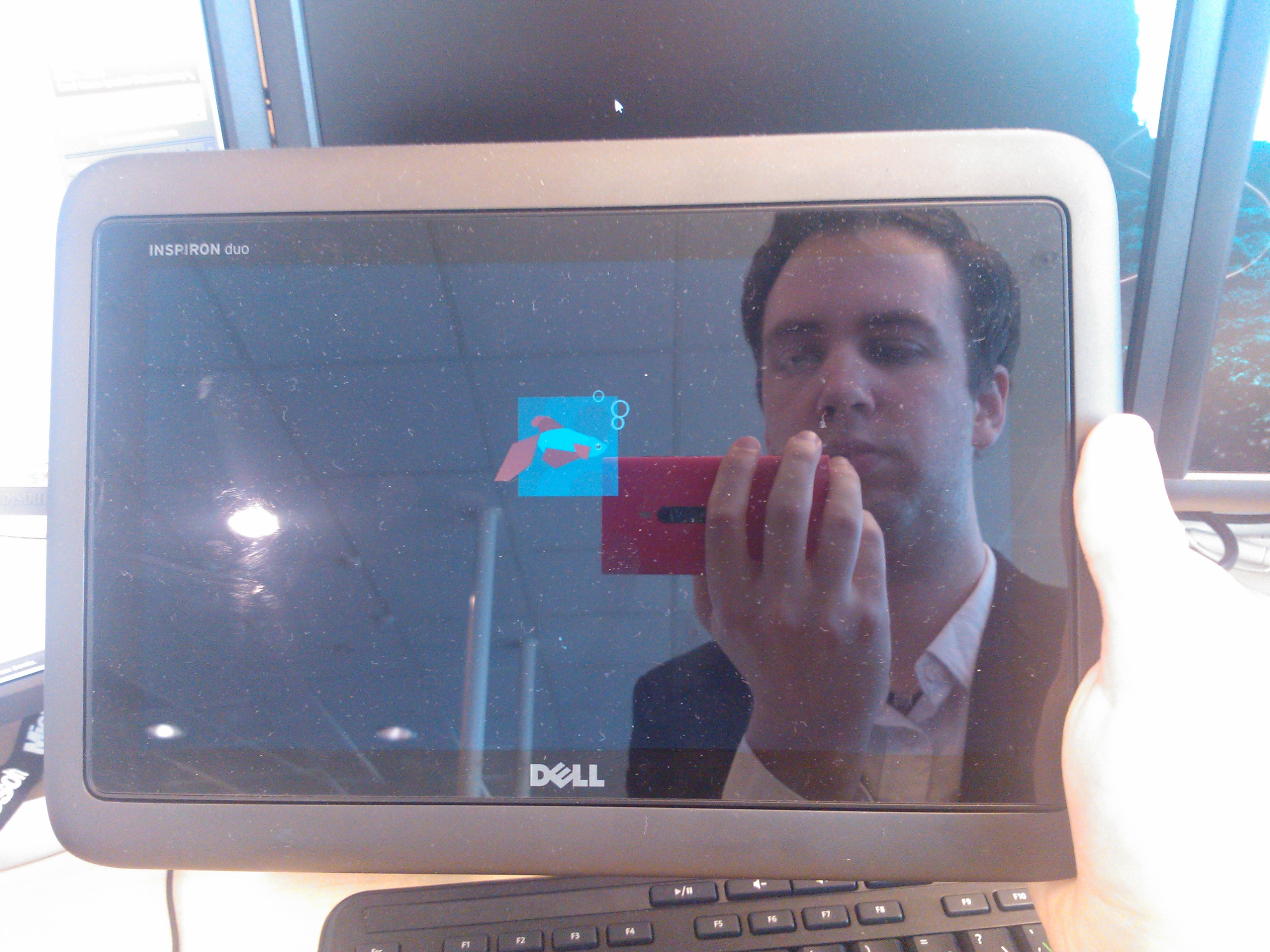
Slate PC -Dell Duo (1 year old)
Betafish on Dell Inspiron Duo
Here is the generic install process which is similar on all three of my machines
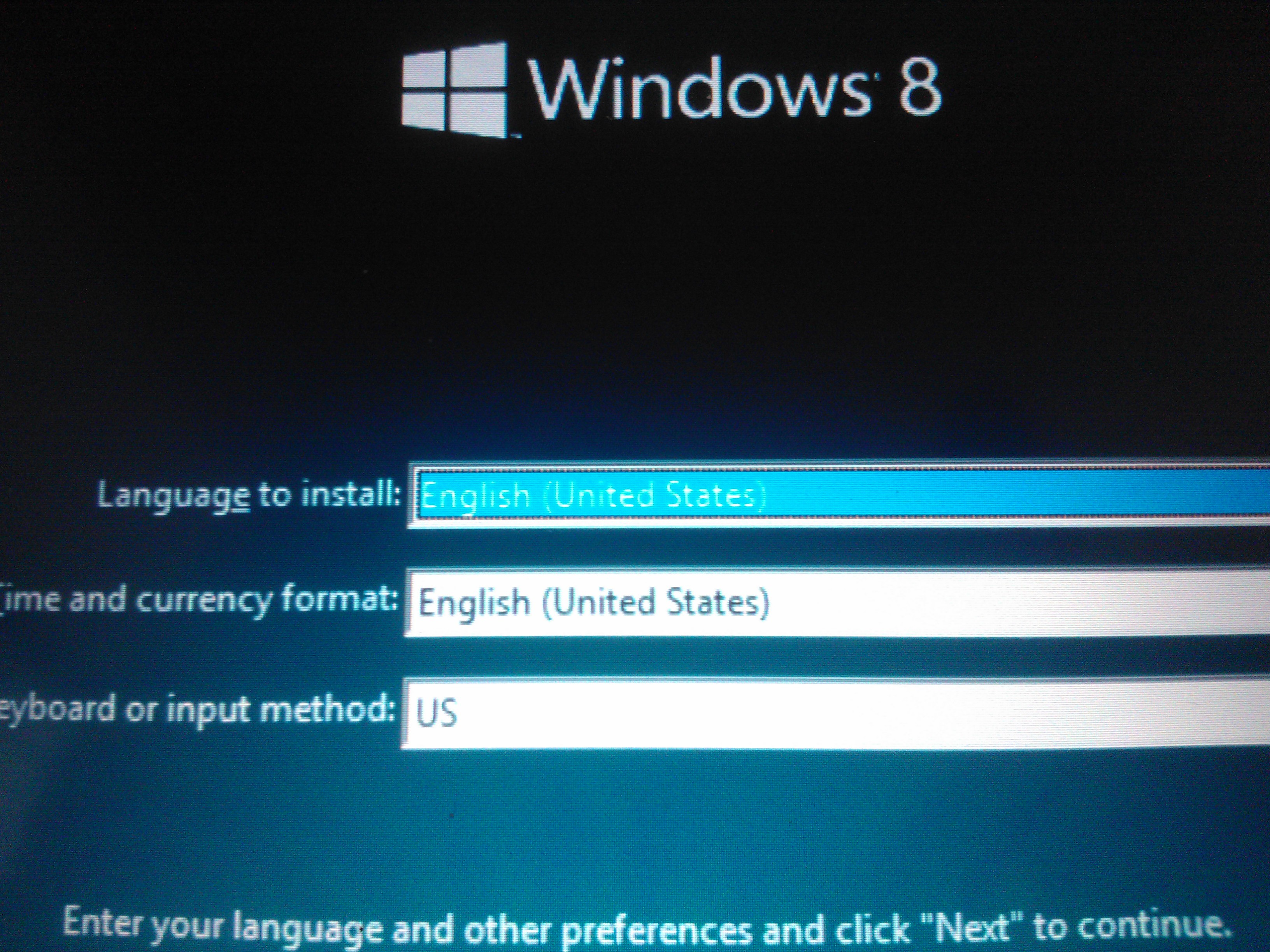
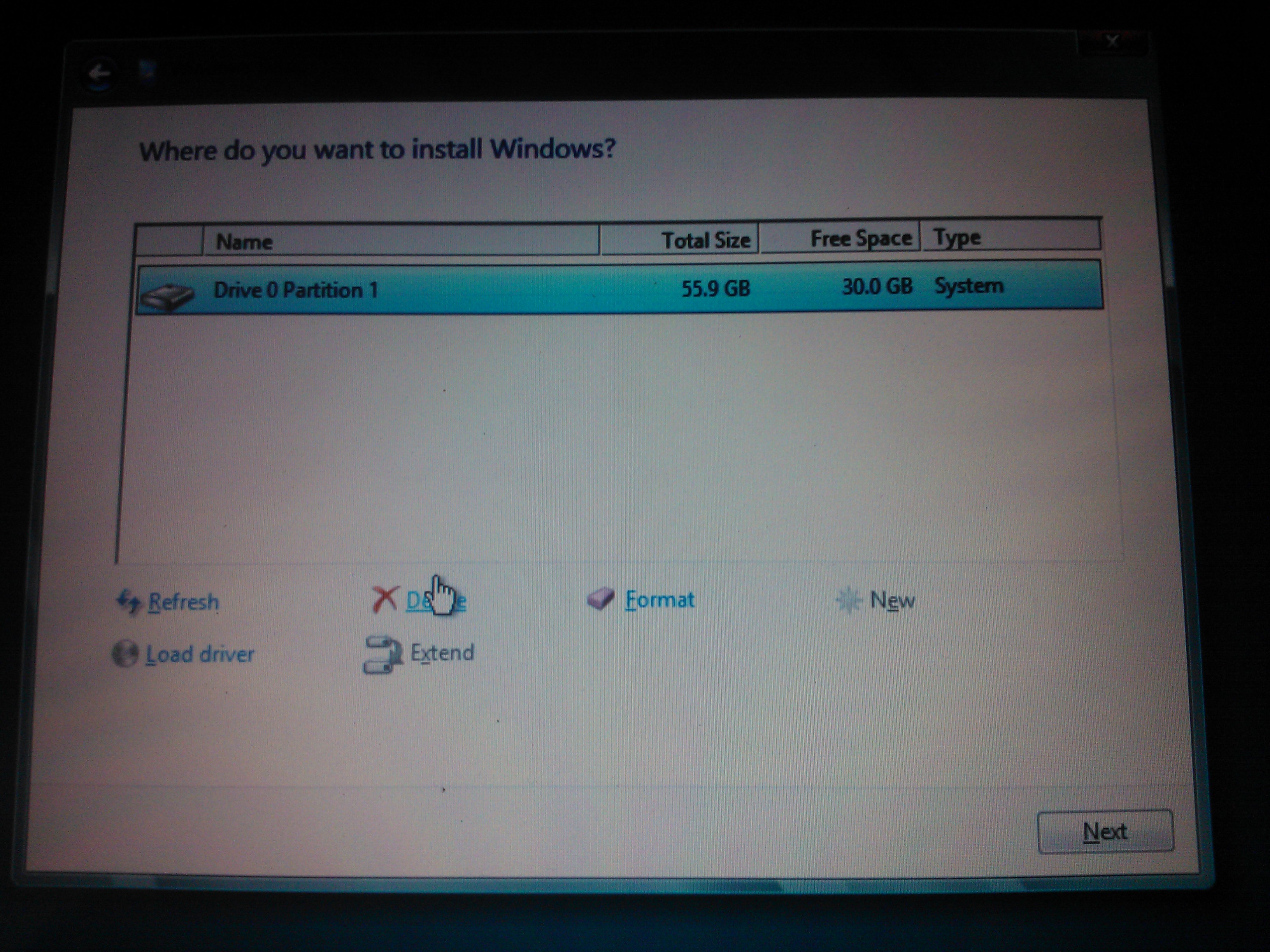
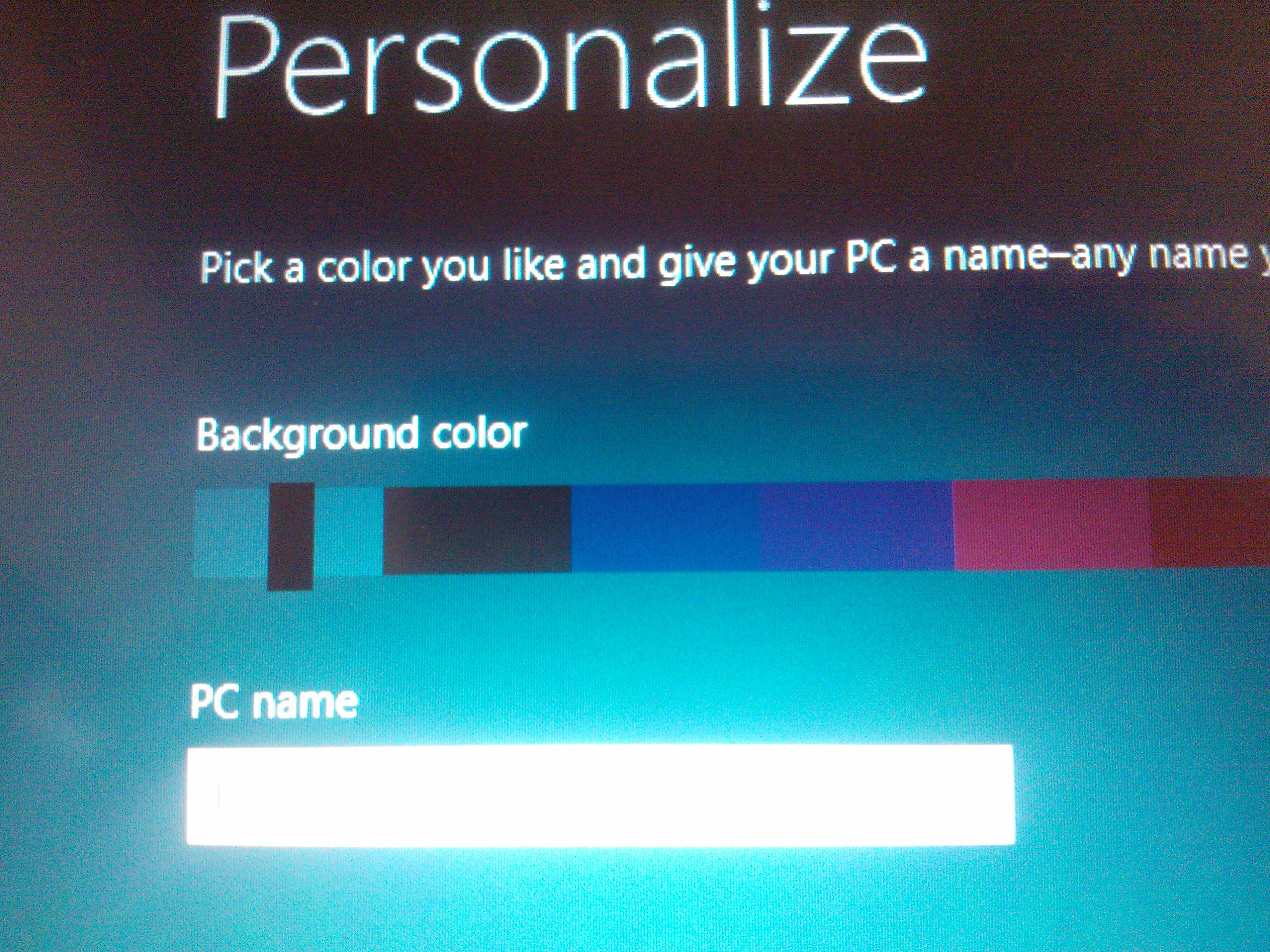
Select correct region and language. Same as in Windows 7Same as in Windows 7, select partitionInstalling windows is faster than everSelect the PC name here and which color. I reccomed black if you install on a slate or tablet, it makes the screen seem bigger.This is where you enter your user name. Just put something in, because you can later log in with your Windows Live ID and use that as user name.start screen with tiles
When you first install Windows 8 be ready to spend some time to find your usual tools.
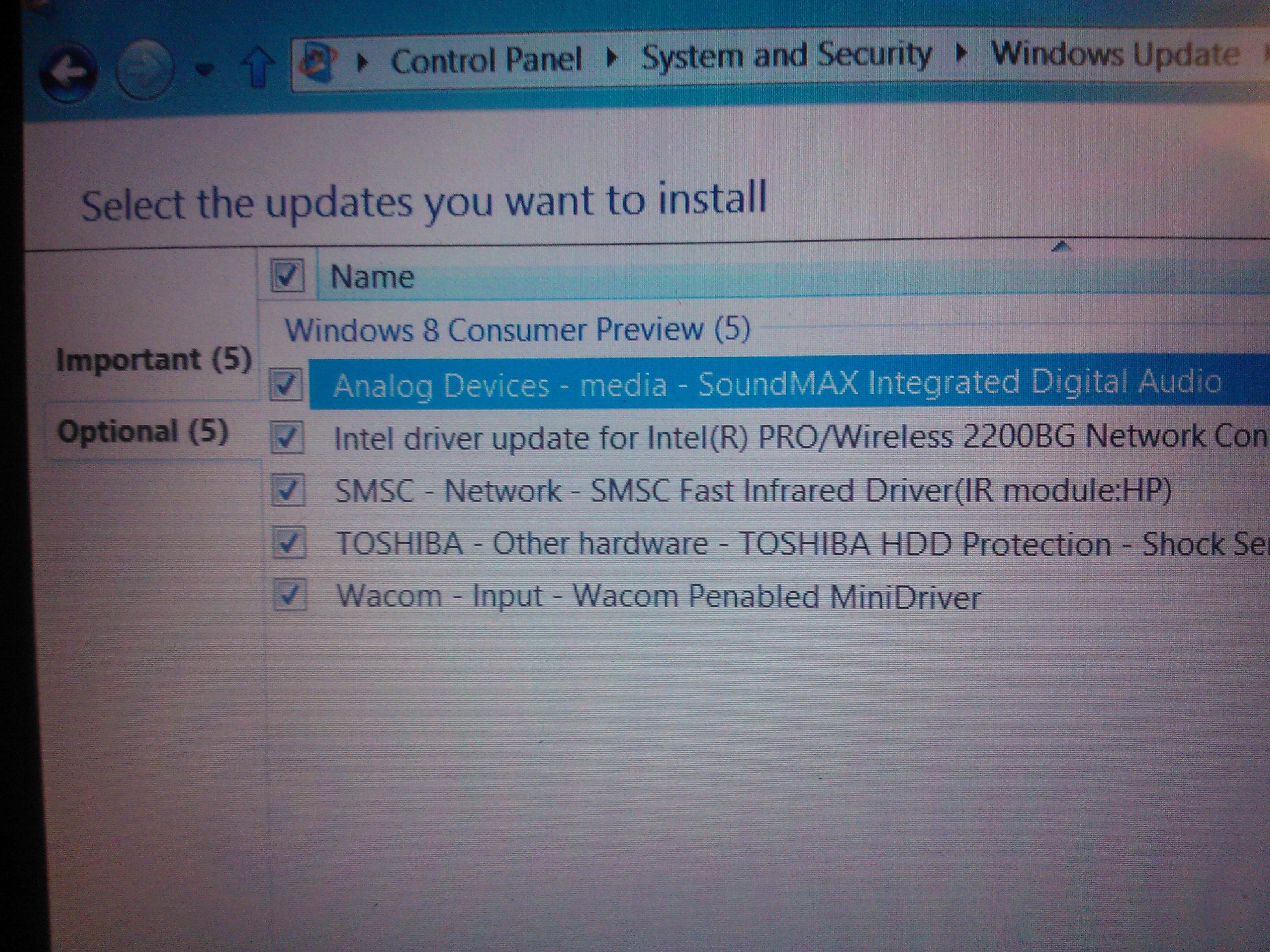
First problem for many is to find windows update and get the drives for things like your graphics card, network and other essential drivers.
Lots of drivers missing for my laptop
This is how you fix it:
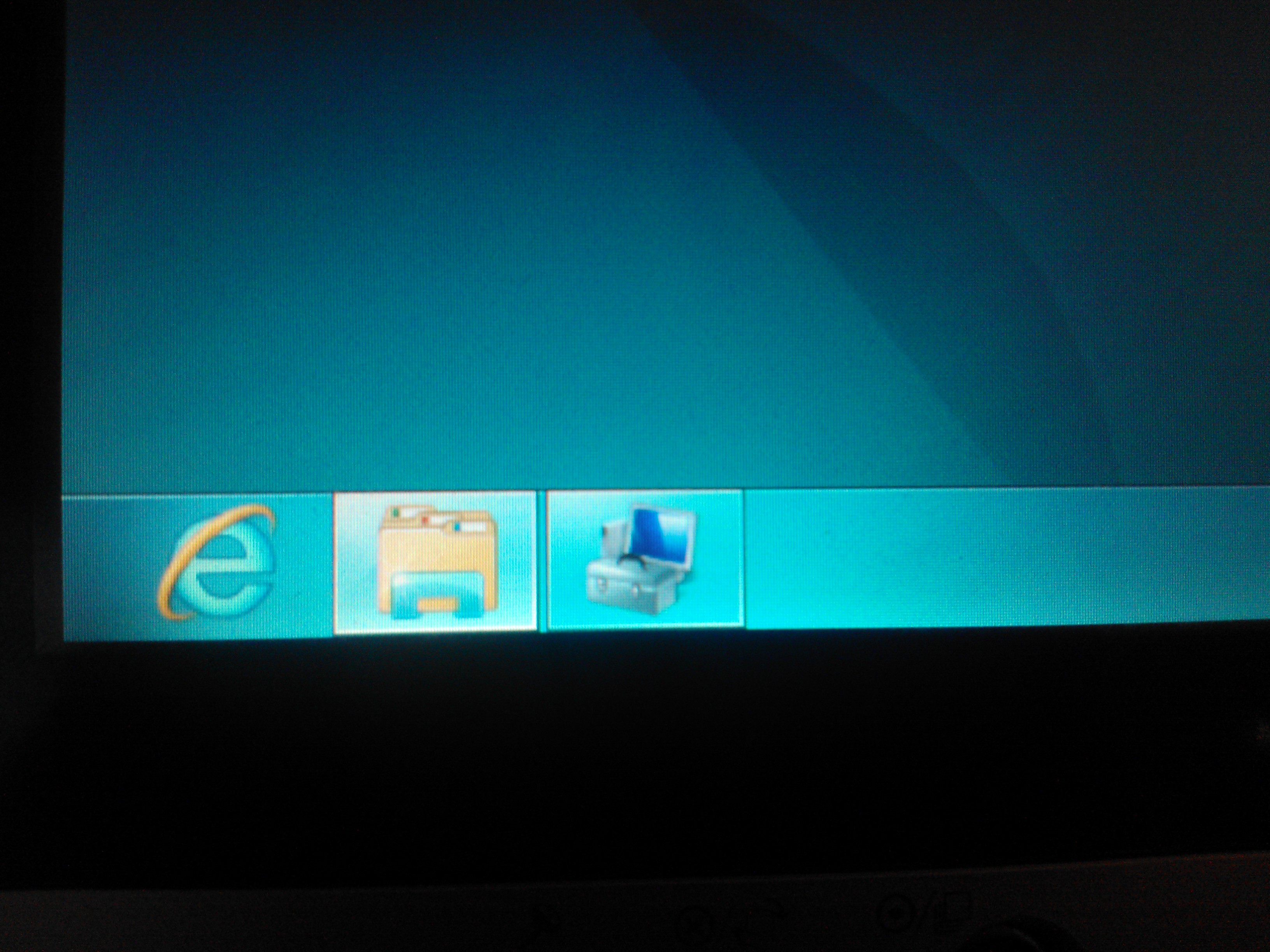
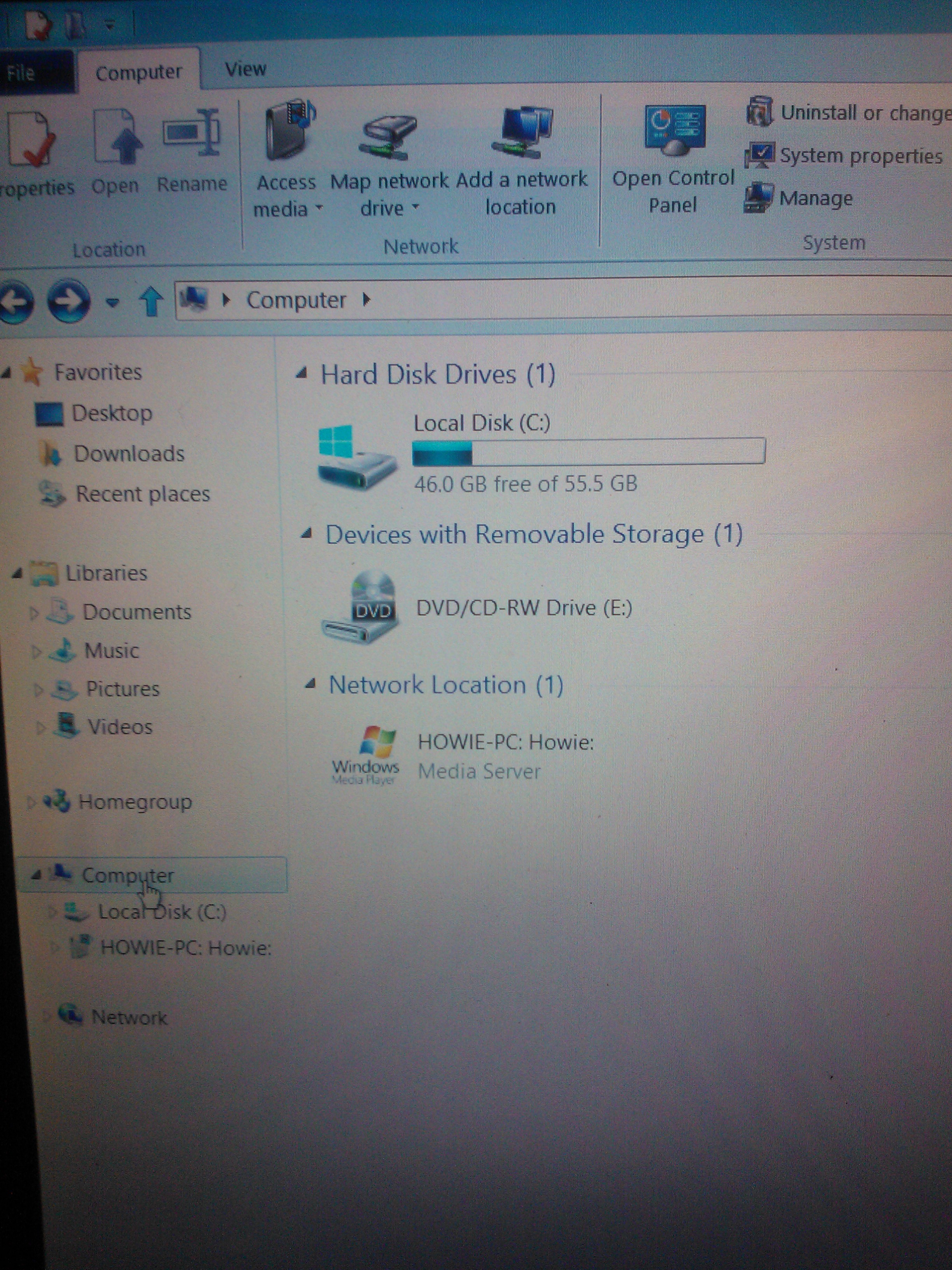
Navigate to desktop and click on the folder buttonyou find access to the control panel by clicking on computeryou find control panel button on the ribbonSearch for "update" and find windows updateIf you dont see any updates, click "check for updates"these are the drivers that are avaliable for my system
In Windows 8 you may connect your Windows Live ID to your Windows 8 account.
This is an essential feature of the operating system and allows the user to roam on devices.
I reccomend doing this to get the best Windows 8 experience.
This is how you do it
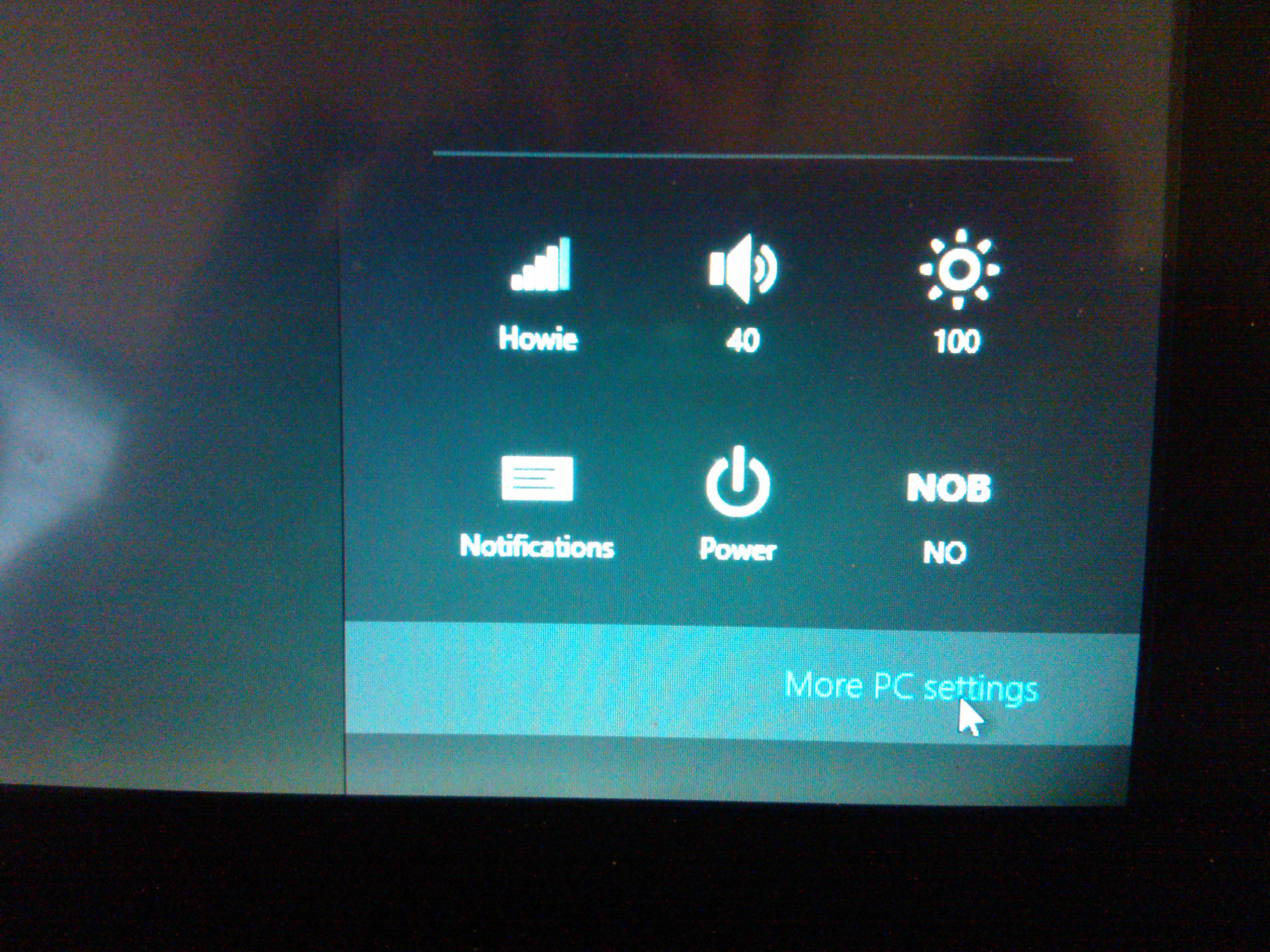
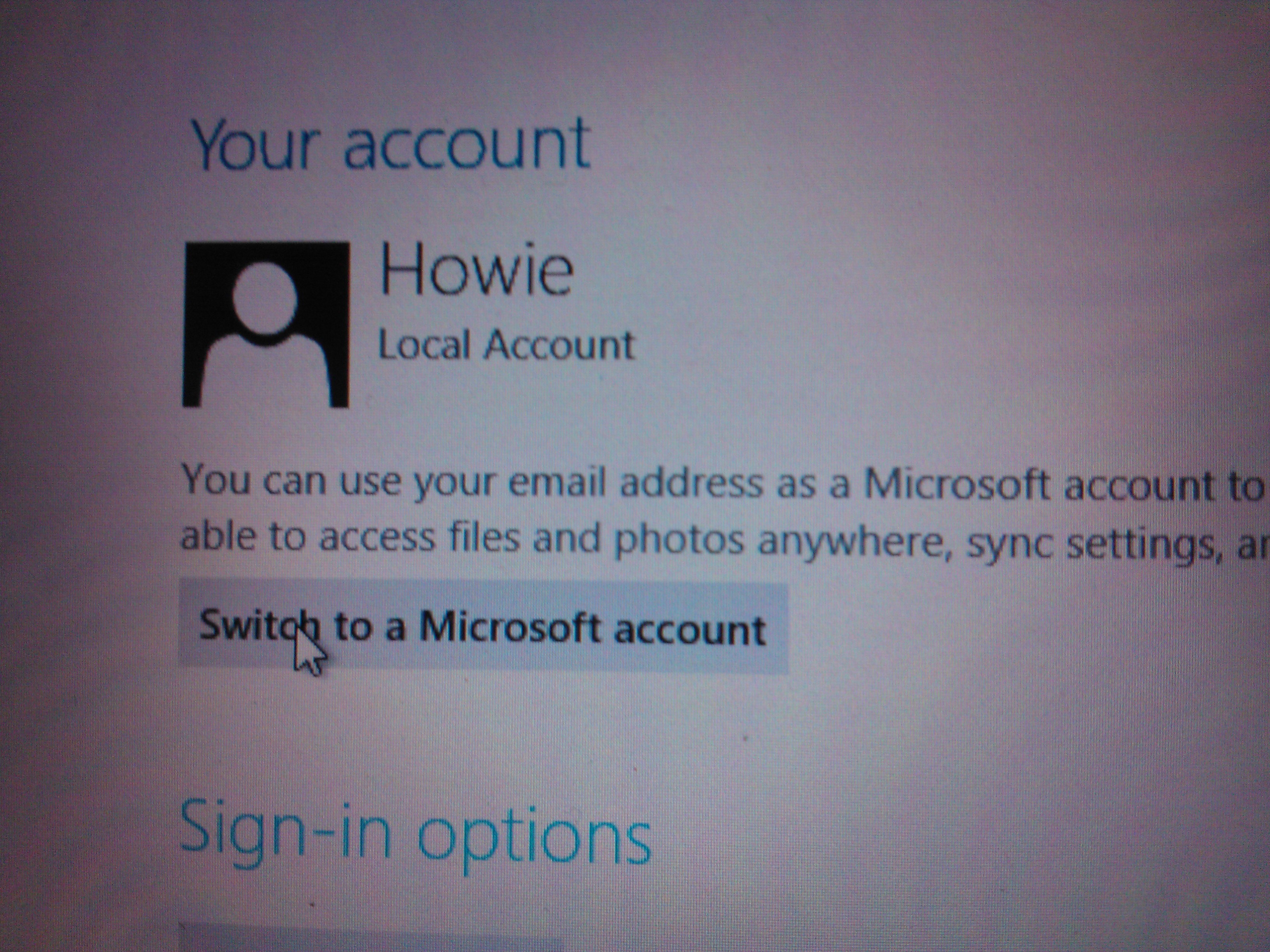
Put the cursor in the bottom right corner to find the charms and click settingsClick more pc settingsClick on Usersclick on switch to Microsoft Account (aka Windows Live ID)You may have to verify ownership by inputting your cell phone numberEnter your Windows Live ID email and Password (e.g. your MSN account or Hotmail account)My Live ID is in sync on this computer
The art of making a Windows Phone App with little or no coding at all.
Index: Code sample Step 1 – Find the object you want to click on. You find this object in the “Objects and Timeline” Step 2 – Select the Item and click the “Event button” Step 3 – Create touch tap event Step 4 – Copy/Pasta code
How to navigate from your app into a website using your phone browser.
Here is a picture of what happens in my app:
Step 1 inside the app
Step 2 in the click goes to a website
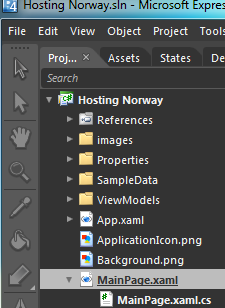
Mainpage.xaml og mainpage.cs you find here in Expression blend
So, what is going on.
First, for all pro coders here is the what I did: -dont panic, its just copy pasta, I promise that it is easy
In the mainpage.XAML file: StackPanel x:Name=”mms” MouseLeftButtonUp=”mms_click” The StackPanel contains 4 elements, a picture and three text boxes, so when i click on it with it starts an event which i called “mms_click”you can call it anything (e.g. awsomeclickbuttonlol), but remember it for the next step
Ok, breathe…
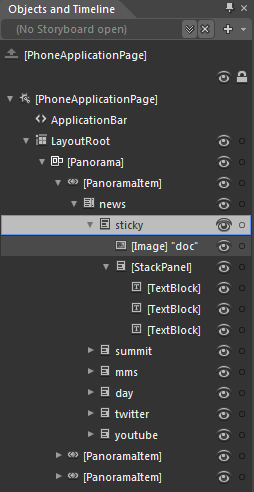
this is how you do it, Step 1 – Find the object you want to click on. You find this object in the “Objects and Timeline”
This is a list over all forms, figures, textblocks and pictures which you may can click on
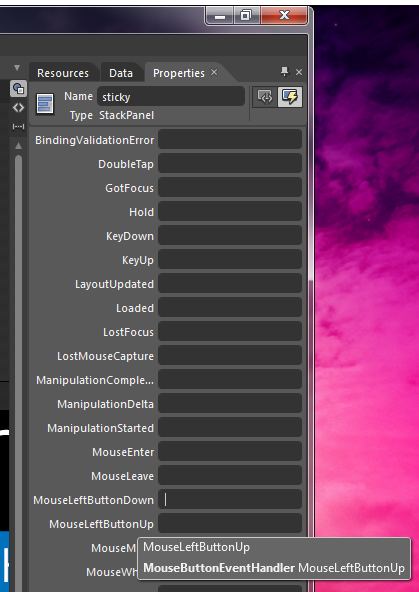
Step 2 – Select the Item and click the “Event button”
Now, there are some options where you have to think logically for a moment.
1. Do I want to launch the browser as soon as I tap the box or do I want it to launch?
2. If you choose MouseLeftButtonDown it will start as soon as you put your finger on it, so if you scroll or just rest your finger accidentally it will launch
3. if you choose MouseLeftButtonUp you may rest your finger on the object and even scroll. it will only launch if you tap the object. this is my reccomended option
you find the event button here
you only use MouseLeftButtonDown or MouseLeftButtonDown – so easy!!!
Step 3 – Create touch tap event
Use your prefered name for the event, but remember you can only use this name once. This name will then execute only one designated action.
You may choose between two different types of Clicks, I reccomend MouseLeftButtonUp
Now, dont panic because this will happen automatically after you enter a name.
the file mainpage.cs.xaml will open and display…. CODE… DO NOT PANIC – its only copy/paste from this aricle that is needed.
Step 4 – Copy/Pasta code
Now you see the green line, replace this line with the code supplied above and just change the url to what you want the target to be.
This code window will open automatically once you entered a name for the eventRelax and just copy pasta these three lines over the green one, no code needed
Then:
1. Save the Project
2. Click Project – Build
3. Click Project – Run
The emulator will open and once its open your app starts loading. Once loaded try clicking on the Object you just created a click event on.
I made this entire object clickable
For more code help, use interwebs and copy pasta.
I used this guy for reference, but did not understand anything untill the two code examples in the end. I did some modification on the code to make it easier in my example. http://chriskoenig.net/2010/05/16/wp7-part-3-navigation/



 )
)





















 Håvard Siegel Haukeberg
You must be logged in to post a comment.