1. Find 2. Save Locally 3. Create a folder in Visual Studio 4. Import into Visual Studio 5. Put Picture in objects
—FINDING PICTURES— Just bing them
—SAVE LOCALLY— Your Pictures need to be saved in a temporary folder and this folder has no Connection to the App
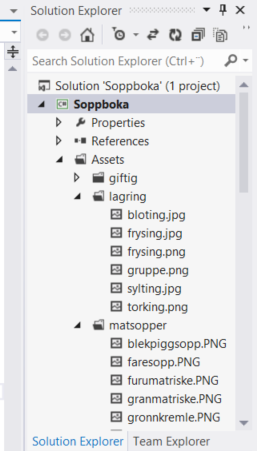
—CREATE FOLDER IN VISUAL STUDIO— Notice the folder structure in this App. ALWAYS put folders in the Assets folder (makes it easier) Right click on Assets to create more folders.
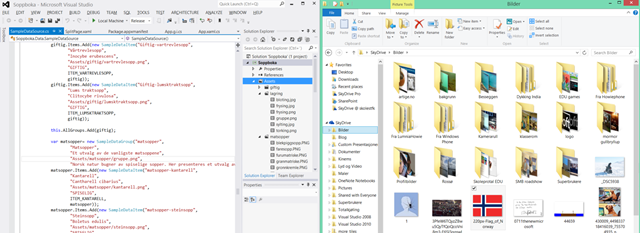
—IMPORT INTO VISUAL STUDIO— Single Click on the folder you want the picture to be in (here i clicked on Assets) Then Drag and Drop the picture from your folder to the folder in Visual Studio.
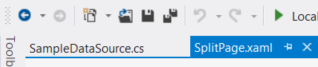
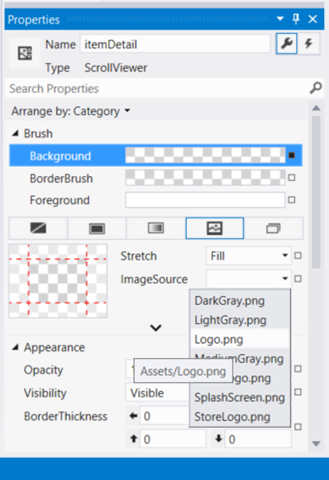
—PUT PICTURE ON OBJECTS— Click on SplitPage.xaml to load the designer Click the Object you want to fill with a picture (Here i clicked on the background):
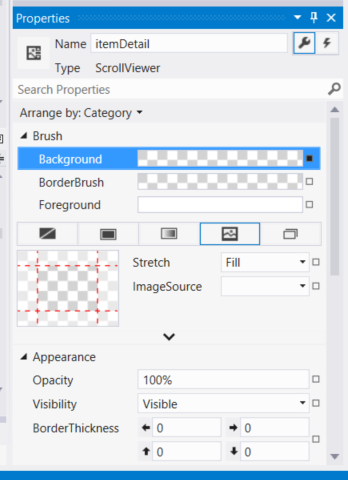
Now, in the properties windows select BRUSH and Click the IMAGE BUTTON (you might have to resize the right bar to see the image source button)
Click on the ImageSource arrow down
Your picture is now visible and it should cover the entire background of the app. notice that once you dragged the image into the assets folder in Visual Studio, you also move the image file to a different folder on the disk. You may delete the orginal picture in your temporary folder.
This is how you create Your Split Page app by just replacing code.
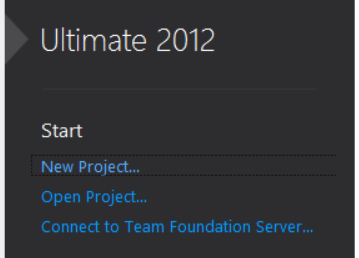
1. Run Visual Studio – New Project
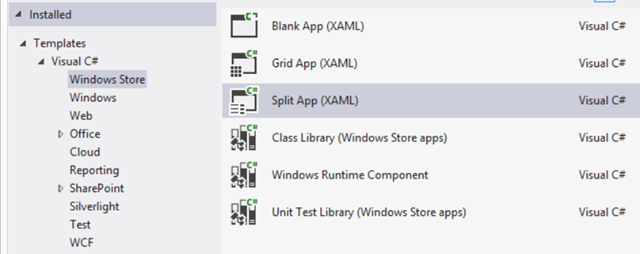
2. Select C# (does not really matter, you will not write code anyhow)
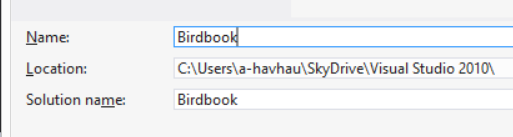
3. Give your app a name
4. Click Ok
Now you have actually created all that is needed for the app in terms of code. If you press run, the app will start. Remember, never mess with app name or solution name. Give it one name and stick with it.
FIND MATERIALS
————————————
Following need to be replaced:
Group Pictures (Bird category) USE BING
Item Pictures (Birds) – USE BING
App Logo – USE BING AND PAINT
Information about the bird – USE BING
Capabilities and Language – JUST FOLLOW MY GUIDE
GROUP PICTURES
————————————
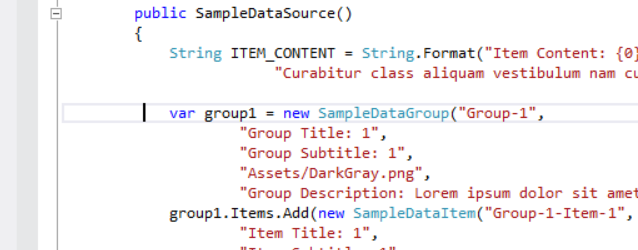
Navigate to the SampleDataSource.cs and find this code in your sample app, about line 262
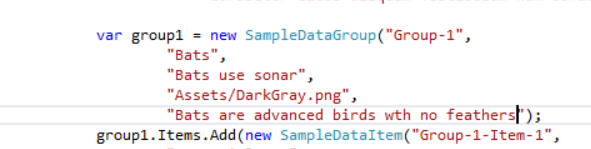
Find this text and start to replace it:
Like this:
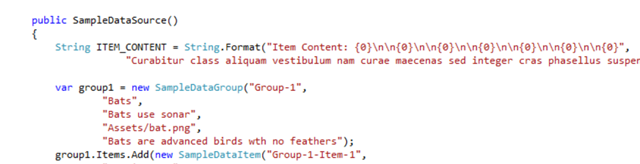
Run the project to see your results:
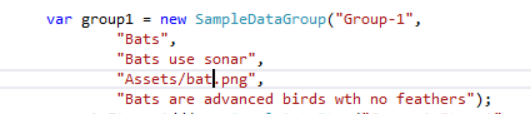
Include a picture in the asset folder by dragging and dropping a picture from a folder on your computer to the “Asset” folder in the Solution Explorer
Then refer to that picture in the code like this: (remember to check if its a .jpg or .png)
ITEM PICTURES
————————————
Go about the same way for individual items.
find this code:
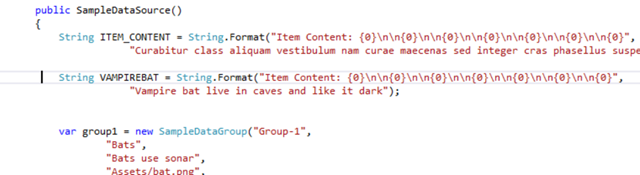
Create your first bird, e.g. Vampirebat (always use one word, no spaces or special characters)
Notice here that I have changed ITEM_CONTENT to VAMPIREBAT this word now refers to a string a little further up. It is in this string that you write in depth information about the Vampire Bat. As is now, the code will not run. Find this string now:
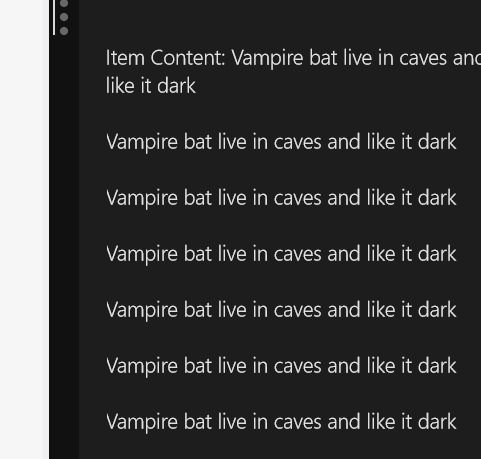
Now, add the similar string VAMPIREBAT do not remove the ITEM_CONTENT since all the “empty templates” require this string. (Run code and click on bats)
Notice the repetition,
Further above in the VAMPIREBAT string you see a lot of \n
\n = breaks the line
\n\n = a new line and a space between
{0} = means the content of the first line
INFORMATION ABOUT BIRD
————————————
Find a website with info, e.g. Wikipedia.com, copy a paragraph and paste it here:
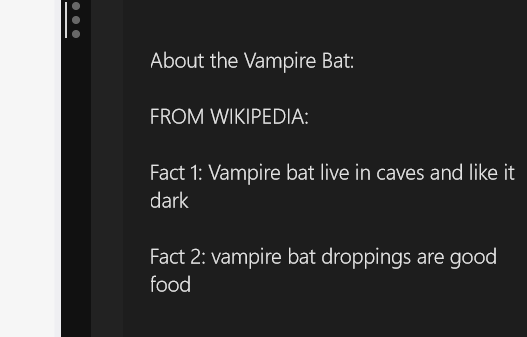
Find an other paragraph and adjust the string as in the picture, then run the code.
(Notice that the “About vampire bat” text overlaps the sentence of fact 1.)
This can all be fixed with adding some extra \n like this: (Notice also how i have entered static information into the string)
RUN CODE:
NOW, see the pattern? Start Coding and replace all the categories and content.
FUGLEBOKA:
APP LOGO
————————————
Find a Picture for your app, preferably a white background With a logo in the center and best to use a square picture.
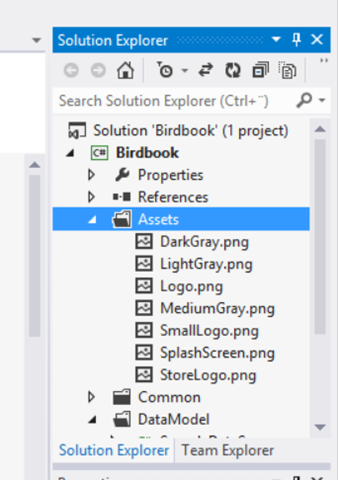
If you want to change the app logo when you start the app go to Assets in Solution Explorer and find the files there. Notice you want to change the colors and content off all these files by opening in Paint and copy pasting from Bing. WARNING: DO NOT CHANGE SIZE, keep the file size to the same e.g. 30×30 or 50×50. If you mess that up, the app wont run. (notice that submission in the store require you to change all but LightGray & DarkGray)
CAPABILITIES AND LANGUAGE
————————————
Before you can submit your app, there are two things to make sure you have entered correctly.
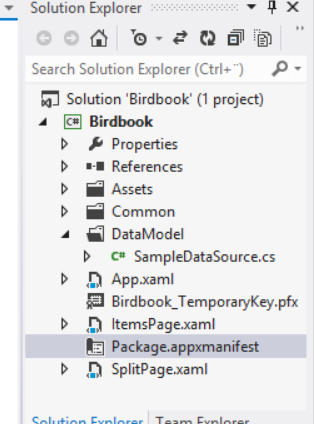
Find this in your solution explorer:
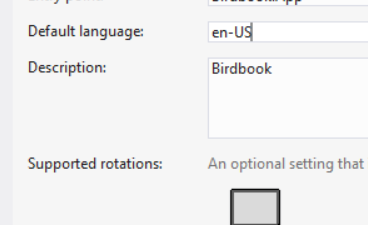
Under language make sure it reflect language you write information in or your app will not pass certification
(No-nb for Norwegian apps)
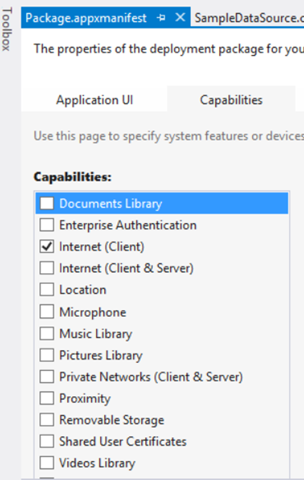
Select Capabilities and UNCHECK everything or your app will not pass certification
Windows 8 is about, time to start developing my first Win8 App! Lets just sum it up here:
1. I dont understand code
2. I understand copy/paste
3. I have a tiny understanding of HTML
So, how do you make a Windows 8 App without being a CODE NINJA? Lets start:
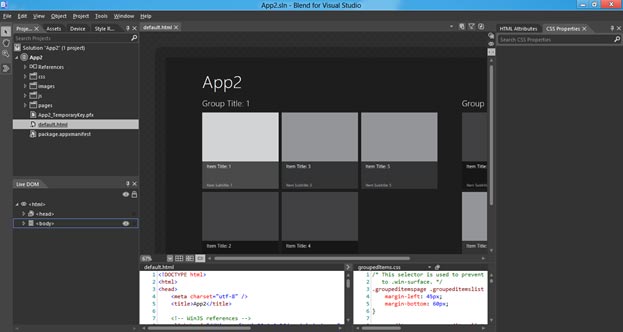
1. You need Expression Blend (this is where I will make all Objects and stuff)
2. You need Visual Studio (This is becasue most examples use code and its easiest to copy paste in VS)
3. You need Win8 SDK With some cool templates
find the SDK here: http://msdn.microsoft.com/en-us/windows/apps/br229516
First:
You will need the Windows Phone Toolkit. Its here: http://silverlight.codeplex.com/ and select one of the Download options:
Silverlight for Windows Phone Toolkit – Aug 2011.msi
Second:
Install the package
Third:
Connect Expression Blend to the Toolkit!
This is how you do it:
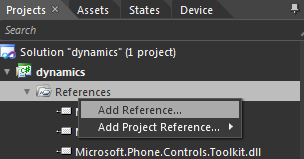
Add a reference to your project by right clicking on references.
then browse here to find the reference you need to add.
path of the windows phone toolkit
Forth:
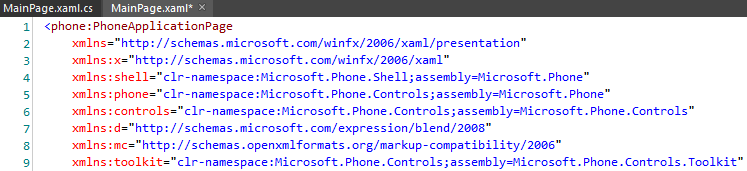
Add a reference in the MainPage.xaml
Select “code view” – dont be afraid, we are just going to copy paste.
Add this line of code to the start: xmlns:toolkit=”clr-namespace:Microsoft.Phone.Controls;assembly=Microsoft.Phone.Controls.Toolkit”
The reference you need to add in MainPage.xaml
Fifth:
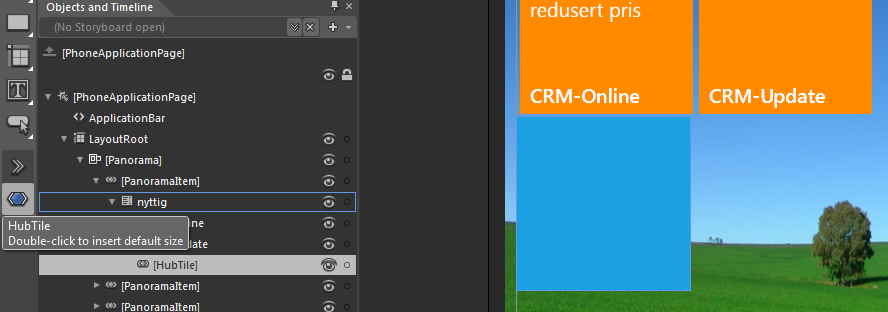
Now just start adding HubTiles.
You find the HubTiles here
this is where you find the HubTile controlJust double click on a HubTile to add it to a list on e.g. a panoramic app
Sixth and finally:
Now, to add content to the HubTile you have to use the “code view” dont be afraid, its just to add text! look at my sample below. You find the code in the MainPage.xaml
A screen snip of all the code in one set of LiveTiles with and without content.
The art of making a Windows Phone App with little or no coding at all.
Index: Code sample Step 1 – Find the object you want to click on. You find this object in the “Objects and Timeline” Step 2 – Select the Item and click the “Event button” Step 3 – Create touch tap event Step 4 – Copy/Pasta code
How to navigate from your app into a website using your phone browser.
Here is a picture of what happens in my app:
Step 1 inside the app
Step 2 in the click goes to a website
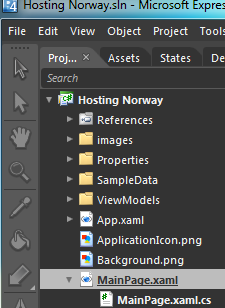
Mainpage.xaml og mainpage.cs you find here in Expression blend
So, what is going on.
First, for all pro coders here is the what I did: -dont panic, its just copy pasta, I promise that it is easy
In the mainpage.XAML file: StackPanel x:Name=”mms” MouseLeftButtonUp=”mms_click” The StackPanel contains 4 elements, a picture and three text boxes, so when i click on it with it starts an event which i called “mms_click”you can call it anything (e.g. awsomeclickbuttonlol), but remember it for the next step
Ok, breathe…
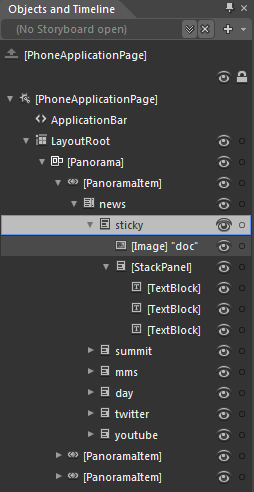
this is how you do it, Step 1 – Find the object you want to click on. You find this object in the “Objects and Timeline”
This is a list over all forms, figures, textblocks and pictures which you may can click on
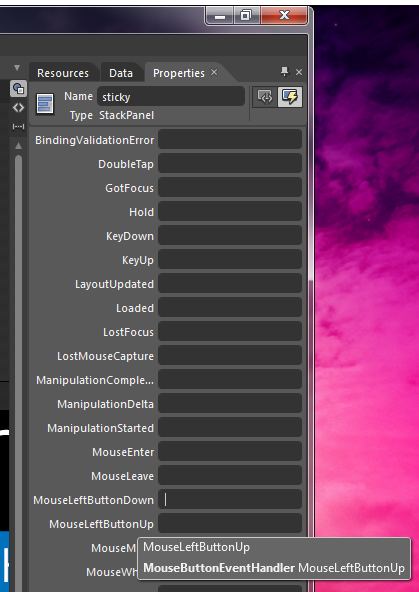
Step 2 – Select the Item and click the “Event button”
Now, there are some options where you have to think logically for a moment.
1. Do I want to launch the browser as soon as I tap the box or do I want it to launch?
2. If you choose MouseLeftButtonDown it will start as soon as you put your finger on it, so if you scroll or just rest your finger accidentally it will launch
3. if you choose MouseLeftButtonUp you may rest your finger on the object and even scroll. it will only launch if you tap the object. this is my reccomended option
you find the event button here
you only use MouseLeftButtonDown or MouseLeftButtonDown – so easy!!!
Step 3 – Create touch tap event
Use your prefered name for the event, but remember you can only use this name once. This name will then execute only one designated action.
You may choose between two different types of Clicks, I reccomend MouseLeftButtonUp
Now, dont panic because this will happen automatically after you enter a name.
the file mainpage.cs.xaml will open and display…. CODE… DO NOT PANIC – its only copy/paste from this aricle that is needed.
Step 4 – Copy/Pasta code
Now you see the green line, replace this line with the code supplied above and just change the url to what you want the target to be.
This code window will open automatically once you entered a name for the eventRelax and just copy pasta these three lines over the green one, no code needed
Then:
1. Save the Project
2. Click Project – Build
3. Click Project – Run
The emulator will open and once its open your app starts loading. Once loaded try clicking on the Object you just created a click event on.
I made this entire object clickable
For more code help, use interwebs and copy pasta.
I used this guy for reference, but did not understand anything untill the two code examples in the end. I did some modification on the code to make it easier in my example. http://chriskoenig.net/2010/05/16/wp7-part-3-navigation/
The art of making a Windows Phone App with little or no coding at all.
Welcome to this tutorial for those of you that just want to create something fast and easy.
If you have used PowerPoint or shapes/figures in Word, then you are set for this tutorial
You have to create an account for Marketplace in order to release your app. The price in Norway is 819NOK.
This process takes some time and require a credit card. Once completed the account validation takes some time aswell.
Start this before you code so there is no snag when you want to release your app









 )
)










 Håvard Siegel Haukeberg
You must be logged in to post a comment.