Activation issue with the Windows RT 8.1 Preview. Microsoft Support released a script to fix the issue. (download from my OneDrive below). The issue should also be fixed in a newer update, so running Windows Update may also fix the issue.
1. Please save the attached ZIP file (RTactivation.ZIP) to your Surface.
2. Browse to the location of where the ZIP file is saved (the Downloads folder by default).
3. Right click (or tap and hold) on the ZIP file and select Extract. By default this will create a new folder with the same name as zipped file.
4. Inside the new folder is a file named RTactivation.cmd – it will have what looks like a gear as its icon. Right click (or tap and hold) on the file and select Run as Administrator.
You will see your Surface switch to the Desktop and a black command window open up. The script will automatically run a series of commands, so you will see text appear in the window, a pause, then more text, then a pause, etc. Just let the script run until the script completes and the black command window closes automatically.
After the script completes, restart your Surface and when Surface connects to the internet, activation should be fixed
As per 10.02.2014 Multi-factor authentication is avaliable, but……
Background: I could not Connect to Lync 2013 on my user with Multifactor Authentification (this was before 2factor was Integrated into 365). I could not understand the problem and after raising a Ticket the support technician asked me to move the user over to an other domain and back to get reprovisioned for Lync. THEN it started. Multi-factor authentificaiton was released that same day and now, none of my clients or apps would connect. I hastely E-mailed support and you know, they called me back within 15 mins! WOW. Finally after 2 hours on the phone with Support we figured it out! Multi-Factor does not allow apps or clients anymore to Connect without a app password. Duh 😦
Your Apps such as PowerShell, Outlook 2013, Lync 2013, Lync App, Windows Phone, Mail-App and most other apps will not work as usual. This is because they do not support Multi Factor Authentification:
From TechNet:Non-browser apps, such as Microsoft Outlook and Microsoft Lync, currently do not support multi-factor authentication. Multi-factor authentication is enabled per user. This means that if a user has been enabled for multi-factor authentication and they are attempting to use non-browser clients, such as Outlook 2013 with Office 365, they will be unable to do so. An app password allows this to occur. An app password, is a password that is created within the Windows Azure portal that allows the user to by-pass the multi-factor authentication and continue to use their application.
The Solution: App Passwords!
The following is a list of applications that support App Passwords.
Office Subscription
Outlook
Excel
EAS clients
Lync
Office 15
Word
POWERSHELL IS NOT SUPPORTED (don’t use 2factor on Your admin account)
NOTE, everything else you want to Connect to do NOT support App pasword, hence you can not connect to the Office 365 With other Apps than this.
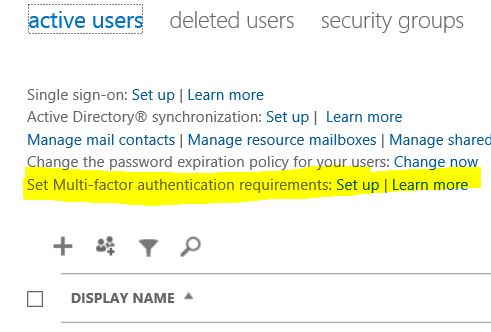
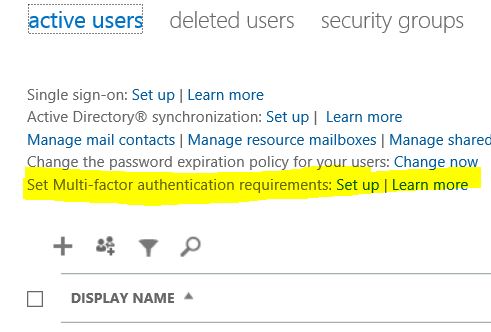
To set up App Password go here: (make sure you have turned on Multi Factor Authentification)
From TechNet: When your account is enabled for multi-factor authentication, you will not be able to use non-browser applications such as Microsoft Outlook, Lync, and Windows PowerShell because these clients do not support multi-factor authentication. In order to continue to use your applications, you must set up App Passwords for your clients. To create or change app passwords go to http://aka.ms/mfasetup. For additional information about app passwords, see App Passwords with Windows Azure Multi-Factor Authentication.
TIPS:
1. App passwords require a new IT strategy.
2. App passwords is only displayed once, so if you forget you have to generate a new one.
3. Generate one password per App
4. Create a Separate PowerShell Admin account
You can NOT set a personal App Password at the moment.
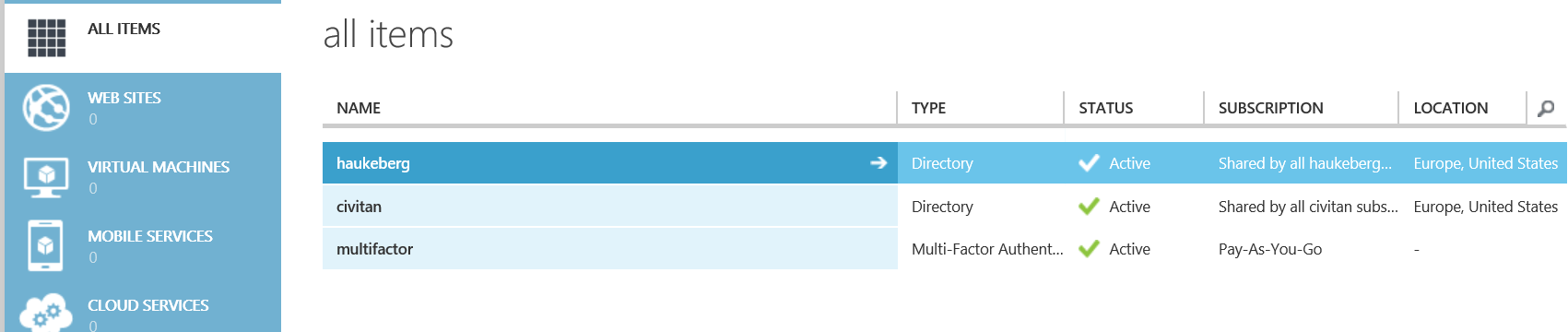
This is where you enable Multi-factor Authentification
Remember to “Enforce” the policy after you enable 2factor
So, when I use my computer I like that it runs fast, cool and quiet.
All of a sudden disk starts whirr’ing and the system responds slower. Whats up?
Scheduled Windows Intune Endpoint Protection full scan is whats up.
Unfortunately for Intune, it can’t run while Your computer is off and since most People sleep their computer, they use it while its on.
Lets turn that stuff off…
Navigate to: http://manage.microsoft.com
Policies->Add New Policy->Windows Intune Agent->Tick: Create and Distribute Custom Policy->Create Policy
Name: Stop Scanning me
Search Plan -> Uncheck Both
Click “Save Policy”
On Promt->yes
Add Your groups->Click Ok
Tip: Also increase the time which you can delay restart after updates have been Applied to: 30 minutes
If you have a Device with low Storage capacity like a 32gb Surface, you can plug in a MicroSD card with up to 64gb and extend the Library on Your Device.
What it does:
Sets Library location on files, videos and Pictures to the SD card by default
Allow for Storage of any type of files on SD card
What it does NOT:
Automatically move Your files existing files
Allow apps to be stored there
Allow Skydrive to be stored there
Once you plugged in the SD card og to: Charms->Settings->PC and Devices->Devices
Click the button once the SD card is inserted and check all file types
Did you just install Windows 8 Enterprise on Your Surface Pro?
If Your machine is not domain-joined or you do not have a KMS server, you can activate Your enterprise installation With a MAK-key. This is usually if you have a MSDN or Technet key and want to test out something.
its easy:
Press: Win key
Type: CMD Right Click on Command Promt and Select “Run As Administrator” Then type: slmgr.vbs /ipk<windows key>
Your machine is now activated and configured as a KMS (Key Management Service) host.
1. Find 2. Save Locally 3. Create a folder in Visual Studio 4. Import into Visual Studio 5. Put Picture in objects
—FINDING PICTURES— Just bing them
—SAVE LOCALLY— Your Pictures need to be saved in a temporary folder and this folder has no Connection to the App
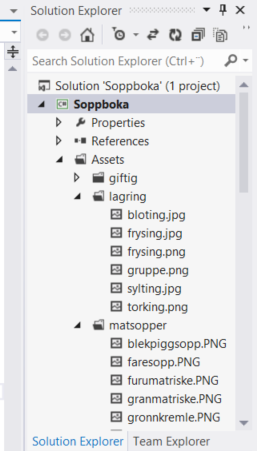
—CREATE FOLDER IN VISUAL STUDIO— Notice the folder structure in this App. ALWAYS put folders in the Assets folder (makes it easier) Right click on Assets to create more folders.
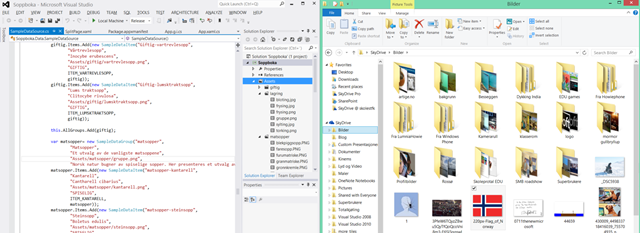
—IMPORT INTO VISUAL STUDIO— Single Click on the folder you want the picture to be in (here i clicked on Assets) Then Drag and Drop the picture from your folder to the folder in Visual Studio.
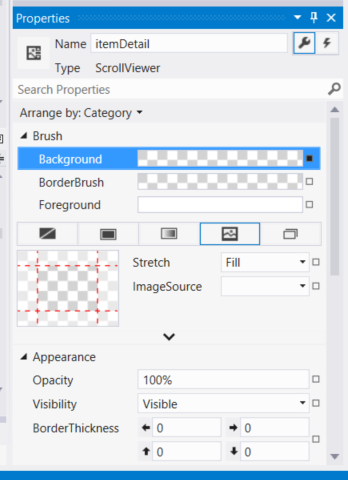
—PUT PICTURE ON OBJECTS— Click on SplitPage.xaml to load the designer Click the Object you want to fill with a picture (Here i clicked on the background):
Now, in the properties windows select BRUSH and Click the IMAGE BUTTON (you might have to resize the right bar to see the image source button)
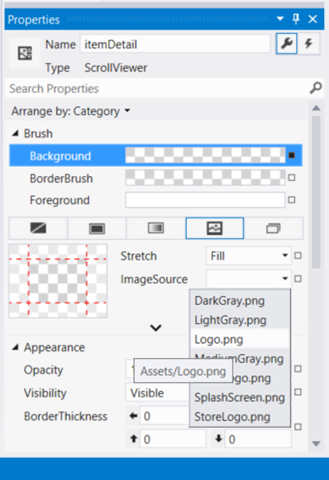
Click on the ImageSource arrow down
Your picture is now visible and it should cover the entire background of the app. notice that once you dragged the image into the assets folder in Visual Studio, you also move the image file to a different folder on the disk. You may delete the orginal picture in your temporary folder.
This is how you create Your Split Page app by just replacing code.
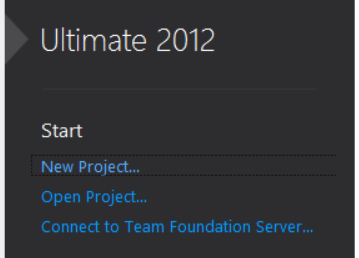
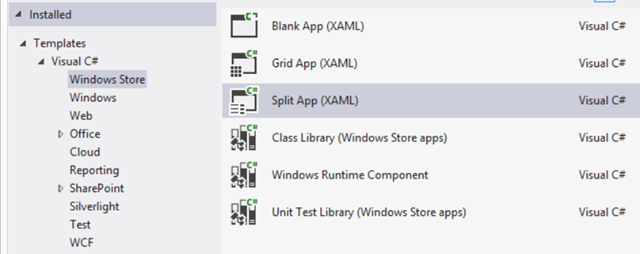
1. Run Visual Studio – New Project
2. Select C# (does not really matter, you will not write code anyhow)
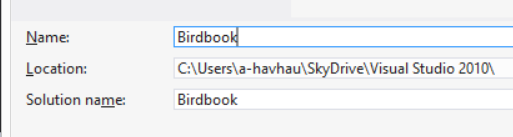
3. Give your app a name
4. Click Ok
Now you have actually created all that is needed for the app in terms of code. If you press run, the app will start. Remember, never mess with app name or solution name. Give it one name and stick with it.
FIND MATERIALS
————————————
Following need to be replaced:
Group Pictures (Bird category) USE BING
Item Pictures (Birds) – USE BING
App Logo – USE BING AND PAINT
Information about the bird – USE BING
Capabilities and Language – JUST FOLLOW MY GUIDE
GROUP PICTURES
————————————
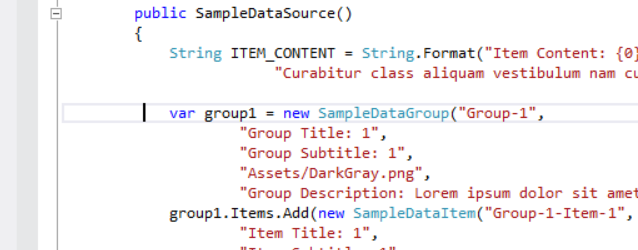
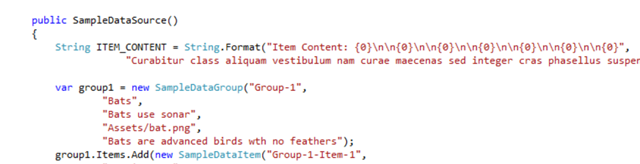
Navigate to the SampleDataSource.cs and find this code in your sample app, about line 262
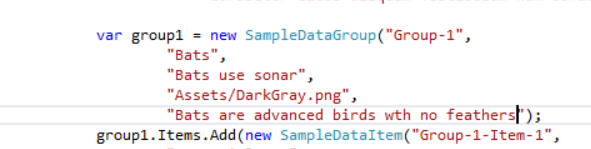
Find this text and start to replace it:
Like this:
Run the project to see your results:
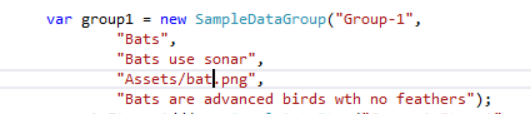
Include a picture in the asset folder by dragging and dropping a picture from a folder on your computer to the “Asset” folder in the Solution Explorer
Then refer to that picture in the code like this: (remember to check if its a .jpg or .png)
ITEM PICTURES
————————————
Go about the same way for individual items.
find this code:
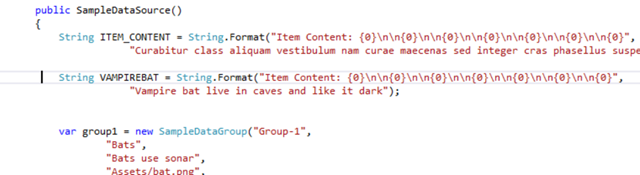
Create your first bird, e.g. Vampirebat (always use one word, no spaces or special characters)
Notice here that I have changed ITEM_CONTENT to VAMPIREBAT this word now refers to a string a little further up. It is in this string that you write in depth information about the Vampire Bat. As is now, the code will not run. Find this string now:
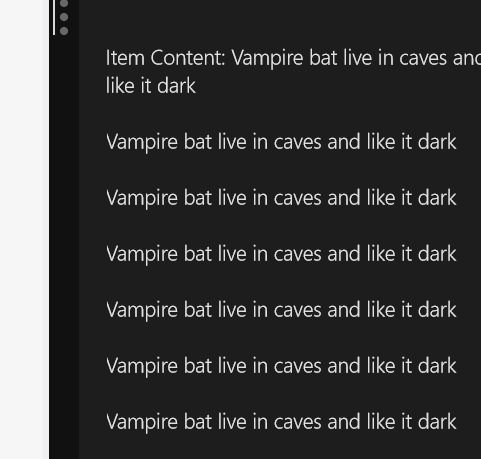
Now, add the similar string VAMPIREBAT do not remove the ITEM_CONTENT since all the “empty templates” require this string. (Run code and click on bats)
Notice the repetition,
Further above in the VAMPIREBAT string you see a lot of \n
\n = breaks the line
\n\n = a new line and a space between
{0} = means the content of the first line
INFORMATION ABOUT BIRD
————————————
Find a website with info, e.g. Wikipedia.com, copy a paragraph and paste it here:
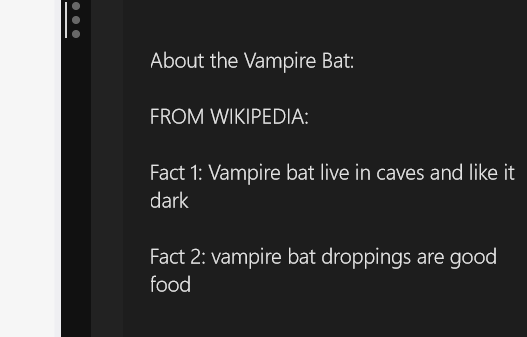
Find an other paragraph and adjust the string as in the picture, then run the code.
(Notice that the “About vampire bat” text overlaps the sentence of fact 1.)
This can all be fixed with adding some extra \n like this: (Notice also how i have entered static information into the string)
RUN CODE:
NOW, see the pattern? Start Coding and replace all the categories and content.
FUGLEBOKA:
APP LOGO
————————————
Find a Picture for your app, preferably a white background With a logo in the center and best to use a square picture.
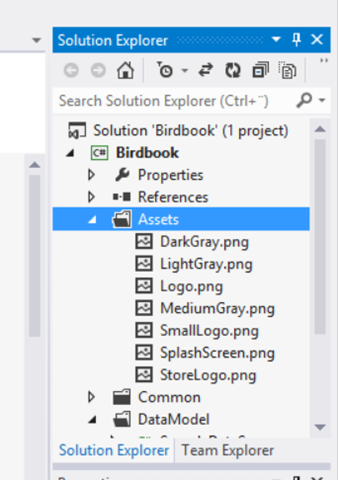
If you want to change the app logo when you start the app go to Assets in Solution Explorer and find the files there. Notice you want to change the colors and content off all these files by opening in Paint and copy pasting from Bing. WARNING: DO NOT CHANGE SIZE, keep the file size to the same e.g. 30×30 or 50×50. If you mess that up, the app wont run. (notice that submission in the store require you to change all but LightGray & DarkGray)
CAPABILITIES AND LANGUAGE
————————————
Before you can submit your app, there are two things to make sure you have entered correctly.
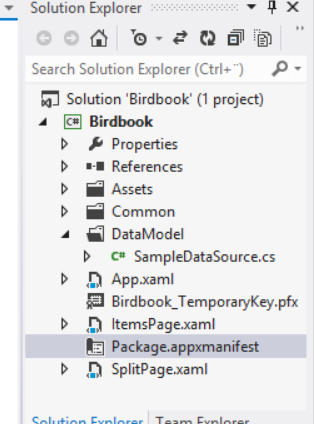
Find this in your solution explorer:
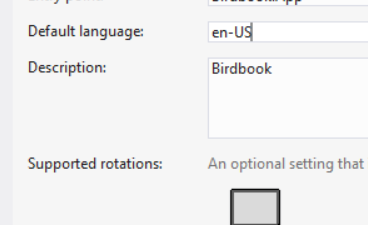
Under language make sure it reflect language you write information in or your app will not pass certification
(No-nb for Norwegian apps)
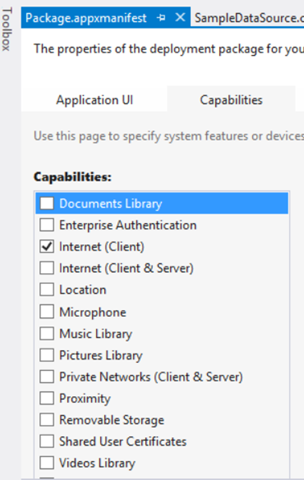
Select Capabilities and UNCHECK everything or your app will not pass certification



















 Håvard Siegel Haukeberg
You must be logged in to post a comment.